Featured, google analytics

Using Data Studio for Google Analytics Alerts

Ever since Data Studio released scheduling, I’ve found the feature very handy for the purpose of alerts and performance monitoring.

Prior to this feature, I mostly used the in-built Alerts feature of Google Analytics, but I find them to be pretty limiting, and lacking a lot of sophistication that would make these alerts truly useful.

Note that for the purpose the post, I am referring to the Alerts feature of Universal Google Analytics, not the newer “App+Web” Google Analytics. Alerts in App+Web are showing promise, with some improvements such as the ability to add alerts for “has anomaly”, or hourly alerts for web data. 

Some of the challenges in using Google Analytics alerts include:

You can only set alerts based on a fixed number or percentage. For example, “alert me when sessions increase by +50%.”

The problem here is that if you set this threshold too low, the alerts will go off too often. As soon as that happens, people ignore them, because they’re constantly “false alarms.” However, if you set the threshold too high, you might not catch an important shift. For example, perhaps sessions dropped by -30% because of some major broken tracking, and it was a big deal, but your alert didn’t go off.

So, to set them at a “reasonable” level, you have to do a bunch of analysis to figure out what the normal variation in your data is, before you even set them up.

What would be more helpful? Intelligent alerts, such as “alert me when sessions shift by two standard deviations.” This would allow us to actually use the variation in historical data, to determine whether something is “alertable”!

Creating alerts is unnecessarily duplicative. If you want an alert for sessions increase or decrease by 50%, that’s two separate alerts you need to configure, share with the relevant users and manage on-going (if there are any changes.)

Only the alert-creator gets any kind of link through to the UI. You can set other users to be email recipients of your alerts, but they’re going to see a simple alert with no link to view more data. On the left, you’ll see what an added recipient of alerts sees. Compare to the right, which the creator of the alerts will see (with a link to the Google Analytics UI.)

The lack of any link to GA for report recipients means either 1) Every user needs to configure their own (c’mon, no one is going to do that) or 2) Only the report creator is ever likely to act on them or investigate further.

The automated alert emails in GA are also not very visual. You get a text-alert, basically, that says “your metric is up/down.” Nothing to show you (without going in to a GA report) if there’s just a decrease, or if something precipitously dropped off a cliff! For example, there’s a big difference between “sessions are down -50%” because it was Thanksgiving — versus sessions plummeting due to a major issue.

You also only know if your alert threshold was met, versus hugely exceeded. E.g. The same alert will trigger for “down -50%”, even if the actual value is down -300%. (Unless you’ve set up multiple, scaling alerts. Which… time consuming…!)

So, what have I been doing instead? 

As soon as Data Studio added the ability to schedule emails, I created what I call an “Alerts Dashboard.” In my case, it contains a few topic metrics, for each of my clients using GA. (If you are client-side, it could, of course, be just those top metrics for your own site.) You’ll want to include, of course, all of your Key Performance Indicators. But if there are other metrics in particular that are prone to breaking on your site, you’d want to include those as well.

Why does this work? Well, because human beings are actually pretty good pattern detectors. As long as we’ve got the right metrics in there, a quick glance at a trended chart (and a little business knowledge) can normally tell us whether we should be panicking, or whether it was “just Thanksgiving.”

Now to be clear: It’s not really an alerts dashboard. It’s not triggering based on certain criteria. It’s just sending to me every day, regardless of what it says.

But, because it is 1) Visual and 2) Shows up in my email, I find I actually do look at it every day (unlike old school GA alerts.)

On top of that, I can also send it to other people and have them see the same visuals I’m seeing, and they can also click through to the report itself.

So what are you waiting for? Set yours up now.

Analysis, Conferences/Community, Featured, google analytics, Reporting

Go From Zero to Analytics Hero using Data Studio

Over the past few years, I’ve had the opportunity to spend a lot of time in Google’s Data Studio product. It has allowed me to build intuitive, easy-to-use reporting, from a wide variety of data sources, that are highly interactive and empower my end-users to easily explore the data themselves… for FREE. (What?!) Needless to say, I’m a fan!

So when I had the chance to partner with the CXL Institute to teach an in-depth course on getting started with Data Studio, I was excited to help others draw the same value from the product that I have.

Perhaps you’re trying to do more with less time… Maybe you’re tearing your hair out with manual analysis work… Perhaps you’re trying to better communicate your data… Or maybe you set yourself a resolution to add a new tool to your analytics “toolbox” for 2020. Whatever your reasons, I hope these resources will get you started!

So without further adieu, check out my free 30 minute webinar with the CXL Institute team here, which will give you a 10-step guide to getting started with Data Studio.

And if you’re ready to really dive in, check out the entire hour online course here:


Adobe Analytics, Featured

Creating Time-Lapse Data via Analysis Workspace

Sometimes, seeing how data changes over time can inform you about trends in your data. One way to do this is to use time-lapse. Who hasn’t been mesmerized by a cool video like this:

Credit: RankingTheWorld – https://www.youtube.com/watch?v=8WVoJ6JNLO8

Wouldn’t it be cool if you could do something similar with Adobe Analytics data? Imagine seeing something like the above time-lapse for your products, product categories, campaign channels! That would be amazing! Unfortunately, I doubt this functionality is on the Adobe Analytics roadmap, but in this post, I am going to show you how you can partially create this using Analysis Workspace and add time-lapse to your analytics presentations.

Step 1 – Isolate Data

To illustrate this concept, let’s start with a simple example. Imagine that you have a site that uses some advanced browser features of Google Chrome. It is important for you to understand which version of Chrome your website visitors are using and how quickly they move from one version to the next. You can easily build a freeform table in Analysis Workspace that isolates visits from a bunch of Google Chrome versions like this:

Here you can see that the table goes back a few years and views Visits by various Chrome versions using a cross-tab with values from the Browser dimension.

Step 2 – Add a Chart Visualization

The next step is to add a chart visualization. I have found that there are only three types of visualizations that work for time-lapse: horizontal bar, treemap and donut. I will illustrate all of these, but to start, simply add a horizontal bar visualization and link it to the table created above:

When you first add this chart visualization, it may look a bit strange since it has so much data, but don’t worry, we will fix it in a minute. Once you add it, be sure to use the gear icon to customize it so it has enough rows to encompass the number of items you have added to your table (I normally choose the maximum of 25):

Step 3 – Create Time-Lapse

The final step is to create the time-lapse. To do this, you have to have some sort of software that will allow you to record. I use a Mac product called GIF Brewery 3, but you can use Snagit, Goto Meeting, Zoom, etc… Once you have selected how you want to record the time-lapse, you have to learn the trick in Analysis Workspace that allows you to cycle through your data by week. The trick is to click on the cell directly to the right of the first time period (week of July 2, 2017 in my example) and then use your left arrow to move one cell to the left. This will allow you to select the entire first row as illustrated here:

Once you have the entire row selected, you can use the down arrow to scroll down one row at a time. Therefore, if you start recording, select the cell to the right of the first time period, select the row and then continue pressing the down arrow, you can stop the recording when you get to the end. Then you just have to clean it up (I cut off a bit at the beginning and end) and save it as a video file. Using GIF Brewery 3, I can turn these recordings into animated GIFs which are easy to embed into Powerpoint, Keynote or Google Slides.

Here is what the time-lapse for the Chrome browser scenario looks like when it is completed:

Another visualization type I mentioned was the treemap. The process is exactly the same, you simply link the treemap to your table and record the same way to produce something like this:

Venn Visualization

As mentioned above, I have found that time-lapse works best with horizontal bar, treemap and donut visualizations. One other one that is cool is the Venn visualization, but this one has to be handled a bit differently than the previous examples. The following are the steps to do a time-lapse with the Venn visualization.

First, choose the segments and metric you want to add to the Venn visualization. as an example, I am going to look at what portion of all Demystified visits view one of my blog posts and also how many people have viewed the page about the Adobe Analytics Expert Council (AAEC). I start this by adding segments to the Venn visualization:

Next, I am going to expose the data table that is populating the Venn visualization:

Then I use a time dimension to breakdown the table. In this case, I will use Week:

From here, you can follow the same steps to record weekly time-lapse to produce this:

Sample Use Cases

This concept can be applied to many other data points found in Adobe Analytics. For example, I recently conducted a webinar with the Decibel, an experience analytics provider, in which we integrated Decibel experience data into Adobe Analytics to view how many visitors were having good and bad website experiences. We were then able to view experience over time using time-lapse. In the following clip, I have highlighted in the time-lapse when key events took place on the website:

If you want to memorialize the time when your customers officially started ordering more products from their mobile phone than the desktop, you can run this device type time-lapse:

Another use case might be blog readership if you are a B2B company. Often times, blogs are used to educate prospects and drive lead generation. Here is an example in which a company wanted to view how a series of blogs were performing over time. Once again, you simply create a table of the various blogs (in this case I used segments since each blog type had several contributors):

In this case, I will use the donut chart I mentioned earlier (though it is dangerously close to a pie chart, which I have been told is officially uncool!):

Here is the same data in the typical horizontal bar chart:

As a bonus tip, if you want to see a cumulative view of your data in a time-lapse, all you need to do is follow the same process, but with a different metric. You can use the Cumulative formula in the calculated metric builder to sum all previous weeks as you go and then do a time-lapse of the sum. In this blog example, here is the new calculated metric that you would build:

Once you add this to your table, it will look like this:

Then you just follow the same steps to record your time-lapse:

Final Thoughts

These are just a few examples of how this concept can be applied. In your case, you might want to view a time-lapse of your top ten pages, campaign codes, etc. It is really up to you to decide how you want to use it. I have heard rumors that Analysis Workspace will soon allow you to add images to projects, so it would be cool if you could add animated GIFs or videos like this right into your project!

Other things to note. When you use the treemap and donut visualizations, Analysis Workspace may switch the placements and colors when one number increases over the other, so watch out for that. Another general “gotcha” I have found with this approach is that you have to pre-select the items you want in your time-lapse. It would be cool if there were a way to have the Adobe Analytics time-lapses be like the first market cap one shown in which new values can appear and disappear based upon data changes, but I have not yet found a way to do that. If you can find a way, let me know!

Adobe Analytics

Quick Tip: Grouping Items in Analysis Workspace

Recently, I was working with a client who needed to group a bunch of dimension items for an analysis. While this would seem like an easy thing to do in Analysis Workspace, it isn’t as easy as you’d think. Therefore, I am going to share a tip I used to help this client in case it helps any of you out there.

Scenario & Options

Let’s imagine that you have a situation in which a dimension (eVar) has thousands of values and you want to see a grouping of say 25 of those values. The 25 could be based upon the text values of the dimension items or it could be completely random. There are several ways to do this in Adobe Analytics:

Option 1 – SAINT Classifications

One option is to have your Adobe Analytics team use SAINT to classify the values you want into one specific value. If you do that, you can then use the classification value in your reports and that one value will encompass all 25 items that you care about. Unfortunately, this may require work to be done by another team and at large organizations, this can take a while or require approvals.

Option 2 – Manually Build Segment

The second option is to manually build a segment that has the 25 values that you need. Once you have a segment, you can easily see metrics for that segment, which serves as an aggregation of the 25 values you desire. This can be done using the operators available in the segment builder like this:

This method works best if you can use text values to narrow down the values you want. For example, you might want all blog posts that “contain” the phrase “workspace” to be included. Unfortunately, the contains function can produce some false-positives that you might not want to be included in the segment. It also doesn’t allow you to easily pick one-offs that you might want to include. Therefore, this option is good, but not perfect.

Option 3 – Fallout

Another option for grouping dimension items is the fallout report. You can create a blank fallout report that looks like this:

Next, you can use the dimension chevron in the left navigation to view the dimension items and search for the items you want:

Unfortunately, you can only do a basic text search here, which is why I don’t love this option. But if you can isolate the items you want, you can multi-select them and drag them as a group onto the fallout report:

Lastly, you can right-click to build a segment from them grouping you just added to the fallout:

Option 4 – Dimension Filtering

The fourth approach is the one that I tend to use most often. There are great filtering capabilities available for dimensions in Freeform tables in Analysis Workspace. This filtering can be leveraged to aggregate the exact values you want. This approach provides the benefits of options #2 & 3, but offers a bit more flexibility.

To demonstrate, let’s continue with the example that I want to pick a bunch of dimension items (in this example, blog post names) and see aggregate numbers for that grouping of items. To start, I can add the dimension to a Freeform table with Occurrences as the metric to see all values:

Next, you can use the filter function in the dimension header to open the advanced filter option:

From here, you can add any criteria that will help narrow down the items. At this step, be sure to err on the side of including too many values so you don’t accidentally exclude dimension items that you might want. In this case, let’s filter for blog posts written by me (Adam) and that contain the words “workspace,” “eVar,” “training” or “campaign:”

This produces a bunch of dimension items:

If I am happy with all of these items, I can select all of them and right-click to build a segment for these specific items:

However, I could have done that with option #2 above in the segment builder. The advantage of this option is that I now have the ability to hand-pick the items that I want to group. In this case, I can manually select the items I want and again right-click to create a new segment:

After clicking, you will be taken to the segment builder with the selected items added to the segment for you:

After saving the segment, you can use it anywhere in Adobe Analytics. For example, you can view any metrics you want for that grouping of dimension items:

You could also use the new segment to create a “derived” calculated metric:

Summary

Above are a few different options for seeing groupings of items in Adobe Analytics Analysis Workspace. You may end up using all three options in different situations, but if SAINT is not an option, consider the two different ways to create segments for groupings of dimension items

Adobe Analytics

Daily Unique Visitors in Analysis Workspace

Recently, one of the members of our Adobe Analytics Expert Council (AAEC) was lamenting that in the [old] Reports interface of Adobe Analytics, there is a Daily Unique Visitors metric, but that this metric is not available in Analysis Workspace. In the Reports interface, you can add Unique Visitors as a metric, which de-duplicates unique visitors for the currently selected date range, but you can also add Daily Unique Visitors which provides a sum of daily unique visitors for all of the dates in the selected timeframe. Unfortunately, in Analysis Workspace, you can only see the former (Unique Visitors) and there may be times that you want to see daily unique visitors for dimension values. As I have demonstrated in the past, I am on a mission to be able to do 100% of what could be done in the Reports interface in Analysis Workspace, so in this post, I will share a workaround that will allow you to add daily unique visitors to your Analysis Workspace projects.

Daily Uniques in Old Interface

To begin, let’s look at how daily unique visitors works in the old interface. Let’s imagine that you want to see unique visitors and daily unique visitors for a dimension (eVar) in your implementation. For example, let’s look at these metrics for my blog posts:

In this report, I am looking at just one day of data, so the two columns of data are exactly the same. But if I change the date range to be the last seven days, these metrics will start to diverge. The amount of divergence will depend on how often your site has return visitors:

In this case, for the week there have been 129 unique visitors who have viewed my UTM Campaign blog post, but that number rises to 135 if you count unique visitors on a daily basis. If you wanted to view this exact report in Analysis Workspace, you would think that it is as simple as clicking the “Try in Workspace” button shown above. But doing this does the following:

As you can see, the daily unique visitor column is stripped out because Analysis Workspace doesn’t have a notion of daily unique visitors.

Creating Daily Unique Visitors in Analysis Workspace

In order to re-create the old interface seven-day report that has both unique visitors and daily unique visitors in Analysis Workspace, we will have to do a bit of calculated metric and segment gymnastics. While the process is a bit manual, the good news is that it can be set up once and re-used with any dimension in the future.

To start, you have to choose a timeframe for which you’d like to view daily unique visitors. To keep things simple, I am going to assume that I want to see daily unique visitors for seven days. To start, I am going to create seven rolling date ranges. Adobe already provides a date range for Yesterday and Two Days Ago, so in this case, I have created the ones for 3-7 days ago.

Each of the new date ranges will be set up as rolling date ranges being X days prior from today and will look similar to this:

Once you have the seven individual date ranges created, you can create a segment for each. Each segment will simply contain the corresponding date range and be constructed like this:

When you are done, you will have these segments:

Once you have the required date range segments, the final step is to create a new calculated metric that includes a sum of all seven days. This calculated metric will use unique visitors as the metric, but will sum a segmented version of unique visitors for each day. Here is what the seven-day formula would look like:

Using Daily Unique Visitors in Analysis Workspace

So now that we have our seven-day daily unique visitors calculated metric, let’s see how we can use it to re-create the reports from the old interface. As a refresher, here is what the report looked like in the old interface when we looked at seven days of data:

Now,  Let’s add our new calculated metric to the same report in Analysis Workspace:

As you can see, we have successfully duplicated the daily unique visitor metric in Analysis Workspace!

Of course, this process is more manual than I’d like. If you want to see daily unique visitors for thirty days, you would have to create thirty rolling date ranges and thirty segments (and a long calculated metric!), but the good news is that once you have done this, you can use the calculated metric in any dimension report. For example, here is a daily unique visitor report for pages for the last seven days from the old interface:

Here is the same report in Analysis Workspace using our new seven-day daily unique visitor calculated metric:

In case it is helpful, here is a video of how I got from the report in the old interface to the one in the new interface:

Conferences/Community

Digital Analytics Hacks for the Masses

There are never enough hours in an analyst’s day! In my session at Observe Point Validate yesterday, I shared a few random hacks and time-saving techniques, to help you maximize your day. These included cool uses of tools like GA or Adobe Analytics, spreadsheets, data viz solution, automation or SQL.

Hope you enjoy the tips, and I would love to hear any of yours! You can always reach me via Measure Chat, Twitter or email.

Adobe Analytics

Path Breakdowns and Breakdown Trends

In my last post, I shared how you could build segments from website paths using the flow visualization in Analysis Workspace. This was done by right-clicking on a specific path and choosing the “segment” option. In this post, I’d like to share another cool thing you can do by right-clicking within flow visualization paths – path breakdowns. Once you have created a flow report, you can pick a specific flow branch and right-click to see a host of options. In this case, we will use the “breakdown” option that is directly below the “segment” option we used in the last post as shown here:

Once you select the breakdown option, it acts like any other breakdown such that you choose if you want to breakdown the path by dimension, metric, segment or time as shown here:

To illustrate this functionality, I will breakdown the path flow of people going from the home page to my blog index page by the type of device they are using as shown here:

This will produce a table that shows the device type breakdown for the specific flow:

This table shows me that most people are viewing this flow from non-mobile devices. Keep in mind that I could have broken down this flow by any dimension, segment, etc. depending upon the business question I was trying to answer.

From here, I might want to see how this particular flow breakdown is trending over time. Is the percentage of desktop vs. mobile phone vs. tablet pretty consistent or does it vary over time? I can view this by visualizing the data in the newly created table by right-clicking again and choosing a chart type:

In this case, I chose the stacked area chart which shows me my path flow by device type trended by month…

Summary

If you have specific path flows that you want to dig deeper into, using path flow breakdowns is an easy way to see how path flows differ by dimension or segment. And if you want to see the path flow breakdowns over time, you can add visualizations to the resulting data…

Adobe Analytics

Segmenting on Paths in Flow Visualization

Recently, Adobe updated the Analysis Workspace Flow visualization to offer more flexibility, especially when it comes to repeat instances. Many Adobe Analytics users have wanted to abandon the pathing reports in the old interface and rely solely on Flow in Analysis Workspace, but were held back by the fact that repeat instances of values passed into Adobe Analytics would appear multiple times consecutively. This made using Flow difficult at times, but now Adobe has changed Flow visualizations so that repeat instances are disabled by default:

This makes Flow much more useful when it comes to pages and any other dimension for which you want to see sequences of values.

Another thing that this change enables is easier segmentation on paths. There may be times when you would like to view a specific path flow visitors are taking and build a segment for that path to learn more about that cohort of visitors in other Adobe Analytics reports. This is possible by simply right-clicking on any path in the Flow visualization. For example, if I wanted to look at how visitors were navigating from the Analytics Demystified home page to our education page (highlighting some of my upcoming training classes), I can build a simple flow report like this:

From here, all I have to do is right-click on the path I want and Adobe will automatically create a sequential segment for me:

Once I am in the segment builder, I can name it and save it. If I want, I can also tweak it a bit. For example, if I want to see visitors who eventually found the education page within the visit, I can change the sequential segment like this:

Once the segment is saved, I can apply it to any other report in Adobe Analytics. For example, if I wanted to see which companies followed that path, I can use my Demandbase eVar to see the specific companies that might be interested in my education classes (hidden here to preserve their privacy!):

As you can see, creating segments on paths is pretty simple, but can be powerful. I suggest that you pick a few of your Adobe Analytics dimensions, add them to a Flow visualization and then try creating some segment paths.

Adobe Analytics

Setting Metric Targets in Analysis Workspace


One of the lesser-known features in the old Adobe Analytics interface was Targets. Targets allowed you to upload numbers that you expected to hit (per metric) so that you could compare your actual results with your target results. While this feature still exists in the old interface, it doesn’t translate to Analysis Workspace.

Therefore, if you want to compare your current data to a target, you have very limited options. One option is to upload your target to a new Success Event via Data Sources, but since Adobe won’t let you upload Data Sources data for future dates (please vote for this idea to change this!), you can only view targets up to the current date and you have to upload a file every day (which doesn’t sound like much fun!). The other option is to use Adobe’s ReportBuilder Excel add-on. Within Excel, you can create a data block that grabs any metric and then you can manually enter your targets in the spreadsheet and compare them in charts and graphs.

But what if you want to view your targets in Analysis Workspace? That is where you are likely spending all of your time. In this post, I will show you one method, albeit a hack, that will allow you to see metric targets in Workspace that might hold you over until Adobe [finally] allows you to upload Data Sources data into the future or provides another way do targets in Analysis Workspace.

Targets in Analysis Workspace

The first step to seeing targets in Workspace is to use Data Sources. For each metric that you want to add a target, you will need to enable a new numeric Success Event in the admin console. In this example, I will set a target for Blog Post Views, so I will create a new Success Event like this:

Next, you will use Data Sources to import your target, but with a twist. Since you cannot upload Data Sources data into the future, you are going to import your target by day for a time period in the past (i.e. one year prior to the current year). For example, if you want to see a target for Blog Post Views for Jan-Feb 2019, you could upload the targets for those months (by day) using the dates 1/1/18 – 2/28/18 (or another year in the past). I know this sounds strange, but I will explain why later. Your Data Sources set up might look like this:

In this case, I want to be able to see targets by Blog Post Author, so I have also added an eVar to the Data Sources upload. Here is what the upload file would look like for 2019 Jan-Feb Blog Post View targets for the author of “Adam Greco:”

Once you have uploaded the target data, you will have the target numbers you need, but they will each be tied to dates in the past, in this case exactly one year prior:

Next, we want to compare 2019 Blog Post Views to this target. To do this, we will create a freeform table that contains Blog Post Views for this year (I will use Jan-Feb) and narrow them down to “Adam Greco” blog posts using a segment, since that is what our target is based upon:

Next, we are going to add our target to this table, but right after we do that, we are going to use the Date Ranges feature to create a date range for our target timeframe (in the past), which in this case includes the dates of Jan-Feb 2018, where we have uploaded our Data Sources data. As you may recall, when you use Date Ranges in Analysis Workspace, they supersede whatever dates are selected in the Analysis Workspace panel, so this will allow us to see our Target data directly next to our actual 2019 data as shown here:

Next, let’s view our data by week instead of day to make it a bit easier to view and then let’s add a chart to compare the data:

Finally, let’s tidy it up a bit by locking the chart, removing some backgrounds and percentages in the table and renaming the legend in the chart:

When you are done, you will have a report that looks like this:

Now you can see how you are doing for your metric against its stated target. Unfortunately, Workspace shows the dates in the column when you use Date Ranges, so some people might get confused about why it has 2018 dates, but that is beyond my control! You can also hide the table itself to avoid this issue.

Once you have this data, you can manipulate it however you’d like. For example, you can view it by month instead of by week:

Cumulative Function

As if that weren’t cool enough, you can also use the Cumulative Function to see your actual vs. target progress over time. This is my favorite view of the data! To do this, you will create two new Metrics. One will be a cumulative count of your actual metric and the other will be a cumulative count of your target. These will use your main Success Event and your Data Sources Success event respectively. The Metric formulas are shown here:

Once you have created these, you can duplicate your table above, add these metrics and then add a chart as shown here:

When you are done, you will have a report that looks like this that shows how you are doing over time against your Target:

Final Thoughts

So that is my “hack” way to add targets to Analysis Workspace. Again, if Adobe would provide the ability to upload Data Sources data into the future, much of this would be unnecessary, but that is the state of things today. While this seems like a lot of work, it is not too bad, especially if you bear in mind that you should only be setting targets for your most important metrics and you only have to do this once a year. However, keep in mind that Data Sources only lets you upload ninety days of data at a time, so you will have to do multiple Data Sources uploads for each metric.

I hope this helps as a temporary solution…

Adobe Analytics

Fallout Funnels With Date Ranges

Recently, I was working with a client to explain how panels work in Analysis Workspace. Panels in Workspace allow you to embed data visualizations and each panel can have its own segments/dimension filters and/or date ranges. I often use different panels when I want to apply different segments or date ranges to groupings of data visualizations.

For example, let’s say that you have a Fallout report that you want to see for two different weeks. Here is a screenshot of two different panels, within one project, viewed side-by-side that contain different date ranges:

In this case, it looks like it is a normal Workspace project, but I have re-sized two distinct panels and put them next to each other so I could use different date ranges for each fallout. While this works, it takes additional time and project real-estate.

Therefore, I want to show an alternative method of seeing the same data within one Workspace project panel. This method involves using custom date ranges. In Workspace, you can create any custom date ranges you need. These date ranges can be fixed or rolling depending upon your analysis needs. In this case, since I want to see two consecutive weeks, I would create two new [fixed] date ranges like this:

Once I have created these date ranges, I can drag them into a fallout report that contains the dates of both date ranges. In this case, the combined date range is April 8 – April 21, 2018. Below you will see me dragging the newly created date ranges into the fallout visualization (using the hidden drop zone!) that has the dates from both weeks:

When this is done, the final fallout report looks like this:

You can see that the fallout percentages are exactly the same as the ones shown in the side-by-side panels above. But this version uses only one visualization and takes up less space. I also think this is a slightly better way to visualize the differences for each fallout step instead of having to compare them side-by-side.

Just a quick tip to streamline your fallout reports when comparing date ranges…

Adobe Analytics

Training on Analysis Workspace (Part 2)

In last week’s post, I shared some of the areas of Analysis Workspace that confused the students of classes I provided on the product. Most of those issues were things that had to do with some larger implications of the product (i.e. having an eVar and an sProp dimension for the same thing). Many of the things I mentioned in the last post would require Adobe to make some key product changes to address, but the goal of that post was really to help you navigate some potentially tricky items if you are doing training.

In this post, I’d like to focus more on the actual user experience of Workspace itself. These are things that, with my limited experience in product design, seem like items that Adobe could address more easily. Again, I will add the caveat that I am the furthest thing there is from a designer and I don’t purport to know of better ways to create user interfaces. But, what I do know is which things in the UX of Workspace my students could not find or figure out, even after having been shown multiple times. If users can’t find features or easily figure out how to use them, that is a problem, and Workspace is notorious for “hiding” some of the coolest aspects of the product. My hunch is that these features are hidden to reduce clutter, but as I will demonstrate below, in some cases, this reduction of clutter results in confusion and lack of feature usage. Again, this is not a critique of the people making Workspace, which I have already stated I think is amazing, but rather just me being a messenger of things that I saw cause confusion during my training classes in case you are training co-workers internally.

The Hidden Easter Eggs That Are Workspace

As I mentioned, some of the greatest stuff in Analysis Workspace is hidden or not super obvious to users. In Freeform tables, right-clicking opens up many great options that casual users don’t know about. While the 1980’s gamer in me loves the easter egg aspect of Workspace, especially when I can show someone a new feature they didn’t know about, I can tell you after training new folks on the product, they did not think it was as cool as I did! So the first part of this post will cover all of the “hidden” stuff that frustrated my students.

Hidden chevron in dimensions

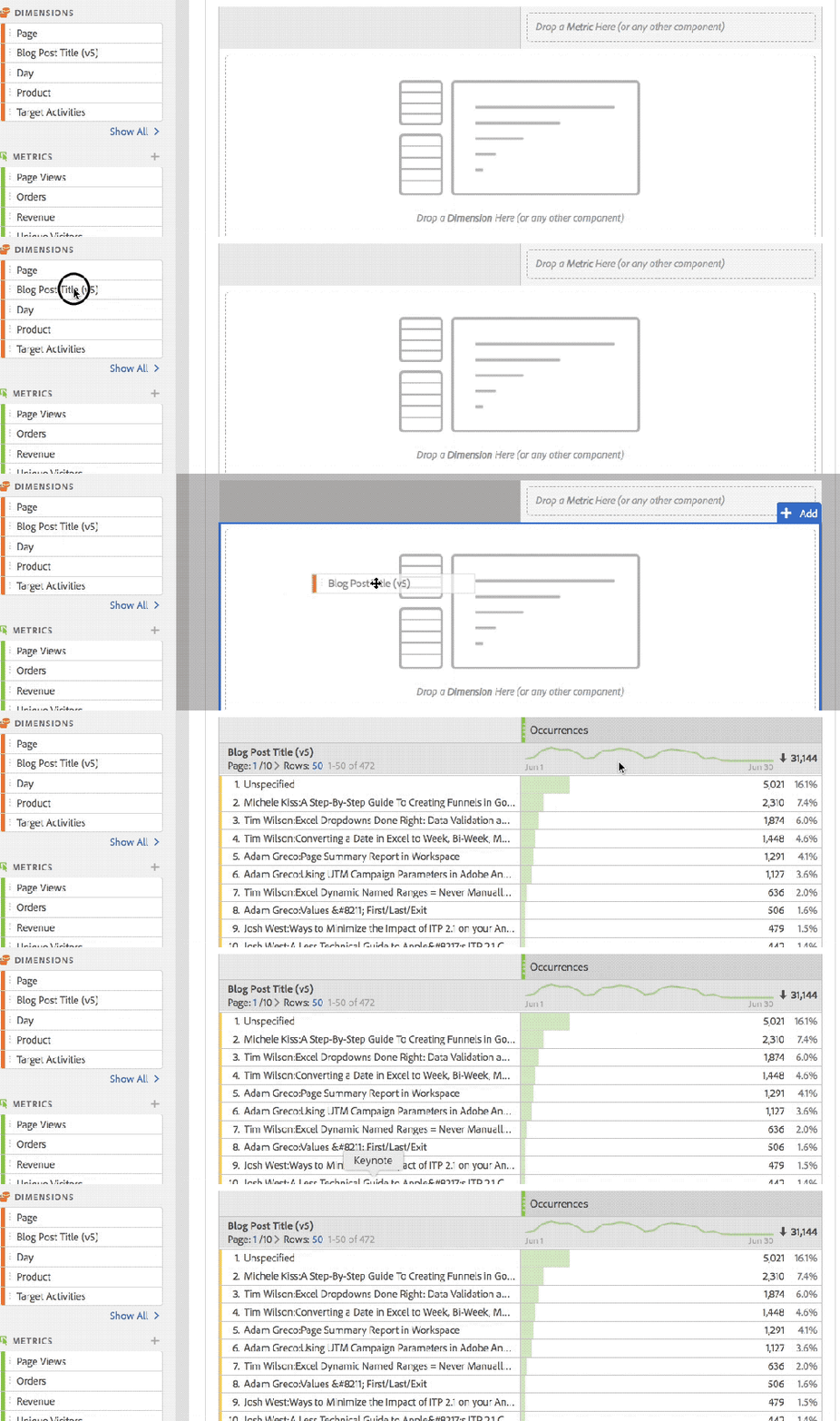
A frequent task when using Workspace is going to the left navigation to view your dimensions (eVars and sProps) in order to find the values that have been collected within each dimension. For example, if you want to see a flow from a specific page, you would look for the page dimension in the left navigation to see its values and then drag over the desired page to the flow visualization. However, when doing exercises, most of my students could not figure out how to find the dimension values. Typically, when they looked at the left navigation and saw the dimensions (like Page), they got stuck. I told them that they needed to hover over the dimension and only then they would magically see a chevron which would then allow them to expand and see the resulting values as shown here:

Soon after, they would forget that the chevron was there and I had to keep reminding them of this. Evenutally, I began referring to this as the “hidden chevron” to jog their memory. They didn’t understand why the chevron couldn’t always be there as a reminder that there is more stuff to be found underneath it. I also had many students thinking that they were supposed to double-click on the dimension to expose its underlying values (which did nothing but select and deselect the dimension in the left navigation). So be on the lookout for this potential confusion from your users as well and you may want to just save time and introduce it as the “hidden chevron” from the start…

Hidden items in visualization header

When I began teaching students that they could copy, edit, duplicate and get links to a visualization by right-clicking, they were excited. However, they soon realized that knowing exactly where to right-click in the header of the visualization was hit or miss.

Eventually, they got it, but they often asked me why there wasn’t a gear icon for the visualization since almost every other thing in Workspace had a gear icon!

While on the topic of the visualization header, let’s discuss the “copy to clipboard” option. Many of my students assumed that this would be an easy way for them to copy the visualization and paste it into a PowerPoint slide to show others in a meeting. Unfortunately, here is what happens when you copy and paste using the Copy to Clipboard option:


It might be handy to have a copy visualization image option here in addition to copying the actual data.

Additionally, some super handy things in the header of the chart visualization include the ability to “lock” the chart to table data and/or to show/hide table data. Unfortunately, both of these options are found in a [very] tiny little dot at the top-left of the visualization as shown here:

While they would eventually learn this, I can’t tell you how many times I was asked: “where is the place that I lock data and hide the table?” Again, I am not sure why these options can’t be part of the gear icon that already exists for charts, but I just mention that you may have to tell your students a few times about the stuff hidden in the chart dots.

Hidden items in Freeform table columns

Freeform tables are often the most popular Workspace visualization. Like Excel spreadsheets, they allow you to see data in a tabular format. In Workspace Freeform tables, there is a way to customize the columns by hovering over the column header and clicking the gear icon. This was another “hidden” feature that users saw me demonstrate, but later could not find. They also could not figure out how to close the window that opened when they clicked the gear icon since there is no “X” there, so I had to tell them that they just had to click away from the box somewhere else. You can see both the hidden gear icon and the lack of a way to close the window here:

Similarly, changing the sort column in Freeform tables requires the user to know to hover their mouse in the exact right place (next to column total metric). Most folks thought that clicking the column heading would sort (as in the old “Reports” UI), but instead, they had to learn to hover in the correct spot to sort…

For both of these items (gear and sort), I assume that the icons are hidden to make the table look cleaner. However, I wonder if there might be a way to have an “edit” mode when building a project that displays all of the icons like there was an edit mode for dashboards in the older interface. Perhaps give users the option of which view they prefer and then people can have the best of both worlds?

Hidden drop zones

One of the coolest parts of Analysis Workspace is that you can drag and drop components all kinds of places and tweak your data. For example, you can drag segments or dimension values into Freeform table columns and in other visualizations. Unfortunately, there are some places that you can drop items that are so well hidden that many users don’t discover them or remember after they have been trained.

One example of this is the Fallout visualization. In this visualization, you can drag segment or dimension values to the top of the report and see the same fallout segmented as shown here:

The only problem is that there is nothing telling you that you can drop things there. I am not sure why there aren’t blank segment/dimension drop zone boxes there like there are for other visualizations (i.e. Flow, Cohort, etc.).

Similarly, in the Flow visualization, users need to know that they can drop a dimension value on top of another to replace it, but there isn’t any type of visual cue that this is possible. Also, if a user wants to add a second dimension to the Flow report, they have to know that there is another hidden drop zone to the right of the right-most column. You can see both of these here:

Don’t get me wrong, these are super-cool features, but I dare you to stand in front of a class of novice users and get them to find these and remember where they are two weeks later!

Other UX Items

Renaming Fallout Steps

When you create a fallout report, there are some cases in which the names of each fallout step can be very long. This can be due to long page names or having multiple items in each step. To remedy this, Workspace provides a way to rename each Fallout step. The weird thing here is that you only seem to be able to edit the Fallout steps if you mouse coming in the downward direction. Double-Clicking on the name, as my students tried to do, didn’t work. Here is a video of me trying to double-click and coming at the name from bottom and top:

Maybe I am just bad with my mouse, but I find it very difficult to get to the exact right spot to edit step names and my students did as well. My hunch is that there has to be a better way to let people rename steps…

Laptop Screen

I normally work on a huge monitor (three in fact!) when I am using Workspace. But when I began conducting training classes, I was on my laptop and my students were as well. I was amazed at how much harder some things in Workspace were when you were on a smaller screen. For example, as I began the class and asked my students to create their first project, they could not figure out how to do it. I couldn’t for the life of me figure out why they couldn’t do something so simple. Then I went over to their laptop and realized that the blue button they needed to click on the screen showing the templates was below the fold and they were not seeing it. They had to know to scroll down to see CREATE button they needed to click. You can see this here:

I had never seen that on my large monitor, but suddenly got it and was prepared for that in subsequent classes. I wonder if there should be a blue button at the top of the screen as well?

Another example of this was when I taught students how to use functions in the Calculated Metric builder. Students kept telling me that they didn’t have any of the functions and eventually I realized that they are so low in the left navigation on a laptop, that students weren’t seeing that they were in the left navigation as shown here:

There were more cases like this that popped up during the training and it made me wonder if those designing the Workspace interface were spending as much time using the tool on laptops as they were on large monitors?

Default Options

The last item I want to discuss is the concept of project default options. When you create a lot of Workspace projects, you tend to come up with your own little preferences on how you’d like to set them up. For me, I always begin a project by using Project – Info & Settings to make the project “compact” and whenever I add pathing-related visualizations (i.e. Flow Fallout), I tend to use Visit instead of Visitor. It would be great if I could tell Workspace that when I create a new project, I want these to be the default instead of having to update these each time. I am sure there are other items I’d like to make the default (i.e. color scheme) as well…

Summary

Once again, I’d like to stress that I love Analysis Workspace and am not a designer. My intention for sharing this information is to alert those who may be doing training of things that they might want to know about before they get the same types of questions I did. At some point, students/users have to just learn where things are and memorize it, but the above items might represent opportunities for Adobe to help everyone to more easily find and use the amazing features in the Workspace product.

Adobe Analytics

Training on Analysis Workspace (Part 1)

Analysis Workspace, the dynamic reporting interface for the Adobe Experience Cloud, is truly an amazing piece of technology. Over the past few years, Adobe has made tremendous strides in reporting by miraculously moving the functionality from the Ad-Hoc app to a similar, but web-based experience. You know the technology is good when, given a choice between the old “Reports” interface and the “Workspace” interface, most users voluntarily migrate over to the new one (even though some Ad-Hoc users are still not happy about Ad-Hoc being sunset).

Currently, I am in the midst of training approximately five-hundred people on Analysis Workspace for a client. When you conduct training classes on a product, you gain a new perspective on it. This includes being amazed by its cool parts and frustrated by its bad parts. You never really know a product until you have to stand up in front of thirty people, two times a day, five days a week and try and teach them how to use it. Since I have done a lot of training, when conducting a class, I can easily see in people’s faces when they get something and when they don’t. I also make mental notes of things that generate the most questions on a consistent basis. As a power user myself, there are many things in Workspace I take for granted that are confusing for those newer to the product and those casual users who may only interact with it a few times per week.

Therefore, the following will share things I observed while training people on Workspace in case it helps you when training your team on Workspace. The items that my students found confusing might also confuse your co-workers, so think of this as a way to know where potential land-mines might be so you can anticipate them. This is by no means meant to be critical of Adobe and the Workspace product, but rather simply an accounting of areas my students struggled with.

So what follows is a laundry list of the things that I noticed confused my students most about Workspace. These were the times I was explaining something and I either got questions, saw confused looks on faces, or had students unable to easily complete hands-on exercises. While I don’t have time in this post to document how I explained the items below, what you find below is just meant to highlight things that you may encounter.

Difference between segments and dimension values

There are many cases in Workspace where you can use segments or specific values of a dimension to narrow down the data you are analyzing. For example, you can apply both to the drop zone at the top of a project panel or within columns of a freeform table. Unfortunately, it isn’t easy to explain to novices that using a Segment can narrow down data by Visitors, Visits, or Hits, but that filtering using a dimension value is limited to applying a Hit filter (unless you edit it and turn it into a segment). This is especially true when using dimension values to create cross-tabs or within Venn visualizations.

Difference between using dimension and dimension values

There are some cases where your users may be confused about whether they should drag over the dimension or the dimension values (using the hidden dimension chevron-more on this next week!). For example, when you use a Flow visualization, even though it is labeled in the boxes, I found many users were confused about the fact that they could only drag the dimension to the Entry/Exit box, but could drag either a dimension or a dimension value to the middle box.

It was also confusing to them that dragging over the dimension picks a dimension value for them, which then has to be replaced with the actual dimension value they want by dropping it on top of the focus value of the flow (with no type of indicator letting them know that it was even possible to drop a page value onto the existing page value).

Pathing visualizations with Visit or Visitor radio button

While on the subject of the Flow pathing visualization, I also received numerous questions about whether they should use the Visit or Visitor option (radio button) for Flow and Fallout. If using Visitor, does it matter if the same visitor repeated steps or took slightly different paths in their second/third visit? Why does Workspace default to Visitor? Is there a way to make Visit the default for all new visualizations?

Count Instances

In the Project – Info & Settings, there is an option to count instances or not. This was very confusing to people and it would be good if Adobe could provide more context around this and what it impacts.

I also tried to avoid conversations about “Repeat Instances” in Flow reports for my novice users since I learned early on that this concept was only really understood by more experienced users.

Default Occurrences Metric

If you make a new freeform table in Workspace and start by dragging over dimensions before metrics, the table defaults to the Occurrences metric.

As you can imagine, explaining what an Occurrence is versus a Page View can be tricky for people who only casually use Adobe Analytics. While I use it as a good interview question, everyday users can find this confusing, so it may be better to default new tables to Page Views or Visits. I also recommended that my students always add metrics to tables before dimensions to minimize seeing the Occurrences metric.

Time Dimensions/Components

When I was doing exercises with students, I would often ask them to make freeform tables and show me the data by day, week or month. So, they would use the left navigation to search and see this:

At this point, they would ask me whether they should use the “orange” version of the week or the “purple” version of the week. This led to a discussion about how Time components alter the dates of the project and usually was a downward spiral from there for novice users! One thing you can do is to use Workspace project curation and share a project that has fewer items to limit what novice users will see.

Viewing the same dimension as eVar and sProp

While this is not really a Workspace issue, I often got questions about cases in which doing a search in the left navigation produced multiple versions of a dimension:

Putting aside the awkward conversation about eVar Instances and the Entry/Exit versions of sProps, this forces a conversation about when to use the eVar version and when to use the sProp version that very few novice users will understand. This is why I encourage my customers to remove as many of their sProps as they can to avoid this confusion. In the “Reports” interface, eVars and sProps are segregated, but in Workspace, they can be seen next to each other in many situations. Again, you can use Workspace project curation and share a project that has fewer items to limit what novice users will see.

Filtering & Column Totals

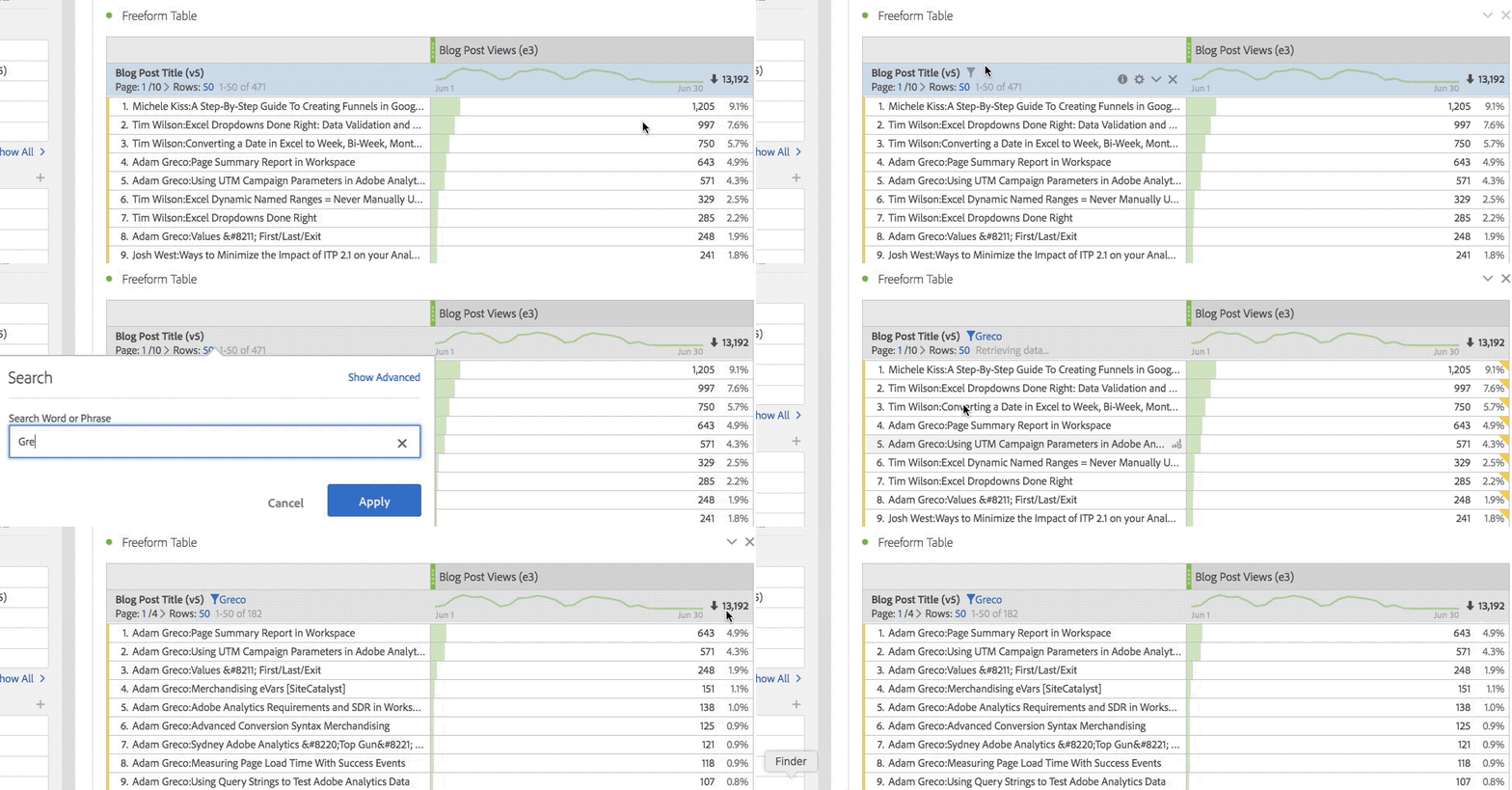
When I explained how users could use the text filter box in the column header of Freeform tables (which they can only see if they hover) to choose the specific values they want to see, users didn’t understand why the column totals didn’t change to reflect the newly filtered values.

They expected that the column totals and the row percentages would change based upon what was filtered. When I explained that this could be done through segmentation versus filtering, I got a lot of head scratches. Perhaps one day, Workspace will add a feature to let users choose if they want to have filter impact column totals and row percentages.

Temporary Segments & Metrics

There are a few places in Workspace where you can quickly create segments or new metrics. The former can be done in the segment area at the top of each panel and the latter can be done by right-clicking on columns. Unfortunately, in both of these cases, the segments/metrics created are “temporary” such that they don’t appear in the left navigation or in other projects (unless you edit them and choose “make public” option). I am sure this feature was added to reduce clutter in the left navigation component area, but as a trainer, it is hard to explain why you should create segments/metrics one way if you want them to be “public” and another way if they are “temporary.” I am not sure of the solution here, but I will tell you that your users may be confused about this as well.

Fallout with Success Events vs. Calculated Metric with Success Events

When doing classes, I often asked students to show me the conversion rate between two Success Events. For example, there might be a Leads Started event and a Leads Completed event and I wanted them to tell me what percent of Leads Started were Completed. To me, this was an exercise to have them show me that they knew how to create a new Calculated Metric. However, I was surprised that on multiple occasions students chose to answer this question by creating a Fallout report that used these two Success Events instead. Unfortunately, the resulting conversion rate metric will not be the same since the Fallout report is a count of Unique Visitors and the Calculated Metric divides the actual Success Event numbers. Sometimes they were close, but I got questions about why the numbers were different. This is just an education thing, but be prepared for it.

Derived Metrics & Cohorts

One of the things I love the most about Adobe Analytics is the ability to create derived metrics. These are Calculated Metrics that have a segment or dimension value associated with them. When I explained Cohort tables to students, they thought they were cool, especially when I showed them how to apply segments to Cohorts. Unfortunately, you cannot use Calculated Metrics (of which derived metrics are a subset) in Cohort reports. Upon learning this, my students astutely pointed out that you can add a metric and a segment to a Cohort table, but you cannot add a derived metric, which is just a metric and a segment combined. They didn’t understand why that would be the case. I am sure there is a valid reason for this, but I just wanted to highlight it as another question you may receive.

Segmentation and Containers

Ever since segmentation was created in Adobe Analytics, it has been something that confused novice users. Since you can add so much to a segment and use so many operators, it can be overwhelming. Teaching segmentation is typically the hardest part of classes on Adobe Analytics and since it is front and center in Workspace, it is unavoidable.

One particularly confusing area is the topic of containers within segments. Most people can [eventually] understand why they need containers when different operators are being used, but what I found in my classes is that understanding that each container can be set to Visitor, Visit, or Hit level can push novice users over the edge! If users add a container, it defaults to a “Hit” container which can produce no data in certain situations like this:

Summary

To summarize, the above items are ones that I found generated the most questions and confusion consistently across many classes with students of varying degrees of experience with Adobe Analytics. When these types of questions arise, you will have to decide if you want to tackle them and, if so, how deep you want to go. For now, I just wanted to share my experience as something to consider before you train your employees on Workspace. In next week’s post, I will outline some of the Workspace UX/Design things that my students struggled with in classes.

Adobe Analytics

Values – First/Last/Exit

One of the concepts in Adobe Analytics that confuses my customers is the notion that each sProp has a normal value, an entry value, and an exit value. When using Analysis Workspace, you might see something like this in the left navigation when filtering:

As you can imagine, this could freak out novice users. More often than not, when I ask users “What do the Entry and Exit version of sProp X represent,” I hear this:

“The Entry version of the sProp is only counted when the sProp is sent a value on the first page of the visit and the Exit version is only counted when the sProp is set on the last page of the visit…”

That seems logical, but unfortunately, it is wrong! In reality, the Entry version of the sProp simply stores the first value that is passed to the sProp in a visit and the Exit version stores the last value that is passed to the sProp in a visit. Instead of Entry and Exit, Adobe should really call these First and Last values of the sProp (but that is probably not high on their list!). If a visit contains only one value, then that value would be the same in the Entry version, the normal version and the Exit version of the sProp. But if the sProp contains several values in the visit, one will be designated as the first (entry) and one will be the last (exit). Here is Adobe’s explanation in the documentation:

However, the larger question is why the heck does Adobe even store all of these extra values? How can you use them? These Entry and Exit values are typically used in pathing-related reports, but in this post, I will share some other ways to take advantage of the confusion that these extra sProp values create.

Example: Internal Search Keyword Analysis

Let’s imagine that you have a site that has a lot of internal searches and keyword activity. You are trying to determine which keywords are doing well and which are not. While you may already be tracking the internal search click-through rates, internal search placement and average internal search position clicked, in this scenario, you want to see how often each internal search keyword used was both the first one searched and the last one searched and what the exit rate was for each keyword. This can all be done using the aforementioned derivatives of the internal search keyword sProp.

To start, let’s create a table that captures the top five internal search keywords (FYI: for an sProp, Occurrences is the same as an Internal Searches success event):

Next, let’s breakdown the top keyword by the Entry version of the sProp to see how often the most popular keyword was also the entry keyword:

Here we can see that 68.5% of the time, the top keyword searched was also the entry (first) keyword. Next, we’d like to isolate the 68.5 % and use it as a metric, so I created a new calculated metric that pulls it into its own column. This is done by dividing Occurrences by the column total using a calculated metric function:

When saved and added to the table, it looks like this:

Next, I am going to create a summary number based upon the cell that contains the 68.5%:

Then I am going to repeat all of these steps for the Exit Search term so I have an additional table that looks like this:

In this case, our most popular internal search keyword was also the last keyword used 87% of the time so I will add that as another summary number (I collapsed the first table so you could see it more easily):

Next, I want to see how often the keyword is used and then visitors exit the site on the search results page (similar to what I described in this old post). I do this by creating a new calculated metric that quantifies how often the search results page is the exit page:

Then I can add this to my table and create another calculated metric to divide Occurrences by Search Page Exits:

Here I can see that the top search keyword is an exit 34.6% of the time. Again, I create a summary number so I have all three at the top of my Workspace project:

Build For Scale

So all of that was pretty cool! In one row, I can see the keyword’s first use, last use, and exit %. However, there is one problem. All of this is hard-coded to my top internal search keyword. That is not very scalable. What if I want to see the same numbers for any internal search keyword?

To make this a bit better, the next step is to pick a bunch of internal search keywords and drag them to the segment area, using the shift key to make them a picklist:

Once you do this, you can pick one of your keywords and all of the tables will focus on that keyword like this:

Even better, now that we are narrowing down to just one keyword, we can lock in the Exit Keyword % Summary Number since it will always be the top-right cell:

Now, we can simply change the drop-down value and all of our numbers should re-adjust as shown here:

This works by default because many times the chosen keyword will also be the first and last keyword, so the highlighting of the top-right % in each table works and updates the summary numbers. However, that will not always be the case. Sometimes, the most popular first/last keyword will not be the same as the chosen keyword itself (Note: You can vote for my idea to make cells references to other cells in Analysis Workspace like you can in Excel!). In that case, you may have to manually select the First and Last keyword to see the correct summary numbers as shown here:

Therefore, I have finished this dashboard by putting a text box explaining this potential warning and need for adjustment:

Summary

As stated at the beginning of this post, understanding the “Entry” and “Exit” versions of sProps can be a bit confusing. But once you understand the concept, you can identify ways to leverage them to do additional analysis. In this post, I covered a way to utilize the First and Last sProp values to quantify the percent of the time the same internal search keyword was used first and last. This concept can be applied to any sProp, not just internal search keywords. Anytime you want to compare values stored in sProps with the first and last entries received, you can try this out.

Technical/Implementation

Ways to Minimize the Impact of ITP 2.1 on your Analytics Practice

Demystified Partner Tim Patten also contributed to this blog post.

Earlier this week, I shared our team’s thoughts about Apple’s Intelligent Tracking Protocol (ITP), specifically version 2.1 and its impact on digital analytics. These changes have been exhaustively covered, and we likely didn’t add anything new on the topic. But we thought those comments were important to lead into what I think is the tactical discussion that every company needs to have to ensure they deal with ITP 2.1 (or 2.2, or any future version as well) in a way that is appropriate for its business.

Admittedly, we haven’t done a ton of research on the impact of ITP to digital marketing in general – how it impacts paid search, or display, or social media marketing tools. I mostly work with clients on deploying analytics tools, and generally using either Adobe or Google Analytics – so that’s where most of our thoughts have been since Apple announced ITP 2.1. So most of what follows will focus on those 2 vendors. But since the impact of these changes is not limited to traditional “web analytics,” we’ll also share a few thoughts on a few more all-encompassing potential solutions.

Adobe Analytics (and other Adobe tools)

Omniture’s earliest implementation used a third-party cookie, set when analytics requests were sent to its servers (first using the 2o7.net domain, followed by omtrdc.net). The negative aspects of third-party cookies led Omniture to then introduce a new approach. For nearly a decade, the new best practices recommendation for implementing Omniture’s (and then Adobe’s) analytics tool was to work with them to make it appear as if your analytics data were being sent to your own servers. This would be done by creating a CNAME, and then specifying that subdomain as your tracking server (like metrics.example.com). The first request by a new visitor to your site would be sent to that subdomain, followed by a response with a “set cookie” header that would make your analytics visitor ID a first-party cookie. All analytics requests would be sent to that subdomain as well – without the header, since the cookie was already set.

About five years ago, Adobe decided that was a bit of a cumbersome approach, and as part of its new Experience Cloud ID Service, began setting a first-party cookie using JavaScript. While you could still work with Adobe to use the CNAME approach, it became less critical – and even when using a CNAME, the cookie was still set exclusively with JavaScript. This was a brilliant approach – right up until ITP 2.1 was announced, and all of a sudden, a very high percentage of Safari website visitors now had a visitor ID cookie that would be deleted in 7 days, with nothing they could do about it.

As of May 15, Adobe now has a workaround in place for its customers that had been leveraging the Experience Cloud ID. Customers that already had a CNAME were immediately ready to use this solution, but the rest are required to introduce a CNAME to take advantage. In addition to the CNAME, you must update to the latest version of the Experience Cloud Visitor ID service (version 4.3). In most cases, this can be done through your tag management system – though not all TMS tools have offered this update yet.

It’s important to note that this solution acts like a workaround – it will set an additional cookie called “s_ecid” in the user’s browser using your CNAME tracking server. It does not reissue the older AMCV cookie that was previously used for visitor identification; instead, it uses the s_ecid cookie as a fallback in case the ACMV cookie has expired. The total number of cookies is frequently a concern for IT teams, so make sure you know this if you opt for this approach. You can read more about this implementation in Adobe’s help documentation.

The last important thing to be aware of is that this fix is only for the Experience Cloud visitor ID. It does not address Adobe Target’s mbox cookie, or any other cookies used by other products in the Adobe Marketing Cloud that were previously set with JavaScript. So it solves the biggest problem introduced by ITP 2.1 – but not all of them.

Google Analytics

Ummm…how do I put this nicely?

To this point, Google has offered very little in the way of a recommendation, solution, or anything else when it comes to ITP 2.1. Google’s stance has been that if you feel it’s a problem, you should figure out how to solve it yourself.

This may be somewhat unfortunate – but it makes sense when you think that not only is Google Chrome a competitor to Safari, but other tools in Google’s marketing suite have been heavily impacted each time ITP has introduced new restrictions – and Google didn’t do anything then, either. So this is not a new or unexpected development.

All of this leads to an interesting question: what do I do if I don’t use Adobe Analytics? Or if I use it without a CNAME? Or if I care about other vendors besides Adobe? Luckily there are a few options out there.

Roll Your Own

If you’re looking for a workaround to preserve your cookies, you could always build your own homegrown solution. Simo Ahava discussed several potential ideas here – many of which have real shortcomings. In my opinion, the most viable of these are a series of similar approaches that involve routing some traffic on each page through a type of server-side “gateway” that would “clean” all your cookies for you by re-issuing them with the Set-cookie header. This approach works regardless of how many domains and subdomains your site encompasses, which makes it a fairly robust approach.

It’s not without its challenges, however. The main challenge is that it requires at least some amount of development work and some long-term maintenance of whatever server-side tools you use – a server-side script, a custom CNAME, etc. You’ll encounter another challenge if your site is a single-page application or does any virtual page view tracking – because some vendors will continue to update their cookies as the user interacts with the page, and each cookie update re-corrupts the cookie. So your homegrown solution has to make sure that it continuously cleans the cookies for as long as the page is open in the browser. Another item that you will need to manage on your own is the ability to handle a user’s opt-out settings across all of the different cookies that you manage through this new “gateway.”

Third-Party Tools

If building your own custom solution to solve the problems introduced by ITP 2.1 sounds tedious (at best) or a nightmare (at worst), as luck would have it, you have one last option to consider. There are a handful of companies that have decided to tackle the problem for you. The one I have the most experience with is called Accutics, and you may have seen them at Adobe Summit or heard them on a recent episode of the Digital Analytics Power Hour.

The team at Accutics saw an opportunity in Apple’s ITP 2.1 announcements, and built what they call a “cookie saver” solution that can deal with all of your JavaScript-based cookies. It’s an approach very similar to the solution Adobe deployed a few weeks ago – with the added benefit that it will work for as many cookies as you need it to. They’ve also built their tool to deal with the single-page app considerations I mentioned in the previous section, as they continuously monitor the cookies you tell them you want to preserve to ensure they stay clean (though they do this just like Adobe, so you might notice a few additional cookies show up in your browser as a result). Once you’ve gotten a CNAME set up, the Accutics solution can be quickly deployed through any tag management system in a matter of minutes, so the solution is relatively painless compared to the impact of ITP 2.1.

Conclusion

While Apple’s release of ITP 2.1 may feel a bit like someone tossed a smoke bomb into the entryway of your local grocery store, the good news is that you have options to deal with it. Some of these options are more cumbersome than others – but you don’t have to feel helpless. You can use the analysis of your data to determine the impact of ITP on your business, as well as the potential solutions out there, to identify what the right approach should be as you move forward. ITP won’t be the last – or most problematic – innovation in user privacy that poses a challenge for digital analytics. Luckily, there are workarounds available to you – you just need to decide which solution will allow you to best balance your customers’ privacy with your organization’s measurement goals.

Adobe Analytics

Page Summary Report in Workspace

While I spend 99% of the time I use Adobe Analytics in Analysis Workspace, there are still a few things that haven’t migrated over from the old interface. One of them is the Page Summary Report. While I can’t believe that I still use a report that was around in version 9.x, at times, it is handy to get an overview of a specific web page. Here is what it looks like:

As you can see, there is a lot of information packed into a small space and it offers links as launching off points for several key reports.

Unfortunately, there is really no equivalent to this report in Analysis Workspace. Therefore, I decided to see if I could re-create it. While I was able to do most of it, it wasn’t as straightforward as I thought it would be (though it did spawn a few Workspace feature requests!). While “the juice may not be worth the squeeze” in this case, in the name of science, the following will show you how I did it…

Creating the Page Summary Report in Workspace

The first step is to create a trended view of the page you want to focus on. To do this, you can create a table that shows Page Views and use Time components to view this month, last month and last year like this:

You will notice that I have six columns of data here instead of three. This is because you can look at the data for the current month or a past month. In this case, I am looking at May 2019 data but I am currently in the month of June. To view last’s month’s page summary data, I highlight the left three columns. If I were still in May, I would highlight the right three columns. Regardless of which month I am interested in, the next step would be to add a chart for the three highlighted columns like this:

Next, you can apply a page filter with a bunch of pages like this (remember to hold down the Shift key!):

Next, you can pick the page you want to focus on from the list and your table and chart will be filtered for that page:

Once you have this, you can hide the table that underlies the chart to save room in your project.

Next, we have to add a Flow visualization to see where people are going before and after the page of interest. Unfortunately, we can’t add a Flow visualization to our existing Workspace panel because that is being filtered for only hits where the Page equals our page of interest (the default nature of filters). Therefore, we need to add a new panel and add the Flow visualization to it and drag over the page we care about as the focus of the Flow visualization. In this case, that page is the Adobe Analytics Expert Council Page:

To view that we are on the right track, we can compare the old Page Summary Report to the Workspace one to see how we are doing so far…Here we can see that our chart looks pretty similar (the old page summary report shifts dates slightly to line up days of the week):

And we can see that our flow looks similar as well:

Next to tackle is a list of detailed metrics that the old Page Summary report provides that looks like this:

To replicate this, we need to make some summary metrics in Workspace, which means that we need a table that has the metrics we need with a filter for the page we are focused upon:

A few things I discovered when doing this include:

  • Page Views and Occurrences are the same, so you can use whichever you prefer
  • Single Page Visits only matches the old page summary report number if repeat instances are on for your Workspace project
  • There is no “Clicks to Page” metric in Workspace, but I found that this is really just Average Page Depth. Therefore, you can use that or do what I have done and created a new Calculated Metric called Clicks to Page that has Average Page Depth as the formula.
  • Workspace shows Time Spent in seconds vs. the minutes version shown on the old page summary report. You can create a new calculated metric to divide by 60 if you’d like as shown above. However, I am finding that the numbers for this metric don’t always match perfectly (but who really cares about time spent right?)

The only metric we are missing from the old page summary report is the percentage of all page views. This one is a bit tricky due to the fact that you cannot divide metrics from different Workspace tables by each other or divide Summary Metrics (please vote for this here!). To view this, we will create a new calculated metric that divides Page Views of our focus page by the total Page Views for the time period. To do this, we create a “derived” metric that looks like this:

This can all be done from within the calculated metric builder like this:

Once we have our new metric, we create a new table that looks like this:

From here we can add some Summary Numbers using the totals of the columns in our two new tables:

You will see that these numbers match what is found on the old Page Summary report:

As you can see, these numbers are spot on with the old page summary report.

Viewing Page Summary for Another Page

Unfortunately, when you want to focus on a different page, this Page Summary Workspace project will not auto-update by simply changing the page name in the top filter area. There are a few changes you need to make due to the fact that you cannot currently link segments/filters in Workspace projects (here is my idea suggestion on how to make this a bit easier). Until then, I have added a text box at the top of the project that explains the instructions for changing to a new page:

While this may seem cumbersome, here is a short video of me changing the entire project to use a new page (in under one minute!):

When this is done, the summary metrics look like this:

And the Page Summary report looks like this:

So other than the time spent metric being a bit off, the rest of the numbers are an exact match!

Finally, when you are finished, you can clean-up the project a bit by hiding data table and curating so the end result looks something like this:

Technical/Implementation

A Less Technical Guide to Apple’s ITP 2.1 Changes

Demystified Partner Tim Patten also contributed to this blog post.

There are likely very few analysts and developers that have not yet heard that Apple recently introduced some major changes into its Safari web browser. A recent version of Apple’s Intelligent Tracking Protocol (ITP 2.1) has the potential to fundamentally change the way business is done and analyzed online, and this has a lot of of marketers quite worried about the future of digital analytics. You may have noticed that we at Demystified have been pretty quiet about the whole thing – as our own Adam Greco has frequently reminded us over the past few weeks. This isn’t because Kevin, Tim, and I don’t have some strong opinions about the whole thing, or some real concerns about what it means for our industry. Rather, it’s based on 2 key reasons:

  • Apple has released plenty of technical details about ITP 2.1 – what problems Apple sees and is trying to solve, what the most recent versions of Safari do to solve these problems, and what other restrictions may lie ahead. What’s more, the Measure Slack community has fostered robust discussion on what ITP 2.1 means to marketers, and we wholeheartedly endorse all the discussion taking place there.
  • ITP 2.1 is a very new change, and a very large shift – and we’ve all seen that the leading edge of a technological shift sometimes ends up being a bit ahead of its time. While discussing the potential implications of ITP 2.1 with clients and peers, we have been taking a bit of a “wait and see” approach to the whole thing. We’ve wanted to see not just what other browsers will do (follow suit like Firefox? hold steady like Chrome?), but what the vendors impacted by these changes – and that our clients care most about – will decide to do about them.

Now that the dust has settled a bit, and we’ve moved beyond ITP 2.1 to even more restrictions with ITP 2.2 (which lowers the limit from seven days to one if the URL contains query parameters mean to pass IDs from one domain to another), we feel like we’re on a little bit firmer footing and prepared to discuss some of the details with our clients. As Tim and I talked about what we wanted to write, we landed on the idea that most of the developers we talk to have a pretty good understanding about what Apple’s trying to do here – but analysts and marketers are still somewhat in the dark. So we’re hoping to present a bit of a “too long, didn’t read” summary of ITP 2.1. A few days from now, we’ll share a few thoughts on what we think ITP 2.1 means for most of the companies we work with, that use Adobe or Google Analytics, and are wondering most about what it means for the data those vendors deliver. If you feel like you’re still in the dark about cookies in general, you might want to review a series of posts I wrote a few years ago about why they are important in digital marketing. Alternatively, if you find yourself more interested in the very technical details of ITP, Simo Ahava had a great post that really drilled into how it works.

What is the main problem Apple is trying to solve with ITP?

Apple has decided to take a much more proactive stance on protecting consumer privacy than other companies like Facebook or Google. ITP is its plan for these efforts. Early versions of ITP released through its Safari web browser revolved primarily around limiting the spread of third-party cookies, which are generally agreed upon to be intrusive. Basically, Safari limited the amount of time a third-party cookie could be stored unless the user interacted with the site that set the cookie and it was obvious he or she had an interest in the site.

Advertisers countered this effort pretty easily by coming up with ways to pass IDs between domains through the query string, grabbing values from third-party cookies and rewriting them as first-party cookies, and so forth. So Apple has now tightened controls even further with ITP 2.1 – though the end goal of protecting privacy remains the same.

What is different about ITP 2.1?

The latest versions of ITP take these efforts forward multiple levels. Where earlier versions of ITP focused mainly on third-party cookies, 2.1 takes direct aim at first-party cookies. But not all first-party cookies – just those that are set and manipulated with JavaScript (using the document.cookie browser object). Most cookies that contribute to a user’s website experience are set on the server as part of a page load – for example, if a site sets a cookie containing my user ID when I log in, to keep me logged in on subsequent pages. This is done because the server’s response to the browser includes a special header instructing the browser to set a cookie to store a value. Most advertising cookies are set with code in the vendors’ JavaScript tags, and JavaScript cannot specify that header. Apple has made the giant leap to assuming that any cookie set with JavaScript using document.cookie is non-essential and potentially a contributor to cross-site tracking, the elimination of which is the key goal of ITP. Any cookies set in this way will be discarded by Safari after a maximum of 7 days – unless the user returns to the site before the 7 days passes, which resets the timer – but only by another maximum 7 days.

What does this mean for my analytics data?

The side effect of this decision is that website analytics tracking is potentially placed on the same footing as online advertising. Google Analytics sets its unique client ID cookie in this way – as does Adobe Analytics for many implementations. While it may be difficult for a non-developer to understand the details of ITP 2.1, it’s far easier to understand the impact on data quality when user identification is reset so frequently.

If you think this seems a bit heavy-handed on Apple’s part, you’re not alone. But, unfortunately, there’s not a lot that we as analysts and developers can do about it. And Apple’s goal is actually noble – online privacy and data quality should be a priority for each of us. The progressive emphasis by Apple is a result of so many vendors seeking out workarounds to stick with the status quo rather than coming up with new, more privacy-focused ways of doing business online.

Before you decide that ITP 2.1 is the end of analytics or your career as you know it, there are some things to think about that might help you talk yourself off the ledge. You can put your data to the test to see how big of a deal ITP is for you:

  • How much of your traffic comes from mobile devices? Apple is the most common manufacture of mobile devices, so if you have a lot of mobile traffic, you should be more concerned with ITP.
  • How much of your traffic comes from webkit browsers (Safari being by far the largest)? Safari still has a pretty small share of desktop web traffic – but makes up a much larger share of mobile traffic because it is the default browser on iOS devices. While other browsers like Firefox have shown signs they might follow Apple’s lead, there still isn’t a critical mass of other browsers giving the indication they intend to implement the same restrictions.
  • Does your website require authentication to use? If the answer is yes, all of the major analytics providers offer means to use your own unique identifier rather than the default ones they set via JavaScript-based cookies.
  • Does your website have a high frequency of return visits? If your user base returns to the site very frequently within a 7-day window, the impact to you may be relatively low (though Apple also appears to be experimenting with a window as low as 1 day).

After reading all of these questions, you may still be convinced ITP 2.1 is a big deal for your organization – and you’re probably right. Unique visitor counts will likely be inflated, and attribution analytics will be heavily impacted if the window is capped at 7 days – and these are just the most obvious effects of the changes. There are several different paths you can take from here – some of which will reduce or eliminate your problems, and others that will ignore it and hope it goes away. We’ll follow up later this week to describe these options – and specifically how they relate to Adobe and Google Analytics, since they are the tools most of our clients rely on to run their businesses.

Adobe Analytics

Using Query Strings to Test Adobe Analytics Data

Have you ever wanted to run a specific scenario in Adobe Analytics, but couldn’t find the exact page flow or variable combination in your own data? This happens to me often. I want to view visitors going down a specific path or setting a specific eVar, but even after spending a lot of time building granular segments, I still can’t mock up or test the scenario I want. If I could isolate the right traffic, I could test out specific website paths, test to see if eVars are behaving as I’d expect and so on. While there are a few “techy” ways to do this with JavaScript, if you are not super-technical (like me), this post will show how you can do this yourself with no tagging required.

Query String & Processing Rule

One way you can mock-up or test the data you want is to use query strings and an Adobe Analytics processing rule. Query strings are parameters appended to page URL’s and you can set them to whatever you want. Adobe Analytics processing rules allow you to set Adobe Analytics variables using rules instead of JavaScript code. When you combine the two, you can pick and choose what data you want to capture in Adobe Analytics later on through an easy application of segmentation.

To start, you will want to come up with a query string parameter that you will use for the times you want to make your own data. In this case, I will use the query string of “?qa_test=” in the URL. For example, if I want to count an instance of the Analytics Demystified home page in my data set, I would make the URL look like this:

https://analyticsdemystified.com?qa_test=XXX

Next, you can set up a processing rule that will look for this query string and pass anything found AFTER the equals sign to an Adobe Analytics variable. In this case, I have created a new sProp called QA Test [p11]. Here is what the processing rule using the query string and this new sProp looks like:

Once this processing rule is active, any URL that has a “?qa_test=” query string will pass the value to the sProp which means that I can run as many test scenarios as I want. To demonstrate this, let’s go through an example. Let’s say that I want to view a specific website path. The path I want is one in which a visitor enters on the home page, views a blog post of mine talking about my Sydney Australia class and then exits on the Eventbrite link to register for the class.

To start, I would copy and paste the URL of my home page and append the appropriate query string (“EntryHomePage:AustraliaPost:LinkOutEventbrite” in this case) like this:

Next, I would repeat this for the URL of the Australia blog post, making sure to append the same query string parameter and value:

Lastly, I would click the link to Eventbrite, which would count as an exit link (so it doesn’t need the query string parameter):

In this scenario, we have sent two hits into Adobe Analytics and then had one exit link. Depending upon how you build your segment later (Hit vs. Visit), it doesn’t even matter if you click on other pages in between the ones you care about. If you later use a Visit segment, it will include all hits, but if you use a Hit segment, it will only include the ones you have designated (more on that later). If you want to test that your hits are coming through, you can use the Real-Time reports to view your QA Test sProp values in near real-time (Note: Processing Rule data will not appear in the Experience Cloud Debugger):

Using Your Data

Once you have passed the data you need, the next step is to build a segment that isolates this data. As mentioned above, a Hit segment will show only the pages that had the query string parameter, but a Visit/Visitor segment container will bring back other pages viewed in the same session or by the same browser. In this case, let’s use a Hit container so we only see the specific data we intentionally added. To do this, you simply make a Hit segment with the sProp11 equal to the value you placed in the query string:

Here we can see that there is 1 Unique Visitor, 1 Visit and 2 Page Views for the segment. This looks correct, so we can save it and begin applying it to reports. With the segment applied, we can check out the results. In this case, I will add a Pages and Exit Links table to see if the data looks as I expect (which it does):

Obviously, this is a very simple example, but it still illustrates that you can use a query string and processing rule to isolate whatever traffic you want.

Advanced Uses

If you want to get a bit more sophisticated with this approach and you don’t want to spend your life setting query strings on each page, another way to use this concept is to simply begin a visit with a query string and then use an “entry” segment to include all data taking place after the initial query string. To do this, I suggest that you begin by clearing your cookies or use a private or incognito browser window. Once you have that, paste in the entry page URL with the desired query string like this:

Once you have done this, you can surf the site however you want to generate the traffic you want to see in your reports. Watching the sequence below, you can see that I have chosen to view the Demystified home page,  then a page detailed some training days we are doing in Chicago later this year, then a page about the AAEC, then a page showing when Demystified folks are speaking at events and then back to the home page.

Once you have completed this, you can create a new segment that looks for Visits that began with the chosen query string parameter. This can be done a few ways using a URL variable or using the Entry version of the QA Test sProp as shown here (note that the query string doesn’t have to be the first page of the visit):

When that segment is applied, you will see the pages and paths that took place accordingly:

Test New Flow Instances

This concept can also be used to test out specific Adobe Analytics features. For example, let’s pretend that you don’t trust that Adobe has really addressed the “repeated instances” in Flow visualizations described in this post. To test this, you can use the entry query string concept again to model a specific path. In this case, I am using ?qa_test=EntryPageTest2″ on the first URL of the session and, in the session, I am visiting a few pages on the Demystified website. You will notice in the page sequence below that I am purposely refreshing two pages in my session (Adobe Analytics Expert Council and Adobe Analytics Audit):

Once that session has processed, I can create a new segment that looks for pages where the entry value in my QA Test sProp equals “EntryPageTest2” per the description above. Next, I can apply this segment to a Flow Visualization. In the video below, notice that I am first looking at the path flow where repeat instances are disabled. In that case, I see the pages in the order I viewed them and the page refreshes don’t appear. But once I change the setting to include the repeat instances (as was always the case prior to last week’s ADobe release), I can once again see the same page repeated three times for the AAEC page and two times for the Audit page.


Therefore, using the query string parameter, I can do some very detailed tests and make sure that everything in Adobe Analytics is working as I would expect.

Summary

As you can see, this technique can be used whenever you want to be prescriptive about the data you are viewing in Adobe Analytics. And since it requires no tagging, anyone [who has Admin rights] can do it. I have found this especially useful when I want to test out the differences between Hit, Visit and Visitor segments and testing segments in general. The above has mainly shown how the technique can be applied to pathing/flow sequences, but it can also be used to test out any type of Adobe Analytics tagging.

Adobe Analytics

Once Per Visit Success Events

Recently, while working with a new client, I noticed something that I have seen a few clients do related to Once per Visit Success Events. These clients set a bunch of Success Events with event serialization set to Once Per Visit as seen here in the Admin Console:

In these situations, the client tends to have the same Success Event unserialized in a different variable number. For example, they might have event10 set to Form Completions and then event61 set to Form Completions Once per Visit.

So why would a company do this? In most cases, the company wants to have a count of cases in which at least one instance of the event took place within the session. While there are some good reasons to use Once per Visit event serialization, in most cases, I feel that duplicating a large swath of your Success Events in order to have a Once per Visit version is unnecessary. Doing this adds more data points to your implementation, causing the need for more QA and potentially confusing your end-users. In this post, I will share an alternative method of accomplishing the same goal with less tagging and work in general.

Derived Metrics Alternative

As I have discussed in previous blog posts, it is easy to use the Calculated Metric builder to make brand new “derived” metrics in Adobe Analytics. In many cases, this is done by adding a segment to another metric in a way that makes it a subset of the metric. As such, derived metrics can be used instead of duplicating your Success Events and making a Once per Visit version for each. To illustrate this, I will use an example with my blog.

In this scenario, let’s imagine that I have a need to view a metric that shows how many website visits contained a blog post view. I already have a Success Event that fires whenever a blog post view occurs, so I can see how many blog post views occur each day, but that is not what is desired in this case. Instead, I want to see how many visits contained a blog post, so using the method described above, I could create a second Success Event that fires each time a blog post view occurs and serialize it as Once per Visit. This second Success Event would only count once regardless of how many blog post views take place in the session. If I compare this new Success Event to the raw Blog Post Success Event metric, I might see something like this:

Here you can see that the serialized version is less than the raw version, with the difference representing visitors who viewed multiple blog posts per visit.

But as mentioned earlier, this required creating a second Success Event which I don’t really want to do. I can get the same data without any additional tagging work by leveraging derived metrics in Adobe Analytics. In this example, I will start by building a segment that looks for visits in which a blog post view existed:

Next, I will add this new segment to a new Calculated Metric along with Visits as shown here:

Now I have a new derived metric that counts visits in which a blog post took place. If I add this new metric to the table shown above, I see the following:

As you can see, the new derived metric is exactly the same as the Oncer per Visit Success Event, but any user can create it with no technical tagging or additional QA needed! Sometimes, less is more! You can create as many of these derived metrics as you need and share them with your users as needed.

Caveats

There is one important thing to remember when considering whether to set additional Oncer per Visit Success Events or use derived metrics. Derived metrics are a form of Calculated Metrics and Calculated Metrics cannot be used everywhere within Adobe Analytics. For example, Calculated Metrics cannot be used in segments (i.e. Calculated Metric X is > 50), cohort analyses, histograms, DataWarehouse, etc. Therefore, it is important for you to think about how you will use the metrics before deciding whether to make them actual Success Events or derive them via Calculated Metrics. My advice is to begin with the derived metric approach and see if you run into any limitations and, only then, create new Once per Visit Success Events for metrics that need it.

Adobe Analytics

Analysis Workspace Flow Reports Without Repeating Instances!

Yesterday, Adobe released a new update to the Analysis Workspace Flow visualization that [finally] has the long-awaiting “no repeat instances” feature. This has been something that has prevented many Adobe Analytics users from abandoning the [very] old pathing reports in the old interface. In the old interface pathing reports, if a visitor had a sProp that received the same value multiple times in a row, the path reports would ignore the repeat values and only create a new path branch when a new value was received. When the Analysis Workspace Flow visualization was introduced, it came with the ability to view paths for sProps and eVars, which was super exciting, but when people starting using the new Flow reports they would see the same value over and over again like this:

This was due to the fact that the Flow visualization was based upon persisting values instead of instances. As of yesterday, Flow reports are based upon actual instances of values being passed and the new checkbox gives you the ability to view or not view those repeat instances. Therefore, the initial Flow visualization report was like taking one step forward, but another step back. The duplicative values would appear for a number of reasons:

  1. eVar persistence;
  2. Page refreshes;
  3. Visitors getting an eVar value, then going to another page and then coming back to a page where the same eVar value was set (in the example above, the blog post title is set each time the blog post is viewed);
  4. Visitors having sessions time out and then restarting the session on a page that passes the same value.

This problem was exacerbated if you chose to have your flow based upon “Visitor” instead of “Visit” since the visitor could return the next day and receive the same values. The end result was that people like me would continue to use sProps for pathing to avoid the messiness shown above since it isn’t fun explaining the inner workings of Adobe Analytics “Instances” to business stakeholders!

However, with yesterday’s release, you now have the ability in the settings panel of the Flow visualization to toggle off repeat instances:

When you uncheck the repeat instances setting, the above report will look like this:

In this view, only different values will create new flow branches, like is the case in the old pathing reports. But since you can use the Flow visualization with eVars and sProps, you no longer need to reply on the pathing reports of the old Reports interface.

In case you are curious, I also tested what happens with a sProp. In this case, I store the blog post title in both a sProp and an eVar, so I can easily see the flow visualization for the sProp version. As you can see here, it is identical to the eVar:

The same is true for the version that hides repeat instances:


Use Cases

So how can you take advantage of this new Flow visualization feature? As I stated, the most obvious use case is to cut back on any sProps you were using simply for pathing purposes. As I have mentioned in the past, casual users of Adobe Analytics can easily get confused when there are multiple versions of the same variable since they don’t really understand the differences between an eVar and a sProp (nor should they!). For example, if you are tracking internal search terms in an eVar, but want to see the order in which search terms are used, you can now do both with the eVar instead of having to create a redundant Internal Search Term sProp.

Other use cases might include:

  • Ability to view Marketing Channels used including and not including cases where the same marketing channel was used in succession
  • Ability to see which top navigation links are used including and not including cases where the same nav link was clicked in succession
  • Ability to view clicks on links on the home page including and not including cases where the same link was clicked in succession

Fine Print

There are a few cases called out in the documentation for which it is not possible to use this new “no repeat instances” functionality. Those cases involve variables that have multiple values such as list eVars, list sProps, the Products variable and merchandising eVars:

This makes sense since there is a lot going on with those special variables, but if you use them in the Flow visualization, the new “repeat instances” option will be grayed out indicating that it cannot be used:

BTW, if you try to beat the system and add a multi-valued dimension to an existing flow report, you will get the following warning (Ben, Jen & Trevor think of everything!):

Summary

Overall, this new Flow visualization feature will make a lot of people’s lives easier and I encourage you to check it out. If you want to learn more about it, you can check out Jen Lasser’s YouTube video about it. Enjoy!

Adobe Analytics

Real-Time Campaign Activity

If you work at an organization that does a lot of digital marketing campaigns, there may be occasions in which you or your stakeholders want to see activity in real-time. In this post, I will demonstrate how to do this in Adobe Analytics.

Campaign Tracking – eVar

If you are using digital marketing campaigns, you should already be tracking marketing campaign codes in the Adobe Analytics Campaigns variable. This involves passing some sort of string that represents each different advertising spot down to the most granular level. These codes can be numeric or you can structure them in a way that makes sense to your organization. I use the UTM method that Google has made a common standard.

However, even if you are tracking your campaigns correctly in the Campaigns variable, there is another step you need to take in order to view people accessing the campaign codes in real-time. Adobe Analytics real-time reports work best with Success Events and sProps. The Campaigns variable in Adobe Analytics is an eVar and eVars don’t work super-well with real-time reports because they persist. If you attempt to select the Tracking Code (Campaigns) eVar from within the real-time report configurator, you will see this:

This scary warning is basically telling you that using an eVar might not work. Here is what the real-time report looks like if you ignore the warning:

As you can see, that doesn’t produce the results you want. Therefore, once you have your campaign codes in the Tracking Code (Campaigns) variable, there is one more step you need to take to view them in real-time.

Campaign Tracking – sProp

Since real-time reports work better with sProps, the next step is to copy your campaign tracking code values to a sProp. This can be done via JavaScript, TMS or a processing rule. Here is a simple Processing Rule that I created to copy the values over to a sProp:

To be sure the data is copying over correctly after you have some time for data to collect, you can open the new sProp report and view the data:

Next, you can go back to the real-time report configurator and choose to base your report on this new sProp dimension. Once you save and refresh, you will see your campaign codes stream in as visitors hit your site:


Filtering

One last tip related to using the real-time reports. In this campaign code scenario, you may find cases in which the real-time report contains codes that are from older campaigns that don’t apply to your current analysis. For example, you might want to see how the various “exp-cloud-aud” campaign codes are performing, but there are others appearing as well:

Luckily, there is an easy way to filter the real-time report values to focus on the exact ones you want (assuming you have named them in a way conducive to text filtering). This can be done by adding a text filter in the search box as shown here:

Summary

While I am not often a huge fan of “real-time” data, there may be some cases in which you want to see how different advertising units are performing quickly so you can make some adjustments to hit your conversion targets. This simple method allows you to easily see how campaign codes are being used in real-time. Lastly, if you use processing rules for your marketing channels, you can follow the same approach to see marketing channel usage in real-time as well.

Adobe Analytics

Sharing Experience Cloud Audiences – Part 2

In my last blog post, I showed an example of how you can create a segment in Adobe Analytics, push it to Adobe Target and then use Adobe Target to show personalized content on your website. It was a relatively basic example but showed how you could begin to leverage the power of the Adobe Experience Cloud audience sharing feature. In this post, I will build upon what was done in the last post and show some additional ways you can integrate Adobe Analytics and Adobe Target.

Sharing Converse Segment

In the last blog post, the scenario involved showing a cross-sell promo spot when visitors meet a specific segment criterion, which in that case was viewing two or more “Adam Greco” blog posts. We built a segment looking for those visitors and sent it to Adobe Target as a shared audience and then showed a cross-sell promo to the audience. But what if we wanted to show something different to the visitors that didn’t meet the targeting criteria? In that case, we could have default content or we could use a “converse” (opposite) segment to push something different to visitors who didn’t meet our segment criteria.

To illustrate this, let’s look at the segment we used to identify those who had viewed 2+ of my blog posts, but not viewed my services pages:

Now, if we want to show a different promotion to those who don’t meet this criterion, we can create a “converse” segment that is essentially the opposite of this segment as shown here:

To test that we have our segments setup correctly, we can build a table and make sure that the numbers look correct:

If you create your “converse” segments correctly, you should see the numbers in the right two columns add up to the first column, which they do in this case. Of course, you can create different segments and show different promos to each segment as needed, but in this simple example, I just want to show one promo to people who match the first segment shown above and another promo to those who don’t. Once both segments have been pushed to Adobe Target, the appropriate content can be pushed to the page using the “mbox” shown in my previous post.

In this case, I have decided to push a promo for my cool Adobe Analytics Expert Council (which you should probably apply for if you are reading this!). All those who aren’t targeted to learn about my consulting services will see this as the fallback option.


Track Promo Clicks and Impact

Another way to build upon this scenario is to track the use of internal promotions in Adobe Analytics. For example, when visitors click on one of the new promo spots being served by Adobe Target and shared audiences, you can set a click Success Event and also capture an internal tracking code in an eVar. The Success Event will tell you how many times visitors are engaging with the new targeted promo spots and the internal campaign eVar will tell you which ones were clicked and whether any other website conversion events took place after the internal promo was used.

Here is an example of an internal campaign clicks Success Event:

Here is an example of those internal campaign clicks broken down by internal campaign in the eVar report:

This report allows you to see which of these new promos is getting the most clicks (to see impressions and click-through rates of each promo is more involved and described here). It is relatively easy to see how often each promo leads to website Success Events since their values persist in the eVar. For example, in the screenshot shown above, when visitors click on the AAEC promo, I am setting a Success Event on the click, an internal campaign code in an eVar and if the visitors clicks the “Apply” button on the post, I am setting another Success Event. Therefore, I can view how many clicks the AAEC promo gets and how many AAEC Applications I get as a result:

In this example, we can see that the AAEC promo got twenty-five clicks and that four of them resulted in people beginning the application process (and there was one case of someone applying for the AAEC without using the promo). If I wanted to get more advanced, I could have multiple versions of the AAEC promo, use Adobe Target to randomly show each and use different internal campaign codes to see which version had the best conversion rate.

Summary

As you can see, the combination of Adobe Analytics shared audiences, Adobe Analytics and Adobe Target can be very powerful. There are countless ways to leverage the synergies between the products and these are only a few of Adobe’s suite of products! I recommend that you start experimenting with ways you can combine the Adobe products to improve your website/app conversion.

Adobe Analytics

Sydney Adobe Analytics “Top Gun” Class!

UPDATE: Sydney “Top Gun” class is now sold out!

For several years, I have wanted to get back to Australia. It is one of my favorite places and I haven’t been in a LONG time. I have never offered my advanced Adobe Analytics “Top Gun” class in Australia, but this year is the year! I am conducting my Adobe Analytics “Top Gun” Class on June 26th in Sydney. This is the day before the Adobe 2019 Sydney Symposium held on June 27-28, so people who have to travel can attend both events as part of the same trip! This will probably be the only time I offer this class in the region, so I encourage you to take advantage of it! Seats are limited, so I suggest you register early!

Here is a link to register for the class: https://www.eventbrite.com/e/analytics-demystified-adobe-analytics-top-gun-training-sydney-2019-tickets-54764631487

For those of you unfamiliar with my Adobe Analytics “Top Gun” class, it is a one-day crash course on how Adobe Analytics works behind the scenes based upon my Adobe Analytics book. This class is not meant for daily Adobe Analytics end-users, but rather for those who administer Adobe Analytics at their organization, analysts who do requirements gathering or developers who want to understand why they are being told to implement things in Adobe Analytics. The class goes deep into the Adobe Analytics product, exploring all of its features from variables to merchandising to importing offline metrics. The primary objective of the class is to teach participants how to translate everyday business questions into Adobe Analytics implementation steps. For example, if your boss tells you that they want to track website visitor engagement using Adobe Analytics, would you know how to do that? While the class doesn’t get into all of the coding aspects of Adobe Analytics, it will teach you which product features and functions you can bring to bear to create reports answering any question you may get from business stakeholders. It will also allow you and your developers to have a common language and understanding of the Adobe Analytics product so that you can expedite getting the data you need to answer business questions.

Here are some quotes from recent London class attendees:

Again, here is a link to register for the class: https://www.eventbrite.com/e/analytics-demystified-adobe-analytics-top-gun-training-sydney-2019-tickets-54764631487

Please e-mail me if you have any questions.  Thanks!

Adobe Analytics

Sharing Experience Cloud Audiences

One of the advantages that Adobe Analytics offers over other digital analytics tools is that it is part of a suite of products. Analytics integrates with AEM, Adobe Target, and other Adobe Experience Cloud products. Adobe has been transitioning more and more of its features to the “core” level so users can share things between Adobe Experience Cloud products. One of the most interesting things that can be shared are audiences (segments). However, I have not seen as many of my customers take advantage of these types of integrations. So in this post, I am going to share a simple example of sharing audiences in the Adobe Experience Cloud using Adobe Analytics and Adobe Target that my partner Brian Hawkins and I created as an experiment. While the example we use is very simplistic, it does a good job of demonstrating how easy it is to share audiences/segments between the various Adobe products.

Scenario

Since our Analytics Demystified website doesn’t have much other than blog posts, the best scenario we could come up with was to promote our B2B services through internal promotions. The idea is to find website visitors who have viewed a bunch of our blog posts and see if we can get them to engage with our consulting services. In reality, that isn’t why we write blog posts and we don’t expect people to actually click on the promotion, but this is just a demo scenario. In this scenario, I will be the guinea pig for the integration and look for people who have viewed at least two of my blog posts but never viewed any of the website pages that explain my consulting services. Once I isolate these folks, I want to target them with a promo that advertises my services.

Adobe Analytics

To implement this, you need to start in Adobe Analytics and make sure you have data being collected that will help you isolate the appropriate website visitors. In this case, since I want to identify visitors who have viewed “Adam Greco” blog posts, I need to have a way to identify different blog posts (Blog Post Title) and the author of each blog post (Blog Post Author). I already have these setup as eVars in my implementation, so I am set there. Next, I need a way to identify each page separately, which I do by using the Page sProp.

With all of these elements in place, the next step is to build a segment in Adobe Analytics. The segment I want is one that includes visitors that have viewed “Adam Greco” author blog posts and viewed two or more different blog posts (this uses the new Distinct Count segmentation feature I blogged about last week). I also have an “exclude” portion of the segment to take out visitors who have viewed some pages that promote me and my services. Once I am happy with the segment, I can use the checkbox at the bottom of the segment to make it a shared Experience Cloud audience.

Adobe Target

Once the segment has been shared and propagates to the Experience Cloud (which can take a few hours), it is time to set up the promotional area on the website using Adobe Target. This is done by leveraging our “global mbox” and the URL of the pages where we wish to have the content displayed. We chose the right-rail of all blog pages:

Next, within Adobe Target, you can set up a test and target it to the audience (segment) that was created in Adobe Analytics (Called “Adam Greco Consideration, But No Intent”):

Next, you can set up a goal in Adobe Target to monitor the progress:

Once this test is live, Adobe Analytics will continuously update the segments as visitors traverse the site and Adobe Target will push the promotion as dictated by the segment. For example, if a user has not met the segment criteria (viewed less than two Adam blog posts or has viewed Adam services pages), they would see a normal blog post page like this:


But if the visitor matches the segment, they would be targeted with the right-rail promo as highlighted here:

We are also able to validate that we are in the test using this free Adobe Target Chrome Extension from MiaProva:

Summary

As mentioned above, this is just a silly example of how you can take advantage of Experience Cloud integrations. However, the concept here is the most important part. The better your Adobe Analytics implementation, the more opportunities you have to build cool segments that can be turned into audiences in other Experience Cloud products! I encourage you to look for situations in which you can leverage the synergistic effects offered by using multiple Adobe Experience Cloud products concurrently.

Featured, Testing and Optimization

Profile Playbook for Adobe Target

Adobe Target Profile Playbook

This blog post provides a very thorough overview of what Adobe Target’s profile is and how it works.  Additionally, we’ve included 10 profile scripts that you can start using immediately in your Adobe Target account. 

We also want to share a helpful tool that will allow you to see the Adobe Target Profile in action.  This Chrome Extension allows Adobe Target users to visualize, edit, and add profile attributes to your Adobe Target ID or your 1st Party Organization’s ID.  Here is a video that shows it in action and if you want to read about all the free Adobe Target features in the extension, please check out this blog post.  

THE PROFILE

The Adobe Target profile is the most valuable component of the Adobe Target platform. Without this profile, Adobe Target would be a relatively simple A/B testing solution.  This profile allows organizations to take their optimization program to levels not normally achievable with typical testing tools.  The profile and the profiling capabilities allow organizations to define attributes for visitors for targeting and segmenting purposes.  These attributes are independent of any tests and essentially are creating audiences that can be managed automatically.

As a general example, let’s say an organization decided to build an audience of purchasers.  

Within the Adobe Target user interface, users can create profile attributes based off of any data that Target gets passed to it.  When someone makes a purchase the URL could contain something like “thank-you.html” or something along those lines.

URLs, among other things, are automatically passed to Adobe Target.  So within Target, under the Audiences and then Profiles Scripts, a Target user can say “IF URL CONTAINS ‘thank-you’, set the purchaser attribute to TRUE.  

Once saved, anytime a visitor sees a URL that contains ‘thank-you’, they will automatically attain the profile attribute of ‘purchaser’ and that value will be ‘true’.  This audience will continue to grow automatically on its own as well and if you had a test targeted to purchasers, visitors who purchased would automatically be included in that test.

Audiences like purchasers can be made based off of any event, offline or online when data is communicated to Adobe Target.  The Adobe Target profile is immediate in that Adobe’s infrastructure updates and evaluates the profile before returning test content.  This allows audiences created to be used IMMEDIATELY on that first impression.

The image below outlines what happens when calls are made from your digital properties to the global edge network of Adobe Target.  Here you can see just how important the profile is as it is the first thing that gets called when Adobe receives a network request.  

The profile is much more than this simple example of creating an audience.  The Adobe Target Profile is:

  • The backbone of Adobe Target:  all test or activity participation are visitor profile attributes in Adobe Target.  In this image below, you can see our Analytics Demystified home page and on the right, the MiaProva Chrome Extension that is highlighting four tests that I am in on this page and a test that my Visitor ID is associated with in another location.  Test and test experiences are just attributes of the unique visitor ID.

  • Independent of any single activity or test:  This profile and all attributes associated with it are not limited to any single or group of tests and can be used interchangeably across any test type in Adobe Target.  
  • Is an OPEN ID for custom audience creation:  The profile and its attributes map directly to the Adobe Target visitor ID and this ID can be shared, coupled, and joined with other systems and IDs.  Before there was A4T for example, you could push your Adobe Target Visitor ID to an eVar, create audiences in Analytics and then target a test to the Target ID’s that mapped to the data in Analytics.  This ID is automatically set and can easily be shared with other systems internally or externally.
  • Empowerment of 1st, 2nd, and 3rd party data: the profile allows audiences to be created and managed in Adobe Target.  The audiences are constructed from 1st party data (an organization’s data), a 2nd party (Adobe Analytics/Target, Google Analytics, etc…), or 3rd party data (audience manager, DemandBase, etc..).  The profile allows to consolidate data sources and use them interchangeably giving you the ability to test out any strategies without any limitations that data sources typically have.

  • Cross-Device test coordination: Adobe Target has a special reserved parameter name called ‘mbox3rdPartyId’ (more on that below) but essentially this is YOUR organization’s visitor ID.  If you pass this ID to Adobe Target, any and all profile attributes are then mapped to that ID. This means that is this ID
  • Exportable client side dynamically:  Profile attributes can be used in offers used in tests or activities and they can be used as Response Tokens (more on Response Tokens later).  To the right here is our Chrome Extension and the boxed area “Adobe Target Geo Metadata” are actually profile attributes or profile tokens injected into the Chrome Extension via Target.  


Here is what the offer looks like in Target:


<div class=“id_target”>

  <h2>Adobe Target Geo Metadata</h2>

  <h3>City: ${user.city}<br>

  State: ${user.state}<br>

  Country: ${user.country}<br>

  Zip: ${user.zip}<br>

  DMA: ${user.dma}<br>

  Latitude: ${profile.geolocation.latitude}<br>

  Longitude: ${profile.geolocation.longitude}<br>

  ISP Name: ${user.ispName}<br>

  Connection Speed: ${user.connectionSpeed}<br>

  IP Address: ${user.ipaddress}</h3>

</div><br>

<div class=“id_map”>

  <iframe allowfullscreen frameborder=“0” height=“250” src=https://www.google.com/maps/embed/v1/search?key=AIzaSyAxhzWd0cY7k-l4EYkzzzEjwRIdtsNKaIk&q=${user.city},${user.state},${user.country}‘” style=“border:0” width=“425”></iframe>

</div>

The BOLD text are actually profile attributes that I have in my Adobe Target account.  

When you use them in Adobe Target offers they are called tokens and these tokens are dynamically replaced by Target to the values of the profile attributes.   You can even see that I am also passing Adobe Target Profile attributes to Google Mapping Service to return the map based on what Adobe considers to be my geolocation.


  • How Automated Personalization does its magic:  Automated Personalization is one of Adobe’s Activity types that uses propensity scoring and models to decide what content to present to individuals.  Without passing any data to Adobe Target, Automated Personalization uses what data is does see, by way of the mbox or Adobe Target tags, to see what content works well with what visitors.  To get more value out of Automated Personalization an organization typically passes additional data to Adobe Target for the models to use for content decisions. Any and all data supplied to Sensei or Automated Personalization outside of the data that Adobe Target collects automatically, are profile attributes.  Similarly, the data that you see in the Insights and Segments reports of Automated Personalization is profile attributes (image below of example report).

  • The mechanism by which organizations can make use of their internal models:  Because the Adobe Target profile and its attributes are all mapped to the Adobe Target ID or your organizational ID, that means you can import any offline scoring that your organization may be doing.  Several organizations are doing this and seeing the considerable value. The profile makes it easy to have the data just sitting there waiting for the digital consumer to be seen again so as to respond automatically with the desired content related to the model or strategy.  

HOW TO CREATE PROFILES

The beautiful part of the Adobe Target Profile is that it is created automatically as soon as digital consumers come in contact with Adobe Target.  This is the case no matter how you use Adobe Target (client-side, server-side, SDK, etc…). When we want to leverage the profile’s ability to define audiences, we are not creating profiles as much as we are creating profile attributes that are mapped or associated with a Profile which is directly mapped to Adobe Target’s ID or your organization’s ID.  

There are three main ways to create profile attributes.  No matter the method of creating the profile attributes, they all function exactly the same way within Adobe Target.  The three ways that Adobe Target users can create mboxes is by way of the mbox (passing the parameter value data as profile parameters), within the Adobe Target user interface, and programmatically via an API.

Client-Side

This is going to be the most popular and easiest way to get profile attributes into your Adobe Target account.  For those of you that have sound data layers or have rich data in your tag management system, you are going to love this approach. When Adobe Target is implemented, you can configure data to be passed to the call that is made to Adobe when a visitor consumes your content.  This data can be from your data layer, cookies, your tag management, or third-party services that are called.

The image below is from the MiaProva Chrome Extension and highlights the data being passed to Adobe when Adobe Target is called.  The call that is made by Adobe Target to Adobe is often referred to as a mbox call (mbox being short for marketing box). The data being passed along are called mbox parameters.  

If you look at #3 below in the image, that is a mbox parameter but because it starts with a “profile.” syntax, that makes it a profile attribute that is then immediately associated with the ID’s at #1 (your organizational ID) and #2, Adobe Target’s visitor ID.  

The important thing to note is that you are limited to 50 profile attribute per mbox or call to Adobe Target.  

Server-side – within your Adobe Target account

The client-side approach will likely be your go-to method especially if you have investments in data layers and tag management.  That said, there is another great way to create these profile attributes right within your Adobe Target account.

This method is quite popular because it requires no change to your Adobe Target implementation and anyone with Approver rights in your Target account can create them.  I especially appreciate that it allows for processing, similar to Adobe I/O Runtime, to be done server side.

This method can be intimidating though because it requires some scripting experience to really take advantage of all the benefits of this approach.  Essentially, you are creating logic based off of what data Adobe Target is getting coupled with the values of any other profile attributes.

Here is a good example, let’s say we want to an audience of current customers and we know that only customers see a URL that contains “myaccount.html”.  When Adobe Target makes its call to Adobe, it passes along the URL to Adobe. Here in this server-side approach, we want to say “if URL contains myaccount.html” create an audience or profile attribute of customer equal to true.  

Here is what that would look like in Target:

And the script used:

if (page.url.indexOf(‘myaccount.html’)  > -1) { return ‘true’; }

Developers and people comfortable with scripting love this approach but for those not familiar with scripting, you can see how it can be intimidating.  

After scripts like this are saved, they live in the “Visitor Profile Repository” and are a key component of the “Profile Processing” as seen in the image below.  Your Adobe Target account will process any and all of these scripts and update their values if warranted. This all happens before test content is returned so that you can use that profile and its values immediately on the first impression.  

To access this server-side configuration of Adobe Target profile attributes, simply click on Audiences in the top-navigation and then on Profile Scripts in the left navigation.  

10 Profile Templates:  The table below outlines 10 great profile scripts that you can use immediately in your Adobe Target account.  Once these scripts are saved, the audiences they create will immediately start to grow. These scripts are a great starting point and help you realize all the potential with this approach.


DETAILS PROFILE ATTRIBUTE NAME SCRIPT
This profile attribute retains the current visit number of the visitor. visitnumber if(user.sessionId!=user.getLocal(‘lastSessionId’)) {  user.setLocal(‘lastSessionId’, user.sessionId);

 return (user.get(‘visitnumber’) | 0) + 1;

}

This profile attribute will associate the IP address with the visitor thus enabling you to target activities to certain IP addresses ip_address user.header(‘x-cluster-client-ip’);
This attribute increases with each purchase as defined by impressions of the ‘orderConfirmPage’ mbox which typically exists on thank you pages. purchasefrequency if (mbox.name == ‘orderConfirmPage’) {

return (user.get(‘purchasefrequency’) | 0) + 1;

}

One of my favorites as it allows you to QA tests without having to repeat entry conditions of the tests.  Simply use the letters “qa” as part of your query string and this profile is set to true! Very popular attribute.   qa if (page.param(“qa”)) {

  return “true”;

}

Day of the week.  Helpful such that it highlights the incorporation of standard javascript functions.   day_of_visit if (mbox.name == “target-global-mbox”) {

var today = new Date().getDay();

var days = [‘sunday’, ‘monday’, ‘tuesday’, ‘wednesday’, ‘thursday’, ‘friday’, ‘saturday’];

return(days[today]);

}

This attribute sums up the total revenue per visitor as they make multiple purchases over time. amountSpent if (mbox.name == ‘orderConfirmPage’) {

  return (user.get(‘amountSpent’) || 0) + parseInt(mbox.param(‘orderTotal’));

}

This attribute sums up the number of items purchased by a visitor over time.   purchaseunits if (mbox.name == (‘orderConfirmPage’)) {

var unitsPurchased;

if(mbox.param(‘productPurchasedId’).length === 0){

   unitsPurchased = 0;} else {

   unitsPurchased = mbox.param(‘productPurchasedId’).split(‘,’).length;

}

return unitsPurchased;

} else {

return ‘0’;

}

This attribute simply sets a value of true based off of the URL of the page. You can easily modify this script for any page that is important to you.   myaccount if (page.url.indexOf(‘myaccount’)  > -1)

{

return ‘true’;

}

This attribute is a good example of using an mbox name and an mbox parameter to set an attribute.  I used this one for Marketo when a user submits a form. This creates a ‘known’ audience segment. form_complete if ((!user.get(‘marketo_mbox’)) && (mbox.param(‘form’) == (‘completed’))) {

return ‘true’;

}

This script enables mutual exclusivity in your Adobe Target account.  This attribute creates 20 mutually exclusive swim lanes. Visitors are randomly assigned a group number 1 through 20.   random_20_group if (!user.get(‘random_20_group’)) {

var ran_number = Math.floor(Math.random() * 99),

query = (page.query || ”).toLowerCase();query = query.indexOf(‘testgroup=’) > -1 ? query.substring(query.indexOf(‘testgroup=’) + 10) : ”;

if (ran_number <= 4) {

return ‘group1’;

} else if (ran_number <= 9) {

return ‘group2’;

} else if (ran_number <= 14) {

return ‘group3’;

} else if (ran_number <= 19) {

return ‘group4’;

} else if (ran_number <= 24) {

return ‘group5’;

} else if (ran_number <= 29) {

return ‘group6’;

} else if (ran_number <= 34) {

return ‘group7’;

} else if (ran_number <= 39) {

return ‘group8’;

} else if (ran_number <= 44) {

return ‘group9’;

} else if (ran_number <= 49) {

return ‘group10’;

} else if (ran_number <= 54) {

return ‘group11’;

} else if (ran_number <= 59) {

return ‘group12’;

} else if (ran_number <= 64) {

return ‘group13’;

} else if (ran_number <= 69) {

return ‘group14’;

} else if (ran_number <= 74) {

return ‘group15’;

} else if (ran_number <= 79) {

return ‘group16’;

} else if (ran_number <= 84) {

return ‘group17’;

} else if (ran_number <= 89) {

return ‘group18’;

} else if (ran_number <= 94) {

return ‘group19’;

} else {

return ‘group20’;

}

}

API

The third approach that we highlight is by way of API.  Many organizations leverage this approach because the data that they want to be profile attributes is not available online and so passing it client side is not an option.  Similarly, we can’t use server-side scripting either because of data communications. Many financial institutions and organizations that have conversion events offline typically use this approach.  

Essentially, how this works is you leverage Adobe’s API to push data (profile attributes) to Adobe based on your visitor ID (mbox3rdPartyId) or by Adobe Target’s ID.  The documentation on this approach can be found here: http://developers.adobetarget.com/api/#updating-profiles

mbox3rdPartyId or thirdPartyId

This is one of the easiest things you can do with your Adobe Target account and yet it is one of the most impactful things you can do to your optimization program.  

The mbox3rdPartyId is a special parameter name that is used when you pass YOUR visitor ID to Adobe Target.  

The image to the right is the MiaProva Chrome Extension which is showing the data that is communicated to Adobe Target.  The highlighted value is this mbox3rdPartyId in action.

Here I am mirroring my ID, with the Adobe ID.  This will allow me to coordinate tests across devices such that if a visitor is getting Experience B on one device, they will continue to get Experience B on any other device that has this ID.

Any and all data that is available offline by this ID can be imported to Adobe Target via API!  This further enables offline modeling and having targeting in place even before the digital consumer arrives on your digital properties.  

If your digital property has a visitor ID that they manage, you most definitely want to integrate this into Adobe Target.

Response Tokens

To allow organizations to easily made profile attributes and their values available to other systems, Adobe Target has Response Tokens.  Within your Adobe Target account under “Setup” and then “Response Tokens” as seen in the image below, we can toggle on or off Response Tokens, which are Profile Attributes.  

When you turn the toggle to on, Adobe Target will push these profile attribute values back to the page or location where the Adobe Target call came from.  

This feature is how Adobe Target can integrate with third-party Analytics tools such as Google Analytics.  It is also how the MiaProva Chrome Extension works because as part of that setup, we instruct turning the above-toggled attributes to on.

The immediate image below is what the Adobe Target response looks like where I have a test running.  The first component (in green) is the offer that is changing the visitor’s experience as part of the test.  The second component (in blue) are response tokens that have been turned on. Pretty cool way to easily get your profile attributes part of your data layer or for the consumption of other tools such as ClickTale, internal data lakes, Heap, MiaProva, etc…    

Expiration

A very important thing to note.  By default, the Adobe Target Profile lasts for 14 days of inactivity.  You can submit a ticket to client care to extend this lifetime. They can extend it for 12 to 18 weeks.  This period of time is a rolling period based off of inactivity. So if a visitor arrives on day 1 and then on day 85, the visitor ID and its attributes will be gone if your profile expiration was at 12 weeks (84 days).  

If the visitor was seen at any point before the profile expiration, Adobe Target will push its expiration back by the profile expiration period.  


Adobe Analytics

Distinct Count in Segmentation

In last week’s Adobe Analytics release, a new feature was added within the segmentation area. This feature is called Distinct Count and allows you to build a segment based upon how many times an Adobe Analytics dimension value occurs. While the names are similar, this feature is very different from the Approximate Count Distinct function which allows you to add distinct counts to a Calculated Metric. In this post, I will describe the new Distinct Count segmentation feature and some ways that it can be used.

Segmenting on Counts – The Old Way

When doing analysis, there are often scenarios in which you want to build a segment of visitors or visits that have done X a certain number of times. For example, you may want to look at visitors who have viewed more than two products but never added anything to the shopping cart. Or you may want to identify visits in which visitors read more than three articles.

This has been somewhat possible in Adobe Analytics for some time, but building a segment to do this has always relied on using Metrics (Success Events). For example, if you want to build a segment to see how many visitors have viewed more than three blog posts, you might do this:

You could then use this segment as needed:

The key here is that you need to have a Success Event related to the thing that you want to count. This can be limiting because you might need to add extra Success Events to your implementation. But the larger issue with this approach is that a visitor can make it into the segment even if they viewed the same blog post three or more times because it is just a count of all blog post views. Therefore, the segment isn’t really telling you how many visitors viewed three or more distinct blog posts.

At this point, you might think, “well that is what I use the Approximate Count Distinct function for…” but, as I mentioned earlier, that function is only useful for creating Calculated Metrics. As shown below, using the Approximate Count Distinct function tells you how many unique blog posts titles were viewed each day or week and doesn’t help you answer the question at hand (how many visitors viewed three or more blog posts).

Segmenting on Counts – The New Way

So you want to accurately report on how many visitors viewed three or more different blog posts and have realized that segmenting on a metric (Success Event) isn’t super-accurate and that the Approximate Count Distinct function doesn’t help either! Lucky for you, Adobe has now released a new Distinct Count feature within the Segmentation area that allows you to build segments on counts of dimension (eVar/sProp) values. Before last week’s release, when you added a dimension to the segment canvas, you would only see the following operator options:

But now, Adobe has added the following Distinct Count operators that can be used with any dimension:

This means that you can now segment on counts of any eVar/sProp value. In this case, you want to identify visitors that have viewed three or more different blog post titles. This can be done with the following segment:

The Results

Once you have created your segment, you can add it to a freeform table to see how many unique visitors viewed three or more blog posts:

In this case, over the selected time period, there have been about 2,100 visitors that have viewed three or more blog posts on my site and I can see the totals by day or week as shown above.

As a side note, if you did try to answer the question of how many visitors viewed three or more blog posts using the old method of segmenting on the Success Event counts (Blog Post Views >=3), you would see the following results:

Here you can see that the number is 3,610 vs. the correct number of 2,092. The former is counting visitors who viewed more than three blog posts, but not necessarily three or more different blog posts. All of the visitors in the correct table would be included in the incorrect table, but the opposite wouldn’t be true.

Again, this functionality can be done with any dimension, so the possibilities are endless. Here are some potential use cases:

  • View Visitors/Visits that viewed more than one product
  • View Visitors/Visits that used more than three internal search terms
  • Check potential fraud cases in which more than one login ID was used in a visit
  • Identify customers who are having a bad experience by seeing who had multiple different error messages in a session
  • Identify visitors who are coming from multiple marketing campaigns or campaign channels

To learn more about this new feature, check out Jen Lasser’s video release video.

Adobe Analytics, Reporting, Testing and Optimization

Guest Post: Test Confidence – a Calculated Metric for Analysis Workspace

Today I am happy to share a guest post from one of our “Team Demystified” superstars, Melody Walk! Melody has been with us for years and is part of Adam Greco’s Adobe Analytics Experts Council where she will be sharing this metric with other experts. We asked her to share more detail here and if you have questions you can write me directly and I will connect you with Melody.


It’s often helpful to use Adobe Analysis Workspace to analyze A/B test results, whether it’s because you’re using a hard-coded method of online testing or you want to supplement your testing tool results with more complex segmentation. In any case, Analysis Workspace can be a great tool for digging deeper into your test results. While Workspace makes calculating lift in conversion rate easy with the summary change visualization, it can be frustrating to repeatedly plug your data into a confidence calculator to determine if your test has reached statistical significance. The calculated metric I’m sharing in this post should help alleviate some of that frustration, as it will allow you to display statistical confidence within Analysis Workspace just as you would lift. This is extremely helpful if you have business stakeholders relying on your Workspace to regularly check in on the test results throughout the life of the test.

This calculated metric is based on the percent confidence formula for a two-tailed T-Test. Below is the formula, formatted for the Adobe Calculated Metric Builder, and a screen shot of the builder summary.

The metric summary can be difficult to digest, so I’ve also included a screen shot of the metric builder definition at the end of this post. To create your confidence calculated metric you’ll need unique visitor counts and conversion rates for both the control experience (experience A) and the test experience (experience B). Once you’ve built the metric, you can edit it for all future tests by replacing your experience-specific segments and conversion rates, rather than starting from scratch each time. I recommend validating the metric the first several times you use it to confirm it’s working as expected. You can do so by checking your percent confidence against another calculator, such as the Target Complete Confidence Calculator.

Here are some things to keep in mind as you build and use this metric:

  1. Format your confidence calculated metric as a percent (number of decimals is up to you).
  2. You’ll need to create a separate confidence calculated metric for each experience compared to the control and for each success event you wish to measure. For example, if your test has a control and two challenger experiences and you’re measuring success for three different events, you’ll need to create six confidence metrics.
  3. Add your confidence metric(s) to a separate free-form table with a universal dimension, a dimension that is not specific to an individual experience and applies to your entire test period. Then, create summary number visualizations from your confidence metrics per the example below.

  1. This formula only works for calculating confidence with binary metrics. It will not work for calculating confidence with revenue or AOV.

After creating your confidence metrics you’ll be able to cleanly and easily display the results of your A/B test in Analysis Workspace, helping you save time from entering your data in an external calculator and helping your stakeholders quickly view the status of the test. I hope this is as helpful for you as it has been to me!


Calculated Metric Builder Definition

Conferences/Community, Digital Analytics Community

Two days of training in Chicago in October

Following up on our very successful training day efforts at ACCELERATE 2019 we have collectively decided to bring an expanded version of the same classes to Chicago, Illinois on Monday, October 21st and Tuesday, October 22nd.  We picked the location and dates to encourage folks to join us both at our training days and the inaugural DAA OneConference which is being held on Wednesday, October 23rd and Thursday, October 24th.

On Monday the 21st those of you who love Adobe Analytics and want to take your knowledge to the next level can join Adam Greco, Senior Partner, Author, and Founder of the Adobe Analytics Expert Council for a full day of Adobe Analytics “Top Gun” — a class that is widely recognized as the most complete and most advanced examination of Adobe Analytics available today.

Then, on Tuesday the 22nd you will be able to choose from both morning and afternoon sessions covering a wide range of Adobe and Google related topics delivered by Michele Kiss, Brian Hawkins, Kevin Willeitner, Josh West, and Tim Patten.  There is something for everyone during this day long session:

  • Managing Adobe Analytics Like a Pro
  • Enterprise Class Testing and Optimization with Adobe Target
  • JavaScript for Analysts
  • Getting the Most from Google Data Studio
  • Getting the Most from Adobe Analytics Workspace

You can learn more about the classes and register now at https://analyticsdemystified.com/advanced-analytics-education/

We hope you will join us in Chicago and then come with us to the DAA OneConference!

Adobe Analytics, Featured

B2B Conversion Funnels

One of the unique challenges of managing a B2B website is that you often don’t actually sell anything directly. Most B2B websites are there to educate, create awareness and generate sales leads (normally through form completions). Retail sites have a very straightforward conversion funnel: Product Views to Cart Additions to Checkouts to Orders. But B2B sites are not as linear. In fact, there is a ton of research that shows that B2B sales consideration cycles are very long and potential customers only reach out or self-identify towards the end of the process.

So if you work for a B2B organization, how can you see how your website is performing if the conversion funnel isn’t obvious? One thing you can do is to use segmentation to split your visitors into the various stages of the buying process. Some people subscribe to the Awareness – Consideration – Intent – Decision funnel model, but there are many different types of B2B funnel models that you can choose from. Regardless of which model you prefer, you can use digital analytics segmentation to create visitor buckets and see how your visitors progress through the buying process.

To illustrate this, I will use a very basic example using my website. On my website, I write blog posts, which [hopefully] drive visitors to the site to read, which, in turn, gives me an opportunity to describe my consulting services (of course, generating business isn’t my only motivation for writing blog posts, but I do have kids to put through college!). Therefore, if I want to identify which visitors I think are at the “Awareness” stage for my services, I might make a segment that looks like this:

Here I am saying that someone who has been to my website more than once and read more than one of my blog posts is generally “aware” of me. Next, I can create another segment for those that might be a bit more serious about considering me like this:

Here, you can see that I am raising the bar a bit and saying that to be in the “Consideration” bucket, they have to have visited at least 3 times and viewed at least three of my blog posts. Lastly, I will create a third bucket called “Intent” and define it like this:

Here, I am saying that they had to have met the criteria of “Consideration” and viewed at least one of the more detailed pages that describe my consulting services. As I mentioned, this example is super-simplistic, but the general idea is to place visitors into sales funnel buckets based upon what actions they can do on your website that might indicate that they are in one stage or another.

However, these buckets are not mutually exclusive. Therefore, what you can do is place them into a conversion funnel report in your digital analytics tool. This will apply these segments but do so in a progressive manner taking into account sequence. In this case, I am going to use Adobe’s Analysis Workspace fallout visualization to see how my visitors are progressing through the sales process (and I am also applying a few segments to narrow down the data like excluding competitor traffic and some content unrelated to me):

Here is what the fallout report looks like when it is completed:

In this report, I have applied each of the preceding three segments to the Visits metric and created a funnel. I also use the Demandbase product (which attempts to tell me what company anonymous visitors work for), so I segmented my funnel for all visitors and for those where a Demandbase Company exists. Doing this, I can see that for companies that I can identify, 55% of visitors make it to the Awareness stage, 27% make it to the Consideration stage, but only 2% make it to the Intent stage. This allows you to see where your website issues might exist. In my case, I am not very focused on using my content to sell my services and this can be seen in the 25% drop-off between Consideration and Intent. If I want to see this trended over time, I can simply right-click and see the various stages trended:

In addition, I can view each of these stages in a tabular format by simply right-clicking and create a segment from each touchpoint and adding those segments to a freeform table. Keep in mind that these segments will be different from the Awareness, Consideration, Intent segments shown above because these segments take into account the sequence since they come from the fallout report (using sequential segmentation):

Once I have created segments for all funnel steps, I can create a table that looks like this:

This shows me which known companies (via Demanbase) have unique visitors at each stage of the buying process and which companies I might want to reach out to about getting new business. If I want, I can right-click and make a new calculated metric that divides the Intent visitor count by the Awareness visitor count to see who might be the most passionate about working with me:

Summary

So this is one way that you can use the power of segmentation to create B2B sales funnels with your digital analytics data. To read some other posts I have shared related to B2B, you can check out the following, many coming from my time at Salesforce.com:

Tag Management, Technical/Implementation

Single-Page Apps: Dream or Nightmare?

A few months ago, I was discussing a new project with a prospective client, and they described what they needed like this: “We have a brand new website and need to re-implement Adobe Analytics. So far we have no data layer, and we have no developer resources in place for this project. Can you help us re-implement Adobe Analytics?” I generally avoid projects just like this – not because I can’t write server-side application code in several languages, but because even if I am going to write code for a project like that, I still need a sharp developer or two to bounce ideas off of, and ask questions to find out where certain files are located, what standards they want me to follow, and other things like that. In an effort to do due diligence, I asked them to follow up with their IT team on a few basics. Which platform was their site built on? Which programming languages would be required?

When they followed up by saying that the site was built on Websphere using ReactJS, I was sure this project was doomed to failure – every recent client I had worked with that was using either of these technologies struggled mightily, and here was a client using both! In addition, while I understand the premise behind using ReactJS and can generally work my way through a ReactJS application, having to do all the heavy lifting myself was a terrifying thought. In an effort to do due diligence, I agreed to discuss this project with some members of their IT team.

On that call, I quickly realized that there had been a disconnect in how the marketing folks on the project had communicated what the IT folks wanted me to know. I learned that a data layer already existed on the site – and it already contained pretty much everything identified in the solution design that needed to be tracked. We still had to identify a way to track a few events on the website (like cart adds), but I felt good enough about the project to take it on.

This project, and a handful of others over the past year, have challenged some strong opinions I’ve held on single page applications (SPAs for short). Here are just a few of those:

  • SPAs have just as many user experience challenges as the page-based applications they are designed to replace.
  • SPAs are present a major measurement challenge for traditional analytics tools like Adobe or Google Analytics.
  • Most companies move to an SPA-based website because they look and sound cool – they’re just the latest “shiny object” that executives decide they have to have.

While I still hold each of these opinions to some degree, the past few months have given me a much more open mind about single-page applications and frameworks like React or Angular. Measurement of SPAs is definitely a challenge – but it’s not an insurmountable one. If your company is thinking about moving to a single-page application, you need to understand that – just like the site itself is going to be fundamentally different than what you’re used to – the way you measure it will be as well. I’d like to offer a few things you’ll want to strongly consider as you decide how to track your new SPA.

A New Data Architecture

In many ways, SPAs are much better equipped to support a data layer than the old, Frankenstein-ish website you’re moving away from. Many companies I know have such old websites that they pre-date their adoption of a tag management system. Think about that – a tool you probably purchased at least six years ago still isn’t as old as your website itself! So when you implemented your TMS, you probably bolted on your data layer at the same time, grabbing data wherever you could find it.

Migrating to an SPA – even for companies that do this one page at a time – requires a company to fundamentally rethink its approach to data. It’s no longer available in the same ways – which is a good thing. Rather than building the data layer one template at a time like in the past, an SPA typically accesses the data it needs to build a page through a series of APIs that are exposed by back-end development teams. For example, data related to the authenticated user is probably retrieved as the page loads from a service connected to your CRM; data relevant to the contents of a customer’s shopping cart may be accessed through an API integrated with your e-commerce platform; and the content for your pages is probably accessed through an integration with your website CMS. But unlike when you implemented your data layer the first time – when your website already had all that data the way it needed it and in the right locations on the page – your development team has to rethink and rebuild all of that data architecture. You both need the data this time around – which should make collaboration much easier and help you avoid claims that they just can’t get you the data you need.

Timing Challenges for Data Availability

As part of this new approach to data, SPAs typically also introduce a shift in the way they make this data accessible to the browser. The services and APIs I mentioned in the previous section are almost always asynchronous – which introduces a new challenge for measurement teams implementing tracking on SPAs.

On a traditional website, the page is generated on the server, and as this happens, data is pulled into the page from appropriate systems. That data is already part of the page when it is returned to the browser. On an SPA, the browser gets an almost “empty” page with a bunch of instructions on where to get the relevant data for the page; then, as the user navigates, rather than reloading a new page, it just gets a smaller set of instructions for how to update the relevant parts of the page to simulate the effect of navigation.

This “set of instructions” is the API calls I mentioned earlier – the browser is pulling in user data from one service, cart data from another, and product/content data from yet another. As data is made available, it is inserted into the page in the appropriate spot. This can have a positive impact on user experience, because less-relevant data can be added as it comes back, rather than holding up the loading of the entire page. But let’s just say it presents quite a challenge to analytics developers. This is because most tag management systems were built and implemented under the assumption that you’d want to immediately track every page as it loads, and that every new page would actually be a new page. SPAs don’t work like that – if you track an SPA on the page load, or even the DOM ready event, you’re probably going to track it before a significant amount of data is available. So you have to wait to track the initial page load until all the data is ready – and then you have to track subsequent page refreshes of the SPA as if a new page had actually loaded.

You may have experienced this problem before with a traditional website – many companies experiment with the idea of an SPA by trying it out on a smaller part of their website, like user authentication or checkout. Or you’ve maybe seen it with certain third-party tools like your recommendation engine – which, while not really an SPA, have similar timing issues because they feed content onto the page asynchronously. The good news is that most companies that go all-in on SPAs do so all at once, rather than trying to migrate single sections over a longer period of time. They undertake a larger replatforming effort, which probably makes it easier to solve for most of these issues.

Figuring out this timing is one of the most important hurdles you’ll need to coordinate as you implement tracking on an SPA – and it’s different for every site. But the good news is that – as long as you’re using one of the major tag management systems – or planning to migrate from Adobe DTM to Launch as part of your project – it’s the hard part. Because every major TMS has a solution to this problem built right in that allows you to fire any tag on any event that occurs on the page. So your web developers just need to notify your analytics developers when the page is truly “ready.” (Again, if you’re still using Adobe DTM, I can’t emphasize strongly enough that you should switch to Launch if you’re building an SPA. DTM has a few notable “features” that pose major problems for SPAs.)

A New Way of Tracking Events

Another major shift between traditional websites and SPAs is in how on-page events are most commonly tracked. It’s likely that when you first implemented a tag management system, you used a combination of CSS selectors and custom JavaScript you deployed in the TMS, along with events you had your web developers tag that would “trigger” the TMS to do something. Because early sales teams for the major TMS companies used a pitch along the lines of “Do everything without IT!” many companies tried to implement as much tracking as they could using hacks and one-offs in the TMS. All of this custom JavaScript may have had the effect on your TMS of moving all your ugly, one-off tracking JavaScript from your website code to your TMS – without making the actual tracking any cleaner or more elegant.

The good news is that SPAs will force you to clean up your act – because many of the traditional ways of tracking fall down. Because an SPA is constantly updating the DOM without loading a new page, you can’t just add a bunch of event listeners that bind when the page loads (or on DOM ready). You’d need to turn off all your listeners on each page refresh and turn on a bunch of new ones, which can be tedious and prone to error. Another option that will likely not work in every case is to target very broad events (like a body “click”) and then within those handlers just see which element first triggered the event. This approach could also potentially have a negative impact on the user’s experience.

Instead, many teams developing an SPA also develop a new model for listening and responding to events that, just like the data layer, can be leveraged by analytics teams as well.

The company I mentioned at the beginning of this post had an entire catalog of events they already needed to listen for to make the SPA work – for example, they needed to listen for each cart add event so that they could send data about that item to their e-commerce system. The e-commerce system would then respond with an updated version of all the data known about a future order. So they built an API for this – and then, the analytics team was able to use it as well. Without any additional development, we were able to track nearly every key interaction on the website. This was all because they had taken the time to think about how events and interactions should work on the website, and they built something that was extensible to other things on the website than just its core purpose.

This is the kind of thing that a company would almost never do with an old website – it’s a large effort to build this type of event service, and it has to be done inside an old, messy codebase. But when you build an SPA, you have to do it anyway – so you might as well add a little bit more work up front to save you a ton of time later on. Developers figure these kinds of things out as they go – they learn tricks that will save time in the future. SPAs can offer a chance to put some of these tricks into action.

Conclusion

There are many other important things to consider when building a single-page application, and it’s a major undertaking that can take longer than a company plans for. But while I still feel that it’s more difficult to implement analytics on an SPA than any other type of web-based application, it doesn’t have to be the nightmare that many companies encounter. Just remember to make sure your development team is building all this new functionality in a way that everyone can benefit from:

  • While they’re making sure all the data necessary for each view (page) of the website is available, make sure they provide hooks so that other teams (like analytics) can access that data.
  • Consider the impact on your website of all of that data showing up at different times.
  • Develop an event model that makes it easy to track key interactions on the site without relying on fragile CSS selectors and DOM hacks.

A few weeks ago at our ACCELERATE conference, I led a roundtable for the more technical minded attendees. The #1 challenge companies were dealing with when it came to analytics implementation was SPAs. But the key is to take advantage of all the opportunities an SPA can offer – you have to realize it gives you the chance to fix all the things that have broken and been patched together over the years. Your SPA developers are going to spend a lot of time getting the core functionality right – and they can do it in a way that can make your job easier, too, if you get out in front of them and push them to think in innovative ways. If you do, you might find yourself wondering why some folks complain so much about tracking single-page apps. But if you don’t, you’ll be right there complaining with everyone else. If you’re working with SPAs, I’d love to hear from you about how you’re solving the challenges they present – or where you’re stuck and need a little help.

Photo Credit: www.gotcredit.com

Adobe Analytics, Featured

New Cohort Analysis Tables – Rolling Calculation

Last week, Adobe released a slew of cool updates to the Cohort Tables in Analysis Workspace. For those of you who suffered through my retention posts of 2017, you will know that this is something I have been looking forward to! In this post, I will share an example of how you can use one of the new updates, a feature called rolling calculation.

A pretty standard use case for cohort tables is looking to see how often a website visitor came to your site, performed an action and then returned to perform another action. The two actions can be the same or different. The most popular example is probably people who ordered something on your site and then came back and ordered again. You are essentially looking for “cohorts” that were the same people doing both actions.

To illustrate this, let’s look at people who come to my blog and read posts. I have a success event for blog post views and I have a segment created that looks for blog posts written by me. I can bring these together to see how often my visitors come back to my blog each week: 

I can also view this by month:

These reports are good at letting me know how many visitors who read a blog post in January of 2018 came back to read a post in February, March, etc… In this case, it looks like my blog posts in July, August & September did better than other months at driving retention.

However, one thing that these reports don’t tell me is whether the same visitors returned every week (or month). Knowing this tells you how loyal your visitors are over time (bearing in mind that cookie deletion will make people look less loyal!). This ability to see the same visitors rolling through all of your cohort reports is what Adobe has added.

Rolling Calculation

To view how often the same people return, you simply have to edit your cohort table and check off the Rolling Calculation box like this:

This will result in a new table that looks like this:

Here you can see that very few people are coming to my blog one week after another. For me, this makes sense, since I don’t always publish new posts weekly. The numbers look similar when viewed by month:

Even though the rolling calculation cohort feature can be a bit humbling, it is a really cool feature that can be used in many different ways. For example, if you are an online retailer, you might want to use the QUARTER granularity option and see what % of visitors who purchase from you at least once every quarter. If you manage a financial services site, you might want to see how often the same visitors return each month to check their online bank statements or make payments.

Segmentation

One last thing to remember is that you still have the ability to right-click on any cohort cell and create a segment. This means that in one click you can build a segment for people who come to your site in one week and return the next week. It is as easy as this:

The resulting segment created will be a bit lolengthy (and a bit intimidating!), but you can name it and tweak it as needed:

Summary

Rolling Calculation cohort analysis is a great new feature for Analysis Workspace. Since no additional implementation is required to use this new feature, I suggest you try it out with some of your popular success events…

Excel Tips, Presentation

Big Book of Key Performance Indicators

I have received a bunch of email the last few days from folks who have been directed to my Big Book of Key Performance Indicators and the companion spreadsheet.  Since we have changed the web site (albeit years ago) I figured it was easier to just put it here in a blog post:

I hope you enjoy the work!

Analysis, Conferences/Community, Featured, google analytics

That’s So Meta: Tracking Data Studio, in Data Studio

That’s So Meta: Tracking Data Studio, in Data Studio

In my eternal desire to track and analyze all.the.things, I’ve recently found it useful to track the usage of my Data Studio reports.

Viewing data about Data Studio, in Data Studio? So meta!

Step 1: Create a property

Create a new Google Analytics property, to house this data. (If you work with multiple clients, sites or business units, where you may want to be able to isolate data, then you may want to consider one property for each client/site/etc. You can always combine them in Data Studio to view all the info together, but it gives you more control over permissions, without messing around with View filters.)

Step 2: Add GA Tracking Code to your Data Studio reports

Data Studio makes this really easy. Under Report Settings, you can add a GA property ID. You can add Universal Analytics, or GA4.

You’ll need to add this to every report, and remember to add it when you create new reports, if you’d like them to be included in your report.

Step 3: Clean Up Dimension Values

Note: This blog post is based on Universal Analytics, but the same principles apply if you’re using GA4. 

Once you have tracked some data, you’ll notice that the Page dimension in Google Analytics is a gibberish, useless URL. I suppose you could create a CASE formula and rewrite the URLs in to the title of the report…Hmmm… Wait, why would you do that, when there’s already an easier way?!

You’ll want to use the Page Title for the bulk of your reporting, as it has nice, readable, user-friendly values:

However, you’ll need to do some further transformation of Page Title. This is because reports with one page, versus multiple pages, will look different.

Reports with only one page have a page title of:

Report Name

Reports with more than one page have a page title of:

Report Name > Page Name

If you want to report on the popularity at a report level, we need to extract just the report name. Unfortunately, we can’t simply extract “everything before the ‘>’ sign” as the Report Name, since not all Page Titles will contain a “>” (if the report only has one page.)

I therefore use a formula to manipulate the Page Title:

REGEXP_EXTRACT(

(CASE 
WHEN REGEXP_MATCH(Page Title,".*›.*") 
THEN Page Title 
ELSE CONCAT(Page Title," ›")
END)

,'(.*).*›.*')

Step 4: A quick “gotcha”

Please note that, on top of Google Analytics tracking when users actually view your report, Google Analytics will also fire and track a view when:

  1. Someone is loading the report in Edit mode. In the Page dimension, you will see these with /edit in the URL.
  2. If you have a report scheduled to send on a regular cadence via email, the process of rendering the PDF to attach to the email also counts as a load in Google Analytics. In the Page dimension, you will see these loads with /appview in the URL.

This means that if you or your team spend a lot of time in the report editing it, your tracking may be “inflated” as a result of all of those loads.

Similarly, if you schedule a report for email send, it will track in Google Analytics for every send (even if no one actually clicks through and views the report.)

If you want to exclude these from your data, you will want to filter out from your dashboard Pages that contain /edit and /appview.


Step 5: Build your report

Here’s an example of one I have created:

Which metrics should I use?

My general recommendation is to use either Users or Pageviews, not Sessions or Unique Pageviews.

Why? Sessions will only count if the report page was the first page viewed (aka, it’s basically “landing page”), and Unique Pageviews will consider two pages in one report “unique”, since they have different URLs and Page Titles. (It’s just confusing to call something “Unique” when there are so many caveats on how “unique” is defined, in this instance.) So, Users will be the best for de-duping, and Pageviews will be the best for a totals count.

What can I use these reports for?

I find it helpful to see which reports people are looking at the most, when they typically look at them (for example, at the end of the month, or quarter?) Perhaps you’re having a lot of ad hoc questions coming to your team, that are covered in your reports? You can check if people are even using them, and if not, direct them there before spending a bunch of ad hoc time! Or perhaps it’s time to hold another lunch & learn, to introduce people to the various reports available? 

You can also include data filters in the report, to filter for a specific report, or other dimensions, such as device type, geolocation, date, etc. Perhaps a certain office location typically views your reports more than another?

Of course, you will not know which users are viewing your reports (since we definitely can’t track PII in Google Analytics) but you can at least understand if they’re being viewed at all!

Adobe Analytics, Featured

Adam Greco Adobe Analytics Blog Index

Over the years, I have tried to consistently share as much as I can about Adobe Analytics. The only downside of this is that my posts can span a wide range of topics. Therefore, as we start a new year, I have decided to compile an index of my blog posts in case you want a handy way to find them by topic. This index won’t include all of my posts or old ones on the Adobe site, since many of them are now outdated due to new advances in Adobe Analytics. Of course, you can always deep-dive into most Adobe Analytics topic by checking out my book.

Running A Successful Adobe Analytics Implementation

Adobe Analytics Implementation & Features

Analysis Workspace

Virtual Report Suites

Sample Analyses by Topic

Marketing Campaigns

Content

Click-through Rates

Visitor Engagement/Scoring

eCommerce

Lead Generation/Forms

Onsite Search

Adobe Analytics Administration

Adobe Analytics Integrations

Adobe Analytics, Featured

2019 London Adobe Analytics “Top Gun” Class

I will be traveling to London in early February, so I am going to try and throw together an Adobe Analytics “Top Gun” class whilst I am there (Feb 5th). As a special bonus, for the first time ever, I am also going to include some of my brand new class “Managing Adobe Analytics Like A Pro!” in the same training!  I promise it will be a packed day! This will likely be the only class I do in Europe this year, so if you have been wanting to attend this class, I suggest you register. Thanks!

Here is the registration link:

https://www.eventbrite.com/e/analytics-demystified-adobe-analytics-top-gun-training-london-2019-tickets-53403058987

Here is some feedback from class attendees: