Adobe Analytics, General, google analytics, Technical/Implementation

Fork in the Road: The Big Questions Organizations are Trying to Answer

In a normal year, we’d be long past the point in the calendar where I had written a blog post on all of the exciting things I had seen at Adobe Summit. Unfortunately, nothing about this spring has been normal other than that Summit was in person again this year (yay!), because I was unable to attend. Instead, it was my wife and 3 of my kids that headed to Las Vegas the last week in March; they saw Taylor Swift in concert instead of Run DMC, and I stayed home with the one who had other plans.

And boy, does it sound like I missed a lot. I knew something was up when Adobe announced a new product analytics-based solution to jump into what has already been a pretty competitive battle. Then, another one of our partners, Brian Hawkins, started posting excitedly on Slack that historically Google-dominant vendors were gushing about the power of Analytics Workspace and Customer Journey Analytics (CJA). Needless to say, it felt a bit like three years of pent-up remote conference angst went from a simmer to a boil this year, and I missed all the action. But, in reading up on everyone else’s takes from the event, it sure seems to track with a lot of what we’ve been seeing with our own clients over the past several months as well.

Will digital analytics or product analytics win out?

Product analytics tools have been slowly growing in popularity for years; we’ve seen lots of our clients implement tools like Heap, Mixpanel, or Amplitude on their websites and mobile apps. But it has always been in addition to, not as a replacement for traditional digital analytics tools. 2022 was the year when it looked like that might change, for two main reasons:

  • Amplitude started adding traditional features like marketing channel analysis into its tool that had previously been sorely lacking from the product analytics space;
  • Google gave a swift nudge to its massive user base, saying that, like it or not, it will be sunsetting Universal Analytics, and GA4 will be the next generation of Google Analytics.

These two events have gotten a lot of our clients thinking about what the future of analytics looks like for them. For companies using Google Analytics, does moving to GA4 mean that they have to adopt a more product analytics/event driven approach? Is GA4 the right tool for that switch?

And for Adobe customers, what does all this mean for them? Adobe is currently offering Customer Journey Analytics as a separate product entirely, and many customers are already pretty satisfied with what they have. Do they need to pay for a second tool? Or can they ditch Analytics and switch to CJA without a ton of pain? The most interesting thing to me about CJA is that it offers a bunch of enhancements over Adobe Analytics – no limits on variables, uniques, retroactivity, cross-channel stitching – and yet many companies have not yet decided that the effort necessary to switch is worth it.

Will companies opt for a simple or more customizable model for their analytics platform?

Both GA4 and Amplitude are on the simpler side of tools to implement; you track some events on your website, and you associate some data to those events. But the data model is quite similar between the two (I’m sure this is an overstatement they would both object to, but in terms of the data they accept, it’s true enough). On the other hand, for CJA, you really need to define the data model up front – even if you leverage one of the standard data models Adobe offers. And any data model is quite different from the model used by Omniture SiteCatalyst / Adobe Analytics for the better part of the last 20 years – though it probably makes far more intuitive sense to a developer, engineer, or data scientist.

Will some companies answer to the “GA or Adobe” question be “both?”

One of the more surprising things I heard coming out of Summit was the number of companies considering using both GA4 and CJA to meet their reporting needs. Google has a large number of loyal customers – Universal Analytics is deployed on the vast majority of websites worldwide, and most analysts are familiar with the UI. But GA4 is quite different, and the UI is admittedly still playing catchup to the data collection process itself. 

At this point, a lot of heavy GA4 analysis needs to be done either in Looker Studio or BigQuery, which requires SQL (and some data engineering skills) that many analysts are not yet comfortable with. But as I mentioned above, the GA4 data model is relatively simple, and the process of extracting data from BigQuery and moving it somewhere else is straightforward enough that many companies are looking for ways to keep using GA4 to collect the data, but then use it somewhere else.

To me, this is the most fascinating takeaway from this year’s Adobe Summit – sometimes it can seem as if Adobe and Google pretend that the other doesn’t exist. But all of a sudden, Adobe is actually playing up how CJA can help to close some of the gaps companies are experiencing with GA4.

Let’s say you’re a company that has used Universal Analytics for many years. Your primary source of paid traffic is Google Ads, and you love the integration between the two products. You recently deployed GA4 and started collecting data in anticipation of UA getting cut off later this year. Your analysts are comfortable with the old reporting interface, but they’ve discovered that the new interface for GA4 doesn’t yet allow for the same data manipulations that they’ve been accustomed to. You like the Looker Studio dashboards they’ve built, and you’re also open to getting them some SQL/BigQuery training – but you feel like something should exist between those two extremes. And you’re pretty sure GA4’s interface will eventually catch up to the rest of the product – but you’re not sure you can afford to wait for that to happen.

At this point, you notice that CJA is standing in the corner, waving both hands and trying to capture your attention. Unlike Adobe Analytics, CJA is an open platform – meaning, if you can define a schema for your data, you can send it to CJA and use Analysis Workspace to analyze it. This is great news, because Analysis Workspace is probably the strongest reporting tool out there. So you can keep your Google data if you like it – keep it in Google, leverage all those integrations between Google products – but also send that same data to Adobe and really dig in and find the insights you want.

I had anticipated putting together some screenshots showing how easy this all is – but Adobe already did that for me. Rather than copy their work, I’ll just tell you where to find it:

  • If you want to find out how to pull historical GA4 data into CJA, this is the article for you. It will give you a great overview on the process.
  • If you want to know how to send all the data you’re already sending to GA4 to CJA as well, this is the article you want. There’s already a Launch extension that will do just that.

Now maybe you’re starting to put all of this together, but you’re still stuck asking one or all of these questions:

“This sounds great but I don’t know if we have the right expertise on our team to pull it off.”

“This is awesome. But I don’t have CJA, and I use GTM, not Launch.”

“What’s a schema?”

Well, that’s where we come in. We can walk you through the process and get you where you want to be. And we can help you do it whether you use Launch or GTM or Tealium or some other tag management system. The tools tend to be less important to your success than the people and the plans behind them. So if you’re trying to figure out what all this industry change means for your company, or whether the tools you have are the right ones moving forward, we’re easy to find and we’d love to help you out.

Photo credits: Thumbnail photo is licensed under CC BY-NC 2.0

Adobe Analytics, Featured, google analytics

Switching from Adobe to Google? What you Should Know (Part 2)

Last week, I went into detail on four key differences between Adobe and Google Analytics. This week, I’ll cover four more. This is far from an exhaustive list – but the purpose of these posts is not to cover all the differences between the two tools. There have been numerous articles over the years that go into great detail on many of these differences. Instead, my purpose here is to identify key things that analysts or organizations should be aware of should they decide to switch from one platform to another (specifically switching from Adobe to Google, which is a question I seem to get from one of my clients on a monthly basis). I’m not trying to talk anyone out of such a change, because I honestly feel like the tool is less important than the quality of the implementation and the team that owns it. But there are important differences between them, and far too often, I see companies decide to change to save money, or because they’re unhappy with their implementation of the tool (and not really with the tool itself).

Topic #5: Pathing

Another important difference between Adobe and Google is in path and flow analysis. Adobe Analytics allows you to enable any traffic variable to use pathing – in theory, up to 75 dimensions, and you can do path and next/previous flow on any of them. What’s more, with Analytics Workspace, you can also do flow analysis on any conversion variable – meaning that you can analyze the flow of just about anything.

Google’s Universal Analytics is far more limited. You can do flow analysis on both Pages and Events, but not any custom dimensions. It’s another case where Google’s simple UI gives it a perception advantage. But if you really understand how path and flow analysis work, Adobe’s ability to path on many more dimensions, and across multiple sessions/visits, can be hugely beneficial. However, this is an area Google has identified for improvement, and GA4 is bringing new capabilities that may help bring GA closer to par.

Topic #6: Traffic Sources/Marketing Channels

Both Adobe and Google Analytics offer robust reporting on how your users find your website, but there are subtle differences between them. Adobe offers the ability to define as many channels as you want, and define the rules for those channels you want to use. There are also pre-built rules you can use if you need. So you can accept Adobe’s built-in way of identifying social media traffic, but also make sure your paid social media links are correctly detected. You can also classify your marketing channel data into as many dimensions as you want.

Google also allows you as many channels as you want to use, but its tool is built around 5 key dimensions: source, medium, campaign, keyword, and content. These dimensions are typically populated using a series of query parameters prefixed with “utm_,” though they can also be populated manually. You can use any dimension to set up a series of channel groupings as well, similar to what Adobe offers.

For paid channels, both tools offer more or less the same features and capabilities; Adobe offers far more flexibility in configuring how non-paid channels should be tracked. For example, Adobe allows you to decide that certain channels should not overwrite a previously identified channel. But Google overwrites any old channel (except direct traffic) as soon as a new channel is identified – and, what’s more, immediately starts a new session when this happens (this is one of the quirkiest parts of GA, in my opinion).

Both tools allow you to report on first, last, and multi-touch attribution – though again, Adobe tends to offer more customizability, while Google’s reporting is easier to understand and navigate, GA4 offers some real improvements to make attribution reporting even easier. Google Analytics is also so ubiquitous that most agencies are immediately familiar with and ready to comply with a company’s traffic source reporting standards.

One final note about traffic sources is that Google’s integrations between Analytics and other Google marketing and advertising tools offer real benefits to any company – so much so that I even have clients that don’t want to move away from Adobe Analytics but still purchase GA360 just to leverage the advertising integrations.

Topic #7: Data Import / Classifications

One of the most useful features in Adobe Analytics is Classifications. This feature allows a company to categorize and classify the data captured in a report into additional attributes or metadata. For example, a company might capture the product ID at each step of the purchase process, and then upload a mapping of product IDs to names, categories, and brands. Each of those additional attributes becomes a “free” report in the interface. You don’t need to allocate an additional variable for it, but every attribute becomes its own report. This allows data to be aggregated or viewed in new ways. These classifications are also the only truly retroactive data in the tool – you can upload and overwrite classifications at any time, overwriting the data that was there previously. In addition, Adobe also has a powerful tool allowing you to not just upload your metadata, but also write matching rules (even using regular expressions) and have the classifications applied automatically, updating the classification tables each night.

Google Analytics has a similar feature, called Data Import. On the whole, Data Import is less robust than Classifications – for example, every attribute you want to enable as a new report in GA requires allocating one of your custom dimensions. However, Data Import has one important advantage over Classifications – the possibility to process the metadata in two different ways:

  • Query Time Data Import: Using this approach, the metadata you upload gets mapped to the primary dimension (the product ID in my example above) when you run your report. This is identical to how Adobe handles its classification data.
  • Processing Time Data Import: Using this approach, the metadata you upload gets mapped to the primary dimension at the time of data collection. This means that Google gives you the ability to report on your metadata either retroactively or non-retroactively.

This distinction may not be initially obvious, so here’s an example. Let’s say you capture a unique ID for your products in a GA custom dimension, and then you use data import to upload metadata for both brand name and category. The brand name is unlikely to change; a query time data import will work just fine. However, let’s say that you frequently move products between categories to find the one where they sell best. In this case, a query time data import may not be very useful – if you sold a pair of shoes in the “Shoes” category last month but are now selling it under “Basketball,” when you run a report over both months, that pair of shoes will look like it’s part of the Basketball category the entire time. But if you use a processing time data import, each purchase will be correctly attributed to the category in which it was actually sold.

Topic #8: Raw Data Integrations

A few years ago, I was hired by a client to advise them on whether they’d be better off sticking with what had become a very expensive Adobe Analytics integration or moving to Google Analytics 360. I found that, under normal circumstances, they would have been an ideal candidate to move to Google – the base contract would save them money, and their reporting requirements were fairly common and not reliant on Adobe features like merchandising that are difficult to replicate with Google.

What made the difference in my final recommendation to stick with Adobe was that they had a custom integration in place that moved data from Adobe’s raw data feeds into their own massive data warehouse. A team of data scientists relied heavily on integrations that were already built and working successfully, and these integrations would need to be completely rebuilt if they switched to Google. We estimated that the cost of such an effort would likely more than make up the difference in the size of their contracts (it should be noted that the most expensive part of their Adobe contract was Target, and they were not planning on abandoning that tool even if they abandoned Analytics).

This is not to say that Adobe’s data feeds are superior to Google’s BigQuery product; in fact, because BigQuery runs of Google’s ubiquitous cloud platform, it’s more familiar to most database developers and data scientists. The integration between Universal Analytics and BigQuery is built right into the 360 platform, and it’s well structured and easy to work with if you are familiar with SQL. Adobe’s data feeds are large, flat, and require at least cursory knowledge of the Adobe Analytics infrastructure to consume properly (long, comma-delimited lists of obscure event and variable names cause companies all sorts of problems). But this company had already invested in an integration that worked, and it seemed costly and risky to switch.

The key takeaway for this topic is that both Adobe and Google offer solid methods for accessing their raw data and pulling it into your own proprietary databases. A company can be successful integrating with either product – but there is a heavy switching cost for moving from one to the other.

Here’s a summary of the topics covered in this post:

FeatureGoogle AnalyticsAdobe
PathingAllows pathing and flow analysis only on pages and events, though GA4 will improve on thisAllows pathing and flow analysis on any dimension available in the tool, including across multiple visits
Traffic Sources/Marketing ChannelsPrimarily organized around use of “utm” query parameters and basic referring domain rules, though customization is possible

Strong integrations between Analytics and other Google marketing products


Ability to define and customize channels in any way that you want, including for organic channels

Data Import/ClassificationsData can be categorized either at processing time or at query time (query time only available for 360 customers)

Each attribute/classification requires use of one of your custom dimensions

Data can only be categorized at query time

Unlimited attributes available without use of additional variables

Raw Data IntegrationsStrong integration between GA and BigQuery

Uses SQL (a skillset possessed by most companies)

Data feeds are readily available and can be scheduled by anyone with admin access

Requires processing of a series of complex flat files

In conclusion, Adobe and Google Analytics are the industry leaders in cloud-based digital analytics tools, and both offer a rich set of features that can allow any company to be successful. But there are important differences between them, and too often, companies that decide to switch tools are unprepared for what lies ahead. I hope these eight points have helped you better understand how the tools are different, and what a major undertaking it is to switch from one to the other. You can be successful, but that will depend more on how you plan, prepare, an execute on your implementation of whichever tool you choose. If you’re in a position where you’re considering switching analytics tools – or have already decided to switch but are unsure of how to do it successfully, please reach out to us and we’ll help you get through it.

Photo credits: trustypics is licensed under CC BY-NC 2.0

Adobe Analytics, Featured, google analytics, Uncategorized

Switching from Adobe to Google? What You Should Know (Part 1)

In the past few months, I’ve had the same conversation with at least 5 different clients. After the most recent occurrence, I decided it was time to write a blog post about it. This conversation has involved a client either having made the decision to migrate from Adobe Analytics to Google Analytics 360 – or deciding to invest in both tools simultaneously. This isn’t a conversation that is new to me – I’ve had it at least a few times a year since I started at Demystified. But this year has struck me particularly because of both the frequency and the lack of awareness among some of my clients at what this undertaking actually means to a company as large as those I typically work with. So I wanted to highlight the things I believe anyone considering a shift like this should know before they jump. Before I get into a discussion about the feature set between the tools, I want to note two things that have nothing to do with features and the tools themselves.

  • If you’re making this change because you lack confidence in the data in your current tool, you’re unlikely to feel better after switching. I’ve seen far too many companies that had a broken process for implementing and maintaining analytics tracking hope that switching platforms would magically fix their problems. I have yet to see a company actually experience that magical change. The best way to increase confidence in your data is to audit and fix your implementation, and then to make sure your analysts have adequate training to use whichever tool you’ve implemented. Switching tools will only solve your problem if it is accompanied by those two things.
  • If you’re making this change to save money, do your due diligence to make sure that’s really the case. Google’s pricing is usually much easier to figure out than Adobe’s, but I have seen strange cases where a company pays more for Google 360 than Adobe. You also need to make sure you consider the true cost of switching – how much will it take to start over with a new tool? Have you included the cost of things like rebuilding back-end processes for consuming data feeds, importing data into your internal data warehouse, and recreating integrations with other vendors you work with?

As we take a closer look at actual feature differences between Adobe and Google, I want to start by saying that we have many clients successfully using each tool. I’m a former Adobe employee, and I have more experience with Adobe’s tool’s than Google’s. But I’ve helped enough companies implement both of these tools to know that a company can succeed or fail with either tool, and a company’s processes, structure, and culture will be far more influential in determining success than which tool you choose. Each has strengths and features that the other does not have. But there are a lot of hidden costs in switching that companies often fail to think about beforehand. So if your company is considering a switch, I want you to know things that might influence that decision; and if your management team has made the decision for you, I want you to know what to expect.

A final caveat before diving in…this series of posts will not focus much on GA4 or the Adobe Experience Platform, which represent the future of each company’s strategy. There are similarities between those two platforms, namely that both open allow a company to define its own data schema, as well as more easily incorporate external data sources in the reporting tool (Google’s Analysis tool or Adobe’s Analysis Workspace). I’ll try to call out points where these newer platforms change things, but my own experience has shown me that we’re still a ways out from most companies being ready to fully transition from the old to the new platforms.

Topic #1: Intended Audience

The first area I’d like to consider may be more opinion than fact – but I believe that, while neither company may want to admit it, they have targeted their analytics solutions to different markets. Google Analytics takes a far more democratic approach – it offers a UI that is meant to be relatively easy for even a new analyst to use. While deeper analysis is possible using Data Studio, Advanced Analysis, or BigQuery, the average analyst in GA generally uses the reports that are readily available. They’re fast, easy to run, and offer easily digestible insights.

On the other hand, I frequently tell my clients that Adobe gives its customers enough rope to hang themselves. There tend to be a lot more reports at an analyst’s fingertips in Adobe Analytics, and it’s not always clear what the implications are for mixing different types of dimensions and metrics. That complexity means that you can hop into Analysis Workspace and pretty quickly get into the weeds.

I’ve heard many a complaint from analyst with extensive GA experience that join a company that uses Adobe, usually about how hard it is to find things, how unintuitive the UI is, etc. It’s a valid complaint – and yet, I think Adobe kind of intends for that to be the case. The two tools are different – but they are meant to be that way.

Topic #2: Sampling

Entire books have been written on Google Analytics’ use of sampling, and I don’t want to go into that level of detail here. But sampling tends to be the thing that scares analysts the most when they move from Adobe to Google. For those not familiar with Adobe, this is because Adobe does not have it. Whatever report you run will always include 100% of the data collected for that time period (one exception is that Adobe, like Google, does maintain some cardinality limits on reports, but I consider this to be different from sampling).

The good news is that Google Analytics has dramatically reduced the impact of sampling over the years, to the point where there are many ways to get unsampled data:

  • Any of the default reports in Google’s main navigation menus is unsampled, as long as you don’t add secondary dimensions, metrics, or breakdowns.
  • You always have the option of downloading an unsampled report if you need it.
  • Google 360 customers have the ability to create up to 100 “custom tables” per property. A custom table is a report you build in advance that combines all the dimension and metrics you know you need. When you run reports using a custom table you can apply dimensions, metrics, and segments to the report in any way you choose, without fear of sampling. They can be quite useful, but they must be built ahead of time and cannot be changed after that.
  • You can always get unsampled data from BigQuery, provided that you have analysts that are proficient with SQL.

It’s also important to note that most companies that move from Adobe to Google choose to pay for Google 360, which has much higher sampling thresholds than the free version of Google Analytics. The free version of GA turns on sampling once you exceed 500,000 sessions at the property level for the date range you are using. But GA 360 doesn’t apply sampling until you hit 100,000,000 sessions at the view level, or start pulling intra-day data. So not only is the total number much higher, but you can also structure your views in a way that makes sampling even less of an issue.

Topic #3: Events

Perhaps one of the most difficult adjustments for an analyst moving from Adobe to Google – or vice-versa – is event tracking. The confusion stems from the fact that the word “event” means something totally different in each tool:

  • In Adobe, an event usually refers to a variable used by Adobe Analytics to count things. A company gets up to 1000 “success events” that are used to count either the number of times something occurred (like orders) or a currency amount associated with a particular interaction (like revenue). These events become metrics in the reporting interface. The equivalent would be a goal or custom metric in Google Analytics – but Adobe’s events are far more useful throughout the reporting tools than custom metrics. They can also be serialized (counted only once per visit, or counted once for some unique ID).
  • In Google, an event refers to an interaction a user performs on a website or mobile app. These events become a specific report in the reporting interface, with a series of different dimensions containing data about the event. Each event you track has an associated category, action, label, and value. There really is no equivalent in Adobe Analytics – events are like a combination of 3 props and a corresponding success event, all rolled up into one highly useful report (unlike the custom links, file download, and exit links reports). But that report can often become overloaded or cluttered because it’s used to report on just about every non-page view interaction on the site.

If you’ve used both tools, these descriptions probably sound very unsophisticated. But it can often be difficult for an analyst to shift from one tool to the other, because he or she is used to one reporting framework, and the same terminology means something completely different in the other tool. GA4 users will note here that events have changed again from Universal Analytics – even page and screen views are considered to be events in GA4, so there’s even more to get used to when making that switch.

Topic #4: Conversion and E-commerce Reporting

Some of the most substantial differences between Adobe and Google Analytics are in their approach to conversion and e-commerce reporting. There are dozens of excellent blog posts and articles about the differences between props and eVars, or eVars and custom dimensions, and I don’t really want to hash that out again. But for an Adobe user migrating to Google Analytics, it’s important to remember a few key differences:

  • In Adobe Analytics, you can configure an eVar to expire in multiple ways: after each hit, after a visit/session, to never expire, after any success event occurs, or after any number of days. But in Google Analytics, custom dimensions can only expire after hits, sessions, or never (there is also the “product” option, but I’m going to address that separately).
  • In Adobe Analytics, eVars can be first touch or last touch, but in Google Analytics, all custom dimensions are always last touch.

These are notable differences, but it’s generally possible to work around those limitations when migrating to Google Analytics. However, there is a concept in Adobe that has virtually no equivalent in Google – and as luck would have it, it’s also something that even many Adobe users struggle to understand. Merchandising is the idea that an e-commerce company might want to associate different values of a variable with each product the customer views, adds to cart, or purchases. There are 2 different ways that merchandising can be useful:

  • Method #1: Let’s consider a customer that buys multiple products, and wants to use a variable or dimension to capture the product name, category, or some other common product attribute. Both Adobe and Google offer this type of merchandising, though Google requires each attribute to be passed on each hit where the product ID is captured, while Adobe allows an attribute to be captured once and associated with that product ID until you want it to expire.
  • Method #2: Alternatively, what if the value you want to associate with the product isn’t a consistent product attribute? Let’s say that a customer finds her first product via internal search, and her second by clicking on a cross-sell offer on that first product. You want to report on a dimension called “Product Finding Method.” We’re no longer dealing with a value that will be the same for every customer that buys the product; each customer can find the same product in different ways. This type of merchandising is much easier to accomplish with Adobe than with Google I could write multiple blog posts about how to implement this in Adobe Analytics, so I won’t go into additional detail here. But it’s one of the main things I caution my Adobe clients about when they’re considering switching.

At this point, I want to highlight Google’s suite of reports called “Enhanced E-commerce.” This is a robust suite of reports on all kinds of highly useful aspects of e-commerce reporting: product impressions and clicks, promotional impressions and clicks, each step of the purchase process from seeing a product in a list, to viewing a product detail page, all the way through checkout. It’s built right into the interface in a standardized way, using a standard set of dimensions which yields a et of reports that will be highly useful to anyone familiar with the Google reporting interface. While you can create all the same types of reporting in Adobe, it’s more customized – you pick which eVars you want to use, choose from multiple options for tracking impressions and clicks, and end up with reporting that is every bit of useful but far less user-friendly than in Google’s enhanced e-commerce reporting.

In the first section of this post, I posited that the major difference between these tools is that Adobe focuses on customizability, while Google focuses on standardization. Nowhere is that more apparent than in e-commerce and conversion reporting: Google’s enhanced e-commerce reporting is simple and straightforward. Adobe requires customization to accomplish a lot of the same things, but while layering on complex like merchandising, offers more robust reporting in the process.

One last thing I want to call out in this section is that Adobe’s standard e-commerce reporting allows for easy de-duplication of purchases based on a unique order ID. When you pass Adobe the order ID, it checks to make sure that the order hasn’t been counted before; if it has, it does not count the order a second time. Google, on the other hand, also accepts the order ID as a standard dimension for its reporting – but it doesn’t perform this useful de-duplication on its own. If you want it, you have to build out the functionality as part of your implementation work.

Here’s a quick recap on what we’ve covered so far:

FeatureGoogle AnalyticsAdobe
SamplingStandard: Above 500,000 sessions during the reporting period

360: Above 100,000,000 sessions during the reporting period

Does not exist
CardinalityStandard: 50,000 unique values per report per day, or 100,000 uniques for multi-day tables

360: 1,000,000 unique values per report per day, or 150,000 unique values for multi-day tables

500,000 unique values per report per month (can be increased if needed)
Event TrackingUsed to track interactions, using 3 separate dimensions (category, action, label)Used to track interactions using a single dimension (i.e. the “Custom Links” report)
Custom Metrics/Success Events200 per property

Can track whole numbers, decimals, or currency

Can only be used in custom reports

1,000 per report suite

Can track whole numbers, decimals, or currency

Can be used in any reports

Can be serialized

Custom Dimensions/Variables200 per property

Can be scoped to hit, session, or user

Can only be used in custom reports

Can only handle last-touch attribution

Product scope allows for analysis of product attributes, but nothing like Adobe’s merchandising feature exists

250 per report suite

Can be scoped to hit, visit, visitor, any number of days, or to expire when any success event occurs

Can be used in any report

Can handle first-touch or last-touch attribution

Merchandising allows for complex analysis of any possible dimension, including product attributes

E-Commerce ReportingPre-configured dimensions, metrics, and reports exist for all steps in an e-commerce flow, starting with product impressions and clicks and continuing through purchasePre-configured dimensions and metrics exist all steps in an e-commerce flow, starting with product views and continuing through purchase

Product impressions and clicks can also be tracked using additional success events

This is a good start – but next week, I’ll dive into a few additional topics: pathing, marketing channels, data import/classifications, and raw data integrations. If it feels like there’s a lot to keep track of, it should. Migrating from one analytics tool to another is a big job – and sometimes the people who make a decision like this aren’t totally aware of the burden it will place on their analysts and developers.

Photo credits: trustypics is licensed under CC BY-NC 2.0

Featured, google analytics

Data Studio (Random) Mini-Tip: Fixing “No Data” in Blends

I encountered a (maybe?) very random issue recently, with a nifty solution that I didn’t know about, so I wanted to share a quick tip.

The issue: I have two metrics, in two separate data sources, and I’d like to blend them so I can sum them. Easy… pretty basic use case, right?

The problem is that one of the metrics is currently zero in the original data source (but I expect it to have a value in the future.) So here’s what I’m working with:

So I take these two metrics, and I blend them. (I ensure that Metric 1, the one with a value, is in fact on the left, since Data Studio blends are a left join.)

And now I pull those same two metrics, but from the blend:

Metric 1 (the one with a value) is fine. Metric 2, on the other hand, is zero in my original data source, but “No data” in the blend.

When I try to create a calculation in the blend, the result is “No data”

GAH! I just want to add 121 + 0! This shouldn’t be complicated… 

(Note that I tried two methods, both Metric1+Metric2, as well as SUM(Metric1)+SUM(Metric2) and neither worked. Basically… the “No data” caused the entire formula to render “No data”)

Voila… Rick Elliott to the rescue, who pointed me to a helpful community post, in which Nimantha provided this nifty solution.

Did you know about this formula? Because I didn’t:

NARY_MAX(Metric 1, 0) + NARY_MAX(Metric 2, 0)

Basically, it returns the max of two arguments. So in my case, it returns the max of either Metric1 or 0 (or Metric2 or 0.) So in the case where Metric2 is “No data”, it’ll return the zero. Now, when I sum those two, it works!

MAGIC!

This is a pretty random tip, but perhaps it will help someone who is desperately googling “Data Studio blend shows No Data instead of zero”  🙂

google analytics, Reporting

Using Multiple Date Selectors in Data Studio

Recently a question came up on Measure Chat asking about using multiple date selectors (or date range controls) in Data Studio. I’ve had a couple of instances in which I found this helpful, so I thought I’d take a few minutes to explain how I use multiple date selectors. 

Date Range Controls in Data Studio can be used to control the timeframe on:

  1. The entire report; 
  2. A single page; or
  3. Specific charts on a page that they are grouped with. 

Sometimes though, it can be surprisingly useful to add more than one date selector, when you want to show multiple charts, showing different time periods. 

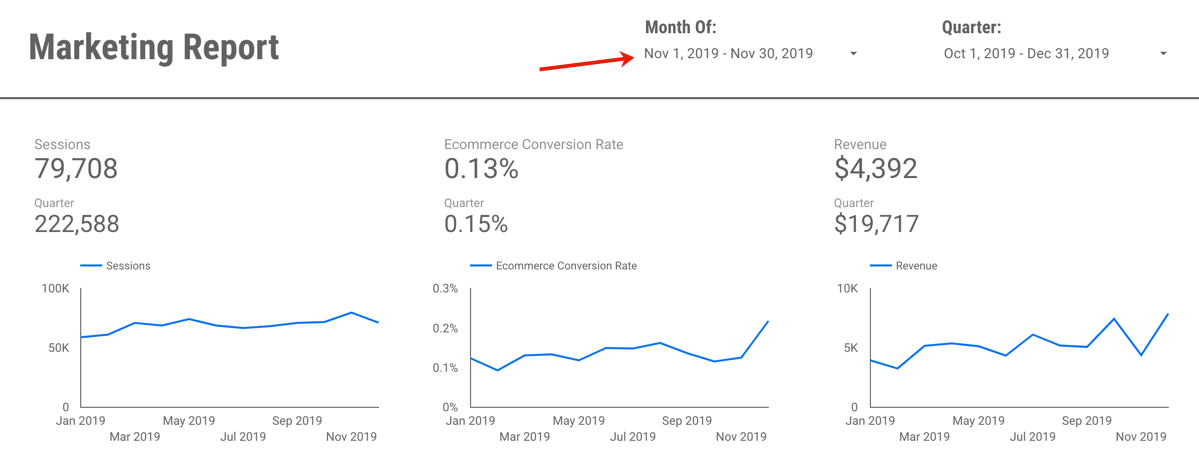
For example, this report which includes Last Month, Last Quarter (or you could do Quarter to Date) plus a Yearly trend:

You could manually set the timeframe for each widget (for example, for each scorecard and each chart, you could set the timeframe to Last Month/Quarter/Year, as appropriate.)

However, what if your report users want to engage with your report, or perhaps use it to look at a previous month?

For example, let’s say you send out an email summarizing and sharing December 2019’s report, but your end user realizes they’d like to see November’s report. If you have (essentially) “hard-coded” the date selector in to the charts, to pick another month, your end users would need to:

  1. Be report editors (eek!) to change the timeframe, and
  2. Very manually change the timeframe of individual charts.

This is clunky, cumbersome, and very prone to error (if a user forgets to change the timeframe of one of the charts.)

The solution? Using multiple date selectors, for the different time periods you want to show.

By grouping specific charts with different date selectors, you can set the timeframe for each group of widgets, but in a way that still allows the end user to make changes when they view the report.

In the example report, each chart is set to “Automatic” timeframe, and I actually have three date selectors: One set to Previous Month, that controls the top three scorecard metrics:

A second timeframe, set to “Last Quarter” controls the Quarterly numbers in the second row:

Wait, what about the final date selector? Well, that’s actually hiding off the page!

Why hide it off the page? A couple reasons… 

  1. It’s very clear, from the axis, what time period the line charts are reporting on – so you don’t need the dates to be visible for clarity purposes. 
  2. People are probably going to want to change the active month or quarter you are reporting on, but less likely to go back a full year…
  3. Adding yet another date to the report may end up causing confusion (without adding much value, since we don’t expect people are likely to use it.) 
  4. Your report editors can still change the timeframe back to a prior year, if it’s needed, since they can access the information hidden off the margin of the report. (I do a lot of “hiding stuff off the side of the report” so it’s only viewable to editors! But that’s a topic for another post.) 

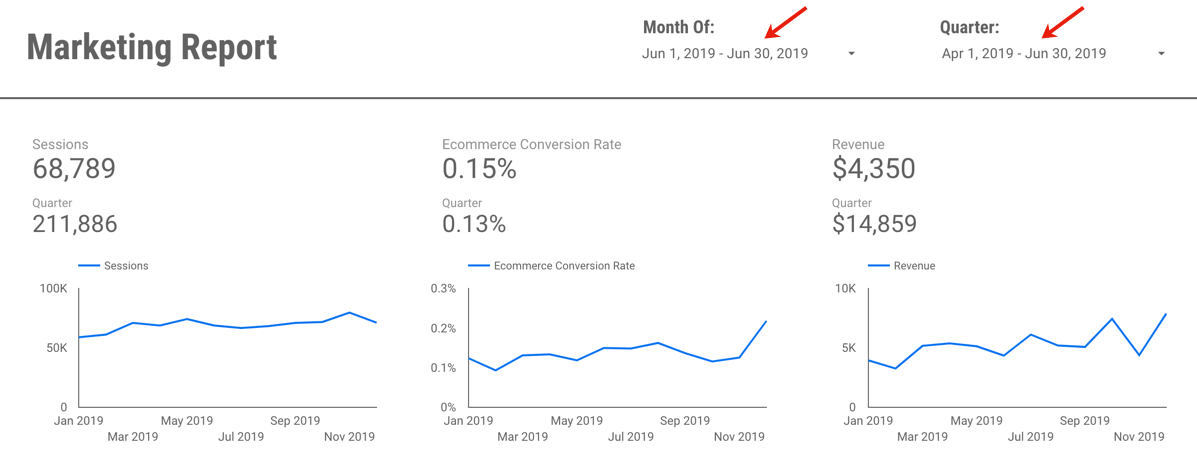
The other benefit of using the date selectors in this way? It is very clearly displayed on your report exactly which month you are reporting on: 

This makes your date selector both useful, and informative.

So when I now want to change my report to November 2019, it’s a quick and easy change:

Or perhaps I want to change and view June and Q2:

If you’d like to save a little time,  you can view (and create a copy of) the example report here. It’s using data from the Google Merchandise Store, a publicly available demo GA data set, so nothing secret there!

Questions? Comments? Other useful tips you’ve found?

If you want to be a part of this, and other Data Studio (and other analytics!) discussions, please join the conversion on Measure Chat.

Featured, google analytics

Using Data Studio for Google Analytics Alerts

Ever since Data Studio released scheduling, I’ve found the feature very handy for the purpose of alerts and performance monitoring.

Prior to this feature, I mostly used the in-built Alerts feature of Google Analytics, but I find them to be pretty limiting, and lacking a lot of sophistication that would make these alerts truly useful.

Note that for the purpose the post, I am referring to the Alerts feature of Universal Google Analytics, not the newer “App+Web” Google Analytics. Alerts in App+Web are showing promise, with some improvements such as the ability to add alerts for “has anomaly”, or hourly alerts for web data. 

Some of the challenges in using Google Analytics alerts include:

You can only set alerts based on a fixed number or percentage. For example, “alert me when sessions increase by +50%.”

The problem here is that if you set this threshold too low, the alerts will go off too often. As soon as that happens, people ignore them, because they’re constantly “false alarms.” However, if you set the threshold too high, you might not catch an important shift. For example, perhaps sessions dropped by -30% because of some major broken tracking, and it was a big deal, but your alert didn’t go off.

So, to set them at a “reasonable” level, you have to do a bunch of analysis to figure out what the normal variation in your data is, before you even set them up.

What would be more helpful? Intelligent alerts, such as “alert me when sessions shift by two standard deviations.” This would allow us to actually use the variation in historical data, to determine whether something is “alertable”!

Creating alerts is unnecessarily duplicative. If you want an alert for sessions increase or decrease by 50%, that’s two separate alerts you need to configure, share with the relevant users and manage on-going (if there are any changes.)

Only the alert-creator gets any kind of link through to the UI. You can set other users to be email recipients of your alerts, but they’re going to see a simple alert with no link to view more data. On the left, you’ll see what an added recipient of alerts sees. Compare to the right, which the creator of the alerts will see (with a link to the Google Analytics UI.)

The lack of any link to GA for report recipients means either 1) Every user needs to configure their own (c’mon, no one is going to do that) or 2) Only the report creator is ever likely to act on them or investigate further.

The automated alert emails in GA are also not very visual. You get a text-alert, basically, that says “your metric is up/down.” Nothing to show you (without going in to a GA report) if there’s just a decrease, or if something precipitously dropped off a cliff! For example, there’s a big difference between “sessions are down -50%” because it was Thanksgiving — versus sessions plummeting due to a major issue.

You also only know if your alert threshold was met, versus hugely exceeded. E.g. The same alert will trigger for “down -50%”, even if the actual value is down -300%. (Unless you’ve set up multiple, scaling alerts. Which… time consuming…!)

So, what have I been doing instead? 

As soon as Data Studio added the ability to schedule emails, I created what I call an “Alerts Dashboard.” In my case, it contains a few topic metrics, for each of my clients using GA. (If you are client-side, it could, of course, be just those top metrics for your own site.) You’ll want to include, of course, all of your Key Performance Indicators. But if there are other metrics in particular that are prone to breaking on your site, you’d want to include those as well.

Why does this work? Well, because human beings are actually pretty good pattern detectors. As long as we’ve got the right metrics in there, a quick glance at a trended chart (and a little business knowledge) can normally tell us whether we should be panicking, or whether it was “just Thanksgiving.”

Now to be clear: It’s not really an alerts dashboard. It’s not triggering based on certain criteria. It’s just sending to me every day, regardless of what it says.

But, because it is 1) Visual and 2) Shows up in my email, I find I actually do look at it every day (unlike old school GA alerts.)

On top of that, I can also send it to other people and have them see the same visuals I’m seeing, and they can also click through to the report itself.

So what are you waiting for? Set yours up now.

Analysis, Conferences/Community, Featured, google analytics, Reporting

Go From Zero to Analytics Hero using Data Studio

Over the past few years, I’ve had the opportunity to spend a lot of time in Google’s Data Studio product. It has allowed me to build intuitive, easy-to-use reporting, from a wide variety of data sources, that are highly interactive and empower my end-users to easily explore the data themselves… for FREE. (What?!) Needless to say, I’m a fan!

So when I had the chance to partner with the CXL Institute to teach an in-depth course on getting started with Data Studio, I was excited to help others draw the same value from the product that I have.

Perhaps you’re trying to do more with less time… Maybe you’re tearing your hair out with manual analysis work… Perhaps you’re trying to better communicate your data… Or maybe you set yourself a resolution to add a new tool to your analytics “toolbox” for 2020. Whatever your reasons, I hope these resources will get you started!

So without further adieu, check out my free 30 minute webinar with the CXL Institute team here, which will give you a 10-step guide to getting started with Data Studio.

And if you’re ready to really dive in, check out the entire hour online course here:


Analysis, Conferences/Community, Featured, google analytics

That’s So Meta: Tracking Data Studio, in Data Studio

That’s So Meta: Tracking Data Studio, in Data Studio

In my eternal desire to track and analyze all.the.things, I’ve recently found it useful to track the usage of my Data Studio reports.

Viewing data about Data Studio, in Data Studio? So meta!

Step 1: Create a property

Create a new Google Analytics property, to house this data. (If you work with multiple clients, sites or business units, where you may want to be able to isolate data, then you may want to consider one property for each client/site/etc. You can always combine them in Data Studio to view all the info together, but it gives you more control over permissions, without messing around with View filters.)

Step 2: Add GA Tracking Code to your Data Studio reports

Data Studio makes this really easy. Under Report Settings, you can add a GA property ID. You can add Universal Analytics, or GA4.

You’ll need to add this to every report, and remember to add it when you create new reports, if you’d like them to be included in your report.

Step 3: Clean Up Dimension Values

Note: This blog post is based on Universal Analytics, but the same principles apply if you’re using GA4. 

Once you have tracked some data, you’ll notice that the Page dimension in Google Analytics is a gibberish, useless URL. I suppose you could create a CASE formula and rewrite the URLs in to the title of the report…Hmmm… Wait, why would you do that, when there’s already an easier way?!

You’ll want to use the Page Title for the bulk of your reporting, as it has nice, readable, user-friendly values:

However, you’ll need to do some further transformation of Page Title. This is because reports with one page, versus multiple pages, will look different.

Reports with only one page have a page title of:

Report Name

Reports with more than one page have a page title of:

Report Name > Page Name

If you want to report on the popularity at a report level, we need to extract just the report name. Unfortunately, we can’t simply extract “everything before the ‘>’ sign” as the Report Name, since not all Page Titles will contain a “>” (if the report only has one page.)

I therefore use a formula to manipulate the Page Title:

REGEXP_EXTRACT(

(CASE 
WHEN REGEXP_MATCH(Page Title,".*›.*") 
THEN Page Title 
ELSE CONCAT(Page Title," ›")
END)

,'(.*).*›.*')

Step 4: A quick “gotcha”

Please note that, on top of Google Analytics tracking when users actually view your report, Google Analytics will also fire and track a view when:

  1. Someone is loading the report in Edit mode. In the Page dimension, you will see these with /edit in the URL.
  2. If you have a report scheduled to send on a regular cadence via email, the process of rendering the PDF to attach to the email also counts as a load in Google Analytics. In the Page dimension, you will see these loads with /appview in the URL.

This means that if you or your team spend a lot of time in the report editing it, your tracking may be “inflated” as a result of all of those loads.

Similarly, if you schedule a report for email send, it will track in Google Analytics for every send (even if no one actually clicks through and views the report.)

If you want to exclude these from your data, you will want to filter out from your dashboard Pages that contain /edit and /appview.


Step 5: Build your report

Here’s an example of one I have created:

Which metrics should I use?

My general recommendation is to use either Users or Pageviews, not Sessions or Unique Pageviews.

Why? Sessions will only count if the report page was the first page viewed (aka, it’s basically “landing page”), and Unique Pageviews will consider two pages in one report “unique”, since they have different URLs and Page Titles. (It’s just confusing to call something “Unique” when there are so many caveats on how “unique” is defined, in this instance.) So, Users will be the best for de-duping, and Pageviews will be the best for a totals count.

What can I use these reports for?

I find it helpful to see which reports people are looking at the most, when they typically look at them (for example, at the end of the month, or quarter?) Perhaps you’re having a lot of ad hoc questions coming to your team, that are covered in your reports? You can check if people are even using them, and if not, direct them there before spending a bunch of ad hoc time! Or perhaps it’s time to hold another lunch & learn, to introduce people to the various reports available? 

You can also include data filters in the report, to filter for a specific report, or other dimensions, such as device type, geolocation, date, etc. Perhaps a certain office location typically views your reports more than another?

Of course, you will not know which users are viewing your reports (since we definitely can’t track PII in Google Analytics) but you can at least understand if they’re being viewed at all!

Featured, google analytics

Google Analytics Segmentation: A “Gotcha!” and a Hack

Google Analytics segments are a commonly used feature for analyzing subsets of your users. However, while they seem fairly simple at the outset, certain use cases may unearth hidden complexity, or downright surprising functionality – as happened to me today! This post will share a gotcha with user-based segments I just encountered, as well as two options for hit-based Google Analytics segmentation. 

First, the gotcha.

One of these things is not like the other

Google Analytics allows you to create two kinds of segments: session-based, and user-based. A session-based segment requires that the behaviour happened within the same session (for example, watched a video and purchased.) A user-based segment requires that one user did those two things, but it does not need to be within the same session.

However, thanks to the help and collective wisdom of Measure Slack, Simo Ahava and Jules Stuifbergen (thank you both!), I stumbled upon a lesser-known fact about Google Analytics segmentation. 

These two segmentation criteria “boxes” do not behave the same:

I know… they look identical, right? (Except for Session vs. User.)

What might the expected behaviour be? The first looks for sessions in which the page abc.html was seen, and the button was clicked in that same session. The second looks for users who did those two things (perhaps in different sessions.) 

When I built a session-based segment and attempted to flip it to user-based, imagine my surprise to find… the session-based segment worked. The user-based segment, with the exact same criteria didn’t work. (Note: It’s logically impossible for sessions to exist in which two things were done, but no users have done those two things…) I will confess that I typically use session-based segmentation far more, as I’m often looking back more than 90 days, so it’s not something I’ve happened upon.

That’s when I found out that if two criteria in a Google Analytics user-based segment are in the same criteria “box”, they have to occur on the same hit. The same functionality and UI works differently depending on if you’re looking at a user- or session-based segment. 

I know.

Note: There is some documented of this, within the segment builder, though not within the main segmentation documentation.

In summary:

If you want to create a User-based segment that looks for two events (or more) occurring for the same user, but not on the same hit? You need to use two separate criteria “boxes”, like this:

So, there you go.

This brings me to the quick hack:

Two Hacks for Hit-Level Segmentation

Once you know about the strange behaviour of User-based segments, you can actually use them to your advantage.

Analysts familiar with Adobe Analytics know that Adobe has three options for segmentation: hit, visit and visitor level. Google Analytics, however, only has session (visit) and user (visitor) level.

Why might you need hit-level segmentation?

Sometimes when doing analysis, we want to be very specific that certain criteria must have taken place on the same hit. For example, the video play on a specific page. 

Since Google Analytics doesn’t have built-in hit-based segmentation, you can use one of two possible hacks:

1. User-segment hack: Use our method above: Create a user-based segment, and put your criteria in the same “box.” Voila! It’s a feature, not a bug! 

2. Sequential segment hack: Another clever method brought to my attention by Charles Farina is to use a sequential segment. Sequential segments evaluate each “step” as a single hit, so this sequential segment is the equivalent of a hit-based segment:  

Need convincing? Here are the two methods, compared. You’ll see the number of users is identical:

(Note that the number of sessions is different since, in the user-based segment, the segment of users who match that criteria might have had other sessions in which the criteria didn’t occur.)

So which hit-level segmentation method should you use? Personally I’d recommend sticking with Charles’ sequential segment methodology, since a major limitation of user-based segments is that they only look back 90 days. However, it may depend on your analysis question as to what’s more appropriate. 

I hope this was helpful! If you have any similar “gotchas” or segmentation hacks you’ve found, please don’t hesitate to share them in the comments. 

Featured, google analytics

Understanding Marketing Channels in Google Analytics: The Good, The Bad – and a Toy Surprise!

Understanding the effectiveness of marketing efforts is a core use case for Google Analytics. While we may analyze our marketing at the level of an individual site, or ad network, typically we are also looking to understand performance at a higher channel level. (For example, how did my Display ads perform?)

In this post I’ll discuss two ways you can approach this, as well as the gotchas, and even offer a handy little tool you can use for yourself!

Option 1: Channel Groupings in GA

There are two relevant features here:

  1. Default channel groupings
  2. Custom channel groupings

Default Channel Groupings

Default channel groupings are defined rules, that apply at the time the data is processed. So, they apply from the time you set them up, onwards. Note also that the rule set execute in order

The default channel grouping dimension is available throughout Google Analytics, including for use in segments, as a secondary dimensions, in custom reports, Data Studio, Advanced Analysis and the API. (Note: They are not included in Big Query.)

Unfortunately, there are some real frustrations associated with this feature:

  1. The default channel groupings that come pre-setup aren’t typically applicable. By default, GA provides some default rules. However, in my experience, they rarely map well enough to marketing efforts. Which leads me to…
  2. You have to customize them. Makes sense – for your data to be useful, it should be customized to your business, right? I always end up editing the default grouping, to take into account the UTM and tracking standards we use. Unfortunately…  
  3. The manual work in customizing them makes kittens cry. Why?
    • You have to manually update them for every.single.view. Default Channel Groupings are a view level asset. So if your company has two views (or worse, twenty!) you need to manually set them up over. and over. again.
    • (“I know! I’ll outsmart GA! I’ll set up the groupings then copy the view. Nope, sorry.) Unlike goals, any customizations made to your Default Channel Groupings don’t copy over when you copy a view, even if they were created before you copied it. You start from scratch, with the GA default. So you have to create them. Again.
    • There is no way to create them programmatically. They can’t be edited or otherwise managed via the Management API.
    • Personally, I consider this to be a huge limitation for feature use in an enterprise organization, as it requires an unnecessary level of manual work.
  4. They are not retroactive. This is a common complaint. Honestly, it’s the least of my issues with them. Yes, retroactive would be nice. But I’d take a solve of the issues in #3 any day.

“Okay… I’ll outsmart GA (again)! Let’s not use the default. Let’s just use the custom groupings!” Unfortunately, custom channel groupings aren’t a great substitute either.

Custom Channel Groupings

Custom Channel Groupings are a very similar feature. However, the custom groupings aren’t processed with the data, they’re a rule set applied on top of the data, after it’s processed.

The good:

The bad:

  • The custom grouping created is literally only available in one report. You can not use the dimensions they create in a segment, as a secondary dimension, via the API or Data Studio. So they have exceptionally limited value. (IMHO they’re only useful for checking a grouping before you set it as the default.) 

So, as you may have grasped, the channel groupings features in Google Analytics are necessary… but incredibly cumbersome and manual.

<begging>

Dear GA product team,

For channel groupings to be a useful and more scalable enterprise feature, one of the following things needs to happen:

  1. The Default should be sharable as a configured link, the same way that a segment or a goal works. Create them once, share the link to apply them to other views; or
  2. The Default should be a shared asset throughout the Account (similar to View filters) allowing you to apply the same Default to multiple views; or
  3. The Default should be manageable via the Management API; or
  4. Custom Groupings need to be able to be “promoted” to the default; or
  5. Custom-created channels need to be accessible like any other dimension, for use in segmentation, reports and via the API and Data Studio.

Pretty please? Just one of them would help…

</begging>

So, what are the alternate options?

Option 2: Define Channels within Data Studio, instead of GA

The launch of Data Studio in 2016 created a new option that didn’t used to exist: use Data Studio to create your groupings, and don’t bother with the Default Channel Groupings at all.

You can use Data Studio’s CASE formula to recreate all the same rules as you would in the GA UI. For example, something like this:  

CASE
WHEN REGEXP_MATCH (Medium, 'social') OR REGEXP_MATCH (Source, 'facebook|linkedin|youtube|plus|stack.(exc|ov)|twitter|reddit|quora|google.groups|disqus|slideshare|addthis|(^t.co$)|lnk.in') THEN 'Social'
WHEN REGEXP_MATCH (Medium, 'cpc') THEN 'Paid Search'
WHEN REGEXP_MATCH (Medium, 'display|video|cpm|gdn|doubleclick|streamads') THEN 'Display'
WHEN REGEXP_MATCH (Medium, '^organic

You can then use this newly created “Channel” dimension in Data Studio for your reports (instead of the default.)

Note, however, a few potential downsides:

  • This field is only available in Data Studio (so, it is not accessible for segments, via the API, etc.)
  • Depending on the complexity of your rules, you could bump up against a character limit for CASE formulas in Data Studio (2048 characters.) Don’t laugh… I have one set of incredibly complex channel rules where the CASE statement was 3438 characters… 

Note: If you use BigQuery, you could then use a version of this channel definition in your queries, as well.

And a Toy Surprise!

Let’s say you do choose to use Default Channel Groupings (I do end up using them, I just grumble incessantly during the painful process of setting them up, or amending them.) You might put a lot of thought in to the rules, the order in which they execute, etc. But nonetheless, you’ll still need to check your results after you set them up, to make sure they’re correct.

To do this, I created a little Data Studio report, that you are welcome to copy and use for your own purposes. Basically, after you setup your default groupings and collect at least a (full) day’s data, the report allows you to flip through each channel, and see what Sources, Mediums and Campaigns are falling in to each channel, based on your rules.

mkiss.me/DefaultChannelGroupingCheck
Note: At first it will load with errors, since you don’t have access to my data set. You need to select a data set you have access to, and then the tables will load. 

If you see something that seems miscategorized, you can then edit the rules in the GA admin settings. (Keeping in mind that your edits will only apply moving forward.)

I also recommend you keep documentation of your rules. I use something like this:

I also set up alerts for big increases in the “Other” channel, so that I can catch where the rules might need to be amended. 

Thoughts? Comments?

I hope this is helpful! If there are other ways you do this, I would love to hear about it.


) OR REGEXP_MATCH(Source, 'duckduckgo') THEN 'Organic Search'
WHEN REGEXP_MATCH (Medium, '^blog

You can then use this newly created “Channel” dimension in Data Studio for your reports (instead of the default.)

Note, however, a few potential downsides:

  • This field is only available in Data Studio (so, it is not accessible for segments, via the API, etc.)
  • Depending on the complexity of your rules, you could bump up against a character limit for CASE formulas in Data Studio (2048 characters.) Don’t laugh… I have one set of incredibly complex channel rules where the CASE statement was 3438 characters… 

Note: If you use BigQuery, you could then use a version of this channel definition in your queries, as well.

And a Toy Surprise!

Let’s say you do choose to use Default Channel Groupings (I do end up using them, I just grumble incessantly during the painful process of setting them up, or amending them.) You might put a lot of thought in to the rules, the order in which they execute, etc. But nonetheless, you’ll still need to check your results after you set them up, to make sure they’re correct.

To do this, I created a little Data Studio report, that you are welcome to copy and use for your own purposes. Basically, after you setup your default groupings and collect at least a (full) day’s data, the report allows you to flip through each channel, and see what Sources, Mediums and Campaigns are falling in to each channel, based on your rules.

mkiss.me/DefaultChannelGroupingCheck
Note: At first it will load with errors, since you don’t have access to my data set. You need to select a data set you have access to, and then the tables will load. 

If you see something that seems miscategorized, you can then edit the rules in the GA admin settings. (Keeping in mind that your edits will only apply moving forward.)

I also recommend you keep documentation of your rules. I use something like this:

I also set up alerts for big increases in the “Other” channel, so that I can catch where the rules might need to be amended. 

Thoughts? Comments?

I hope this is helpful! If there are other ways you do this, I would love to hear about it.


) THEN 'Blogs'
WHEN REGEXP_MATCH (Medium, 'email|edm|(^em$)') THEN 'Email'
WHEN REGEXP_MATCH (Medium, '^referral

You can then use this newly created “Channel” dimension in Data Studio for your reports (instead of the default.)

Note, however, a few potential downsides:

  • This field is only available in Data Studio (so, it is not accessible for segments, via the API, etc.)
  • Depending on the complexity of your rules, you could bump up against a character limit for CASE formulas in Data Studio (2048 characters.) Don’t laugh… I have one set of incredibly complex channel rules where the CASE statement was 3438 characters… 

Note: If you use BigQuery, you could then use a version of this channel definition in your queries, as well.

And a Toy Surprise!

Let’s say you do choose to use Default Channel Groupings (I do end up using them, I just grumble incessantly during the painful process of setting them up, or amending them.) You might put a lot of thought in to the rules, the order in which they execute, etc. But nonetheless, you’ll still need to check your results after you set them up, to make sure they’re correct.

To do this, I created a little Data Studio report, that you are welcome to copy and use for your own purposes. Basically, after you setup your default groupings and collect at least a (full) day’s data, the report allows you to flip through each channel, and see what Sources, Mediums and Campaigns are falling in to each channel, based on your rules.

mkiss.me/DefaultChannelGroupingCheck
Note: At first it will load with errors, since you don’t have access to my data set. You need to select a data set you have access to, and then the tables will load. 

If you see something that seems miscategorized, you can then edit the rules in the GA admin settings. (Keeping in mind that your edits will only apply moving forward.)

I also recommend you keep documentation of your rules. I use something like this:

I also set up alerts for big increases in the “Other” channel, so that I can catch where the rules might need to be amended. 

Thoughts? Comments?

I hope this is helpful! If there are other ways you do this, I would love to hear about it.


) THEN 'Referral'
WHEN REGEXP_MATCH (Source, '(direct)') THEN 'Direct'
ELSE 'Other' 
END

You can then use this newly created “Channel” dimension in Data Studio for your reports (instead of the default.)

Note, however, a few potential downsides:

  • This field is only available in Data Studio (so, it is not accessible for segments, via the API, etc.)
  • Depending on the complexity of your rules, you could bump up against a character limit for CASE formulas in Data Studio (2048 characters.) Don’t laugh… I have one set of incredibly complex channel rules where the CASE statement was 3438 characters… 

Note: If you use BigQuery, you could then use a version of this channel definition in your queries, as well.

And a Toy Surprise!

Let’s say you do choose to use Default Channel Groupings (I do end up using them, I just grumble incessantly during the painful process of setting them up, or amending them.) You might put a lot of thought in to the rules, the order in which they execute, etc. But nonetheless, you’ll still need to check your results after you set them up, to make sure they’re correct.

To do this, I created a little Data Studio report, that you are welcome to copy and use for your own purposes. Basically, after you setup your default groupings and collect at least a (full) day’s data, the report allows you to flip through each channel, and see what Sources, Mediums and Campaigns are falling in to each channel, based on your rules.

mkiss.me/DefaultChannelGroupingCheck
Note: At first it will load with errors, since you don’t have access to my data set. You need to select a data set you have access to, and then the tables will load. 

If you see something that seems miscategorized, you can then edit the rules in the GA admin settings. (Keeping in mind that your edits will only apply moving forward.)

I also recommend you keep documentation of your rules. I use something like this:

I also set up alerts for big increases in the “Other” channel, so that I can catch where the rules might need to be amended. 

Thoughts? Comments?

I hope this is helpful! If there are other ways you do this, I would love to hear about it.

Featured, google analytics, Reporting

A Scalable Way To Add Annotations of Notable Events To Your Reports in Data Studio

Documenting and sharing important events that affected your business are key to an accurate interpretation of your data.

For example, perhaps your analytics tracking broke for a week last July, or you ran a huge promo in December. Or maybe you doubled paid search spend, or ran a huge A/B test. These events are always top of mind at the time, but memories fade quickly, and turnover happens, so documenting these events is key!

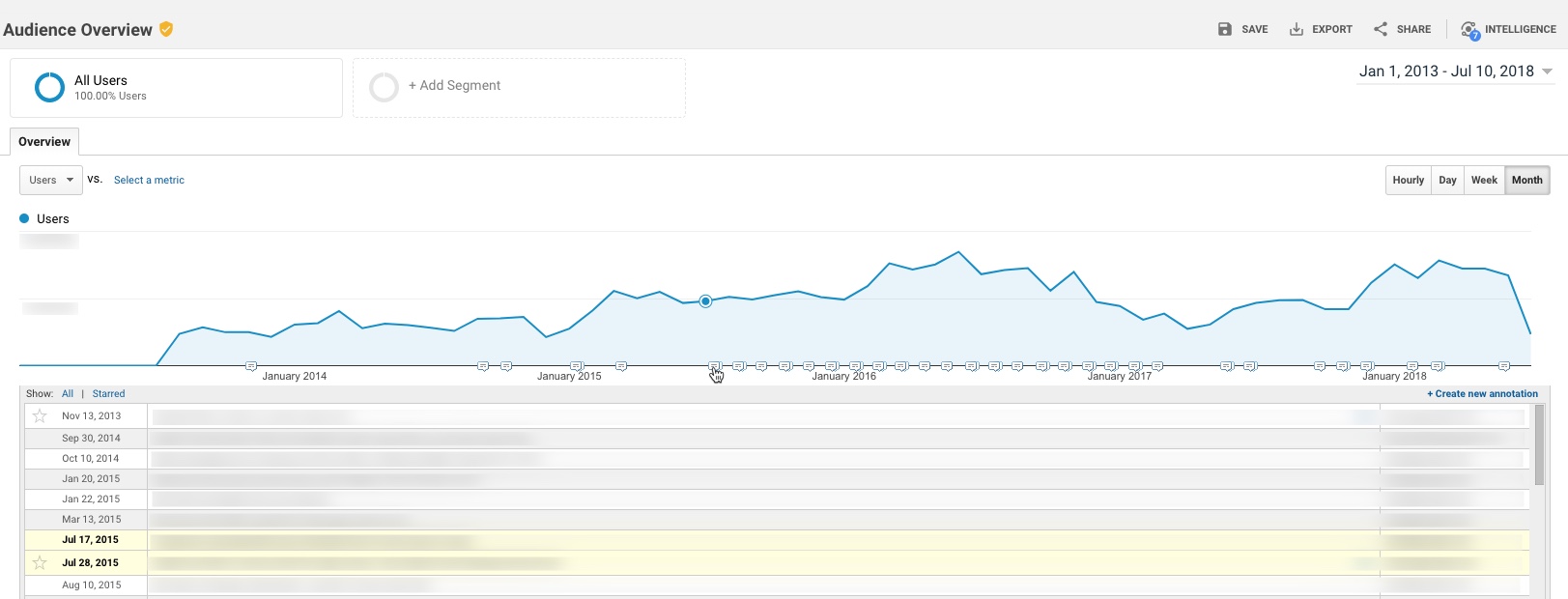
Within Google Analytics itself, there’s an available feature to add “Annotations” to your reports. These annotations show up as little markers on trend charts in all standard reports, and you can expand to read the details of a specific event.

However, there is a major challenge with annotations as they exist today: They essentially live in a silo – they’re not accessible outside the standard GA reports. This means you can’t access these annotations in:

  • Google Analytics flat-table custom reports
  • Google Analytics API data requests
  • Big Query data requests
  • Data Studio reports

While I can’t solve All.The.Things, I do have a handy option to incorporate annotations in to Google Data Studio. Here’s a quick example:

Not too long ago, Data Studio added a new feature that essentially “unified” the idea of a date across multiple data sources. (Previously, a date selector would only affect the data source you had created it for.)

One nifty application of this feature is the ability to pull a list of important events from a Google Spreadsheet in to your Data Studio report, so that you have a very similar feature to Annotations.

To do this:

Prerequisite: Your report should really include a Date filter for this to work well. You don’t want all annotations (for all time) to show, as it may be overwhelming, depending on the timeframe.

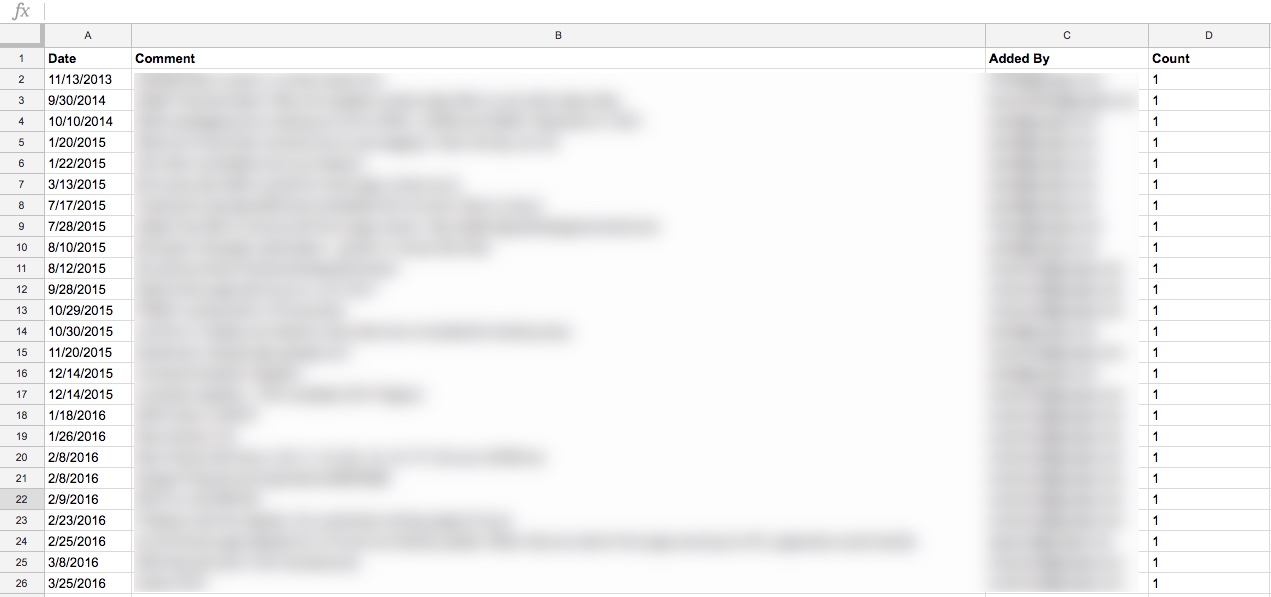
Step 1: Create a spreadsheet that contains all of your GA annotations. (Feel free to add any others, while you’re at it. Perhaps yours haven’t been kept very up to date…! You’re not alone.)

I did this simply, by just selecting the entire timeframe of my data set, and copy-pasting from the Annotations table in GA in to a spreadsheet

You’ll want to include these dimensions in your spreadsheet:

  • Date
  • The contents of the annotation itself
  • Who added it (why not, might as well)

You’ll also want to add a “dummy metric”, which I just created as Count, which is 1 for each row. (Technically, I threw a formula in to put a one in that row as long as there’s a comment.)

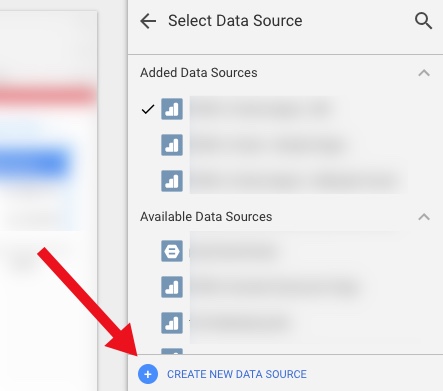
Step 2: Add this as a Data Source in Data Studio

First, “Create New Data Source”

Then select your spreadsheet:

It should happen automatically, but just confirm that the date dimension is correct:

3. Create a data table

Now you create a data table that includes those annotations.

Here are the settings I used:

Data Settings:

  • Dimensions:
    • Date
    • Comment
    • (You could add the user who added it, or a contact person, if you so choose)
  • Metric:
    • Count (just because you need something there)
  • Rows per Page:
    • 5 (to conserve space)
  • Sort:
    • By Date (descending)
  • Default Date Range:
    • Auto (This is important – this is how the table of annotations will update whenever you use the date selector on the report!)

Style settings:

  • Table Body:
    • Wrap text (so they can read the entire annotation, even if it’s long)
  • Table Footer:
    • Show Pagination, and use Compact (so if there are more than 5 annotations during the timeframe the user is looking at, they can scroll through the rest of them)

Apart from that, a lot of the other choices are stylistic…

  • I chose a lot of things based on the data/pixel ratio:
    • I don’t show row numbers (unnecessary information)
    • I don’t show any lines or borders on the table, or fill/background for the heading row
    • I choose a small font, just since the data itself is the primary information I want the user to focus on

I also did a couple of hack-y things, like just covering over the Count column with a grey filled box. So fancy…!

Finally, I put my new “Notable Events” table at the very bottom of the page, and set it to show on all pages (Arrange > Make Report Level.)

You might choose to place it somewhere else, or display it differently, or only show it on some pages.

And that’s it…!

But, there’s more you could do 

This is a really simple example. You can expand it out to make it even more useful. For example, your spreadsheet could include:

  • Brand: Display (or allow filtering) of notable events by Brand, or for a specific Brand plus Global
  • Site area: To filter based on events affecting the home page vs. product pages vs. checkout (etc)
  • Type of Notable Event: For example, A/B test vs. Marketing Campaign vs. Site Issue vs. Analytics Issue vs. Data System Affected (e.g. GA vs. AdWords)
  • Country… 
  • There are a wide range of possible use cases, depending on your business

Your spreadsheet can be collaborative, so that others in the organization can add their own events.

One other cool thing is that it’s very easy to just copy-paste rows in a spreadsheet. So let’s say you had an issue that started June 1 and ended June 7. You could easily add one row for each of those days in June, so that even if a user pulled say, June 6-10, they’d see the annotation noted for June 6 and June 7. That’s more cumbersome in Google Analytics, where you’d have to add an annotation for every day.

Limitations

It is, of course, a bit more leg work to maintain both this set of annotations, AND the default annotations in Google Analytics. (Assuming, of course, that you choose to maintain both, rather than just using this method.) But unless GA exposes the contents of the annotations in a way that we can pull in to Data Studio, the hack-y solution will need to be it!

Solving The.Other.Things

I won’t go in to it here, but I mentioned the challenge of the default GA annotations and both API data requests and Big Query. This solution doesn’t have to be limited to Data Studio: you could also use this table in Big Query by connecting the spreadsheet, and you could similarly pull this data into a report based on the GA API (for example, by using the spreadsheet as a data source in Tableau.)

Thoughts? 

It’s a pretty small thing, but at least it’s a way to incorporate comments on the data within Data Studio, in a way that the comments are based on the timeframe the user is actually looking at.

Thoughts? Other cool ideas? Please leave them in the comments!

Featured, google analytics

Google Data Studio “Mini Tip” – Set A “Sampled” Flag On Your Reports!

Google’s Data Studio is their answer to Tableau – a free, interactive data reporting, dashboarding and visualization tool. It has a ton of different automated “Google product” connectors, including Google Analytics, DoubleClick, AdWords, Attribution 360, Big Query and Google Spreadsheets, not to mention the newly announced community connectors (which adds the ability to connect third party data sources.)

One of my favourite things about Data Studio is the fact that it leverages an internal-only Google Analytics API, so it’s not subject to the sampling issues of the normal Google Analytics Core Reporting API.

For those who aren’t aware (and to take a quick, level-setting step back) Google Analytics will run its query on a sample of your data, if the conditions match these two circumstances:

  1. The query is a custom query, not a pre-aggregated table. (Basically, if you apply a secondary dimension, or a segment.)
  2. The number of sessions in your timeframe exceeds:
    • GA Standard: 500K sessions
    • GA 360: 100M sessions
      (at the view level)

The Core Reporting API can be useful for automating reporting out of Google Analytics. However, it has one major limitation: the sample rate for the API is the same as Google Analytics Standard (500K sessions) … even if you’re a GA360 customer. (Note: Google has recently dealt with this by adding the option of a cost based API for 360 customers. And of course, 360 customers also have the option of BigQuery. But, like the Core Reporting API, Data Studio is FREE!) 

Data Studio, however, follows the same sampling rules as the Google Analytics main interface. (Yay!) Which means for 360 customers, Data Studio will not sample until the selected timeframe is over 100M sessions.

As a quick summary…

Google Analytics Standard

  • Google Analytics UI: 500,000 at the view level
  • Google Analytics API: 500,000
  • Data Studio: 500,000

Google Analytics 360

  • Google Analytics UI: 100 million at the view level
  • Google Analytics API: 500,000
  • Data Studio: 100 million 

But here’s the thing… In Google Analytics’ main UI, we see a little “sampling indicator” to tell us if our data is being sampled.

In Data Studio, historically there was nothing to tell you (or your users) if the data they are looking at is sampled or not. Data Studio “follows the same rules as the UI”, so technically, to know if something is sampled, you had to go request the same data via the UI and see if it’s sampled.

At the end of 2017, Data Studio offered a toggle to “Show Sampling”

The toggle won’t work in embedded reports though (so if you’re a big Sites user, or otherwise embed reports a lot, you’ll still want to go to the manual route), and adding your own flag gives you some control on how, where & how prominently any sampling is shown (plus, the ability to have it “always on” rather than requiring a user to toggle.)

What I have historically done is add a discreet “Sampling Flag” to reports and dashboards. Now, keep in mind – this will not tell you if your data is actually being sampled. (That depends on the nature of each query itself.) However, a simple Sampling Flag can at least alert you or your users to the possibility that your query might be sampled, so you can check the original (non-embedded) Data Studio report, or the GA UI, for confirmation.

To create this, I use a very simple CASE formula:

CASE WHEN (Sessions) >= 100000000 THEN 1 ELSEEND

(For a GA Standard client, adjust to 500,000)

I place this in the footer of my reports, but you could choose to display much more prominently if you wanted it to be called out to your users:

Keep in mind, if you have a report with multiple GA Views pulled together, you would need one Sampling Flag for each view (as it’s possible some views may have sampled data, while others may not.) If you’re using Data Studio within its main UI (aka, not embedded reports) the native sampling toggle may be more useful there.

I hope this is useful “mini tip”! Thoughts? Questions? Comments? Cool alternatives? Please add to the comments!

Adobe Analytics, Analysis, Featured, google analytics

Did that KPI Move Enough for Me to Care?

This post really… is just the setup for an embedded 6-minute video. But, it actually hits on quite a number of topics.

At the core:

  • Using a statistical method to objectively determine if movement in a KPI looks “real” or, rather, if it’s likely just due to noise
  • Providing a name for said statistical method: Holt-Winters forecasting
  • Illustrating time-series decomposition, which I have yet to find an analyst who, when first exposed to it, doesn’t feel like their mind is blown just a bit
  • Demonstrating that “moving enough to care” is also another way of saying “anomaly detection”
  • Calling out that this is actually what Adobe Analytics uses for anomaly detection and intelligent alerts.
  • (Conceptually, this is also a serviceable approach for pre/post analysis…but that’s not called out explicitly in the video.)

On top of the core, there’s a whole other level of somewhat intriguing aspects of the mechanics and tools that went into the making of the video:

  • It’s real data that was pulled and processed and visualized using R
  • The slides were actually generated with R, too… using RMarkdown
  • The video was generated using an R package called ari (Automated R Instructor)
  • That package, in turn, relies on Amazon Polly, a text-to-speech service from Amazon Web Services (AWS)
  • Thus… rather than my dopey-sounding voice, I used “Brian”… who is British!

Neat, right? Give it a watch!

https://youtu.be/eGB5x77qnco

If you want to see the code behind all of this — and maybe even download it and give it a go with your data — it’s available on Github.

Adobe Analytics, Featured, General, google analytics, Technical/Implementation

Can Local Storage Save Your Website From Cookies?

I can’t imagine that anyone who read my last blog post set a calendar reminder to check for the follow-up post I had promised to write, but if you’re so fascinated by cookies and local storage that you are wondering why I didn’t write it, here is what happened: Kevin and I were asked to speak at Observepoint’s inaugural Validate conference last week, and have been scrambling to get ready for that. For anyone interested in data governance, it was a really unique, and great event. And if you’re not interested in data governance, but you like outdoor activities like mountain biking, hiking, fly fishing, etc. – part of what made the event unique was some really great networking time outside of a traditional conference setting. So put it on your list of potential conferences to attend next year.

My last blog post was about some of the common pitfalls that my clients see that are caused by an over-reliance on cookies. Cookies are critical to the success of any digital analytics implementation – but putting too much information in them can even crash a customer’s experience. We talked about why many companies have too many cookies, and how a company’s IT and digital analytics teams can work together to reduce the impact of cookies on a website.

This time around, I’d like to take a look at another technology that is a potential solution to cookie overuse: local storage. Chances are, you’ve at least heard about local storage, but if you’re like a lot of my clients, you might not have a great idea of what it does or why it’s useful. So let’s dive into local storage: what it is, what it can (and can’t) do, and a few great uses cases for local storage in digital analytics.

What is Local Storage?

If you’re having trouble falling asleep, there’s more detail than you could ever hope to want in the specifications document on the W3C website. In fact, the W3C makes an important distinction and calls the actual feature “web storage,” and I’ll describe why in a bit. But most people commonly refer to the feature as “local storage,” so that’s how I’ll be referring to it as well.

The general idea behind local storage is this: it is a browser feature designed to store data in name/value pairs on the client. If this sounds a lot like what cookies are for, you’re not wrong – but there are a few key differences we should highlight:

  • Cookies are sent back and forth between client and server on all requests in which they have scope; but local storage exists solely on the client.
  • Cookies allow the developer to manage expiration in just about any way imaginable – by providing an expiration timestamp, the cookie value will be removed from the client once that timestamp is in the past; and if no timestamp is provided, the cookie expires when the session ends or the browser closes. On the other hand, local storage can support only 2 expirations natively – session-based storage (through a DOM object called sessionStorage), and persistent storage (through a DOM object called localStorage). This is why the commonly used name of “local storage” may be a bit misleading. Any more advanced expiration would need to be written by the developer.
  • The scope of cookies is infinitely more flexible: a cookie could have the scope of a single directory on a domain (like http://www.analyticsdemystified.com/blogs), or that domain (www.analyticsdemystified.com), or even all subdomains on a single top-level domain (including both www.analyticsdemystified.com and blog.analyticsdemystified.com). But local storage always has the scope of only the current subdomain. This means that local storage offers no way to pass data from one subdomain (www.analyticsdemystified.com) to another (blog.analyticsdemystified.com).
  • Data stored in either localStorage or sessionStorage is much more easily accessible than in cookies. Most sites load a cookie-parsing library to handle accessing just the name/value pair you need, or to properly decode and encode cookie data that represents an object and must be stored as JSON. But browsers come pre-equipped to make saving and retrieving storage data quick and easy – both objects come with their own setItem and getItem methods specifically for that purpose.

If you’re curious what’s in local storage on any given site, you can find out by looking in the same place where your browser shows you what cookies it’s currently using. For example, on the “Application” tab in Chrome, you’ll see both “Local Storage” and “Session Storage,” along with “Cookies.”

What Local Storage Can (and Can’t) Do

Hopefully, the points above help clear up some of the key differences between cookies and local storage. So let’s get into the real-world implications they have for how we can use them in our digital analytics efforts.

First, because local storage exists only on the client, it can be a great candidate for digital analytics. Analytics implementations reference cookies all the time – perhaps to capture a session or user ID, or the list of items in a customer’s shopping cart – and many of these cookies are essential both for server- and client-side parts of the website to function correctly. But the cookies that the implementation sets on its own are of limited value to the server. For example, if you’re storing a campaign ID or the number of pages viewed during a visit in a cookie, it’s highly unlikely the server would ever need that information. So local storage would be a great way to get rid of a few of those cookies. The only caveat here is that some of these cookies are often set inside a bit of JavaScript you got from your analytics vendor (like an Adobe Analytics plugin), and it could be challenging to rewrite all of them in a way that leverages local storage instead of cookies.

Another common scenario for cookies might be to pass a session or visitor ID from one subdomain to another. For example, if your website is an e-commerce store that displays all its products on www.mystore.com, and then sends the customer to shop.mystore.com to complete the checkout process, you may use cookies to pass the contents of the customer’s shopping cart from one part of the site to another. Unfortunately, local storage won’t help you much here – because, unlike cookies, local storage offers no way to pass data from one subdomain to another. This is perhaps the greatest limitation of local storage that prevents its more frequent use in digital analytics.

Use Cases for Local Storage

The key takeaway on local storage is that there are 2 primary limitations to its usefulness:

  • If the data to be stored is needed both on the client/browser and the server, local storage does not work – because, unlike cookies, local storage data is not sent to the server on each request.
  • If the data to be stored is needed on multiple subdomains, local storage also does not work – because local storage is subdomain-specific. Cookies, on the other hand, are more flexible in scope – they can be written to work across multiple subdomains (or even all subdomains on the same top-level domain).

Given these considerations, what are some valid use cases when local storage makes sense over cookies? Here are a few I came up with (note that all of these assume that neither limitation above is a problem):

  • Your IT team has discovered that your Adobe Analytics implementation relies heavily on several cookies, several of which are quite large. In particular, you are using the crossVisitParticipation plugin to store a list of each visit’s traffic source. You have a high percentage of return visitors, and each visit adds a value to the list, which Adobe’s plugin code then encodes. You could rewrite this plugin to store the list in the localStorage object. If you’re really feeling ambitious, you could override the cookie read/write utilities used by most Adobe plugins to move all cookies used by Adobe (excluding visitor ID cookies of course) into localStorage.
  • You have a session-based cookie on your website that is incremented by 1 on each page load. You then use this cookie in targeting offers based on engagement, as well as invites to chat and to provide feedback on your site. This cookie can very easily be removed, pushing the data into the sessionStorage object instead.
  • You are reaching the limit to the number of Adobe Analytics server calls or Google Analytics hits before you bump up to the next pricing tier, but you have just updated your top navigation menu and need to measure the impact it’s having on conversion. Using your tag management system and sessionStorage, you could “listen” for all navigation clicks, but instead of tracking them immediately, you could save the click information and then read it on the following page. In this way, the click data can be batched up with the regular page load tracking that will occur on the following page (if you do this, make sure to delete the element after using it, so you can avoid double-tracking on subsequent pages).
  • You have implemented a persistent shopping cart on your site and want to measure the value and contents of a customer’s shopping cart when he or she arrives on your website. Your IT team will not be able to populate this information into your data layer for a few months. However, because they already implemented tracking of each cart addition and removal, you could easily move this data into a localStorage object on each cart interaction to help measure this.

All too often, IT and analytics teams resort to the “just stick it in a cookie” approach. That way, they justify, we’ll have the data saved if it’s ever needed. Given some of the limitations I talked about in my last post, we should all pay close attention to the number, and especially the size, of cookies on our websites. Not doing so can have a very negative impact on user experience, which in turn can have painful implications for your bottom line. While not perfect for every situation, local storage is a valuable tool that can be used to limit the number of cookies used by your website. Hopefully this post has helped you think of a few ways you might be able to use local storage to streamline your own digital analytics implementation.

Photo Credit: Michael Coghlan (Flickr)

Adobe Analytics, Featured, google analytics, Technical/Implementation

Don’t Let Cookies Eat Your Site!

A few years ago, I wrote a series of posts on how cookies are used in digital analytics. Over the past few weeks, I’ve gotten the same question from several different clients, and I decided it was time to write a follow-up on cookies and their impact on digital analytics. The question is this: What can we do to reduce the number of cookies on our website? This follow-up will be split into 2 separate posts:

  1. Why it’s a problem to have too many cookies on your website, and how an analytics team can be part of the solution.
  2. When local storage is a viable alternative to cookies.

The question I described in the introduction to this post is usually posed to me like this: An analyst has been approached by someone in IT that says, “Hey, we have too many cookies on our website. It’s stopping the site from working for our customers. And we think the most expendable cookies on the site are those being used by the analytics team. When can you have this fixed?” At this point, the client frantically reaches out to me for help. And while there are a few quick suggestions I can usually offer, it usually helps to dig a little deeper and determine whether the problem is really as dire as it seems. The answer is usually no – and, surprisingly, it is my experience that analytics tools usually contribute surprisingly little to cookie overload.

Let’s take a step back and identify why too many cookies is actually a problem. The answer is that most browsers put a cap on the maximum size of the cookies they are willing to pass back and forth on each network request – somewhere around 4KB of data. Notice that the limit has nothing to do with the number of cookies, or even the maximum size of a single cookie – it is the total size of all cookies sent. This can be compounded by the settings in place on a single web server or ISP, that can restrict this limit even further. Individual browsers might also have limits on the total number of cookies allowed (a common maximum number is 50) as well as the maximum size of any one cookie (usually that same 4KB size).

The way the server or browser responds to this problem varies, but most commonly it’s just to return a request error and not send back the actual page. At this point it becomes easy to see the problem – if your website is unusable to your customers because you’re setting to many cookies that’s a big problem. To help illustrate the point further, I used a Chrome extension called EditThisCookie to find a random cookie on a client’s website, and then add characters to that cookie value until it exceeded the 4KB limit. I then reloaded the page, and what I saw is below. Cookies are passed as a header on the request – so, essentially, this message is saying that the request header for cookies was longer than what the server would allow.

At this point, you might have started a mental catalog of the cookies you know your analytics implementation uses. Here are some common ones:

  • Customer and session IDs
  • Analytics visitor ID
  • Previous page name (this is a big one for Adobe users, but not Google, since GA offers this as a dimension out of the box)
  • Order IDs and other values to prevent double-counting on page reloads (Adobe will only count an order ID once, but GA doesn’t offer this capability out of the box)
  • Traffic source information, sometimes across multiple visits
  • Click data you might store in a cookie to track on the following page, to minimize hits
  • You’ve probably noticed that your analytics tool sets a few other cookies as well – usually just session cookies that don’t do much of anything useful. You can’t eliminate them, but they’re generally small and don’t have much impact on total cookie size.

If your list looks anything like this, you may be wondering why the analytics team gets a bad rap for its use of cookies. And you’d be right – I have yet to have a client ask me the question above that ended up being the biggest offender in terms of cookie usage on the site. Most websites these days are what I might call “Frankensteins” – it becomes such a difficult undertaking to rebuild or update a website that, over time, IT teams tend to just bolt on new functionality and features without ever removing or cleaning up the old. Ask any developer and they’ll tell you they have more tech debt than they can ever hope to clean up (for the non-developers out there, “tech debt” describes all the garbage left in your website’s code base that you never took the time to clean up; because most developers prefer the challenge of new development to the tediousness of cleaning up old messes, and most marketers would rather have developers add new features anyway, most sites have a lot of tech debt).  If you take a closer look at the cookies on your site, you’d probably find all sorts of useless data being stored for no good reason. Things like the last 5 URLs a visitor has seen, URL-encoded twice. Or the URL for the customer’s account avatar being stored in 3 different cookies, all with the same name and data – one each for mysite.com,  www.mysite.com, and store.mysite.com. Because of employee turnover and changing priorities, a lot of the functionality on a website are owned by different development on the same team – or even different teams entirely. It’s easy for one team to not realize that the data it needs already exists in a cookie owned by another team – so a developer just adds a new cookie without any thought of the future problem they’ve just added to.

You may be tempted to push back on your IT team and say something like, “Come talk to me when you solve your own problems.” And you may be justified in thinking this – most of the time, if IT tells the analytics team to solve its cookie problem, it’s a little like getting pulled over for drunk driving and complaining that the officer should have pulled over another driver for speeding instead while failing your sobriety test. But remember 2 things (besides the exaggeration of my analogy – driving while impaired is obviously worse than overusing cookies on your website):

  1. A lot of that tech debt exists because marketing teams are loathe to prioritize fixing bugs when they could be prioritizing new functionality.
  2. It really doesn’t matter whose fault it is – if your customers can’t navigate your site because you are using too many cookies, or your network is constantly weighed down by the back-and-forth of unnecessary cookies being exchanged, there will be an impact to your bottom line.

Everyone needs to share a bit of the blame and a bit of the responsibility in fixing the problem. But it is important to help your IT team understand that analytics is often just the tip of the iceberg when it comes to cookies. It might seem like getting rid of cookies Adobe or Google sets will solve all your problems, but there are likely all kinds of cleanup opportunities lurking right below the surface.

I’d like to finish up this post by offering 3 suggestions that every company should follow to keep its use of cookies under control:

Maintain a cookie inventory

Auditing the use of cookies frequently is something every organization should do – at least annually. When I was at salesforce.com, we had a Google spreadsheet that cataloged our use of cookies across our many websites. We were constantly adding and removing the cookies on that spreadsheet, and following up with the cookie owners to identify what they did and whether they were necessary.

One thing to note when compiling a cookie inventory is that your browser will report a lot of cookies that you actually have no control over. Below is a screenshot from our website. You can see cookies not only from analyticsdemystified.com, but also linkedin.com, google.com, doubleclick.net, and many other domains. Cookies with a different domain than that of your website are third-party, and do not count against the limits we’ve been talking about here (to simplify this example, I removed most of the cookies that our site uses, leaving just one per unique domain). If your site is anything like ours, you can tell why people hate third-party cookies so much – they outnumber regular cookies and the value they offer is much harder to justify. But you should be concerned primarily with first-party cookies on your site.

Periodically dedicate time to cookie cleanup

With a well-documented inventory your site’s use of cookies in place, make sure to invest time each year to getting rid of cookies you no longer need, rather than letting them take up permanent residence on your site. Consider the following actions you might take:

  • If you find that Adobe has productized a feature that you used to use a plugin for, get rid of it (a great example is Marketing Channels, which has essentially removed the need for the old Channel Manager plugin).
  • If you’re using a plugin that uses cookies poorly (by over-encoding values, etc.), invest the time to rewrite it to better suit your needs.
  • If you find the same data actually lives in 2 cookies, get the appropriate teams to work together and consolidate.

Determine whether local storage is a viable alternative

This is the real topic I wanted to discuss – whether local storage can solve the problem of cookie overload, and why (or why not). Local storage is a specification developed by the W3C that all modern browsers have now implemented. In this case, “all” really does mean “all” – and “modern” can be interpreted as loosely as you want, since IE8 died last year and even it offered local storage. Browsers with support for local storage offer developers the ability to store that is required by your website or web applicaiton, in a special location, and without the size and space limitations imposed by cookies. But this data is only available in the browser – it is not sent back to the server. That means it’s a natural consideration for analytics purposes, since most analytics tools are focused on tracking what goes on in the browser.

However, local storage has limitations of its own, and its strengths and weaknesses really deserve their own post – so I’ll be tackling it in more detail next week. I’ll be identifying specific uses cases that local storage is ideal for – and others where it falls short.

Photo Credit: Karsten Thoms

Featured, google analytics, Reporting

Your Guide to Understanding Conversion Funnels in Google Analytics

TL;DR: Here’s the cheatsheet.

Often I am asked by clients what their options are for understanding conversion through their on-site funnel, using Google Analytics. This approach can be used for any conversion funnel. For example:

  • Lead Form > Lead Submit
  • Blog Post > Whitepaper Download Form > Whitepaper Download Complete
  • Signup Flow Step 1 > Signup Flow Step 2 > Complete
  • Product Page > Add to Cart > Cart > Payment > Complete
  • View Article > Click Share Button > Complete Social Share

Option 1: Goal Funnels

Goals is a fairly old feature in Google Analytics (in fact, it goes back to the Urchin days.) You can configure goals based on two things:*

  1. Page (“Destination” goal.) These can be “real” pages, or virtual pages.
  2. Events

*Technically four, but IMHO, goals based on duration or Pages/Session are a complete waste of time, and a waste of 1 in 20 goal slots.

Only a “Destination” (Page) goal allows you to create a funnel. So, this is an option if every step of your funnel is tracked via pageviews.

To set up a Goal Funnel, simply configure your goal as such:

Pros:

  • Easy to configure.
  • Can point users to the funnel visualization report in Google Analytics main interface.

Cons:

  • Goal data (including the funnel) is not retroactive. These will only start working after you create them.
    • Note: A session-based segment with the exact same criteria as your goal is an easy way to get the historical data, but you would need to stitch them (together outside of GA.)
  • Goal funnels are only available for page data; not for events (and definitely not for Custom Dimensions, since the feature far predates those.) So, let’s say you were tracking the following funnel in the following way:
    • Clicked on the Trial Signup button (event)
    • Trial Signup Form (page)
    • Trial Signup Submit (event)
    • Trial Signup Thank You Page (page)
    • You would not be able to create a goal funnel, since it’s a mix of events and pages. The only funnel you could create would be the Form > Thank You Page, since those are defined by pages.
  • Your funnel data is only available in one place: the “Funnel Visualization” report (Conversions > Goals > Funnel Visualization)
  • Your funnel can not be segmented, so you can’t compare (for example) conversion through the funnel for paid search vs. display.
  • The data for each step of your funnel is not accessible outside of that single Funnel Visualization report. So, you can’t pull in the data for each step via the API, nor in a Custom Report, nor use it for segmentation.
  • The overall goal data (Conversion > Goals > Overview) and related reports ignores your funnel. So, if you have a mandatory first step, this step is only mandatory within the funnel report itself. In general goal reporting, it is essentially ignored. This is important. If you have two goals, with different funnels but an identical final step, the only place you will actually see the difference is in the Funnel Visualization. For example, if you had these two goals:
    • Home Page > Lead Form > Thank You Page
    • Product Page > Lead Form > Thank You Page

The total goal conversions for these goals would be the same in every report, except the Funnel Visualization. Case in point:

Option 2: Goals for Each Step

If you have a linear conversion flow you’re looking to measure, where the only way to get through from one step to the next is in one path, you can overcome some of the challenges of Goal Funnels, and just create a goal for every step. Since users have to go from one step to the next in order, this will work nicely.

For example, instead of creating a single goal for “Lead Thank You Page”, with a funnel of the previous steps, you would create one goal for “Clicked Request a Quote” another for the next step (“Saw Lead Form”), another for “Submitted Lead Form”, “Thank You Page” (etc.)

You can then use these numbers in a simple table format, including with other dimensions to understand the conversion difference. For example:

Or pull this information into a spreadsheet:

Pros:

  • You can create these goals based on a page or an event, and if some of your steps are pages and some are events, it still works
  • You can create calculated metrics based on these goals (for example, conversion from Step 1 to Step 2.) See how in Peter O’Neill’s great post.
  • You can access this data through many different methods:
    • Standard Reports
    • Custom Reports
    • Core Reporting API
    • Create segments

Cons:

  • Goal data is not retroactive. These will only start working after you create them.
    • Note: A session-based segment with the exact same criteria as your goal is an easy way to get the historical data, but you would need to stitch them (together outside of GA.)
  • This method won’t work if your flow is non-linear (e.g. lots of different paths, or orders in which the steps could be seen.)
    • If your flow is non-linear, you could still use the Goal Flow report, however this report is heavily sampled (even in GA360) so it may not be of much benefit if you have a high traffic site.
  • It requires your steps be tracked via events or pages. A custom dimension is not an option here.
  • You are limited to 20 goals per Google Analytics view, and depending on the number of steps (one client of mine has 13!) that might not leave much room for other goals. (Note: You could create an additional view, purely to “house” funnel goals. But, that’s another view that you need to maintain.)

Option 3: Custom Funnels (GA360 only)

Custom Funnels is a relatively new (technically, it’s still in beta) feature, and only available in GA360 (the paid version.) It lives under Customization, and is actually one type of Custom Report.

Custom Funnels actually goes a long way to solving some of the challenges of the “old” goal funnels.

Pros:

  • You can mix not only Pages and Events, but also include Custom Dimensions and Metrics (in fact, any dimension in Google Analytics.)
  • You can get specific – do the steps need to happen immediately one after the other? Or “just eventually”? You can do this for the report as a whole, or at the individual step level.
  • You can segment the custom funnel (YAY!) Now, you can do analysis on how funnel conversion is different by traffic source, by browser, by mobile device, etc.

Cons:

  • You’re limited to five steps. (This may be a big issue, for some companies. If you have a longer flow, you will either need to selectively pick steps, or analyze it in parts. It is my desperate hope that GA allows for more steps in the future!)
  • You’re limited to five conditions with each step. Depending on the complexity of how your steps are defined, this could prove challenging.
    • For example, if you needed to specify a specific event (including Category, Action and Label) on a specific page, for a specific device or browser, that’s all five of your conditions used.
    • But, there are normally creative ways to get around this, such as segmenting by browser, instead of adding it as criteria.
  • Custom Reports (including Custom Funnels) are kind of painful to share
    • There is (currently) no such thing as “Making a Custom Report visible to everyone who has access to that GA View.” Aka, you can’t set it as “standard.”
    • Rather, you need to share a link to the configuration, the user then has to choose the appropriate view, and add it to their own GA account. (If they add it to the wrong view, the data will be wrong or the report won’t work!)
    • Once you do this, it “disconnects” it from your own Custom Report, so if you make changes, you’ll need to go through the sharing process all over again (and users will end up with multiple versions of the same report.)

Option 4: Segmentation

You can mimic Option 1 (Funnels) and Option 2 (Goals for each step) with segmentation.

You could easily create a segment, instead of a goal. You could do this in the simple way, by creating one segment for each step, or you can get more complicated and create multiple segments to reflect the path (using sequential segmentation.) For example:

One segment for each step
Segment 1: A
Segment 2: B
Segment 3: C
Segment 4: D

or

Multiple segments to reflect the path
Sequential Segment 1: A
Sequential Segment 2: A > B
Sequential Segment 3: A > B > C
Sequential Segment 4: A > B > C > D

Pros:

  • Retroactive
  • Allows you to get more complicated than just Pages and Events (e.g. You could take into account other dimensions, including Custom Dimensions)
  • You can set a segment as visible to all users of the view (“Collaborators and I can apply/edit segment in this View”), making it easier for everyone in the organization to use your segments

Cons:

  • You can only use four segments at one time in the UI, so while you aren’t limited to the number of “steps”, you’d only be able to look at four. (You could leverage the Core Reporting API to automate this.)
  • The limit on the number of segments you can create is high (100 for shared segments and 1000 for individual segments) but let’s be honest – it’s pretty tedious to create multiple sequential segments for a lot of steps. So there may be a “practical limit” you’ll hit, out of sheer boredom!
  • If you are using GA Free, you will hit sampling by using segments (which you won’t encounter when using goals.) THIS IS A BIG ISSUE… and may make this method a non-starter for GA Free customers (depending on their traffic.) 
    • Note: The Core Reporting API v3 (even for GA360 customers) currently follows the sampling rate of GA Free. So even 360 customers may experience sampling, if they’re attempting to use the segmentation method (and worse sampling than they see in the UI.)

Option 5: Advanced Analysis (NEW! GA360 only)

Introduced in mid-2018 (as a beta) Advanced Analysis offers one more way for GA360 customers to analyse conversion. Advanced Analysis is a separate analysis tool, which includes a “Funnel” option. You set up your steps, based on any number of criteria, and can even break down your results by another dimension to easily see the same funnel for, say, desktop vs. mobile vs. tablet.

Pros:

  • Retroactive
  • Allows you to get more complicated than just Pages and Events (e.g. You could take into account other dimensions, including Custom Dimensions)
  • Easily sharable – much more easily than a custom report! (just click the little people icon on the right-hand side to set an Advanced Analysis to “shared”, then share the links to others with access to your Google Analytics view.)
  • Up to 10 steps in your funnel
  • You can even use a segment in a funnel step
  • Can add a dimension as a breakdown

Cons:

  • Advanced Analysis funnels are always closed, so users must come through the first step of the funnel to count.
  • Funnels are always user-based; you do not have the option of a session-based funnel.
  • Funnels are always “eventual conversion”; you can not control whether a step is “immediately followed by” the next step, or simply “followed by” the next step (as you can with Sequential Segments and Custom Funnels.)

Option 6: Custom Implementation

The first three options assume you’re using standard GA tracking for pages and events to define each step of your funnel. There is, of course, a fourth option, which is to specifically implement something to capture just your funnel data.

Options:

  • Collect specific event data for the funnel. For example:
    • Event Category: Lead Funnel
    • Event Action: Step 01
    • Event Label: Form View
  • Then use event data to analyze your funnel.
  • Use Custom Dimensions and Metrics.

Pros:

  • You can specify and collect the data exactly how you want it. This may be especially helpful if you are trying to get the data back in a certain way (for example, to integrate into another data set.)

Cons:

  • It’s one more GA call that needs to be set up, and that needs to remain intact and QA’ed during site and/or implementation changes. (Aka, one more thing to break.)
  • For the Custom Dimensions route, it relies on using Custom Reports (which, as mentioned above, are painful to share.)

Personally, my preference is to use the built-in features and reports, unless what I need simply isn’t possible without custom implementation. However, there are definitely situations in which this would be the optimal route to go.

Hey look! A cheat sheet!

Is this too confusing? In the hopes of simplifying, here’s a handy cheat sheet!

Conclusion

So you might be wondering: Which do I use the most? In general, my approach is generally:

  • If I’m doing an ad hoc, investigative analysis, I’ll typically defer to Advanced Analysis. That is, unless I need a session-based funnel, or control over immediate vs. eventual conversion, in which case I’ll use Custom Funnels.
  • If it’s for on-going reporting, I will typically use Goal-based (or BigQuery-based) metrics, with Data Studio layered on top to create the funnel visualisation. (Note: This does require a clean, linear funnel.)

Are there any approaches I missed? What is your preferred method? 

Featured, google analytics

R You Interested in Auditing Your Google Analytics Data Collection?

One of the benefits of programming with data — with a platform like R — is being able to get a computer to run through mind-numbing and tedious, but useful, tasks. A use case I’ve run into on several occasions has to do with core customizations in Google Analytics:

  • Which custom dimensions, custom metrics, and goals exist, but are not recording any data, or are recording very little data?
  • Are there naming inconsistencies in the values populating the custom dimensions?

While custom metrics and goals are relatively easy to eyeball within the Google Analytics web interface, if you have a lot of custom dimensions, then, to truly assess them, you need to build one custom report for each custom dimension.

And, for all three of these, looking at more than a handful of views can get pretty mind-numbing and tedious.

R to the rescue! I developed a script that, as an input, takes a list of Google Analytics view IDs. The script then cycles through all of the views in the list and returns three things for each view:

  • A list of all of the active custom dimensions in the view, including the top 5 values based on hits
  • A list of all of the active custom metrics in the view and the total for each metric
  • A list of all of the active goals in the view and the number of conversions for the goal

The output is an Excel file:

  • A worksheet that lists all of the views included in the assessment
  • A worksheet that lists all of the values checked — custom dimensions, custom metrics, and goals across all views
  • A worksheet for each included view that lists just the custom dimensions, custom metrics, and goals for that view

The code is posted as an RNotebook and is reasonably well structured and commented (even the inefficiencies in it are pretty clearly called out in the comments). It’s available — along with instructions on how to use it — on github:

I actually developed a similar tool for Adobe Analytics a year ago, but that was still relatively early days for me R-wise. It works… but it’s now due for a pretty big overhaul/rewrite.

Happy scripting!

google analytics

A Step-By-Step Guide To Creating Funnels in Google’s Data Studio

I’m so excited to report that this post is now obsolete! Funnels are now a native feature in Looker Studio, so check out the new post to read how to create them.  

Old post, for posterity: 

This is an update to a 2017 blog post, since there are a ton of new features in Data Studio that make some of the old methods unnecessary. If you really need the old post (I can’t fathom why) maybe try the Way Back Machine

Given so many sites have some sort of conversion funnel (whether it’s a purchase flow, a “contact us” flow or even an informational newsletter signup flow), it’s a pretty common visualization to include in analytics reporting. For those using Google’s Data Studio, you may have noticed that a true “funnel” visualization is not among the default visualization types available. (Though you may choose to pursue a Community Visualization to help.) 

The way I choose to visualize conversion funnels is by leveraging an horizontal bar chart:

To create this type of visualization, you will need: 

  • A linear flow, in which users have to go through the steps in a certain order
  • A dimension with a single value* (I’ll explain below) 
  • A metric for each step. You could create this in several ways: 
    • Google Analytics Goal
    • Custom Metric
    • BigQuery metric
    • Data Studio data blend (up to 5 steps) 
    • Data in spreadsheet

For example, here I am using Goal Completions: 

A spreadsheet might be as simple as: 

And here I am using a data blend (basically, Data Studio’s “join”), in what I’ll call a “self-join”. Basically, I’m taking filtered data from a Google Analytics view, then joining it with the same Google Analytics view, but a different metric or filter. This is what will allow you to build a funnel where, for example: 

  • Step 1 is a page (“home”)
  • Step 2 is an event (“contact us”)
  • Step 3 might be another page (“thank-you”) 

But remember a blend will only work if you have five funnel steps or fewer. 

* Why a dimension with a single value? For example, a dimension called “All Users” that only has one value, “All Users.”

Here’s what happens to your visualization if you try to use a dimension with multiple values: 

Basically what you want is to create a bar chart, with no dimension. But since that’s not an option, we use a dimension with a single value to mimic this. 

You can create one super fast in your Data Source in Data Studio, by creating a CASE statement similar to this: 

CASE WHEN REGEXP_CONTAINS(DeviceCategory, ".*") then "All Users" ELSE "All Users" END

And don’t try to make your life easy by choosing “year”, thinking that “well it’ll only have one value, this year!” — when Jan 1 rolls around and all your funnels break, you’ll be annoyed you didn’t take the extra two seconds.

A step-by-step walkthrough:

Step 1: Create your bar chart

Our visualization is then a horizontal bar chart, with our “single value dimension” as the dimension, and our steps as the metrics. 

2. Change the colors to be all the same color

3. Hide axes (both X and Y)

4. Add data labels

5. Remove legend and gridlines

6. Add text boxes, to label the steps

Voila! That’s your (raw numbers) funnel. But you probably want conversion rate too, right? 

You’re going to want to create calculations for each step of the funnel: 

Step 1%:

SUM(Step 1)/SUM(Step 1)

Step 2%:

SUM(Step 2)/SUM(Step 1)

Step 3%:

SUM(Step 3)/SUM(Step 1)

Purchase%:

SUM(Step 4)/SUM(Step 1)

This will give you the conversion rate from the first step of the funnel. (And yes, Step 1 % will be 100%, it’s supposed to be!) 

Side note: I tend to put the % sign in the formula, so it makes it easy for me to search for it in the list of metrics later.

And make sure you format as a percentage, so you don’t have to constantly adjust it in the chart. 

Note that you could also add a “Step-to-Step” conversion as well: 

Step 1% s2s (This formula is actually the same, so I don’t bother creating another one) 

SUM(Step 1)/SUM(Step 1) 

Step 2% s2s (This formula is actually the same, so I don’t bother creating another one) 

SUM(Step 2)/SUM(Step 1) 

Step 3% s2s (This is a different formula to the one above)

SUM(Step 3)/SUM(Step 2) 

Purchase% s2s (This is a different formula to the one above)

SUM(Step 4)/SUM(Step 3) 

I use something like “s2s” to denote that that’s the formula with the previous step as the denominator, versus the formula with the first step as the denominator.

Now you’ll follow the steps again, but build a second bar chart with your conversion rate metrics, and/or your step-to-step conversion rates. 

That’s it!

Voila! Look at your lovely funnel visualization: 

The hardest part is getting your data into the right shape (e.g. having a metric for each step.)

And it used to be a lot harder, before some newer features of Data Studio! (In my day, we used to have to create funnels for three miles in the snow…) 

If you have any questions, please don’t hesitate to reach out to me via Twitter, Linked In, email or Measure Chat.

Featured, google analytics

An Overview of the New Google Analytics Alerts

Google Analytics users have become very familiar with the “yellow ribbon” notices that appear periodically in different reports.

For instance, if you have a gazillion unique page names, you may see a “high-cardinality” warning:

Or, if you are using a user-based report and have any filters applied to your view (which you almost always do!), then you get a warning that that could potentially muck with the results:

These can be helpful tips. Most analysts read them, interpret them, and then know whether or not they’re of actual concern. More casual users of the platform may be momentarily thrown off by the terminology, but there is always the Learn More, link, and an analyst is usually just an email away to allay any concerns.

The feedback on these warnings has been pretty positive, so Google has started rolling out a number of additional alerts. Some of these are pretty direct and, honestly, seem like they might be a bit too blunt. But, I’m sure they will adjust the language over time, as, like all Google Analytics features, this one is in perpetual beta!

This post reviews a handful of the these new “yellow ribbon” messages. As I understand it, these are being rolled out to all users over the coming weeks. But, of course, you will not see them unless you are viewing a report under the conditions that trigger it.

Free Version Volume Limits

The free version of Google Analytics is limited to 10 million hits per month based on the terms of service. But, historically, Google has not been particularly aggressive about enforcing that limit. I’ve always assumed that is simply because, once you get to a high volume of traffic, any sort of mildly deep analysis will start running into sufficiently severe sampling issues that they figured, eventually, the site would upgrade to GA360.

But, now, there is a warning that gets a bit more in your face:

Interestingly, the language here is “may” rather than “will,” so there is no way of knowing if Google will actually shut down the account. But, they are showing that they are watching (or their machines are!).

Getting Serious about PII

Google has always taken personally identifiable information (PII) seriously. And, as the EU’s GDPR directive gets closer, and as privacy concerns have really become a topic that is never far below the surface, Google has been taking the issue even more seriously. Historically, they have said things like, “If we detect an email address is being passed in, we’ll just strip it out of the data.” But, now, it appears that they will also be letting you know that they detected that you were trying to pass PII in:

There isn’t a timeframe given as to when the account will be terminated, but note that the language here is stronger than the warning above: it’s “will be terminated” rather than “may be terminated.”

Competitive Dig

While the two new warnings above are really just calling out in the UI aspects of the terms of service, there are a few other new notifications that are a bit more pointed. For instance:

Wow. I sort of wonder if this was one that got past someone in the review process. The language is… wow. But, the link actually goes to a Google Survey that asks about differences between the platforms and the user’s preferences therein.

Data Quality Checks

Google also seems to have kicked up their machine learning quite a bit — to the point that they’re actually doing some level of tag completeness checking:

Ugh! As true as this almost certainly is, this is not going to drive the confidence in the data that analysts would like when business stakeholders are working in the platform.

The Flip Side of PII

Interestingly, while one warning calls out that PII is being collected on your site, Google also apparently is being more transparent/open about their knowledge of GA users themselves. These get to being downright creepy, and I’d be surprised if they actually stick around over the long haul (or, if they do, then I’d expect some sort of Big Announcement from Google about their shifting position on “Don’t Be Evil”). A few examples on that front:

My favorite new message, though, is this one:

Special thanks to Nancy Koons for helping me identify these new messages!

Featured, google analytics

Exploring Site Search (with the help of R)

Last week, I wrote up 10 Arbitrary Takeaways from Superweek 2017 in Hungary. There was a specific non-arbitrary takeaway that wasn’t included in that list, but which I was pretty excited to try out. The last session before dinner on Wednesday evening of the conference was the “Golden Punchcard” competition. In that session, attendees are invited to share something they’ve done, and then the audience votes on the winner. The two finalists were Caleb Whitmore and Doug Hall, both of whom shared some cleverness centered around Google Tag Manager.  This post isn’t about either of those entries!

Rather, one of the entrants who went fairly deep in the competition was Sébastien Brodeur, who showed off some work he’d done with R’s text-mining capabilities to analyze site search terms. He went on to post the details of the approach, the rationale, and the code itself.

The main idea behind the approach is that, with any sort of user-entered text, there will be lots of variations in the specifics of what gets entered. So, looking at the standard Search Terms report in Google Analytics (or looking at whatever reports are set up in Adobe or any other tool for site search) can be frustrating and, worse, somewhat misleading. So, what Sébastien did was use R to break out each individual word in the search terms report and to convert them to their “stems.” That way, different variations of the same word could be collapsed into a single entry. From that, he made a word cloud.

I’ve now taken Sébastien’s code and extended it in a few ways (this is why open source is awesome!), including layering in an approach that I saw Nancy Koons talk about years ago, but which is still both clever and handy.

Something You Can Try without Coding

IF you are using Google Analytics, and IF you have site search configured for your site, then you can try out these approaches in ~2 minutes. The first/main thing I wanted to do with Sébastien’s code was web-enable it using Shiny. And, I’ve done that here. If you go to the site, you’ll see something that looks like this:

If you click Login with Google, you will be prompted to log in with your Google Account, at which point you can select an Account, Property, and View to use with the tool (none of this is being stored anywhere; it’s “temporal,” as fancy-talkers would say).

The Basics: Just a Google Analytics Report

Now, this gets a lot more fun with sites that have high traffic volumes, a lot of content, and a lot of searches going on. Trust me, I’ve got several of those sites as clients! But, I’m going to have to use a lamer data set for this post. I bet you can figure out what it is if you look closely!

For starters, we can just check the Raw Google Analytics Results tab. We’ll come back to this in a bit, but this is just a good way to see, essentially, the Search Terms report from within the Google Analytics interface:

<yawn>

This isn’t all that interesting, but it illustrates one of the issues with the standard report: the search terms are case-sensitive, so “web analytics demystified” is not the same as “Web Analytics Demystified.” This issue actually crops up in many different ways if you scroll through the results. But, for now, let’s just file away that this should match the Search Terms report exactly, should you choose to do the comparison.

Let’s Stem and Visualize!

The meat of Sébastien’s approach was to split out each individual word in the search terms, get its “stem,” and then make a word cloud. That’s what gets displayed on the Word Cloud tab:

You can quickly see that words like “analytics” get stemmed to “analyt,” and “demystified” becomes “demystifi.” These aren’t necessarily “real” words, but that’s okay, because the value they add from collapsing is handy.

Word Clouds Suck When an Uninteresting Word Dominates

It’s all well and good that, apparently, visitors to this mystery site (<wink-wink>) did a decent amount of searching for “web analytics demystified,” but that’s not particularly interesting to me. Unfortunately, those terms dominate the word cloud. So, I added a feature where I can selectively remove specific words from the word cloud and the frequency table (which is just a table view of what ultimately shows up in the word cloud):

As I enter the terms I’m not interested in, the word cloud regenerates with them removed:

Slick, right?

My Old Eyes Can’t See the Teensy Words!

The site also allows adjusting the cutoff for how many times a particular term has to appear before it gets included in the word cloud. That’s just a simple slider control — shown here after I moved it from the default setting of “3” to a new setting of “8:”

That, then, changes the word cloud to remove some of the lower-volume terms:

Now, we’re starting to get a sense of what terms are being used most often. If we want, we can hop over to the Raw Google Analytics Results tab and filter for one of the terms to see all of the raw searches that included it:

What QUESTIONS Do Visitors Have?

Shifting gears quite drastically, as I was putting this whole thing together, I remembered an approach that I saw Nancy Koons present at Adobe Summit some years back, which she has since blogged about, as well as posted about as an “analytics recipe” locked away in the DAA’s member area. With a little bit of clunky regEx, I was able to add the Questions in Search tab, which filters the raw results to just be search phrases that include the words: who, what, why, where, or how. Those are searches way out on the long tail, but they are truly the “voice of the customer” and can yield some interesting results:

Where Else Can This Go?

As you might have deduced, this exercise started out with a quick, “make it web-based and broadly usable” exercise, and it pretty quickly spiraled on me as I started adding features and capabilities that, as an analyst, helped me refine my investigation and look at the data from different angles. What struck me is how quickly I was adding “new features,” once I had the base code in place (and, since I was lifting the meat of the base code from Sébastien, that initial push only took me about an hour).

The code itself is posted on Github for anyone who wants to log a bug, grab it and use it for their own purposes, or extend it more broadly for the community at large. I doubt I’m finished with it myself, as, just as I’ve done with other projects, I suspect I’ll be porting it over to work with Adobe Analytics data. That won’t be as easy to have as a “log in and try it with your data” solution, though, as who knows which eVar(s) and events are appropriate for each implementation? But, there will be the added ability to go beyond looking at search volume and digging into search participation for things like cart additions, orders, and revenue. And, perhaps, even mining the stemmed terms for high volume / low outcome results!

As always, I’d love to hear what you think. How would you extend this approach if you had the time?

Or, what about if you had the skills to do this work with R yourself? This post wasn’t really written as a sales pitch, but, if you’re intrigued by the possibilities and interested in diving more deeply into R yourself, check out the 3-day training on R and statistics for the digital analyst that will be held in Columbus, Ohio, in June.

google analytics

Avoiding PII in Google Analytics

Disclaimer: I am not a lawyer, and this blog post does not constitute legal advice. I recommend seeking advice from legal counsel to confirm the appropriate policies and steps for your organization.

With the launch of Google’s Universal Analytics a few years ago, companies were suddenly able to do more with GA than had been available previously. For example, upload demographic data, or track website or app behavior by a true customer ID. Previously, Google Analytics had been intended to track completely anonymous website behavior.

However, one thing remains strict: Google’s policy against storing Personally Identifiable Information (PII.) Google Analytics’ Terms of Service clearly states “You will not and will not assist or permit any third party to, pass information to Google that Google could use or recognize as personally identifiable information.”

Unfortunately, few companies seem to realize the potential consequences of breaching this. In short: If you are found with PII in your Google Analytics data, Google reserves the right to wipe all of your data during the timeframe that the PII was present. (If this is years worth of data, so be it!) I have, in fact, worked with a client for whom this happened, and spotted many sites who are collecting PII, and may not even be aware.

[Case in point: I am a wine club member at a Napa winery (who happen to be GA users.) This winery often sends me promotional emails. Upon clicking through an email, I noticed they were appending my email address (clear PII!) into the URL. I quickly contacted them and let them know that’s a no-no, and was rewarded with a magnum of a delicious wine for my troubles! It turned out it was their email vendor who was doing this. In truth, this makes me more nervous, since this vendor is likely doing the same thing with all their clients!]

Want to know more? Here are a few things worth noting:

Google defines PII quite broadly. The current TOS does not actually contain a definition of PII, however previous versions of the TOS included a (non-comprehensive) list of examples like “name, email address or billing information.” In discussions with senior executives on the GA team, I have been told that Google actually considers ZIP Code to be PII. This is because, in a few small rural areas in the United States, ZIP Code can literally identify a single house. So keep in mind that Google will likely have a pretty strict view of what constitutes “PII.” If you think there’s a chance that something is PII, assume it is and err on the safe side.

It doesn’t matter if it’s ‘your fault’. In the case of my client, whose data was wiped due to PII, it was not actually them sending the data to Google Analytics! A third party was sending traffic to their site, with query string parameters containing PII attached. (Grrrrr!) Query string parameters are the most common culprit for PII “slipping” in, which could include Source/Medium/Campaign query string parameters, or other, non-GA-specific query string parameters. Unfortunately, this can happen without any wrongdoing on your part, since you can’t control what parameters others append.

Now, technically, the TOS say, “You … will not assist or permit any third party to…” so a client would technically not be in breach of TOS if they were unaware of the third party’s actions. However, Google may still need to “deal” with the issue (aka, remove the PII) and thus, you can end up in the same position, facing data deletion. I argue it’s worth being vigilant about third party PII infiltration, to avoid suffering the consequences! 

The wipe will be at the Property level. If PII is found, the data wipe is at the Property level. This means that all Views under that Property would be affected – even if an individual View didn’t actually contain the PII! For example: You have http://www.siteA.com and http://www.siteB.com, but you track them both in the same Property. If Site A is found to have PII, while Site B doesn’t, Site B will be affected too, since the entire property will be wiped.

Filters don’t help. Let’s say you have noticed PII in your data. Perhaps, email address in a query string. You think, “Oh that sucks. I’ll just add a filter to strip the email address and presto, problem fixed!” Not so fast… Google’s issue is with the fact that you ever sent it to their servers in the first place. The fact that you have filtered it out of the visible data doesn’t remove it from their servers, and thus, doesn’t fix the problem.

So what can you do?

1. Work with your legal team. Your legal counsel may already have rules in place for what your company does (and doesn’t do) with PII. It’s good to discuss the risks and safeguards you are using with respect to Google Analytics, and seek their advice wherever necessary.

2. Train your analysts, developers and marketers. To prevent intentionally passing PII, you’ll want to be sure that your marketers know what they can (and can not!) track in GA for their marketing campaigns. On top of that, your analysts and developers should also be well-versed in acceptable tracking, and be on the lookout for PII, to raise a red flag before it goes live.

3. Use a tag manager to prevent the PII breach. Ideally, no PII would ever make it into your implementation. However, mistakes do happen, and third parties can “slip” PII in to your GA data without you even knowing it. While view filters aren’t much help, a tag management system can save the day, by preventing the data ever being sent to Google in the first place.

You have several options of how to implement this.

First, you’ll want your tag manager rule(s) to look for common examples where PII could be passed. For example, looking for email addresses, digits the length of credit card numbers, words like “name” (to catch first name, last name, business name etc. being passed), ZIP codes, addresses, etc.

Since query string parameters (including utm_ parameters) are the most common culprits, you would definitely want to set up rules around Page, Source, Medium and Campaign dimensions, but you may want to be more diligent and consider other dimensions as well. 

Next, you need to decide what to do if PII is found. There are a three main options:

  • Use your tag manager to rewrite the data. (For example, to replace the query string email=michele@analyticsdemystified.com with email=REMOVED). However, correctly rewriting the data requires knowing exactly what format it will come to you in. Since we are also trying to avoid inadvertent PII slipping in, it’s unlikely you’ll know the exact format it could appear in. There’s a risk your rewrite could be unsuccessful, and not actually fix the issue.
  • Prevent Google Analytics firing. This solves the problem of PII in GA, but at the cost of losing that data, and possibly not being aware that it ever happened. (After all, if GA doesn’t track it, how would you know?) It would be preferable to…
  • Use your tag manager to send hits with suspected PII to a different Property ID. This keeps the PII from corrupting your main data set, and allows you to easily set alerts for whenever that Property receives traffic. Since any wipe would be at the Property level, it is safest to isolate even suspected PII from your main data until you can evaluate it. If it turns out to be a false alarm, you may need to refine your tag manager rules. If, however, it is actually PII, you can then figure out where it is coming from, and ideally stop it at the source. (Keep in mind, there is no way to move “false alarm” data back to your main data set, but at least this keeps the bulk of your data safe from deletion!)

4. Set alerts to look for PII. You will want to set alerts for your “PII Property”, but I would also recommend having the same alerts in place for your main Property also. Just in case something slips through the cracks.

An example alert could search Page Name for characters matching the email address format:

emailalert

5. On top of your automated alerts, consider doing some manual checks from time to time. Unfortunately, once the PII is in your GA data set, there is no way to remove it. However, it is far better to catch it earlier. That way, if you did face a potential data wipe, at least the wipe would be for a shorter timeframe.

The above are just a few suggestions on how to deal with PII, to comply with Google Analytics TOS. However, there may be some other creative ideas folks have. Please feel free to add them in the comments! 

google analytics

Tutorial: From 0 to R with Google Analytics

Update – February 2017: Since this post was originally written in January 2016, there have been a lot of developments in the world of R when it comes to Google Analytics. Most notably, the googleAnalyticsR package was released. That package makes a number of aspects of using R with Google Analytics quite a bit easier, and it takes advantage of the v4 API for Google Analytics. As such, this post has been updated to use this new package. In addition, in the fall of 2016, dartistics.com was created — a site dedicated to using R for digital analytics. The Google Analytics API page on that site is, in some ways, redundant with this post. I’ve updated this post to use the googleAnalyticsR package and, overall, to be a bit more streamlined.

bikeride(This post has a lengthy preamble. If you want to dive right in, skip down to Step 1.)
R is like a bicycle. Or, rather, learning R is like learning  to ride a bicycle.

Someone once pointed out to me how hard it is to explain to someone how to ride a bicycle once you’ve learned to ride yourself.  That observation has stuck with me for years, as it applies to many learned skills in life. It can be incredibly frustrating (but then rewarding) to get from “not riding” to “riding.” But, then, once you’re riding, it’s incredibly hard to articulate exactly what clicked that made it happen so that you can teach someone else how to ride.

(I really don’t want you to get distracted from the core topic of this post, but if you haven’t watched the Backwards Bicycle video on YouTube… hold that out as an 8-minute diversion to avail yourself of should you find yourself frustrated and needing a break midway through the steps in this post.)

I’m starting to think, for digital analysts who didn’t come from a development background, learning R can be a lot like riding a bike: plenty of non-dev-background analysts have done it…but they’ve largely transitioned to dev-speak once they’ve made that leap, and that makes it challenging for them to help other analysts hop on the R bicycle.

This post is an attempt to get from “your parents just came home with your first bike” to “you pedaled, unassisted, for 50 feet in a straight line” as quickly as possible when it comes to R. My hope is that, within an hour or two, with this post as your guide, you can see your Google Analytics data inside of RStudio. If you do, you’ll actually be through a bunch of the one-time stuff, and you can start tinkering with the tool to actually put it to applied use. This post is written as five steps, and Step 1 and Step 2 are totally one-time things. Step 3 is possibly one-time, too, depending on how many sites you work on.

Why Mess with R, Anyway?

Before we hop on the R bike, it’s worth just a few thoughts on why that’s a bike worth learning to ride in the first place. Why not just stick with Excel, or simply hop over to Tableau and call it a day? I’m a horrible prognosticator, but, to me, it seems like R opens up some possibilities that the digital analysts of the future will absolutely need:

  • It’s a tool designed to handle very granular/atomic data, and to handle it fairly efficiently.
  • It’s shareable/replicable — rather than needing to document how you exported the data, then how you adjusted it and cleaned it, you actually have the steps fully “scripted;” they can be reliably repeated week in and week out, and shared from analyst to analyst.
  • As an open source platform geared towards analytics, it has endless add-ons (“packages”) for performing complex and powerful operations.
  • As a data visualization platform, it’s more flexible than Excel (and, it can do things like build a simple histogram with 7 bars from a million individual data points…without the intermediate aggregation that Excel would require).
  • It’s a platform that inherently supports pulling together diverse data sets fairly easily (via APIs or import).
  • It’s “scriptable” — so it can be “programmed” to quickly combine, clean, and visualize data from multiple sources in a highly repeatable manner.
  • It’s interactive — so it can also be used to manipulate and explore data on the fly.

That list, I realize, is awfully “feature”-oriented. But, as I look at how the role of analytics in organizations is evolving, these seem like features that we increasingly need at our disposal. The data we’re dealing with is getting larger and more complex, which means it both opens up new opportunities for what we can do with it, and it requires more care in how the fruits of that labor get visualized and presented.

If you need more convincing, check out Episode #019 of the Digital Analytics Power Hour podcast with Eric Goldsmith — that discussion was the single biggest motivator for why I spent a good chunk of the holiday lull digging back into R.

A Quick Note About My Current R Expertise

At this point, I’m still pretty wobbly on my R “bike.” I can pedal on my own. I can even make it around the neighborhood…as long as there aren’t sharp curves or steep inclines…or any need to move particularly quickly. As such, I’ve had a couple of people weigh in (heavily — there are some explanations in this post that they wrote out entirely… and I learned a few things as a result!):

Jason and Tom are both cruising pretty comfortably around town on their R bikes and will even try an occasional wheelie. Their vetting and input shored up the content in this post considerably.

So, remember:

    1. This is an attempt to be the bare minimum for someone to get their own Google Analytics data coming into RStudio via the Google Analytics API.
    2. It’s got bare minimum explanations of what’s going on at each step (partly to keep from tangents; partly because I’m not equipped to go into a ton of detail).
If you’re trying to go from “got the bike” (and R and RStudio are free, so they’re giving bikes away) to that first unassisted trip down the street, and you use this post to do so, please leave a comment as to if/where you got tripped up. I’ll be monitoring the comments and revising the post as warranted to make it better for the next analyst.

I’m by no means the first person to attempt this (see this post by Kushan Shah and this post by Richard Fergie and  this post by Google… and now this page on dartistics.com and this page on the googleAnalyticsR site). I’m penning this post as my own entry in that particular canon.

Step 1: Download and Install R and RStudio

This is a two-step process, but it’s the most one-time of any part of this:

  1. Install R — this is, well, R. Ya’ gotta have it.
  2. Install RStudio (desktop version) — this is one of the most commonly used IDEs (“integrated development environments”); basically, this is the program in which we’ll do our R development work — editing and running our code, as well as viewing the output. (If you’ve ever dabbled with HTML, you know that, while you can simply edit it in a plain text editor, it’s much easier to work with it in an environment that color-codes and indents your code while providing tips and assists along the way.)

Now, if you’ve made it this far and are literally starting from scratch, you will have noticed something: there are a lot of text descriptions in this world! How long has it been since you’ve needed to download and install something? And…wow!… there are a lot of options for exactly which is the right one to install! That’s a glimpse into the world we’re diving into here. You won’t need to be making platform choices right and left — the R script that I write using my Mac is going to run just fine on your Windows machine* — but the world of R (the world of development) sure has a lot of text, and a lot of that text sometimes looks like it’s in a pseudo-language. Hang in there!

* This isn’t entirely true…but it’s true enough for now.

Step 2: Get a Google API Client ID and Client Secret

[February 2017 Update: I’ve actually deleted this entire section after much angst and hand-wringing. One of the nice things about googleAnalyticsR — the “package” we’ll be using here shortly — is that the authorization process is much easier. The big caveat is that, for that to work without creating your own Google Developer Project API client ID and client secret is that you will be using the defaults for those. That’s okay — you’re not putting any of your data at risk, as you will have to log in to your Google account a web browser when your script runs. But, there’s a chance that, at some point, the default app will hit the limit of daily Google API calls, at which point you’ll need your own app and credentials. See the Using Your Own Google Developer Project API Key and Secret section on the googleAnalyticsR Setup page for a bit more detail.]

Step 3: Get the View ID for the Google Analytics View

If the previous step is our way to enable R to actually prompt you to authenticate, this step is actually about pointing R to the specific Google Analytics view we’re going to use.

There are many ways to do this, but a key here is that the view ID is not the Google Analytics Property ID.

I like to just use the Google Analytics Query Explorer. If, for some reason, you’re not already logged into Google, you’ll have to authenticate first. Once you have been authenticated, you will see the screen shown below. You just need to drill down from Account to Property to View with the top three dropdowns to get to the view you want to use for this bike ride. The ID you want will be listed as the first query parameter:

5_2_queryExplorer

You’ll need to record this ID somewhere (or, again, just leave the browser tab open while you’re building your script in a couple of steps).

Step 4: Launch RStudio and Get Clear on a Couple of Basic-Basic Concepts

Go ahead and launch RStudio (the specifics of launching it will vary by platform, obviously). You should get a screen that looks pretty close to the following (click to enlarge):

6_rstudio

It’s worth hitting on each of these four panes briefly as a way to get a super-basic understanding of some things that are unique when it comes to working with R. For each of the four areas described below, you can insert, “…and much, much more” at the end.

Sticking to the basics:

  • Pane 1: Source (this pane might not actually appear — Pane 2 may be full height; don’t worry about that; we’ll have Pane 1 soon enough!) — this is an area where you can both view data and, more importantly (for now), view and edit files. There’s lots that happens (or can happen) here, but the way we’re going to use it in this post is to work on an R script that we can edit, run, and save. We’ll also use it to view a table of our data.
  • Pane 2: Console — this is, essentially, the “what’s happening now” view. But, it is also where we can actually enter R commands one by one. We’ll get to that at the very end of this post.
  • Pane 3: Environment/Workspace/History — this keeps a running log of the variables and values that are currently “in memory.” That can wind up being a lot of stuff. It’s handy for some aspects of debugging, and we’ll use it to view our data when we pull it. Basically, RStudio persists data structures, plots, and a running history of your console output into a collection called a “Project.”  This makes organizing working projects and switching between them very simple (once you’ve gotten comfortable with the construct).  It also supports code editing, in that you can work on a dataset in memory without continually rerunning the code to pull that data in.
  • Pane 4: Files/Plots/Packages/Help — this is where we’re actually going to plot our data. But, it’s also where help content shows up, and it’s where you can manually load/unload various “packages” (which we’ll also get to in a bit).

There is a more in-depth description of the RStudio panes here, which is worth taking a look into once you start digging into the platform more. For now, let’s stay focused.

Key Concept #1: R is interesting in that there is a seamless interplay between “the command prompt” (Pane 2) and “executable script files” (Pane 1). In some sense, this is analogous to entering jQuery commands on the fly in the developer console versus having an included .js file (or JavaScript written directly in the source code). If you don’t mess with jQuery and JavaScript much, though, that’s a worthless analogy. To put it in Excel terms, it’s sort of like the distinction between “entering a formula in a cell” and “running a macro that enters a formula in a cell.” Those are two quite different things in Excel, although you can record a macro of you entering a formula in a cell, and you can then run that macro whenever you want to have that formula entered. R has a more fluid — but similar — relationship between working in the command prompt and working in a script file. For instance:

  • If you enter three consecutive commands in the console, and that does what you want, you can simply copy and paste those three lines from the console into a file, and you’re set to re-run them whenever you want.
  • Semi-conversely, when working with a file (Pane 1), it’s not an “all or nothing” execution. You can simply highlight the portion of the code you want to run, and that is all that runs. So, in essence, you’re entering a sequence of commands in the console.

Still confusing? File it away for now. The seed has been planted.

Key Concept #2: Packages. Packages are where R goes from “a generic, data-oriented, platform” to “a platform where I can quickly pull Google Analytics data.” Packages are the add-ons to R that various members of the R community have developed and maintained to do specific things. The main package we’re going to use is called googleAnalyticsR (as in “R for Google Analytics”). (There’s a package for Adobe Analytics, too: RSiteCatalyst.)

The nice thing about packages is that they tend to be available through the CRAN repository…which means you don’t have to go and find them and download and install them. You can simply download/load them with simple commands in your R script! It will even install any packages that are required by the package you’re asking for if you don’t have those dependencies already (many packages actually rely on other packages as building blocks, which makes sense — that capability enables the developer of a new package to stand on the shoulders of those who have come before, which winds up making for some extremely powerful packages). VERY handy.

One other note about packages. We’re going to use the standard visualization functions built into R’s core in this post. You’ll quickly find that most people use the ‘ggplot2’ package once they get into heavy visualization. Tom Miller actually wrote a follow-on post to this blog post where he does some additional visualizations of the data set with ggplot2. I’m nowhere near cracking that nut, so we’re going to stick with the basics here. 

Step 5: Finally! Let’s Do Some R!

First, we need to install the googleAnalyticsR package. We do this in the console (Pane 2):

  1. In the console, type: install.packages("googleAnalyticsR")
  2. Press Enter. You should see a message that is telling you that the package is being downloaded and installed:

That’s largely a one-time operation. That package will stay installed. You can also install packages from within a script… but there’s no need to keep re-installing it. So, at most, down the road, you may want to have a separate script that just installs the various packages you use that you can run if/when you ever have a need to re-install.

We’re getting close!

The last thing we need to do is actually get a script and run it. If analyticsdemystified.com wasn’t embarrassingly/frustratingly restricted when it comes to including code snippets, I could drop the script code into a nice little window that you could just copy and paste from. Don’t judge (I’ve taken care of that for you). Still, it’s just a few simple steps:

  1. Go to this page on Github, highlight the 23 lines of code and then copy it with <Ctrl>-C or <Cmd>-C.
  2. Inside RStudio, select File >> New File >> R Script, and then paste the code you just copied into the script pane (Pane 1 from the diagram above). You should see something that looks like the screen below (except for the red box — that will say “[view ID]”).
  3. Replace the and [view ID] with the view ID you’d found earlier..
  4. Throw some salt over your left shoulder.
  5. Cross your fingers.
  6. Say a brief prayer to any Higher Power with which you have a relationship.
  7. Click on the word Source at the top right of the Pane 1 (or press <Ctrl>-<Shift>-<Enter>) to execute the code.
  8. With luck, you’ll be popped over to your web browser and requested to allow access to your Google Analytics data. Allow it! This is just allowing access to the script you’re running locally on your computer — nothing else!

If everything went smoothly, then, in pane 4 (bottom right), you should see something that looks like this (actual data will vary!):

If you got an error…then you need to troubleshoot. Leave a comment and we’ll build up a little string of what sorts of errors can happen and how to address them.

One other thing to take a look at is the data itself. Keep in mind that you ran the script, so the data got created and is actually sitting in memory. It’s actually sitting in a “data frame” called ga_data. So, let’s hop over to Pane 3 and click on ga_data in the Environment tab. Voila! A data table of our query shows up in Pane 1 in a new tab!

A brief word on data frames: The data frame is one of the most important data structure within R. Think of data frames as being database tables. A lot of the work in R is manipulating data within data frames, and some of the most popular R packages were made to help R users manage data in data frames. The good news is that R has a lot of baked-in “syntactic sugar” made to make this data manipulation easier once you’re comfortable with it. Remember, R was written by data geeks, for data geeks!

How Does It Work?

I’m actually not going to dig into the details here as to how the code actually works. I commented the script file pretty extensively (a “#” at the beginning of a line is a comment — those lines aren’t for the code to execute). I’ve tried to make it as simple as possible, which then sets you up to start fiddling around with little settings here and there to get comfortable with the basics. To fiddle around with the get_ga() settings, you’ll likely want to refer to the multitude of Google Analytics dimensions and metrics that are available through the core reporting API.

A Few Notes on Said Fiddling…

Running a script isn’t an all-or nothing thing. You can run specific portions of the script simply by highlighting the portion you want to run. In the example below, I changed the data call to pull the last 21 days rather than the last 7 days (can you find where I did that?) and then wanted to just run the code to query the data. I knew I didn’t need to re-load the library or re-authorize (this is a silly example, but you get the idea):

Then, you can click the Run button at the top of the script to re-run it (or press <Ctrl>-<Enter>).

There’s one other thing you should definitely try, and that has to do with Key Concept #1 under Step 4 earlier in this post. So far, we’ve just “run a script from a file.” But, you can also go back and forth with doing things in the console (Pane 2). That’s actually what we did to install the R package. But, let’s plot pageviews rather than sessions using the console:

  1. Highlight and copy the last line (row 23) in the script.
  2. Paste it next to the “>” in the console.
  3. Change the two occurrences of “sessions” to be “pageviews”.
  4. Press <Enter>.

The plot in Pane 4 should now show pageviews instead of sessions.

In the console, you can actually read up on the plot() function by typing ?plot. The Help tab in Pane 4 will open up with the function’s help file. You can also get to the same help information by pressing F1 in either the source (Pane 1) or console (Pane 2) panes. This will pull up help for whatever function your cursor is currently on. If not from the embedded help, then from Googling, you can experiment with the plot — adding a title, changing the labels, changing the color of the line, adding markers for each data point. All of this can be done in the console. When you’ve got a plot you like, you can copy and paste it back into the script file in Pane 1 and save the file!

Final Thoughts, and Where to Go from Here

My goal here was to give analysts who want to get a small taste of R that very taste. Hopefully, this has taken you less than an hour or two to get through, and you’re looking at a (fairly ugly) plot of your data. Maybe you’ve even changed it to plot the last 30 days. Or you’ve specified a start and end date. Or changed the metrics. Or changed the visualization. This exercise just barely scratched the surface of R. I’m not going to pretend that I’m qualified to recommend a bunch of resources, but I’ve include Tom’s and Jason’s recommendations below, as well as culled through the r-and-statistics channel on the #measure Slack (Did I mention that you can join that here?! It’s another place you can find Jason and Tom…and many other people who will be happy to help you along! Mark Edmondson — the author of the googleAnalyticsR package — is there quite a bit, too!). I took an R course on Coursera a year-and-a-half ago and, in hindsight, don’t think that was the best place to start. So, here are some crowdsourced recommendations:

And, please…PLEASE… take a minute or two to leave a comment here. If you got tripped up, and you got yourself untripped (or didn’t), a comment will help others. I’ll be keeping an eye on the comments and will update the post as warranted, as well as will chime in — or get someone more knowledgeable than I am to chime in — to help you out.

Photo credit: Flickr / jonny2love

Analysis, Conferences/Community, google analytics, Presentation

Advanced Training for the Digital Analyst

In today’s competitive business environments, the expectations placed on the digital analysts are extremely high. Not only do they need to be masters of the web analytics tools necessary for slicing data, creating segments, and extracting insights from fragmented bits of information…but they’re also expected to have fabulous relationships with their business stakeholders; to interpret poorly articulated business needs; to become expert storytellers; and to use the latest data visualization techniques to communicate complex data in simple business terms. It’s no short order and most businesses are challenged to find the staff with the broad set of skills required to deliver insights and recommendations at the speed of business today.

In response to these challenges, Analytics Demystified has developed specific training courses and workshops designed to educate and inform the digital analyst on how to manage the high expectations placed on their job roles. Starting with Requirements Gathering the Demystified Way, we’ll teach you how to work with business stakeholders to establish measurement plans that answer burning business questions with clear and actionable data. Then in Advanced Google Analytics & Google Tag Manager, we’ll teach you or your teams how to get the most from your digital analytics tools. And finally in our workshops for digital analysts, attendees can learn about Data Visualization and Expert Presentation to put all their skills together and communicate data in a visually compelling way. Each of these courses is offered in our two day training session on October 13th & 14th. If any of these courses are of interest…read on:


Requirements Gathering the Demystified Way

Every business with a website goes through changes. Sometimes, it’s a wholesale website redesign, other times a new microsite emerges, or maybe it’s small tweaks to navigation, but features change, and sites evolve always. This workshop led by Analytics Demystified Senior Partner, John Lovett will teach you how to strategically measure new efforts coming from your digital teams. The workshop helps analysts to collaborate with stakeholders, agencies, and other partners using our proven method to understand the goals and objectives of any new initiative. Once we understand the purpose, audience and intent, we teach analysts how to develop a measurement plan capable of quantifying success. Backed with process and documentation templates analysts will learn how to translate business questions into events and variables that produce data. But we don’t stop there…gaining user acceptance is critical to our methodology so that requirements are done right. During this workshop, we’ll not only teach analysts how to collect requirements and what to expect from stakeholders, we we also have exercises to jumpstart the process and send analyst’s back to their desk with a gameplan for improving the requirements gathering process.  


Advanced Google Analytics & Google Tag Manager

Getting the most out of Google Analytics isn’t just about a quick copy-paste of JavaScript. In this half-day training, you will learn how to leverage Google Analytics as a powerful enterprise tool. This session sets the foundation with basic implementation, but delves deeper into more advanced features in both Google Analytics and Google Tag Manager. We will also cover reporting and analysis capabilities and new features, including discussion of some exclusive Premium features. This session is suitable for users of both Classic and Universal Analytics, both Standard and Premium.


Data Visualization and Expert Presentation

The best digital analysis in the world is ineffective without successful communication of the results. In this half-day class, Web Analytics Demystified Senior Partners Michele Kiss and Tim Wilson share their advice for successfully presenting data to all audiences, including communication of numbers, data visualization, dashboard best practices and effective storytelling and presentation.


At Analytics Demystified we believe that people are the single most valuable asset in any digital analytics program. While process and technology are essential ingredients in the mix as well, without people your program will not function. This is why we encourage our clients, colleagues, and peers to invest in digital analytics education. We believe that the program we’re offering will help any Digital Analyst become a more valuable member of their team. Reach out to us at partners@analyticsdemystified.com to learn more, or if we’ve already convinced you, sign up to attend this year’s training on October 13th & 14th in San Francisco today!

Adobe Analytics, Featured, google analytics, Technical/Implementation

The Hard Truth About Measuring Page Load Time

Page load performance should be every company’s #1 priority with regard to its website – if your website is slow, it will affect all the KPIs that outrank it. Several years ago, I worked on a project at salesforce.com to improve page load time, starting with the homepage and all the lead capture forms you could reach from the homepage. Over the course of several months, we refactored our server-side code to run and respond faster, but my primary responsibility was to optimize the front-end JavaScript on our pages. This was in the early days of tag management, and we weren’t ready to invest in such a solution – so I began sifting through templates, compiling lists of all the 3rd-party tags that had been ignored for years, talking to marketers to find out which of those tags they still needed, and then breaking them down to their nitty-gritty details to consolidate them and move them into a single JavaScript library that would do everything we needed from a single place, but do it much faster. In essence, it was a non-productized, “mini” tag management system.

Within 24 hours of pushing the entire project live, we realized it had been a massive success. The difference was so noticeable that we could tell the difference without having all the data to back it up – but the data eventually told us the exact same story. Our monitoring tool was telling us our homepage was loading nearly 50% faster than before, and even just looking in Adobe at our form completion rate (leads were our lifeblood), we could see a dramatic improvement. Our data proved everything we had told people – a faster website couldn’t help but get us more leads. We hadn’t added tags – we had removed them. We hadn’t engaged more vendors to help us generate traffic – we were working with exactly the same vendors as before. And in spite of some of the marketing folks being initially hesitant about taking on a project that didn’t seem to have a ton of business value, we probably did more to benefit the business than any single project during the 3 1/2 years I worked there.

Not every project will yield such dramatic results – our page load performance was poor enough that we had left ourselves a lot of low-hanging fruit. But the point is that every company should care about how their website performs. At some point, almost every client I work with asks me some variation of the following question: “How can I measure page load time with my analytics tool?” My response to this question – following a cringe – is almost always, “You really can’t – you should be using another tool for that type of analysis.” Before you stop reading because yet another tool is out of the question, note that later on in this post I’ll discuss how your analytics tool can help you with some of the basics. But I think it’s important to at least acknowledge that the basics are really all those tools are capable of.

Even after several years of hearing this question – and several enhancements both to browser technology and the analytics tools themselves – I still believe that additional tools are required for robust page load time measurement. Any company that relies on their website as a major source of revenue, leads, or even just brand awareness has to invest in the very best technologies to help that website be as efficient as possible. That means an investment not just in analytics and optimization tools, but performance and monitoring tools as well. At salesforce.com, we used Gomez – but there are plenty of other good services as well that can be used on a small or large scale. Gomez and Keynote both simulate traffic to your site using any several different test criteria like your users’ location, browser, and connection speed. Other tools like SOASTA actually involve real user testing along some of the same dimensions. Any of these tools are much more robust than some of the general insight you might glean from your web analytics tool – they provide waterfall breakdowns and allow you to isolate where your problems come from and not just that they exist. You may find that your page load troubles only occur at certain times of the day or in certain parts of the world, or that they are happening in a particular leg of the journey. Maybe it’s a specific third-party tag or a JavaScript error that you can easily fix. In any case, these are the types of problems your web analytics tool will struggle to help you solve. The data provided by these additional tools is just much more actionable and helpful in identifying and solving problems.

The biggest problem I’ve found in getting companies to adopt these types of tools is often more administrative than anything. Should marketing or IT manage the tool? Typically, IT is better positioned to make use of the data and act on it to make improvements, but marketing may have a larger budget. In a lot of ways, the struggles are similar to those many of my clients encounter when selecting and implementing a tag management system. So you might find that you can take the learnings you gleaned from similar “battles” to make it easier this time. Better yet, you might even find that one team within your company already has a license you can use, or that you can team up to share the cost. However, if your company isn’t quite ready yet to leverage a dedicated tool, or you’re sorting through red tape and business processes that are slowing things down, let’s discuss some things you can do to get some basic reporting on page load time using the tools you’re already familiar with.

Anything you do within your analytics tool will likely be based on the browser’s built-in “timing” object. I’m ashamed to admit that up until recently I didn’t even realize this existed – but most browsers provide a built-in object that provides timestamps of the key milestone events of just about every part of a page’s lifecycle. The object is simply called “performance.timing” and can be accessed from any browser’s console. Here are some of the useful milestones you can choose from:

  • redirectStart and redirectEnd: If your site uses a lot of redirects, it could definitely be useful to include that in your page load time calculation. I’ve only seen these values populated in rare cases – but they’re worth considering.
  • fetchStart: This marks the time when the browser first starts the process of loading the next page.
  • requestStart: This marks the time when the browser requests the next page, either from a remote server or from its local cache.
  • responseEnd: This marks the time when the browser downloads the last byte of the page, but before the page is actually loaded into the DOM for the user.
  • domLoading: This marks the time when the browser starts loading the page into the DOM.
  • domInteractive: This marks the time when enough of the page has loaded for the user to begin interacting with it.
  • domContentLoaded: This marks the time when all HTML and CSS are parsed into the DOM. If you’re familiar with jQuery, this is basically the same as jQuery’s “ready” event (“ready” does a bit more, but it’s close enough).
  • domComplete: This marks the time when all images, iframes, and other resources are loaded into the DOM.
  • loadEventStart and loadEventEnd: These mean that the window’s “onload” event has started (and completed), and indicate that the page is finally, officially loaded.

JavaScript timing object

There are many other timestamps available as part of the “performance” object – these are only the ones that you’re most likely to be interested in. But you can see how it’s important to know which of these timestamps correspond to the different reports you may have in your analytics tool, because they mean different things. If your page load time is measured by the “loadEventEnd” event, the data probably says your site loads at least a few hundred milliseconds slower than it actually appears to your users.

The major limitation to using JavaScript timing is exactly what you’d expect: cross-browser compatibility. While IE8 is (finally!) a dying browser, it has not historically been the only one to lack support – mobile Safari has been a laggard as well as well. However, as of late 2015, iOS now supports this feature. Since concern for page load time is even more important for mobile web traffic, and since iOS is still the leader in mobile traffic for most websites, this closes what has historically been a pretty big gap. When you do encounter an older browser, the only way to fill this gap accurately for browsers lacking timing support is to have your development team write its own timestamp as soon as the server starts building the page. Then you can create a second timestamp when your tags fire, subtract the difference, and get pretty close to what you’re looking for. This gets a bit tricky, though, if the server timezone is different than the browser timezone – you’ll need to make sure that both timestamps are always in the same timezone.

This functionality is actually the foundation of both Adobe Analytics’ getLoadTime plugin and Google Analytics’ Site Speed reports. Both have been available for years, and I’ve been suspicious of them since I first saw them. The data they provide is generally sound, but there are a few things to be aware of if you’re going to use them – beyond just the lack of browser support I described earlier.

Adobe’s getLoadTime Plugin

Adobe calculates the start time using the most accurate start time available: either the browser’s “requestStart” time or a timestamp they ask you to add to the top of the page for older browsers. This fallback timestamp is unfortunately not very accurate – it doesn’t indicate server time, it’s just the time when the browser got to that point in loading the page. That’s likely to be at least a second or two later than when the whole process started, and is going to make your page load time look artificially fast. The end time is when the tag loads – not when the DOM is ready or the page is ready for user interaction.

When the visitor’s browser is a modern one supporting built-in performance timing, the data provided by Adobe is presented as a series of numbers (in milliseconds) that the page took to “load.” That number can be classified into high-level groups, and it can be correlated to your Pages report to see which pages load fastest (or slowest). Or you can put that number into a custom event that can be used in calculated metrics to measure the average time a given page takes to load.

Adobe Analytics page load time report

Google’s Site Speed Reports

Google’s reports, on the other hand, don’t have any suspect handling of older browsers – the documentation specifically states that the reports only work for browsers that support the native performance timing object. But Google’s reports are averages based on a sampling pool of only 1% of your visitors (which can be increased) – but you can see how a single visitor making it into that small sample from a far-flung part of the world could have a dramatic impact on the data Google reports back to you. Google’s reports do have the bonus of taking into account many other timing metrics the browser collects besides just the very generic interpretation of load time that Adobe’s plugin offers.

Google Analytics page load time report

As you can see, neither tool is without its flaws – and neither is very flexible in giving you control over which time metrics their data is based on. If you’re using Adobe’s plugin, you might have some misgivings about their method of calculation – and if you’re using Google’s standard reports, that sampling has likely led you to cast a suspicious eye on those reports when you’ve used them in the past. So what do you do if you need more than that? The only real answer is to take matters into your own hands. But don’t worry – the actual code is relatively simple and can be implemented with minimal development effort, and it can be done right in your tag management system of choice. Below is a quick little code snippet you can use as a jumping-off point to capture the page load time on each page of your website using built-in JavaScript timing.

	function getPageLoadTime() {
		if (typeof(performance) !== 'undefined' && typeof(performance.timing) == 'object') {
			var timing = performance.timing;
			
			// fall back to less accurate milestones
			var startTime = performance.timing.redirectStart ||
					performance.timing.fetchStart ||
					performance.timing.requestStart;
			var endTime = performance.timing.domContentLoadedEventEnd ||
					performance.timing.domInteractive ||
					performance.timing.domComplete ||
					performance.timing.loadEventEnd;
			
			if (startTime && endTime && (startTime < endTime)) {
				return (endTime - startTime);
			}
		}
		
		return 'data not available';
	}

You don’t have to use this code exactly as I’ve written it – but hopefully it shows you that you have a lot of options to do some quick page load time analysis, and you can come up with a formula that works best for your own site. You (or your developers) can build on this code pretty quickly if you want to focus on different timing events or add in some basic support for browsers that don’t support this cool functionality. And it’s flexible enough to allow you to decide whether you’ll use a dimensions/variables or metrics/events to collect this data (I’d recommend both).

In conclusion, there are some amazing things you can do with modern browsers’ built-in JavaScript timing functionality, and you should do all you can to take advantage of what it offers – but always keep in mind that there are limitations to this approach. Even though additional tools that offer dedicated monitoring services carry an additional cost, they are equipped to encompass the entire page request lifespan and can provide much more actionable data. Analytics tools allow you to scratch the surface and identify that problems exist with your page load time – but they will always have a difficult time identifying what those problems are and how to solve them. The benefit of such tools can often be felt across many different groups within your organization – and sometimes the extra cost can be shared the same way. Page load time is an important part of any company’s digital measurement strategy – and it should involve multiple tools and collaboration within your organization.

Photo Credit: cod_gabriel (Flickr)

Adobe Analytics, Analytics Strategy, General, google analytics

How Google and Adobe Identify Your Web Visitors

A few weeks ago I wrote about cookies and how they are used in web analytics. I also wrote about the browser feature called local storage, and why it’s unlikely to replace cookies as the primary way for identifying visitors among analytics tools. Those 2 concepts really set the stage for something that is likely to be far more interesting to the average analyst: how tools like Google Analytics and Adobe Analytics uniquely identify website visitors. So let’s take a look at each, starting with Google.

Google Analytics

Classic GA

The classic Google Analytics tool uses a series of cookies to identify visitors. Each of these cookies is set and maintained by GA’s JavaScript tracking library (ga.js), and has a name that starts with __utm (a remnant from the days before Google acquired Urchin and rebranded its product). GA also allows you to specify the scope of the cookie, but by default it will be for the top-level domain, meaning the same cookie will be used on all subdomains of your site as well.

  • __utma identifies a visitor and a visit. It has a 2-year expiration that will be updated on every request to GA.
  • __utmb determines new sessions and visits. It has 30-minute expiration (same as the standard amount of time before a visit “times out” in GA) that will be updated on every request to GA.
  • __utmz stores all GA traffic source information (i.e. how the visitor found your site). If you look closely at its value, you’ll be able to spot campaign query parameters or search engine referring domains, or at the very least the identifier of a “direct” visit. It has an expiration of 6 months that is updated on every request to GA.
  • __utmv stores GA’s custom variable data (visitor-level only). It has an expiration of 2 years that is updated on every request to GA.

ga

That was a mouthful – you might want to read through it again to make sure you didn’t miss anything! There are even a few cookies I didn’t list because GA sets them but they don’t contribute at all to visitor identification. If that looks like a lot of data sitting in cookies to you, you’re exactly right – and it helps explain why classic GA offers a much smaller set of reports than some of the other tools on the market. While I’m sure GA does a lot of work on the back-end, with all those cookies storing traffic source and custom variable data, there’s definitely a lot more burden being placed on the browser to keep a visitor’s “profile” up-to-date than on other analytics tools I’ve used. Understanding how classic GA used cookies is important to understanding just what an advancement Google’s Universal Analytics product really is.

Universal Analytics

Of all the improvements Google Universal Analytics has introduced, perhaps none is as important as the way it identifies visitors to your website. Now, instead of using a set of 4 cookies to identify visitors, maintain visit state, and store traffic source and custom variable data, GA uses just one, called _ga, with a 2-year expiration, and the same default scope as with Classic GA (top-level domain). That single cookie is set by the Universal Analytics JavaScript library (analytics.js) and used to uniquely identify a visitor. It contains a value that is relatively short compared to everything Classic GA packed into its 4 cookies. Universal Analytics then uses that one ID to maintain both visitor and visit state inside its own system, rather than in the browser. This reduces the amount of cookies being stored on the visitor’s computer, and opens up all kinds of new possibilities in reporting.

ua

One final note about GA’s cookies – and this applies to both Classic and Universal – is that there is code that can be used to pass cookie values from one domain to another. This code passes GA’s cookie values through the query string onto the next page, for cases where your site spans multiple domains, allowing you to preserve your visitor identification across sites. I won’t get into the details of that code here, but it’s useful to know that feature exists.

Many of the new features introduced with Universal Analytics – including additional custom dimensions (formerly variables) and metrics, enhanced e-commerce tracking, attribution, etc. – are either dependent upon or made much easier by that simpler approach to cookies. And the ability to identify your own visitors with your own unique identifier – part of the new “Measurement Protocol” introduced with Universal Analytics – would have fallen somewhere between downright impossible and horribly painful with Classic GA.

This one change to visitor identification put GA on a much more level playing field with its competitors – one of whom we’re about to cover next.

Adobe Analytics

Over the 8 years or so that I’ve been implementing Adobe Analytics (and its Omniture SiteCatalyst predecessor), Adobe’s best-practices approach to visitor identification has changed many times. We’ll look at 4 different iterations – but note that with each one, Adobe has always used a single ID to identify visitors, and then maintained visitor and visit information on its servers (like GA now does with Universal Analytics).

Third-party cookie (s_vi)

Originally, all Adobe customers implemented a third-party cookie. This is because rather than creating its visitor identifier in JavaScript, Adobe has historically created this identifier on its own servers. Setting the cookie server-side allows them to offer additional security and a greater guarantee of uniqueness. Because the cookie is set on Adobe’s server, and not on your server or in the browser, it is scoped to an Adobe subdomain, usually something like companyname.112.2o7.net or companyname.dc1.omtrdc.net, and is third-party to your site.

This cookie, called s_vi, has an expiration of 2 years, and is made up of 2 hexadecimal values, surrounded by [CS] and [CE]. On Adobe’s servers, these 2 values are converted to a more common base-10 value. But using hexadecimal keeps the values in the cookie smaller.

First-party cookie (s_vi)

You may remember from an earlier post that third-party cookies have a less-than-glowing reputation, and almost all the reasons for this are valid. Because third-party cookies are much more likely to be blocked, several years ago, Adobe started offering customers the ability to create a first-party cookie instead. The cookie is still set on Adobe’s servers – but using this approach, you actually allow Adobe to manage a subdomain to your site (usually metrics.companyname.com) for you. All Adobe requests are sent to this subdomain, which looks like part of your site – but it actually still just belongs to Adobe. It’s a little sneaky, but it gets the job done, and allows your Adobe tracking cookie to be first-party.

s_vi

First-party cookie (s_fid)

In most cases, using the standard cookie (either first- or third-party) works just fine. But what if you’re using a third-party cookie and you find that a lot of your visitors have browser settings that reject it? Or what if you’re using a first-party cookie, but you have multiple websites on completely different domains? Do you have to set up subdomains for first-party cookies for every single one of them? What a hassle!

To solve for this problem where companies are worried about third-party cookies – but can’t set up a first-party cookie for all their different websites – a few years ago Adobe began offering yet another alternative. This approach uses the standard cookie, but offers a fallback method when that cookie gets rejected. This cookie is called s_fid, and it is set with JavaScript and has a 2-year expiration. Whenever the traditional s_vi cookie cannot be set (either because it’s the basic Adobe third-party cookie, or you have multiple domains and don’t have first-party cookies set up for all of them), Adobe will use s_fid to identify your visitors. Note that the value (2 hexadecimal values separated by a dash) looks very similar to the value you’d find in s_vi. It’s a nice approach for companies that just can’t set up first-party cookies for every website they own.

Adobe Marketing Cloud ID

The current iteration of Adobe’s visitor identification is a brand-new ID that allows for a single ID across Adobe’s entire suite of products (called the “Marketing Cloud”). That means if you use Adobe Analytics and Adobe Target, they can now both identify your visitors the exact same way. It must sound crazy that Adobe has owned both tools for over 6 years and that functionality is only now built right into the product – but it’s true!

amc

This new Marketing Cloud ID works a little differently than any approach we’ve looked at so far. A request will be made to Adobe’s server, but the cookie won’t be set there. Instead, an ID is created and returned to the page as a snippet of JavaScript code. That code can then be used to write the ID to a first-party cookie by Adobe’s JavaScript library. That cookie will have the name of AMCV_, followed by your company’s unique organization ID at Adobe, and it has an expiration of 2 years. The value is much more complex than with either s_vi or s_fid, but I’ll save more details about the Marketing Cloud ID until next time. It offers a lot of new functionality and has some unique quirks that probably deserve their own post. We’ve covered a lot of ground already – so check back soon and we’ll take a much more in-depth look at Adobe’s Marketing Cloud!

Adobe Analytics, google analytics

Handy Google Analytics Advanced Segments for any website

Advanced Segments are an incredibly useful feature of Google Analytics. They allow you to analyse subsets of your users, and compare and contrast behaviour. Google Analytics comes with a number of standard segments built in. (For example, New Visitors, Search Traffic, Direct Traffic.)

However, the real power comes from leveraging your unique data to create custom segments. Better yet, if you create a handy segment, it is easily shared with other users.

Sharing segments

To share segments, go to Admin:

AdvSeg1

and choose the profile you wish to view your segments for.

Choose Advanced Segments:

AdvSeg2

(Note: You can also chose “Share Assets” at the bottom. That will allow you to share any asset, including segments, custom reports and more.)

Find the segment you are interested in sharing, and click Share:

AdvSeg3

This will give you a URL that will share the segment.

AdvSeg4

Send this URL to the user you wish to share the segment with. They simply paste into their browser:

AdvSeg5

It will ask them which segment they would like to add the segment to:

AdvSeg6

Sharing segments does not share any data or permissions, so it’s safe to share with anyone.

Once a user adds a shared segment to their profile/s, it becomes theirs. (This means: If you make subsequent changes to the segment, they will not update for another user. But it also means the user can customise to their liking, if needed.)

Something to keep in mind

Sharing segments of course requires those segments to be applicable to the profile a user is adding them to. (For example, if you create an Advanced Segment where Custom Variable 1 is “Customer” and the segment is applied to a profile where no Custom Variables are configured, it won’t work.)

The good news: Free stuff!

The good news is there are a few super-handy segments you can apply to your profiles today that should apply to any Google Analytics account. (Unless you’ve made some super wacky modifications of standard dimensions!)

Here are a few segments I have found helpful across many Google Analytics accounts. Simply click the link and follow the process above to add to your own Google Analytics account.

Organic Search (not provided) traffic: Download segment

I find this a pretty helpful segment to monitor the percentage of (not provided) traffic for different clients.

Definition:

  • Include Medium contains “organic” and
  • Include Keyword contains “(not provided)”

Mobile (excluding Tablet): Download segment

The default Google Analytics Mobile segment includes tablets. However, since ease of use of a non-optimised website is much better on tablet than smartphone, it can be really helpful to parse non-tablet mobile traffic out and see how users on a smaller screen are behaving.

Definition:

  • Include Mobile (Including Tablet) containing “Yes” and
  • Exclude Tablet containing “Yes”

Desktop Traffic: Download segment

Definition:

  • Include Operating System matching Regular Expression “windows|macintosh|linux|chrome.os|unix” and
  • Exclude Mobile (Including Tablet) containing “Yes”
  • Note: Why didn’t I just create the segment to exclude Mobile = Yes? Depending on your site, you may get traffic from non-mobile, non-desktop sources like gaming devices. This segment adds a little extra specificity, to try to narrow down to just computer traffic.

Major Social Networks Traffic: Download segment

Definition:

  • Include Source matching Regular Expression “facebook|twitter|t.co|tweet|hootsuite|youtube|linkedin|pinterest|insta.*gram|plus.*.google”

Social Traffic: Download segment

Definition:

  • Include Source matching Regular Expression “facebook|twitter|t.co|tweet|hootsuite|youtube|linkedin|pinterest|insta.*gram|plus.*.google|
    bit.*ly|buffer|groups.(yahoo|google)|paper.li|digg|disqus|flickr|foursquare|glassdoor|
    meetup|myspace|quora|reddit|slideshare|stumbleupon|tiny.*url|tumblr|yammer|yelp|posterous|
    get.*glue|ow.*ly”
  • Include Medium containing “social”
    • Note: Medium containing “social” will capture any additional social networks that might be relevant to your business, assuming you use utm_ campaign tracking and set medium as “social”.
  • Note: Is there a social network relevant to your business that’s missing? Once you’ve added the segment, it’s yours to modify!

Apple Users (Desktop & Mobile): Download segment

Definition:

  • Include Operating System matching Regular Expression “Macintosh|iOS”

They’re all yours now

Remember, once you add a shared segment, it becomes your personal Google Analytics asset. Therefore, if there are tweaks you want to make to any of these segments (for example, adding another social network that applies to your business) you can edit and tailor to what you need.

Let’s hear your favourites!

Do you have any favourite Advanced Segments you use across different sites? Share yours in the comments!