Adobe Analytics, Featured, google analytics

Switching from Adobe to Google? What you Should Know (Part 2)

Last week, I went into detail on four key differences between Adobe and Google Analytics. This week, I’ll cover four more. This is far from an exhaustive list – but the purpose of these posts is not to cover all the differences between the two tools. There have been numerous articles over the years that go into great detail on many of these differences. Instead, my purpose here is to identify key things that analysts or organizations should be aware of should they decide to switch from one platform to another (specifically switching from Adobe to Google, which is a question I seem to get from one of my clients on a monthly basis). I’m not trying to talk anyone out of such a change, because I honestly feel like the tool is less important than the quality of the implementation and the team that owns it. But there are important differences between them, and far too often, I see companies decide to change to save money, or because they’re unhappy with their implementation of the tool (and not really with the tool itself).

Topic #5: Pathing

Another important difference between Adobe and Google is in path and flow analysis. Adobe Analytics allows you to enable any traffic variable to use pathing – in theory, up to 75 dimensions, and you can do path and next/previous flow on any of them. What’s more, with Analytics Workspace, you can also do flow analysis on any conversion variable – meaning that you can analyze the flow of just about anything.

Google’s Universal Analytics is far more limited. You can do flow analysis on both Pages and Events, but not any custom dimensions. It’s another case where Google’s simple UI gives it a perception advantage. But if you really understand how path and flow analysis work, Adobe’s ability to path on many more dimensions, and across multiple sessions/visits, can be hugely beneficial. However, this is an area Google has identified for improvement, and GA4 is bringing new capabilities that may help bring GA closer to par.

Topic #6: Traffic Sources/Marketing Channels

Both Adobe and Google Analytics offer robust reporting on how your users find your website, but there are subtle differences between them. Adobe offers the ability to define as many channels as you want, and define the rules for those channels you want to use. There are also pre-built rules you can use if you need. So you can accept Adobe’s built-in way of identifying social media traffic, but also make sure your paid social media links are correctly detected. You can also classify your marketing channel data into as many dimensions as you want.

Google also allows you as many channels as you want to use, but its tool is built around 5 key dimensions: source, medium, campaign, keyword, and content. These dimensions are typically populated using a series of query parameters prefixed with “utm_,” though they can also be populated manually. You can use any dimension to set up a series of channel groupings as well, similar to what Adobe offers.

For paid channels, both tools offer more or less the same features and capabilities; Adobe offers far more flexibility in configuring how non-paid channels should be tracked. For example, Adobe allows you to decide that certain channels should not overwrite a previously identified channel. But Google overwrites any old channel (except direct traffic) as soon as a new channel is identified – and, what’s more, immediately starts a new session when this happens (this is one of the quirkiest parts of GA, in my opinion).

Both tools allow you to report on first, last, and multi-touch attribution – though again, Adobe tends to offer more customizability, while Google’s reporting is easier to understand and navigate, GA4 offers some real improvements to make attribution reporting even easier. Google Analytics is also so ubiquitous that most agencies are immediately familiar with and ready to comply with a company’s traffic source reporting standards.

One final note about traffic sources is that Google’s integrations between Analytics and other Google marketing and advertising tools offer real benefits to any company – so much so that I even have clients that don’t want to move away from Adobe Analytics but still purchase GA360 just to leverage the advertising integrations.

Topic #7: Data Import / Classifications

One of the most useful features in Adobe Analytics is Classifications. This feature allows a company to categorize and classify the data captured in a report into additional attributes or metadata. For example, a company might capture the product ID at each step of the purchase process, and then upload a mapping of product IDs to names, categories, and brands. Each of those additional attributes becomes a “free” report in the interface. You don’t need to allocate an additional variable for it, but every attribute becomes its own report. This allows data to be aggregated or viewed in new ways. These classifications are also the only truly retroactive data in the tool – you can upload and overwrite classifications at any time, overwriting the data that was there previously. In addition, Adobe also has a powerful tool allowing you to not just upload your metadata, but also write matching rules (even using regular expressions) and have the classifications applied automatically, updating the classification tables each night.

Google Analytics has a similar feature, called Data Import. On the whole, Data Import is less robust than Classifications – for example, every attribute you want to enable as a new report in GA requires allocating one of your custom dimensions. However, Data Import has one important advantage over Classifications – the possibility to process the metadata in two different ways:

  • Query Time Data Import: Using this approach, the metadata you upload gets mapped to the primary dimension (the product ID in my example above) when you run your report. This is identical to how Adobe handles its classification data.
  • Processing Time Data Import: Using this approach, the metadata you upload gets mapped to the primary dimension at the time of data collection. This means that Google gives you the ability to report on your metadata either retroactively or non-retroactively.

This distinction may not be initially obvious, so here’s an example. Let’s say you capture a unique ID for your products in a GA custom dimension, and then you use data import to upload metadata for both brand name and category. The brand name is unlikely to change; a query time data import will work just fine. However, let’s say that you frequently move products between categories to find the one where they sell best. In this case, a query time data import may not be very useful – if you sold a pair of shoes in the “Shoes” category last month but are now selling it under “Basketball,” when you run a report over both months, that pair of shoes will look like it’s part of the Basketball category the entire time. But if you use a processing time data import, each purchase will be correctly attributed to the category in which it was actually sold.

Topic #8: Raw Data Integrations

A few years ago, I was hired by a client to advise them on whether they’d be better off sticking with what had become a very expensive Adobe Analytics integration or moving to Google Analytics 360. I found that, under normal circumstances, they would have been an ideal candidate to move to Google – the base contract would save them money, and their reporting requirements were fairly common and not reliant on Adobe features like merchandising that are difficult to replicate with Google.

What made the difference in my final recommendation to stick with Adobe was that they had a custom integration in place that moved data from Adobe’s raw data feeds into their own massive data warehouse. A team of data scientists relied heavily on integrations that were already built and working successfully, and these integrations would need to be completely rebuilt if they switched to Google. We estimated that the cost of such an effort would likely more than make up the difference in the size of their contracts (it should be noted that the most expensive part of their Adobe contract was Target, and they were not planning on abandoning that tool even if they abandoned Analytics).

This is not to say that Adobe’s data feeds are superior to Google’s BigQuery product; in fact, because BigQuery runs of Google’s ubiquitous cloud platform, it’s more familiar to most database developers and data scientists. The integration between Universal Analytics and BigQuery is built right into the 360 platform, and it’s well structured and easy to work with if you are familiar with SQL. Adobe’s data feeds are large, flat, and require at least cursory knowledge of the Adobe Analytics infrastructure to consume properly (long, comma-delimited lists of obscure event and variable names cause companies all sorts of problems). But this company had already invested in an integration that worked, and it seemed costly and risky to switch.

The key takeaway for this topic is that both Adobe and Google offer solid methods for accessing their raw data and pulling it into your own proprietary databases. A company can be successful integrating with either product – but there is a heavy switching cost for moving from one to the other.

Here’s a summary of the topics covered in this post:

FeatureGoogle AnalyticsAdobe
PathingAllows pathing and flow analysis only on pages and events, though GA4 will improve on thisAllows pathing and flow analysis on any dimension available in the tool, including across multiple visits
Traffic Sources/Marketing ChannelsPrimarily organized around use of “utm” query parameters and basic referring domain rules, though customization is possible

Strong integrations between Analytics and other Google marketing products


Ability to define and customize channels in any way that you want, including for organic channels

Data Import/ClassificationsData can be categorized either at processing time or at query time (query time only available for 360 customers)

Each attribute/classification requires use of one of your custom dimensions

Data can only be categorized at query time

Unlimited attributes available without use of additional variables

Raw Data IntegrationsStrong integration between GA and BigQuery

Uses SQL (a skillset possessed by most companies)

Data feeds are readily available and can be scheduled by anyone with admin access

Requires processing of a series of complex flat files

In conclusion, Adobe and Google Analytics are the industry leaders in cloud-based digital analytics tools, and both offer a rich set of features that can allow any company to be successful. But there are important differences between them, and too often, companies that decide to switch tools are unprepared for what lies ahead. I hope these eight points have helped you better understand how the tools are different, and what a major undertaking it is to switch from one to the other. You can be successful, but that will depend more on how you plan, prepare, an execute on your implementation of whichever tool you choose. If you’re in a position where you’re considering switching analytics tools – or have already decided to switch but are unsure of how to do it successfully, please reach out to us and we’ll help you get through it.

Photo credits: trustypics is licensed under CC BY-NC 2.0

Adobe Analytics, Featured, google analytics, Uncategorized

Switching from Adobe to Google? What You Should Know (Part 1)

In the past few months, I’ve had the same conversation with at least 5 different clients. After the most recent occurrence, I decided it was time to write a blog post about it. This conversation has involved a client either having made the decision to migrate from Adobe Analytics to Google Analytics 360 – or deciding to invest in both tools simultaneously. This isn’t a conversation that is new to me – I’ve had it at least a few times a year since I started at Demystified. But this year has struck me particularly because of both the frequency and the lack of awareness among some of my clients at what this undertaking actually means to a company as large as those I typically work with. So I wanted to highlight the things I believe anyone considering a shift like this should know before they jump. Before I get into a discussion about the feature set between the tools, I want to note two things that have nothing to do with features and the tools themselves.

  • If you’re making this change because you lack confidence in the data in your current tool, you’re unlikely to feel better after switching. I’ve seen far too many companies that had a broken process for implementing and maintaining analytics tracking hope that switching platforms would magically fix their problems. I have yet to see a company actually experience that magical change. The best way to increase confidence in your data is to audit and fix your implementation, and then to make sure your analysts have adequate training to use whichever tool you’ve implemented. Switching tools will only solve your problem if it is accompanied by those two things.
  • If you’re making this change to save money, do your due diligence to make sure that’s really the case. Google’s pricing is usually much easier to figure out than Adobe’s, but I have seen strange cases where a company pays more for Google 360 than Adobe. You also need to make sure you consider the true cost of switching – how much will it take to start over with a new tool? Have you included the cost of things like rebuilding back-end processes for consuming data feeds, importing data into your internal data warehouse, and recreating integrations with other vendors you work with?

As we take a closer look at actual feature differences between Adobe and Google, I want to start by saying that we have many clients successfully using each tool. I’m a former Adobe employee, and I have more experience with Adobe’s tool’s than Google’s. But I’ve helped enough companies implement both of these tools to know that a company can succeed or fail with either tool, and a company’s processes, structure, and culture will be far more influential in determining success than which tool you choose. Each has strengths and features that the other does not have. But there are a lot of hidden costs in switching that companies often fail to think about beforehand. So if your company is considering a switch, I want you to know things that might influence that decision; and if your management team has made the decision for you, I want you to know what to expect.

A final caveat before diving in…this series of posts will not focus much on GA4 or the Adobe Experience Platform, which represent the future of each company’s strategy. There are similarities between those two platforms, namely that both open allow a company to define its own data schema, as well as more easily incorporate external data sources in the reporting tool (Google’s Analysis tool or Adobe’s Analysis Workspace). I’ll try to call out points where these newer platforms change things, but my own experience has shown me that we’re still a ways out from most companies being ready to fully transition from the old to the new platforms.

Topic #1: Intended Audience

The first area I’d like to consider may be more opinion than fact – but I believe that, while neither company may want to admit it, they have targeted their analytics solutions to different markets. Google Analytics takes a far more democratic approach – it offers a UI that is meant to be relatively easy for even a new analyst to use. While deeper analysis is possible using Data Studio, Advanced Analysis, or BigQuery, the average analyst in GA generally uses the reports that are readily available. They’re fast, easy to run, and offer easily digestible insights.

On the other hand, I frequently tell my clients that Adobe gives its customers enough rope to hang themselves. There tend to be a lot more reports at an analyst’s fingertips in Adobe Analytics, and it’s not always clear what the implications are for mixing different types of dimensions and metrics. That complexity means that you can hop into Analysis Workspace and pretty quickly get into the weeds.

I’ve heard many a complaint from analyst with extensive GA experience that join a company that uses Adobe, usually about how hard it is to find things, how unintuitive the UI is, etc. It’s a valid complaint – and yet, I think Adobe kind of intends for that to be the case. The two tools are different – but they are meant to be that way.

Topic #2: Sampling

Entire books have been written on Google Analytics’ use of sampling, and I don’t want to go into that level of detail here. But sampling tends to be the thing that scares analysts the most when they move from Adobe to Google. For those not familiar with Adobe, this is because Adobe does not have it. Whatever report you run will always include 100% of the data collected for that time period (one exception is that Adobe, like Google, does maintain some cardinality limits on reports, but I consider this to be different from sampling).

The good news is that Google Analytics has dramatically reduced the impact of sampling over the years, to the point where there are many ways to get unsampled data:

  • Any of the default reports in Google’s main navigation menus is unsampled, as long as you don’t add secondary dimensions, metrics, or breakdowns.
  • You always have the option of downloading an unsampled report if you need it.
  • Google 360 customers have the ability to create up to 100 “custom tables” per property. A custom table is a report you build in advance that combines all the dimension and metrics you know you need. When you run reports using a custom table you can apply dimensions, metrics, and segments to the report in any way you choose, without fear of sampling. They can be quite useful, but they must be built ahead of time and cannot be changed after that.
  • You can always get unsampled data from BigQuery, provided that you have analysts that are proficient with SQL.

It’s also important to note that most companies that move from Adobe to Google choose to pay for Google 360, which has much higher sampling thresholds than the free version of Google Analytics. The free version of GA turns on sampling once you exceed 500,000 sessions at the property level for the date range you are using. But GA 360 doesn’t apply sampling until you hit 100,000,000 sessions at the view level, or start pulling intra-day data. So not only is the total number much higher, but you can also structure your views in a way that makes sampling even less of an issue.

Topic #3: Events

Perhaps one of the most difficult adjustments for an analyst moving from Adobe to Google – or vice-versa – is event tracking. The confusion stems from the fact that the word “event” means something totally different in each tool:

  • In Adobe, an event usually refers to a variable used by Adobe Analytics to count things. A company gets up to 1000 “success events” that are used to count either the number of times something occurred (like orders) or a currency amount associated with a particular interaction (like revenue). These events become metrics in the reporting interface. The equivalent would be a goal or custom metric in Google Analytics – but Adobe’s events are far more useful throughout the reporting tools than custom metrics. They can also be serialized (counted only once per visit, or counted once for some unique ID).
  • In Google, an event refers to an interaction a user performs on a website or mobile app. These events become a specific report in the reporting interface, with a series of different dimensions containing data about the event. Each event you track has an associated category, action, label, and value. There really is no equivalent in Adobe Analytics – events are like a combination of 3 props and a corresponding success event, all rolled up into one highly useful report (unlike the custom links, file download, and exit links reports). But that report can often become overloaded or cluttered because it’s used to report on just about every non-page view interaction on the site.

If you’ve used both tools, these descriptions probably sound very unsophisticated. But it can often be difficult for an analyst to shift from one tool to the other, because he or she is used to one reporting framework, and the same terminology means something completely different in the other tool. GA4 users will note here that events have changed again from Universal Analytics – even page and screen views are considered to be events in GA4, so there’s even more to get used to when making that switch.

Topic #4: Conversion and E-commerce Reporting

Some of the most substantial differences between Adobe and Google Analytics are in their approach to conversion and e-commerce reporting. There are dozens of excellent blog posts and articles about the differences between props and eVars, or eVars and custom dimensions, and I don’t really want to hash that out again. But for an Adobe user migrating to Google Analytics, it’s important to remember a few key differences:

  • In Adobe Analytics, you can configure an eVar to expire in multiple ways: after each hit, after a visit/session, to never expire, after any success event occurs, or after any number of days. But in Google Analytics, custom dimensions can only expire after hits, sessions, or never (there is also the “product” option, but I’m going to address that separately).
  • In Adobe Analytics, eVars can be first touch or last touch, but in Google Analytics, all custom dimensions are always last touch.

These are notable differences, but it’s generally possible to work around those limitations when migrating to Google Analytics. However, there is a concept in Adobe that has virtually no equivalent in Google – and as luck would have it, it’s also something that even many Adobe users struggle to understand. Merchandising is the idea that an e-commerce company might want to associate different values of a variable with each product the customer views, adds to cart, or purchases. There are 2 different ways that merchandising can be useful:

  • Method #1: Let’s consider a customer that buys multiple products, and wants to use a variable or dimension to capture the product name, category, or some other common product attribute. Both Adobe and Google offer this type of merchandising, though Google requires each attribute to be passed on each hit where the product ID is captured, while Adobe allows an attribute to be captured once and associated with that product ID until you want it to expire.
  • Method #2: Alternatively, what if the value you want to associate with the product isn’t a consistent product attribute? Let’s say that a customer finds her first product via internal search, and her second by clicking on a cross-sell offer on that first product. You want to report on a dimension called “Product Finding Method.” We’re no longer dealing with a value that will be the same for every customer that buys the product; each customer can find the same product in different ways. This type of merchandising is much easier to accomplish with Adobe than with Google I could write multiple blog posts about how to implement this in Adobe Analytics, so I won’t go into additional detail here. But it’s one of the main things I caution my Adobe clients about when they’re considering switching.

At this point, I want to highlight Google’s suite of reports called “Enhanced E-commerce.” This is a robust suite of reports on all kinds of highly useful aspects of e-commerce reporting: product impressions and clicks, promotional impressions and clicks, each step of the purchase process from seeing a product in a list, to viewing a product detail page, all the way through checkout. It’s built right into the interface in a standardized way, using a standard set of dimensions which yields a et of reports that will be highly useful to anyone familiar with the Google reporting interface. While you can create all the same types of reporting in Adobe, it’s more customized – you pick which eVars you want to use, choose from multiple options for tracking impressions and clicks, and end up with reporting that is every bit of useful but far less user-friendly than in Google’s enhanced e-commerce reporting.

In the first section of this post, I posited that the major difference between these tools is that Adobe focuses on customizability, while Google focuses on standardization. Nowhere is that more apparent than in e-commerce and conversion reporting: Google’s enhanced e-commerce reporting is simple and straightforward. Adobe requires customization to accomplish a lot of the same things, but while layering on complex like merchandising, offers more robust reporting in the process.

One last thing I want to call out in this section is that Adobe’s standard e-commerce reporting allows for easy de-duplication of purchases based on a unique order ID. When you pass Adobe the order ID, it checks to make sure that the order hasn’t been counted before; if it has, it does not count the order a second time. Google, on the other hand, also accepts the order ID as a standard dimension for its reporting – but it doesn’t perform this useful de-duplication on its own. If you want it, you have to build out the functionality as part of your implementation work.

Here’s a quick recap on what we’ve covered so far:

FeatureGoogle AnalyticsAdobe
SamplingStandard: Above 500,000 sessions during the reporting period

360: Above 100,000,000 sessions during the reporting period

Does not exist
CardinalityStandard: 50,000 unique values per report per day, or 100,000 uniques for multi-day tables

360: 1,000,000 unique values per report per day, or 150,000 unique values for multi-day tables

500,000 unique values per report per month (can be increased if needed)
Event TrackingUsed to track interactions, using 3 separate dimensions (category, action, label)Used to track interactions using a single dimension (i.e. the “Custom Links” report)
Custom Metrics/Success Events200 per property

Can track whole numbers, decimals, or currency

Can only be used in custom reports

1,000 per report suite

Can track whole numbers, decimals, or currency

Can be used in any reports

Can be serialized

Custom Dimensions/Variables200 per property

Can be scoped to hit, session, or user

Can only be used in custom reports

Can only handle last-touch attribution

Product scope allows for analysis of product attributes, but nothing like Adobe’s merchandising feature exists

250 per report suite

Can be scoped to hit, visit, visitor, any number of days, or to expire when any success event occurs

Can be used in any report

Can handle first-touch or last-touch attribution

Merchandising allows for complex analysis of any possible dimension, including product attributes

E-Commerce ReportingPre-configured dimensions, metrics, and reports exist for all steps in an e-commerce flow, starting with product impressions and clicks and continuing through purchasePre-configured dimensions and metrics exist all steps in an e-commerce flow, starting with product views and continuing through purchase

Product impressions and clicks can also be tracked using additional success events

This is a good start – but next week, I’ll dive into a few additional topics: pathing, marketing channels, data import/classifications, and raw data integrations. If it feels like there’s a lot to keep track of, it should. Migrating from one analytics tool to another is a big job – and sometimes the people who make a decision like this aren’t totally aware of the burden it will place on their analysts and developers.

Photo credits: trustypics is licensed under CC BY-NC 2.0
Featured, google analytics, Reporting

A Scalable Way To Add Annotations of Notable Events To Your Reports in Data Studio

Documenting and sharing important events that affected your business are key to an accurate interpretation of your data.

For example, perhaps your analytics tracking broke for a week last July, or you ran a huge promo in December. Or maybe you doubled paid search spend, or ran a huge A/B test. These events are always top of mind at the time, but memories fade quickly, and turnover happens, so documenting these events is key!

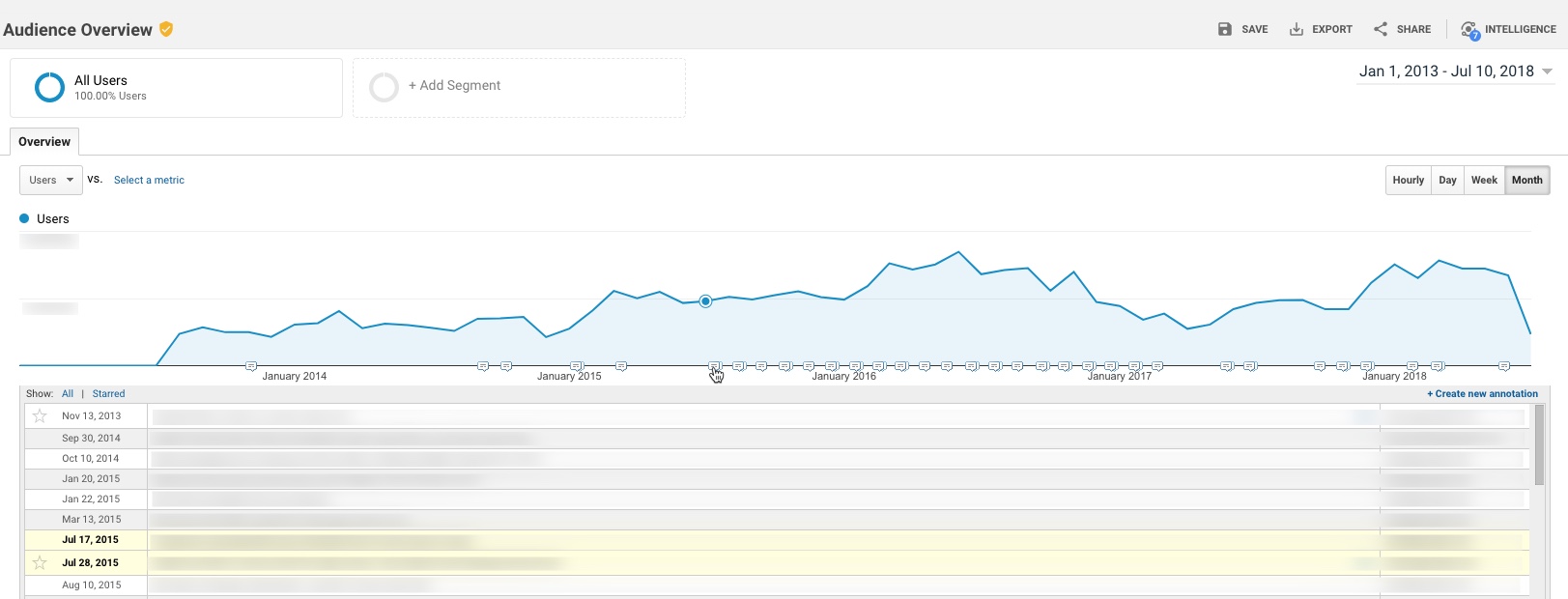
Within Google Analytics itself, there’s an available feature to add “Annotations” to your reports. These annotations show up as little markers on trend charts in all standard reports, and you can expand to read the details of a specific event.

However, there is a major challenge with annotations as they exist today: They essentially live in a silo – they’re not accessible outside the standard GA reports. This means you can’t access these annotations in:

  • Google Analytics flat-table custom reports
  • Google Analytics API data requests
  • Big Query data requests
  • Data Studio reports

While I can’t solve All.The.Things, I do have a handy option to incorporate annotations in to Google Data Studio. Here’s a quick example:

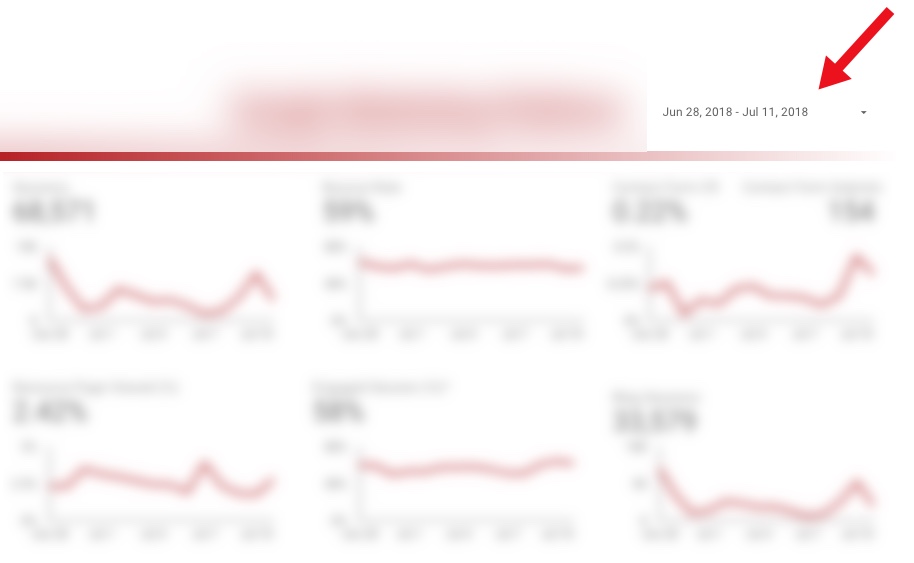
Not too long ago, Data Studio added a new feature that essentially “unified” the idea of a date across multiple data sources. (Previously, a date selector would only affect the data source you had created it for.)

One nifty application of this feature is the ability to pull a list of important events from a Google Spreadsheet in to your Data Studio report, so that you have a very similar feature to Annotations.

To do this:

Prerequisite: Your report should really include a Date filter for this to work well. You don’t want all annotations (for all time) to show, as it may be overwhelming, depending on the timeframe.

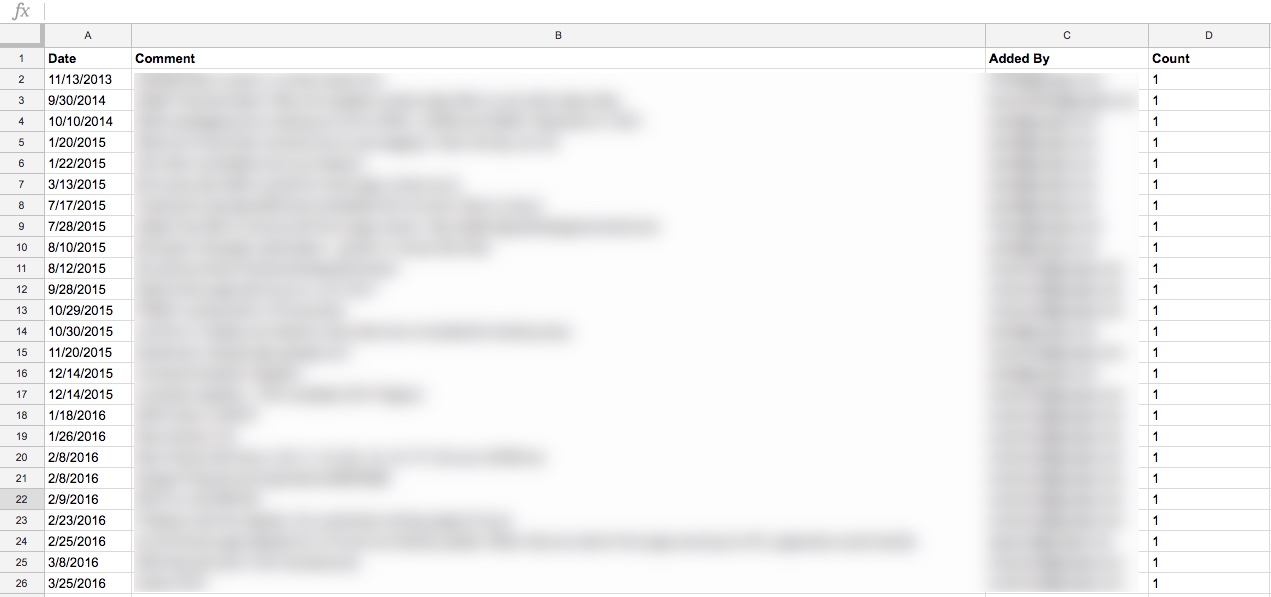
Step 1: Create a spreadsheet that contains all of your GA annotations. (Feel free to add any others, while you’re at it. Perhaps yours haven’t been kept very up to date…! You’re not alone.)

I did this simply, by just selecting the entire timeframe of my data set, and copy-pasting from the Annotations table in GA in to a spreadsheet

You’ll want to include these dimensions in your spreadsheet:

  • Date
  • The contents of the annotation itself
  • Who added it (why not, might as well)

You’ll also want to add a “dummy metric”, which I just created as Count, which is 1 for each row. (Technically, I threw a formula in to put a one in that row as long as there’s a comment.)

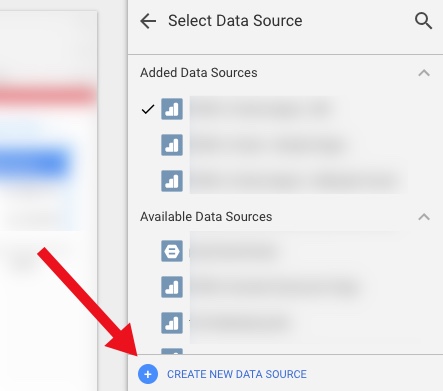
Step 2: Add this as a Data Source in Data Studio

First, “Create New Data Source”

Then select your spreadsheet:

It should happen automatically, but just confirm that the date dimension is correct:

3. Create a data table

Now you create a data table that includes those annotations.

Here are the settings I used:

Data Settings:

  • Dimensions:
    • Date
    • Comment
    • (You could add the user who added it, or a contact person, if you so choose)
  • Metric:
    • Count (just because you need something there)
  • Rows per Page:
    • 5 (to conserve space)
  • Sort:
    • By Date (descending)
  • Default Date Range:
    • Auto (This is important – this is how the table of annotations will update whenever you use the date selector on the report!)

Style settings:

  • Table Body:
    • Wrap text (so they can read the entire annotation, even if it’s long)
  • Table Footer:
    • Show Pagination, and use Compact (so if there are more than 5 annotations during the timeframe the user is looking at, they can scroll through the rest of them)

Apart from that, a lot of the other choices are stylistic…

  • I chose a lot of things based on the data/pixel ratio:
    • I don’t show row numbers (unnecessary information)
    • I don’t show any lines or borders on the table, or fill/background for the heading row
    • I choose a small font, just since the data itself is the primary information I want the user to focus on

I also did a couple of hack-y things, like just covering over the Count column with a grey filled box. So fancy…!

Finally, I put my new “Notable Events” table at the very bottom of the page, and set it to show on all pages (Arrange > Make Report Level.)

You might choose to place it somewhere else, or display it differently, or only show it on some pages.

And that’s it…!

But, there’s more you could do 

This is a really simple example. You can expand it out to make it even more useful. For example, your spreadsheet could include:

  • Brand: Display (or allow filtering) of notable events by Brand, or for a specific Brand plus Global
  • Site area: To filter based on events affecting the home page vs. product pages vs. checkout (etc)
  • Type of Notable Event: For example, A/B test vs. Marketing Campaign vs. Site Issue vs. Analytics Issue vs. Data System Affected (e.g. GA vs. AdWords)
  • Country… 
  • There are a wide range of possible use cases, depending on your business

Your spreadsheet can be collaborative, so that others in the organization can add their own events.

One other cool thing is that it’s very easy to just copy-paste rows in a spreadsheet. So let’s say you had an issue that started June 1 and ended June 7. You could easily add one row for each of those days in June, so that even if a user pulled say, June 6-10, they’d see the annotation noted for June 6 and June 7. That’s more cumbersome in Google Analytics, where you’d have to add an annotation for every day.

Limitations

It is, of course, a bit more leg work to maintain both this set of annotations, AND the default annotations in Google Analytics. (Assuming, of course, that you choose to maintain both, rather than just using this method.) But unless GA exposes the contents of the annotations in a way that we can pull in to Data Studio, the hack-y solution will need to be it!

Solving The.Other.Things

I won’t go in to it here, but I mentioned the challenge of the default GA annotations and both API data requests and Big Query. This solution doesn’t have to be limited to Data Studio: you could also use this table in Big Query by connecting the spreadsheet, and you could similarly pull this data into a report based on the GA API (for example, by using the spreadsheet as a data source in Tableau.)

Thoughts? 

It’s a pretty small thing, but at least it’s a way to incorporate comments on the data within Data Studio, in a way that the comments are based on the timeframe the user is actually looking at.

Thoughts? Other cool ideas? Please leave them in the comments!

Featured, google analytics, Reporting

Your Guide to Understanding Conversion Funnels in Google Analytics

TL;DR: Here’s the cheatsheet.

Often I am asked by clients what their options are for understanding conversion through their on-site funnel, using Google Analytics. This approach can be used for any conversion funnel. For example:

  • Lead Form > Lead Submit
  • Blog Post > Whitepaper Download Form > Whitepaper Download Complete
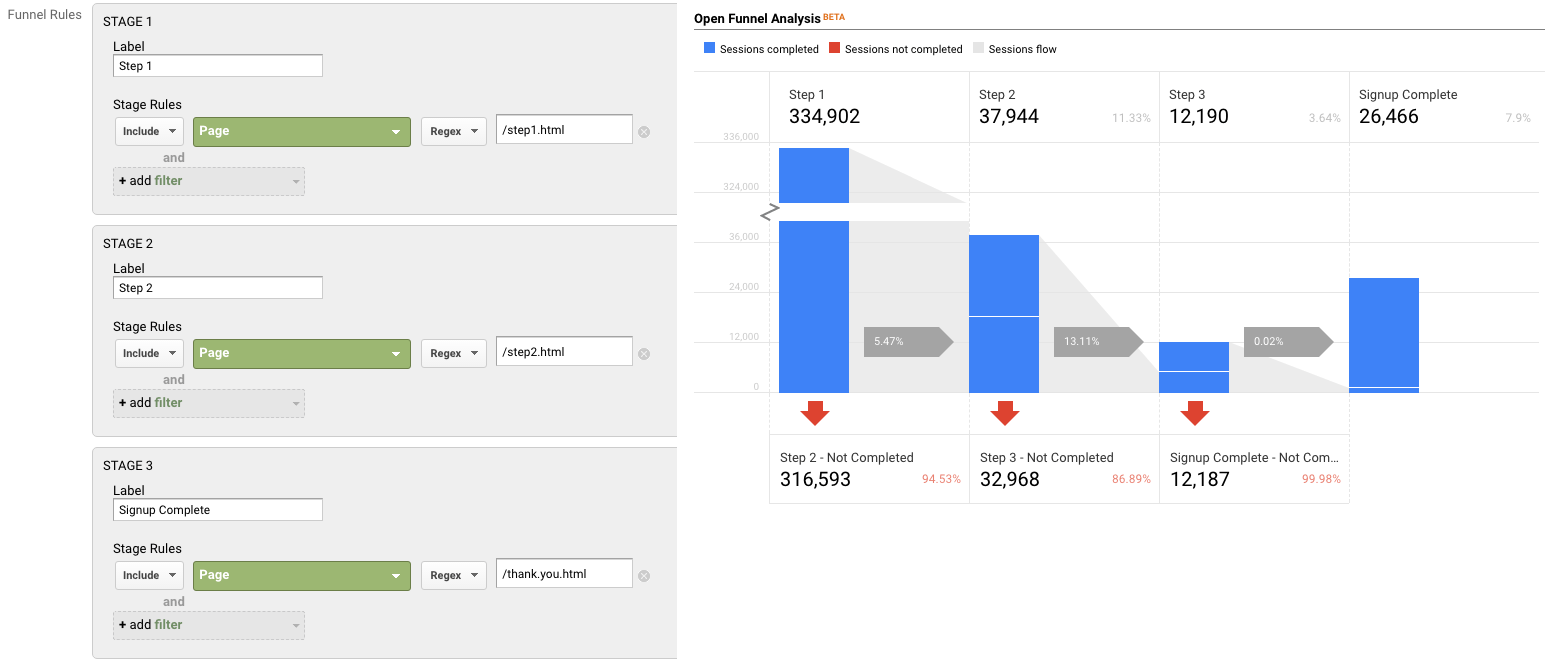
  • Signup Flow Step 1 > Signup Flow Step 2 > Complete
  • Product Page > Add to Cart > Cart > Payment > Complete
  • View Article > Click Share Button > Complete Social Share

Option 1: Goal Funnels

Goals is a fairly old feature in Google Analytics (in fact, it goes back to the Urchin days.) You can configure goals based on two things:*

  1. Page (“Destination” goal.) These can be “real” pages, or virtual pages.
  2. Events

*Technically four, but IMHO, goals based on duration or Pages/Session are a complete waste of time, and a waste of 1 in 20 goal slots.

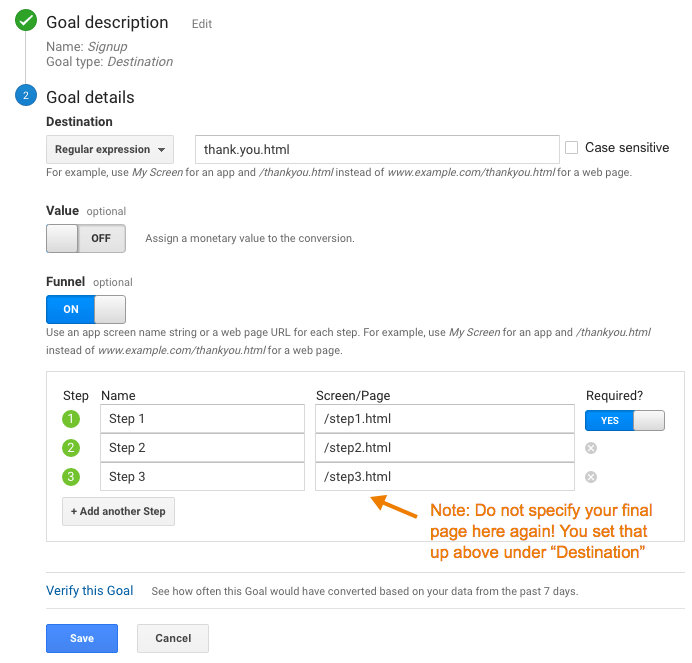
Only a “Destination” (Page) goal allows you to create a funnel. So, this is an option if every step of your funnel is tracked via pageviews.

To set up a Goal Funnel, simply configure your goal as such:

Pros:

  • Easy to configure.
  • Can point users to the funnel visualization report in Google Analytics main interface.

Cons:

  • Goal data (including the funnel) is not retroactive. These will only start working after you create them.
    • Note: A session-based segment with the exact same criteria as your goal is an easy way to get the historical data, but you would need to stitch them (together outside of GA.)
  • Goal funnels are only available for page data; not for events (and definitely not for Custom Dimensions, since the feature far predates those.) So, let’s say you were tracking the following funnel in the following way:
    • Clicked on the Trial Signup button (event)
    • Trial Signup Form (page)
    • Trial Signup Submit (event)
    • Trial Signup Thank You Page (page)
    • You would not be able to create a goal funnel, since it’s a mix of events and pages. The only funnel you could create would be the Form > Thank You Page, since those are defined by pages.
  • Your funnel data is only available in one place: the “Funnel Visualization” report (Conversions > Goals > Funnel Visualization)
  • Your funnel can not be segmented, so you can’t compare (for example) conversion through the funnel for paid search vs. display.
  • The data for each step of your funnel is not accessible outside of that single Funnel Visualization report. So, you can’t pull in the data for each step via the API, nor in a Custom Report, nor use it for segmentation.
  • The overall goal data (Conversion > Goals > Overview) and related reports ignores your funnel. So, if you have a mandatory first step, this step is only mandatory within the funnel report itself. In general goal reporting, it is essentially ignored. This is important. If you have two goals, with different funnels but an identical final step, the only place you will actually see the difference is in the Funnel Visualization. For example, if you had these two goals:
    • Home Page > Lead Form > Thank You Page
    • Product Page > Lead Form > Thank You Page

The total goal conversions for these goals would be the same in every report, except the Funnel Visualization. Case in point:

Option 2: Goals for Each Step

If you have a linear conversion flow you’re looking to measure, where the only way to get through from one step to the next is in one path, you can overcome some of the challenges of Goal Funnels, and just create a goal for every step. Since users have to go from one step to the next in order, this will work nicely.

For example, instead of creating a single goal for “Lead Thank You Page”, with a funnel of the previous steps, you would create one goal for “Clicked Request a Quote” another for the next step (“Saw Lead Form”), another for “Submitted Lead Form”, “Thank You Page” (etc.)

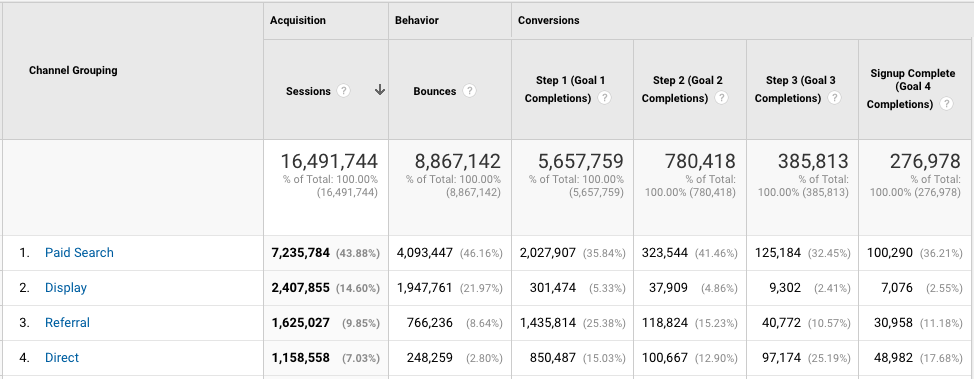
You can then use these numbers in a simple table format, including with other dimensions to understand the conversion difference. For example:

Or pull this information into a spreadsheet:

Pros:

  • You can create these goals based on a page or an event, and if some of your steps are pages and some are events, it still works
  • You can create calculated metrics based on these goals (for example, conversion from Step 1 to Step 2.) See how in Peter O’Neill’s great post.
  • You can access this data through many different methods:
    • Standard Reports
    • Custom Reports
    • Core Reporting API
    • Create segments

Cons:

  • Goal data is not retroactive. These will only start working after you create them.
    • Note: A session-based segment with the exact same criteria as your goal is an easy way to get the historical data, but you would need to stitch them (together outside of GA.)
  • This method won’t work if your flow is non-linear (e.g. lots of different paths, or orders in which the steps could be seen.)
    • If your flow is non-linear, you could still use the Goal Flow report, however this report is heavily sampled (even in GA360) so it may not be of much benefit if you have a high traffic site.
  • It requires your steps be tracked via events or pages. A custom dimension is not an option here.
  • You are limited to 20 goals per Google Analytics view, and depending on the number of steps (one client of mine has 13!) that might not leave much room for other goals. (Note: You could create an additional view, purely to “house” funnel goals. But, that’s another view that you need to maintain.)

Option 3: Custom Funnels (GA360 only)

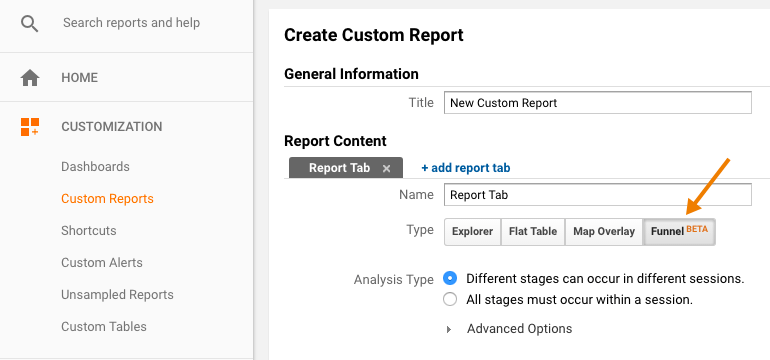
Custom Funnels is a relatively new (technically, it’s still in beta) feature, and only available in GA360 (the paid version.) It lives under Customization, and is actually one type of Custom Report.

Custom Funnels actually goes a long way to solving some of the challenges of the “old” goal funnels.

Pros:

  • You can mix not only Pages and Events, but also include Custom Dimensions and Metrics (in fact, any dimension in Google Analytics.)
  • You can get specific – do the steps need to happen immediately one after the other? Or “just eventually”? You can do this for the report as a whole, or at the individual step level.
  • You can segment the custom funnel (YAY!) Now, you can do analysis on how funnel conversion is different by traffic source, by browser, by mobile device, etc.

Cons:

  • You’re limited to five steps. (This may be a big issue, for some companies. If you have a longer flow, you will either need to selectively pick steps, or analyze it in parts. It is my desperate hope that GA allows for more steps in the future!)
  • You’re limited to five conditions with each step. Depending on the complexity of how your steps are defined, this could prove challenging.
    • For example, if you needed to specify a specific event (including Category, Action and Label) on a specific page, for a specific device or browser, that’s all five of your conditions used.
    • But, there are normally creative ways to get around this, such as segmenting by browser, instead of adding it as criteria.
  • Custom Reports (including Custom Funnels) are kind of painful to share
    • There is (currently) no such thing as “Making a Custom Report visible to everyone who has access to that GA View.” Aka, you can’t set it as “standard.”
    • Rather, you need to share a link to the configuration, the user then has to choose the appropriate view, and add it to their own GA account. (If they add it to the wrong view, the data will be wrong or the report won’t work!)
    • Once you do this, it “disconnects” it from your own Custom Report, so if you make changes, you’ll need to go through the sharing process all over again (and users will end up with multiple versions of the same report.)

Option 4: Segmentation

You can mimic Option 1 (Funnels) and Option 2 (Goals for each step) with segmentation.

You could easily create a segment, instead of a goal. You could do this in the simple way, by creating one segment for each step, or you can get more complicated and create multiple segments to reflect the path (using sequential segmentation.) For example:

One segment for each step
Segment 1: A
Segment 2: B
Segment 3: C
Segment 4: D

or

Multiple segments to reflect the path
Sequential Segment 1: A
Sequential Segment 2: A > B
Sequential Segment 3: A > B > C
Sequential Segment 4: A > B > C > D

Pros:

  • Retroactive
  • Allows you to get more complicated than just Pages and Events (e.g. You could take into account other dimensions, including Custom Dimensions)
  • You can set a segment as visible to all users of the view (“Collaborators and I can apply/edit segment in this View”), making it easier for everyone in the organization to use your segments

Cons:

  • You can only use four segments at one time in the UI, so while you aren’t limited to the number of “steps”, you’d only be able to look at four. (You could leverage the Core Reporting API to automate this.)
  • The limit on the number of segments you can create is high (100 for shared segments and 1000 for individual segments) but let’s be honest – it’s pretty tedious to create multiple sequential segments for a lot of steps. So there may be a “practical limit” you’ll hit, out of sheer boredom!
  • If you are using GA Free, you will hit sampling by using segments (which you won’t encounter when using goals.) THIS IS A BIG ISSUE… and may make this method a non-starter for GA Free customers (depending on their traffic.) 
    • Note: The Core Reporting API v3 (even for GA360 customers) currently follows the sampling rate of GA Free. So even 360 customers may experience sampling, if they’re attempting to use the segmentation method (and worse sampling than they see in the UI.)

Option 5: Advanced Analysis (NEW! GA360 only)

Introduced in mid-2018 (as a beta) Advanced Analysis offers one more way for GA360 customers to analyse conversion. Advanced Analysis is a separate analysis tool, which includes a “Funnel” option. You set up your steps, based on any number of criteria, and can even break down your results by another dimension to easily see the same funnel for, say, desktop vs. mobile vs. tablet.

Pros:

  • Retroactive
  • Allows you to get more complicated than just Pages and Events (e.g. You could take into account other dimensions, including Custom Dimensions)
  • Easily sharable – much more easily than a custom report! (just click the little people icon on the right-hand side to set an Advanced Analysis to “shared”, then share the links to others with access to your Google Analytics view.)
  • Up to 10 steps in your funnel
  • You can even use a segment in a funnel step
  • Can add a dimension as a breakdown

Cons:

  • Advanced Analysis funnels are always closed, so users must come through the first step of the funnel to count.
  • Funnels are always user-based; you do not have the option of a session-based funnel.
  • Funnels are always “eventual conversion”; you can not control whether a step is “immediately followed by” the next step, or simply “followed by” the next step (as you can with Sequential Segments and Custom Funnels.)

Option 6: Custom Implementation

The first three options assume you’re using standard GA tracking for pages and events to define each step of your funnel. There is, of course, a fourth option, which is to specifically implement something to capture just your funnel data.

Options:

  • Collect specific event data for the funnel. For example:
    • Event Category: Lead Funnel
    • Event Action: Step 01
    • Event Label: Form View
  • Then use event data to analyze your funnel.
  • Use Custom Dimensions and Metrics.

Pros:

  • You can specify and collect the data exactly how you want it. This may be especially helpful if you are trying to get the data back in a certain way (for example, to integrate into another data set.)

Cons:

  • It’s one more GA call that needs to be set up, and that needs to remain intact and QA’ed during site and/or implementation changes. (Aka, one more thing to break.)
  • For the Custom Dimensions route, it relies on using Custom Reports (which, as mentioned above, are painful to share.)

Personally, my preference is to use the built-in features and reports, unless what I need simply isn’t possible without custom implementation. However, there are definitely situations in which this would be the optimal route to go.

Hey look! A cheat sheet!

Is this too confusing? In the hopes of simplifying, here’s a handy cheat sheet!

Conclusion

So you might be wondering: Which do I use the most? In general, my approach is generally:

  • If I’m doing an ad hoc, investigative analysis, I’ll typically defer to Advanced Analysis. That is, unless I need a session-based funnel, or control over immediate vs. eventual conversion, in which case I’ll use Custom Funnels.
  • If it’s for on-going reporting, I will typically use Goal-based (or BigQuery-based) metrics, with Data Studio layered on top to create the funnel visualisation. (Note: This does require a clean, linear funnel.)

Are there any approaches I missed? What is your preferred method? 

google analytics

A Step-By-Step Guide To Creating Funnels in Google’s Data Studio

I’m so excited to report that this post is now obsolete! Funnels are now a native feature in Looker Studio, so check out the new post to read how to create them.  

Old post, for posterity: 

This is an update to a 2017 blog post, since there are a ton of new features in Data Studio that make some of the old methods unnecessary. If you really need the old post (I can’t fathom why) maybe try the Way Back Machine

Given so many sites have some sort of conversion funnel (whether it’s a purchase flow, a “contact us” flow or even an informational newsletter signup flow), it’s a pretty common visualization to include in analytics reporting. For those using Google’s Data Studio, you may have noticed that a true “funnel” visualization is not among the default visualization types available. (Though you may choose to pursue a Community Visualization to help.) 

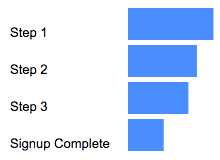
The way I choose to visualize conversion funnels is by leveraging an horizontal bar chart:

To create this type of visualization, you will need: 

  • A linear flow, in which users have to go through the steps in a certain order
  • A dimension with a single value* (I’ll explain below) 
  • A metric for each step. You could create this in several ways: 
    • Google Analytics Goal
    • Custom Metric
    • BigQuery metric
    • Data Studio data blend (up to 5 steps) 
    • Data in spreadsheet

For example, here I am using Goal Completions: 

A spreadsheet might be as simple as: 

And here I am using a data blend (basically, Data Studio’s “join”), in what I’ll call a “self-join”. Basically, I’m taking filtered data from a Google Analytics view, then joining it with the same Google Analytics view, but a different metric or filter. This is what will allow you to build a funnel where, for example: 

  • Step 1 is a page (“home”)
  • Step 2 is an event (“contact us”)
  • Step 3 might be another page (“thank-you”) 

But remember a blend will only work if you have five funnel steps or fewer. 

* Why a dimension with a single value? For example, a dimension called “All Users” that only has one value, “All Users.”

Here’s what happens to your visualization if you try to use a dimension with multiple values: 

Basically what you want is to create a bar chart, with no dimension. But since that’s not an option, we use a dimension with a single value to mimic this. 

You can create one super fast in your Data Source in Data Studio, by creating a CASE statement similar to this: 

CASE WHEN REGEXP_CONTAINS(DeviceCategory, ".*") then "All Users" ELSE "All Users" END

And don’t try to make your life easy by choosing “year”, thinking that “well it’ll only have one value, this year!” — when Jan 1 rolls around and all your funnels break, you’ll be annoyed you didn’t take the extra two seconds.

A step-by-step walkthrough:

Step 1: Create your bar chart

Our visualization is then a horizontal bar chart, with our “single value dimension” as the dimension, and our steps as the metrics. 

2. Change the colors to be all the same color

3. Hide axes (both X and Y)

4. Add data labels

5. Remove legend and gridlines

6. Add text boxes, to label the steps

Voila! That’s your (raw numbers) funnel. But you probably want conversion rate too, right? 

You’re going to want to create calculations for each step of the funnel: 

Step 1%:

SUM(Step 1)/SUM(Step 1)

Step 2%:

SUM(Step 2)/SUM(Step 1)

Step 3%:

SUM(Step 3)/SUM(Step 1)

Purchase%:

SUM(Step 4)/SUM(Step 1)

This will give you the conversion rate from the first step of the funnel. (And yes, Step 1 % will be 100%, it’s supposed to be!) 

Side note: I tend to put the % sign in the formula, so it makes it easy for me to search for it in the list of metrics later.

And make sure you format as a percentage, so you don’t have to constantly adjust it in the chart. 

Note that you could also add a “Step-to-Step” conversion as well: 

Step 1% s2s (This formula is actually the same, so I don’t bother creating another one) 

SUM(Step 1)/SUM(Step 1) 

Step 2% s2s (This formula is actually the same, so I don’t bother creating another one) 

SUM(Step 2)/SUM(Step 1) 

Step 3% s2s (This is a different formula to the one above)

SUM(Step 3)/SUM(Step 2) 

Purchase% s2s (This is a different formula to the one above)

SUM(Step 4)/SUM(Step 3) 

I use something like “s2s” to denote that that’s the formula with the previous step as the denominator, versus the formula with the first step as the denominator.

Now you’ll follow the steps again, but build a second bar chart with your conversion rate metrics, and/or your step-to-step conversion rates. 

That’s it!

Voila! Look at your lovely funnel visualization: 

The hardest part is getting your data into the right shape (e.g. having a metric for each step.)

And it used to be a lot harder, before some newer features of Data Studio! (In my day, we used to have to create funnels for three miles in the snow…) 

If you have any questions, please don’t hesitate to reach out to me via Twitter, Linked In, email or Measure Chat.

Analytics Strategy

What I Love: Adobe and Google Analytics*

While in Atlanta last week for ACCELERATE, I got into the age-old discussion of “Adobe Analytics vs. Google Analytics.” I’m up to my elbows in both of them, and they’re both gunning for each other, so this list is a lot shorter than it would have been a couple of years ago. To wit:

  • Cross-session segments are in both!
  • Both enable multi-suite/property/view tracking!
  • Sequential segments are in both!
  • Custom dimensions/variables and custom metrics/events are plentiful (not that users won’t always pine for more)!
  • Classifications/dimension widening is in both!
  • They both have reasonably robust eCommerce tracking, including a native concept of “product” and “cart” (yeah…that’s a new one for one of these guys)!

Are these features identical in both platforms? Of course not! Does one platform handle any of these capabilities in an empirically better way? Perhaps…but the comment trolls and platform homers will take over the comments if we let ourselves stray down such a path. Let’s just say that they both provide these capabilities and accept that personal preference and “the-tool-I-learned-first” quickly enter the picture and make such a debate subjective. Let’s call it close enough to binary parity and move on.

Other historical knocks against one platform or the other are rapidly going away, too:

  • Sampling is becoming less and less frequent an occurrence in Google Analytics
  • Correlations and subrelations are increasingly available between any two props/evars in Adobe
  • Google Analytics has gently eased its terms of service as Universal Analytics continues to get broadened so that user-level tracking is allowed (as long as reasonable privacy lines aren’t crossed)
  • Adobe has drastically simplified their product/pricing model so that users just get many of the most powerful features that used to require additional expense

Right?! Convergence ruuuuullllles!

loveallthetools

Nonetheless, I made a bold claim last week that I could write a brief post that hits my highlights — geared towards analysts, and avoiding topics that are more religio-philosophical than fact-based — as to the capabilities of each tool that, to me, are meaningful differentiators between the platforms. And, this is my attempt to back that claim up, listing these capabilities as positives of what each tool has that stands out, rather than as them’s-fightin’-words-type criticisms of either platform.

(As it turns out, I was wrong when I claimed I could write a brief post. I circulated the initial draft internally among the Demystified partners and Team Demystified…and the end result is a much more complete — not as…er…”brief” — and clear work.)

Things I Love That Google Analytics Does

Here’s my list of some features I use all the time in Google Analytics that might be lacking in another platform:

  • Multiple Segments — applying up to 5 segments to a view in the tool’s web interface (I almost never use 5…but THREE is a magic number!). “In the web interface” is the operative phrase here — more on that in the next section.
  • Retaining Segments — when multiple segments are applied in the tool’s web interface, Google Analytics is really good about retaining those applied segments no matter how you click around among reports; you’re stuck with them until you click to remove them!
  • Segment and Report Template Sharing — sharing segment and custom report templates (“templates” is the operative word) with a simple emailed URL (read it again: sharing templates for segments and reports; not the segments and reports themselves).
  • There Is a “Free” Version — yes, “free” is in quotes, because I’m just talking about the licensing fees. But, for a company on a tight budget that is looking to get off a dying platform or that, somehow, doesn’t have web analytics on the site yet, the availability of a free platform removes one barrier to getting internal backing for the effort. Plus, from a talent pool perspective, the existence of a free option means lots of analysts and marketers can get their hands dirty with the platform on small sites and be able to hit the ground running faster with analytics for larger, more complex sites.
  • Automatic Adwords (and DoubleClick) integration — Google owns these products, of course, and the very existence of Google Analytics is driven by that fact, but that doesn’t change the fact that it reduces the need to implement campaign tracking variables for a, generally, significant traffic source.
  • Google Spreadsheet Integration for Free — there’s a handy Google spreadsheet extension that lets you pull data straight into a Google spreadsheet.
  • Captures the URL and hostname of the Page by Default — URLs still matter, so having the URL (with gratuitous parameters stripped appropriately in the configuration) readily available is super handy. And the hostname is useful to be able to easily get to for multi-domain/subdomain sites and to figure out if another site (and which site) has inadvertently hijacked your tag.

Things I Love That Adobe Analytics Does

Here’s my short list of some features I use all the time in Adobe Analytics that might be lacking in another platform:

  • Ad Hoc Analysis / Discover — this has to be at the top of the list. I go for days without getting into Reports & Analytics, and that’s as it should be. Slicing and drilling, comparing different segments side by side, quickly trending a specific item that I’ve drilled down to, and so on. I’ve said it before, and I’ll say it again, if you are an analyst using Adobe Analytics and you spend more time in Reports & Analytics (SiteCatalyst) than Ad Hoc Analysis (Discover), you really, really should be kicking yourself. If you match this description, and you’re at eMetrics in Boston and are willing to sign a waiver, I’ll happily deliver the appropriate kick in the pants for your poor judgment. (Business users heads still spin when they dive into Discover, so I don’t think Reports & Analytics can go away…even as I hanker for extending its capabilities).
  • Hit Containers —  It took me a while to fully grasp the robustness of the Hit/Visit/Visitor segment paradigm in Adobe Analytics when it was rolled out, but I find myself using all three container types all the time! Hit (page view) containers, in particular, stand out as being a unique plus to Adobe Analytics.
  • Calculated Metrics — These can be created by individuals for their own temporary (even throwaway) use, or they can be deployed to all users. Very handy!
  • Segment / Dashboard / Bookmark Management — Being able to actually share these items (rather than templates of these items) comes in extraordinarily handy. And, giving the user the option to either copy or simply link to dashboards…is genius.
  • Segment Stacking — the ability to apply multiple segments at once (“I want to see only the visits who are First-Time Visitors — one segment — and who did not purchase — another segment — without building a whole new segment.”) This used to be an Ad Hoc Analysis-only thing, but it’s now available in Reports & Analytics and Report Builder. Woot!
  • Pathing on any traffic variable — because Adobe Analytics has a long-standing history of extensive custom variables, the ability to do pathing on those variables pops up as being super handy when you’d least expect it.
  • Excel Integration for Free — Adobe Analytics comes with Report Builder, which enables a high level of control over what data gets pulled into Excel, when, and how (and enables scheduling of well-formatted results).
  • “Page Names” decoupled from “URLs” — a page is a page is a page…and being able to build a meaningful taxonomy for your pages that makes that core unit neither too granular nor too broad is pretty powerful flexibility.

The Thing I Would Love but Am Unable To

I’ve got to put one item on the list that doesn’t exist in any web analytics platform: better data visualization. Choosing from a 2×2 or 2×3 grid (or even from a longer list of limited layouts) and then dropping in widgets where I can control substantially less of the presentation of the data than I could manage with Excel 95 is embarrassing. Especially since there are oodles of third-party visualization platforms that are built to be embedded in products. I don’t get it. I’m forced to pull data into third-party tools (for me, that’s generally Excel, but plenty of people use Tableau for the same reason — and good on ya’, Adobe, for supporting that with the Tableau export format!) if I want to deliver recurring reports to business users that can actually be meaningfully understood. I need better control of:

  • The layout of widgets — not necessarily pixel-level granularity, but give me a grid that is at least 25 columns wide
  • Labels and dividers — grouping and organizing of content
  • Trending of data — chart size and style, axis label display and formatting, line/bar color
  • Sorting control — for lists of numbers…and let me decide if I want to include a gratuitous “% of total”
  • And much, much more…

I’ve bought a copy of Stephen Fews’s Information Dashboard Design for a web analytics product manager before, and I’ll happily do it again. Let me know if that’s your role and you’re interested.

So, Clearly, the Better Tool Is…

…really? Surely, you didn’t think I was going to bite on that, did you? I’ll even stop short of, “It depends on your needs.” I’d hazard that, north of 75% of the time, a company could flip a coin between these two platforms and then invest all the time they were planning to put into an exhaustive RFP process, instead, into finding people who really know the platform inside and out to implement, maintain, and use the tool. And, they’d come out ahead of the company that obsesses about which of these platforms is “right” for them (they’re both right, and they’re both wrong!).

As Adam Greco says in his Top Gun training classes, “It doesn’t matter what tool you’re using if you’re only using 20-30% of its capabilities. Make sure you have the people and the commitment to not only learn and apply the full power of the tool now, but to stay current on new capabilities as competing platforms chase each other.” Competition is stressful for the vendors…but it’s a boon for analysts!

* This post doesn’t attempt to cover all web analytics platforms. There is no mention…except in this footnote… of Webtrends, IBM Coremetrics, Mixpanel, AT Internet, KISSmetrics, Piwik, or any of the other potential dozens of vendors who may comment here about their particular platforms. I’m sticking with what I know and what we see with our current client base. It’s in the post title.

Image Source: Flickr / Klearchos Kapoutsis

Analysis, Analytics Strategy

Some (Practical) eCommerce Google Analytics Tips

A short, partially self-promotional post — two links and one, “Hey…look out for…” note about sampling.

Post No. 1: Feras Alhlou’s 3 Key GA Reports

Feras Alhlou of E-Nor recently wrote an article for Practical eCommerce that describes three Google Analytics reports with which he recommends eCommerce site owners become familiar. The third one in his list — Funnel Segments — is particularly intriguing (breaking down your funnels by Medium).

Post No. 2: (Log Rolling) 5 Custom Events for eCommerce Sites

I also recently published a Practical eCommerce article with some handy (I claim) tips for eCommerce site owners running Google Analytics that describes five of my favorite custom events for eCommerce sites.

“Hey…look out for…sampling (with conversion rates)”

Sampling in Google Analytics is one of those weird things that people either totally freak out about (especially people who currently or previously worked for the green-themed-vendor-that-has-been-red-for-a-few-years-now) or totally poo-poo as not a big deal at all. Once Google Analytics Premium came out, Google actually started talking about sampling more…because its impact diminishes with Premium.

I actually fell in the “poo-poo” camp for years. The fact was, every time I dug into a metric in a sampled report — when I jumped through hoops to get unsampled data — the result was similar enough for the difference to be immaterial. I patted myself on the back for being a sharp enough analyst to know that an appropriately chosen sample of data can provide a pretty accurate estimate of the total population.

And that’s true.

But, if you start segmenting your traffic and have segments that represent a relatively small percentage of your site’s overall traffic, and if you combine that with a metric like Ecommerce conversion rate (which is a fraction that relies on two metrics: Visits and Transactions), things can start to get pretty wonky. Ryan at Blast Analytics wrote a post that I found really helpful when I was digging into this on behalf of a client a couple of months back.

Obviously, if you’re running the free Google Analytics and you never see the yellow “your data is sampled” box, then this isn’t an issue. Even if you do see the box, you may be able to slide the sampling slider all the way to the right and get unsampled data. If that doesn’t work, you may want to pull your data using shorter timeframes to remove sampling (which throws Unique Visitors out the window as a metric you can use, of course).

Be aware of sampling! It can take a nice hunk of meat out of your tush if you blithely disregard it.

Adobe Analytics, google analytics

Handy Google Analytics Advanced Segments for any website

Advanced Segments are an incredibly useful feature of Google Analytics. They allow you to analyse subsets of your users, and compare and contrast behaviour. Google Analytics comes with a number of standard segments built in. (For example, New Visitors, Search Traffic, Direct Traffic.)

However, the real power comes from leveraging your unique data to create custom segments. Better yet, if you create a handy segment, it is easily shared with other users.

Sharing segments

To share segments, go to Admin:

AdvSeg1

and choose the profile you wish to view your segments for.

Choose Advanced Segments:

AdvSeg2

(Note: You can also chose “Share Assets” at the bottom. That will allow you to share any asset, including segments, custom reports and more.)

Find the segment you are interested in sharing, and click Share:

AdvSeg3

This will give you a URL that will share the segment.

AdvSeg4

Send this URL to the user you wish to share the segment with. They simply paste into their browser:

AdvSeg5

It will ask them which segment they would like to add the segment to:

AdvSeg6

Sharing segments does not share any data or permissions, so it’s safe to share with anyone.

Once a user adds a shared segment to their profile/s, it becomes theirs. (This means: If you make subsequent changes to the segment, they will not update for another user. But it also means the user can customise to their liking, if needed.)

Something to keep in mind

Sharing segments of course requires those segments to be applicable to the profile a user is adding them to. (For example, if you create an Advanced Segment where Custom Variable 1 is “Customer” and the segment is applied to a profile where no Custom Variables are configured, it won’t work.)

The good news: Free stuff!

The good news is there are a few super-handy segments you can apply to your profiles today that should apply to any Google Analytics account. (Unless you’ve made some super wacky modifications of standard dimensions!)

Here are a few segments I have found helpful across many Google Analytics accounts. Simply click the link and follow the process above to add to your own Google Analytics account.

Organic Search (not provided) traffic: Download segment

I find this a pretty helpful segment to monitor the percentage of (not provided) traffic for different clients.

Definition:

  • Include Medium contains “organic” and
  • Include Keyword contains “(not provided)”

Mobile (excluding Tablet): Download segment

The default Google Analytics Mobile segment includes tablets. However, since ease of use of a non-optimised website is much better on tablet than smartphone, it can be really helpful to parse non-tablet mobile traffic out and see how users on a smaller screen are behaving.

Definition:

  • Include Mobile (Including Tablet) containing “Yes” and
  • Exclude Tablet containing “Yes”

Desktop Traffic: Download segment

Definition:

  • Include Operating System matching Regular Expression “windows|macintosh|linux|chrome.os|unix” and
  • Exclude Mobile (Including Tablet) containing “Yes”
  • Note: Why didn’t I just create the segment to exclude Mobile = Yes? Depending on your site, you may get traffic from non-mobile, non-desktop sources like gaming devices. This segment adds a little extra specificity, to try to narrow down to just computer traffic.

Major Social Networks Traffic: Download segment

Definition:

  • Include Source matching Regular Expression “facebook|twitter|t.co|tweet|hootsuite|youtube|linkedin|pinterest|insta.*gram|plus.*.google”

Social Traffic: Download segment

Definition:

  • Include Source matching Regular Expression “facebook|twitter|t.co|tweet|hootsuite|youtube|linkedin|pinterest|insta.*gram|plus.*.google|
    bit.*ly|buffer|groups.(yahoo|google)|paper.li|digg|disqus|flickr|foursquare|glassdoor|
    meetup|myspace|quora|reddit|slideshare|stumbleupon|tiny.*url|tumblr|yammer|yelp|posterous|
    get.*glue|ow.*ly”
  • Include Medium containing “social”
    • Note: Medium containing “social” will capture any additional social networks that might be relevant to your business, assuming you use utm_ campaign tracking and set medium as “social”.
  • Note: Is there a social network relevant to your business that’s missing? Once you’ve added the segment, it’s yours to modify!

Apple Users (Desktop & Mobile): Download segment

Definition:

  • Include Operating System matching Regular Expression “Macintosh|iOS”

They’re all yours now

Remember, once you add a shared segment, it becomes your personal Google Analytics asset. Therefore, if there are tweaks you want to make to any of these segments (for example, adding another social network that applies to your business) you can edit and tailor to what you need.

Let’s hear your favourites!

Do you have any favourite Advanced Segments you use across different sites? Share yours in the comments!

Analytics Strategy

A Google Analytics Advanced Segment for Smartphones

“Mobile” is a tricky topic, if for no other reason than the fact that tablets are mobile devices and smartphones are mobile devices. And, when it comes to web sites, even ones that have brilliantly adaptive/responsive designs, the user experience (and, often, the user’s intent) can vary quite a bit depending on whether they’re visiting the site from their phone or from a tablet. That’s the first question I tackled in my most recent Practical eCommerce article, Analyzing Mobile Traffic in Google Analytics; 5 Questions.

Google Analytics has been a little slow on the uptake when it comes to their default segments on this front. First, they only had “Mobile Traffic,” which included both smartphones and tablets. More recently, they added a “Tablet Traffic” segment, so now, with a default segment, you can split out tablet traffic, too (but “Mobile Traffic” is inclusive of both smartphones and tablets):

Luckily, it’s easy enough to create a custom segment that is Smartphone Traffic only. The segment looks like this:

Create it yourself, or, if you want it pre-created, you can get it at http://bit.ly/ga_phone.

Happy segmenting!

Analytics Strategy

Beefing Up the Integration of Optimizely and Google Analytics

I’ve developed a pretty serious crush on Optimizely as an A/B and multivariate testing platform — it’s hard to beat the ease-of-deployment and ease-of-use. Just like any platform — web analytics, tag management, voice of the customer, testing, or otherwise — that is implemented with “just one line of Javascript,” there are some limitations as to what can be achieved without any additional tweaks to the code on your site. But, still, the emergence of “leveraging the DOM” has been a boon to the world of analytics and optimization. And, while, at Clearhead, we are platform-agnostic when it comes to testing technology, this post is about Optimizely, which we’ve found certainly shines in certain situations.

Coming from a web analytics background, I tend to want almost any technology that relates to my site to be hooked in to the site’s web analytics. It doesn’t matter what your testing platform is or what your web analytics platform is, you’ll almost certainly want to link them up (Exhibit 1: Bryan Hawkins just wrote a great post detailing how to push Adobe Test&Target data into Google Analytics.)

What’s the Point of Integrating?

First, let’s define “integration” in the context of this post:

Integration means passing information into your web analytics tool that tells the tool if a visitor was exposed to a certain test, and, if they were, to which variation of the test they were exposed.

By enabling this integration, you enable segmentation of your traffic based on the different test variations, and you can do side-by-side comparisons of visitor behavior and any metric based on which variation of the test the visitor experienced. This is similar, in some ways, why you put campaign tracking parameters on links from banner ads to your sites: you get powerful data to augment the impression, clickthrough, and conversion (if tracking pixels are implemented) metrics provided by the media server.

The depth of out-of-the-box integration is one of the selling points for using testing and web analytics solutions from the same company (Adobe, Google, or Webtrends), but it is always possible — and not all that difficult — to enable a link between any testing technology and any web analytics platform.

This Post Just Covers Optimizely –> Google Analytics

Recently, we had a client that was using Optimizely and Google Analytics…and we quickly ran into some limitations of the out-of-the-box integration, which is well-documented by Optimizely. What the integration does is populate a visit-scope Google Analytics custom variable: the variable key is the name of the experiment, and the variable value is the variation that was served to the visitor. (My favorite explanation of Google Analytics custom variables, including what “visit-scope” means and the implications therein, is the first one Justin Cutroni wrote on the subject).

One shortcoming to Optimizely’s documentation is that, when it comes to using the integration, it only details how to build an advanced segment based on the custom variable. Custom variables also have their own reporting, including many standard metrics, available under Audience » Custom » Custom Variables, and custom variables can be used in custom reports. So, the post stops short of providing sufficiently deep documentation on how to get to custom variable data within Google Analytics.

But…the bigger issue are two limitations of the integration itself.

First, there is the fact that the free version of Google Analytics only has five custom variables available. If you’re not already using custom variables, then that means you can run five Optimizely experiments concurrently…so you’re probably fine. But, if you are using custom variables (to track registered users, logged in users, returning customers, page type, or any of the slew of other valuable uses), well, you should be! (Justin actually has written multiple posts with specific suggestions on that front.) With Optimizely’s standard Google Analytics integration, you can only integrate as many concurrent experiments as you have available custom variables.

The other limitation is related to the “just one line of Javascript!” implementation of Optimizely. Yes, it is one line of Javascript, but, depending on your site and the conversion goal for your experiment, you may have to implement additional Javascript on your site to pass data back to Optimizely (for instance, if you want to track revenue by test variation, you have to implement Javascript on your order confirmation page to tell Optimizely how much revenue was in the order). In many cases, that information is data that is already being captured by Google Analytics!

In the case of this client, we were going to have to implement additional Javascript on the site in order to track orders, and we had only one available custom variable and three concurrent experiments. In short, we were effectively up a creek with a spork for a paddle!* Luckily, we also had a couple of passable analytics (me) and javascript (Ryan Garner) woodworkers and a plank of (digital) wood.

A More Flexible Integration Approach

The approach we took allows an unlimited number of experiments to be run concurrently (of course, the more experiments there are running at the same time, the more risk there is that experiments will overlap, which has implications for test duration and, in some cases, results interpretation for individual tests). We did this using:

  • Optimizely’s Global Javascript feature — the ability to implement a piece of Javascript across all pages in the experiment, including the original page and every variation; Optimizely has the capability documented, and even references in the documentation that its primary use is for integration with “analytics services.”
  • Google Analytics Non-Interaction Events — a way to pass test information into Google Analytics without affecting any web analytics metrics (more on non-interaction events can be found in the Google Analytics documentation for event tracking)

All we needed to do — and we admit we based this largely on the example in Optimizely’s documentation, was go to Options » Global Javascript in each Optimizely experiment and paste in the following code:

[Update: The original code snippet included in this post worked…but could occasionally cause the dreaded “flicker” when the page loaded. The snippet has been updated as of 30-Nov-2012 to both use some Optimizely special markup to force the code to evaluate immediately as soon as it loads, and it now checks for _gaq before using it so as to not cause any Javascript errors.]


/* _optimizely_evaluate=force */
setTimeout(function(){
experimentId = ;
if (typeof(optimizely) != "undefined" &&
optimizely.variationMap.hasOwnProperty(experimentId)) {
window._gaq = window._gaq || [];
_gaq.push(['_setAccount', '']);
_gaq.push(['_trackEvent', 'Optimizely', optimizely.data.experiments[experimentId].name, optimizely.variationNamesMap[experimentId], 1, true]);
}},1000);
/* _optimizely_evaluate=safe */

With this code, a non-interaction event gets sent to Google Analytics each time the experiment is displayed. That event has a Category of “Optimizely,” an Action that is the name of the experiment, and a Label that is the variation of the experiment that was displayed.

With the event values sent to Google Analytics, you can explore visitor behavior for each version of the test to which the visitor was exposed:

  • By building custom segments for each variation (use the Action and Label values to isolate visitors who were exposed to each variation of the experiment)
  • By drilling down on Content » Events » Top Events » Optimizely and analyzing site usage and/or Ecommerce metrics
  • By creating a custom report that breaks out the experiment variations as warranted with specific metrics of interest

Of course, before you go too nuts with your in-Google Analytics analysis, be sure to do a quick cross-reference with the Optimizely Results page for the experiment to make sure Google Analytics and Optimizely are within the same ballpark when it comes to how many times each variation of the test has been served (use the “Unique Events” or “Visits” metric in Google Analytics). They will never match, as they are capturing the test counts in very different ways, but they should be within spitting distance of each other. Be sure you have both Optimizely and Google Analytics set up to use the same timezone!

That’s all there is to it! Happy test analyzing!
*If you’re not familiar with the “up a creek” reference, see this link.


Analysis, Reporting, Social Media

Imperfect Options: Social Media Impact for eCommerce Sites

I’m now writing a monthly piece for Practical eCommerce, and the experience has been refreshing. At ACCELERATE in Chicago earlier this year, April Wilson‘s winning Super ACCELERATE session focused on digital analytics for smaller companies. Her point was that a lot of the online conversation about “#measure” (or “#msure”) focuses on multi-billion dollar companies and the challenges they have with their Hadoop clusters, while there are millions of small- to medium-sized businesses who have very little time and very limited budgets who need some love from the digital analytics community. To that end, she proposed an #occupyanalytics movement — the “99%” of business owners who can get real value from digital analytics, but who can’t push work to a team of analysts they employ.

Practical eCommerce aims to provide useful information to small- to medium-sized businesses that have an eCommerce site. It’s refreshing to focus on that analytics for that target group!

My latest piece was an exploration of the different ways that managers of eCommerce sites running Google Analytics can start to get a sense of how much of their business can be linked to social media. It touches on some of the very basics — campaign tracking, referral traffic, and the like — but also dips into some of the new social media-oriented reporting in Google Analytics, as well as some of the basics of multi-channel funnels as they related to social media.And, of course, a nod to the value of voice of the customer data. Interested in more? You can read the full article on the Practical eCommerce site.

Analytics Strategy

Working Around Sampled Search Data in Google Analytics

I got into a discussion of sampling in Google Analytics  with SEO expert and Web PieRat Jill Kocher earlier this year, which led to some profile/filter noodling that seemed worth sharing. Specifically, Jill and I were discussing how, in the world of search engine optimization — where the long tail can be a handy thing to analyze — sampling in Google Analytics can be a real nuisance.

That got me thinking that a partial solution would be to have a Google Analytics profile that only includes organic search traffic. This isn’t a profile that you would use for cross-session analytics, but it’s one that would allow simplified segmentation, reduced cases of sampling, and, perhaps, a more complete data set.

As it turns out, it was pretty simple to set up, and it seems to do the trick.

Step 1: Make a New Profile

Create a new profile under the same web property that you’re using for your site and name it Organic Search Traffic Only:

There’s nothing magic about this. The key is that this is a profile that uses the same web property ID as the profile where you’re running into sampling issues with your SEO analysis. We’re just going to take that same feed of data coming in as visitors visit your site and carve out the subset of that data that is traffic from organic search referrals.

Step 2: Apply an Organic Search Filter

The next (and final) step is to create a filter and apply it to the profile such that only organic search traffic is included.

In the new profile you just created, select the Filters tab and then click New Filter:

From there:

  1. Give the filter a name like “Organic Search Referrals”
  2. Select Custom Filter as the Filter Type
  3. Set the filter as an Include filter
  4. Set the Filter Field to Campaign Medium
  5. Set the Filter Pattern to “organic”
  6. Save the filter

The screen below shows the filter settings:

Step 3: Sit Back and Let the Data Roll In

The profile is only going to include data from the point you set it up going forward. But, it will accurately reflect (to the extent that any web analytics package can accurately reflect this) new versus returning visitors for all time (well, since you initially implemented Google Analytics), because it’s getting that data from the cookie that already exists on users’ machines.

Initially, I saw some odd data on the unique visitors front, which I can semi-intuitively understand…but not quite explain.

Suffice it to say that, once you have the profile up and running for a week or so, you can select the Non-paid Search Traffic segment in your main profile and compare it to the All Visits segment in your new profile, and the numbers will be virtually identical. But, you can now do SEO analysis with a base set of data that only includes search traffic.

Is that handy?

Analytics Strategy

How Google Analytics In-Page Analytics / Overlay Works

I’m starting to think that page overlays are the new page-level clickstream — they’re what well-meaning-but-inexperienced business users see in their minds’ eyes as a quick and clear path to deep insights when, generally, they are not. I’ve had a couple of clients over the last year ask for overlays (in one case, “provided weekly for all major pages of the microsite”), and the overlays were never an effective mechanism for helping them drive their businesses forward. (One request was for overlays from Sitecatalyst; the other was for overlays from Google Analytics.)

I seldom use overlays for reporting or analysis. The reason isn’t that they don’t have very real usefulness in certain situations, but, rather, because those certain situations are extremely rare in my day-to-day work. As the “page” paradigm — in its basic-HTML simplistic glory — goes the way of daytime soap operas, and as brands’ digital presences increasingly are intertwined combinations of their sites and social media platforms, the number of scenarios where an overlay provides a view of the page that is both reasonably complete and actually useful are few and far between.

That’s a bit broader of a topic than I was aiming to cover with this post, though.

I recently needed to explain to a client why it wasn’t simply a matter of “fixing” the Google Analytics implementation on his site to get the overlays to work properly. I did some digging for documentation that explained the underlying mechanics of GA’s in-page overlays (similar to what Ben Gaines wrote about Sitecatalyst ClickMap a couple of years ago when he was still at Omniture), and…I couldn’t find what I was looking for. This post is trying to be that documentation for the next person who is in the same situation. If you have deeper knowledge of the underlying mechanics of Google Analytics than I have, and I’ve misrepresented something here, please leave a comment to let me know!

Google Analytics <> Sitecatalyst <> ClickTale

There are different ways to capture/present clickmap and heatmap overlays. In order of increasing robustness/usefulness (I’m leaving out a number of vendors because I simply don’t have current knowledge of their specifics):

  • Google Analytics, at its core, uses some basic reverse-engineering of page view data to generate its in-page analytics (overlays). It looks nice in their video…but the video uses a very basic site, which doesn’t reflect the reality of most sites for medium-sized and large companies
  • Adobe Sitecatalyst gets a bit more sophisticated with its approach, which automatically closes some of the gaps in the GA approach while also allowing for working around a chunk of the challenges that are inherent with overlays; see Ben’s post that I referenced earlier if you want to really get into the details there!
  • ClickTale is a solution that was developed from the ground up to provide workable overlays and heatmaps. As such, it takes an even more robust approach — capturing both mouse movements and clicks. The “downside” (in quotes because this is a limitation in theory — not in practice) is that ClickTale does not track all sessions. It samples sessions — still collecting plenty of data to provide you with highly usable data, but business users inevitably get heartburn when they find out that they’re not capturing everything.

Make sense? The point is that there are different ways to skin the overlays cat. This post just covers Google Analytics.

How Google Analytics Figures Out Overlays

For each user session, Google Analytics gets a “hit” for each page viewed during the session, and it records a timestamp for each page view, so it knows the sequence in which pages were viewed in the session. Consider a simple, 3-page site, where the main page (page_A) has links to the other two pages.

 Now, let’s have three visitors come to the site (Visitor 1111, Visitor 2222, and Visitor 3333). All three enter the site on Page_A, but then:

  • Visitor 1111 clicks on the link to Page_B and then exits the site
  • Visitor 2222 clicks on the link to Page_C and then exits the site
  • Visitor 3333 clicks on the link to Page_B and then exits the site

Google Analytics would have captured a series of page views that looked something like this:

Visitor ID Timestamp Page Viewed
Visitor 1111 09:03:16 Page_A
Visitor 1111 09:03:24 Page_B
Visitor 2222 09:04:12 Page_A
Visitor 2222 09:04:53 Page_C
Visitor 3333 09:10:22 Page_A
Visitor 3333 09:10:54 Page_B

With a little sorting and counting and cross-referencing, Google Analytics can figure out that:

  • There were 3 visits to Page_A
  • The “next page” that two of those visitors went to from Page_A was Page_B
  • The “next page” that one of those visitors went to from Page_A was Page_C

That’s how Google Analytics generates the Next Page Path  area of the Navigation Summary report for a page (and, with the same basic technique, this is how the Previous Page Path is generated):

Make sense? Good. So, how does this become in-page analytics? In-page analytics, really, is just a visualization of the Next Page Path data. To do that:

  1. Google Analytics pulls up the current version of the page at the URL being analyzed with in-page analytics
  2. It compiles a list of all of the “next pages” that were visited (with the number of “next page” page views for each one)
  3. It scans the page for the URLs of those “next pages” and then labels each link that references one of those pages with the number of pageviews (and the % of total “next page” page views that the value represents)

Pretty simple, and pretty solid…except when various common situations occur, which we’ll get to next.

Oh, the Many Ways that In-Page Analytics Breaks Down

In-page analytics is problematic when any of the following situations occur on a page:

  • A link has a target URL that is not part of the current site (e.g., a link to the brand’s Facebook page or YouTube channel): Google Analytics doesn’t capture the “next page” viewed, so it can’t deduce how many times the link was clicked (Note: a best practice, obviously, is to have event tracking or social tracking implemented in these situations, so Google Analytics can report on how many times the link was clicked…but this doesn’t work it’s way back into in-page analytics overlays)
  • A link points to a PDF or file download: this is similar to the previous scenario, in that the “next page” doesn’t execute the Google Analytics page tag; again, even if a virtual page view is captured on the click, that is, technically, different from the actual target URL in the <a href=”…e> that points to the file, so Google Analytics doesn’t make the connection needed to render this on the overlay. In other words, the virtual page view will show up on the Navigation Summary in the Next Page Path list, but it won’t show up on the overlay.
  • Multiple links on the page point to the identical next page: because GA uses the URL of the “next pages,” it doesn’t inherently capture which link pointing to the specific next page is the one that was clicked. The standard workaround for this is to force the URLs to be unique by tacking on a junk parameter to the end of the second URL (e.g., have one link point to “Page_B.htm” and the second link point to “Page_B?link=2”). This will make the target URLs unique in GA’s view…but will also make base reporting for Page_B a bit trickier, as there will be two different rows in the Pages report for the same page (if your <title> tags are well-formed, you can work around this by using the Page Titles dimension in the Pages report)
  • Links are embedded in “hidden” content, such as Javascript menu dropdowns: this is simply a limitation of the overlay paradigm, in that it is often impossible to make all of the links on a page visible at once. With in-page analytics, as you mouse over areas that make the links appear, the in-page analytics data will appear as well, but it still requires moving all around the page to reveal all of the links to view all of the “next page” data
  • Links are embedded in Flash: in-page analytics simply can’t effectively add clicks to links that are embedded in Flash objects
  • Links appear to reference the same page: some implementation of DHTML that trigger overlays or other interactive in-page content wind up including something like “<a href=”#”…”, which looks to Google like a link back to the current page. This confuses GA mightily!
  • The link is removed from the page: say you run a promo for a week and then take the hyperlinked image off of the page. When you pull up in-page analytics for that week, GA will know that there were a lot of “next page” views to the target for that promo…but it only has the current page for use in generating an overlay, so it won’t know where to overlay the page views for that promo
  • The links on the page aren’t spaced far enough apart: this is a practical reality, in that I have never seen an overlay where there aren’t some overlay details that obscure the details for other links that are located in close proximity. Obviously, you’re not going to design your site to be overlay-friendly…so you just have to accept this limitation.

The kicker is that these are not obscure, corner-case scenarios. They’re common occurrences, and they lead to most overlays presenting an incomplete picture of activity that occurs on the page.

A Handful of Additional Thoughts

In-Page Analytics are seldom useful. To the best of my knowledge, this is neither an area in which Google is investing to make improvements, nor is it an area that seasoned web analysts are really clamoring for updates.

However, overlays have their place, I think. But, they need to be done right, which is something on which ClickTale is focused (Michele Hinojosa wrote a good overview of the platform last year if you want to read another analyst’s perspective).

Related to overlays, although not strictly overlay-ish, is a feature of Satellite by Search Discovery, whereby you can very easily enable tracking of all clicks on unlinked content (how many times have you been on a site where you think clicking on a product image will take you to the product’s page…and it doesn’t take you anywhere at all!). I think this is some ClickTale-ish like functionality, but that may be something of a stretch. It was a nifty concept, though.

So, that’s it on GA’s In-Page Analytics. Understand what it does and how it does it, and you will be able to identify the (extremely rare) situations when it will be useful.

Analytics Strategy

Reflections from the Google Analytics Partner Summit

Having recently become a Google Analytics Certified Partner, we got to participate in our first Partner Summit out in Mountainview, California, last week. It was unfortunate that the conference conflicted with Semphonic’s XChange conference (There really aren’t that many digital analytics conferences, are there? Maybe I should publish a proposed schedule for 2013 for a non-conflicting master schedule?), but I’m looking forward to reading through the reflections from huddlers who were down in San Diego on the blogosphere in the coming weeks!

Onto my shareable takeaways from the Google Analytics summit…

CRAZY Coolness Is on the Way

<sigh> This is the stuff where I can’t provide any real detail. But, essentially, the first two hours of the summit were one live demo after another of very nifty enhancements to the platform, some of which are coming in the next few weeks, and some of which won’t be out until 2012. Some of the enhancements fall in the “well…the Sitecatalyst sales folk won’t be able to use that as a Google Analytics shortcoming when they’re a-bashing it” category, and some fall in the “where on earth did they come up with that — no one else is even talking about doing that” category.

Very cool stuff, and with a continuing emphasis on ease of implementation, ease of management, and a clean and usable UI. Clearly, when v5 rolled out and Google emphasized that the release was more about positioning the under-the-hood mechanics for more, better, and faster improvements in the future, they meant it. Agility and a constant stream of worthwhile enhancements are the order of the day.

I Don’t Know My Googlers

Two presenters — both spoke a couple of times, either formally or when called upon from the stage — really stood out. Maybe I’ve just been living in an oblivious world, but I wasn’t familiar with either one:

  • Phil Mui, Group Product Manager — Phil is apparently a regular favorite at the summit, and he got to run through a lot of the upcoming features; he’s a very engaging speaker, and he’s both excited about the platform while also in tune (for the most part) with how and where the upcoming enhancements will be able to be put to good use by users
  • Sagnik Nandy, Engineering Lead, Google Analytics Backend and Infrastructure — it was a pleasure to listen to Sagnik walk through all manners of how the platform works and what’s coming in the future; the backend is in good hands!

Both of these guys (all of the Googlers, actually) are genuine and excited about the platform. Avinash Kaushik’s passion and thoughtfulness (and healthy impatience with the industry) is alive and well…and entertaining as all get out!

Google Analytics Competitive Advantage

I owe Justin Cutroni for this one, but it was one of the more memorable epiphanies for me. As we chatted about GA relative to the other major web analytics players, he pointed out a fundamental difference (which I’m expanding/elaborating on here):

  • Adobe/Omniture, Webtrends, and IBM (Coremetrics and Unica) are all largely fighting on the same playing field — striving to develop products that have a better feature set at a better price than their competition. This is pretty basic stuff, but it requires pretty careful P&L management — R&D investment that, ultimately, pays a sufficient return through product revenue
  • Google is playing a different game — their products are geared towards driving revenue from their other products (Google Adwords, the Google Display Network, etc.). That actually makes for a very different model for them — much less of a need to manage their R&D investment against direct Google Analytics income (obviously), as well as a totally different marketing and selling model.

There is a certain inherent degree of commoditization of the web analytics space. With a relatively small number of players, R&D teams are focused as much on closing feature gaps that their competitors offer as they are on developing new and differentiating features. In a sense, Google is more focused on “making the web better” — raising the water level in the ocean — while the paid players are geared solely towards making their boats bigger and faster.

I fervently hope that Adobe, Webtrends, and IBM are able to remain relevant over the long term. Competition is good. But, it may very well be a very steep uphill battle for structural reasons.

Silly Me — I thought Tag Management Was a 2-Player Field

Several of the exhibitors at the conference offer some flavor of tag management. The conference was geared towards Google Analytics, so their focus was on GA, but all of them clearly had the “any tag, any Javascript” capability that Ensighten touts (TagMan is the other player I was aware of, but, due to crossed signals, I haven’t yet seen a demo of their product).

The most impressive of these tools that I saw was Satellite from Search Discovery, which Evan LaPointe presented during Wednesday night’s blitz “app integration” session, and which he showed me in more depth on Thursday morning. In his Wednesday night presentation, Evan made a pretty forceful point that, if we’re talking about “tag management,” we’re already admitting defeat. Rather, we should be thinking about data management — the data we need to support analyses — rather than about “the tag.”

Subtle semantic framing? Perhaps. But, it falls along the same lines of the “web analytics tools are fundamentally broken” post I wrote last month that set off a vigorous discussion, and which wound up being timed such that Evan’s post about web analytics douchiness had a nice tie-in.

In short, Analytics Engine is impressive for its rich feature set and polished UI. Equally, if not more, exciting is the mindset behind what the platform is trying to do — get analysts and marketers thinking about the data and information they need rather than the tags that will get it for them.

In Short, Not a Bad Couple of Days!

The nature of any conference is that there will be sessions and conversations that are either not informative or not relevant to the attendee. That’s just the way things go. If I walk away with a small handful of new ideas, a couple of newly established or deepened personal relationships with peers, and validation of some of my own recent thinking, I count the conference a success. The Partner Summit delivered against those criteria — there were a few sessions I could have lived without, at least one session that wildly under-delivered on its potential, and some looseness with the Day 2 schedule that made it difficult to bounce between tracks effectively. But, overall, it was a #winning event.


Analytics Strategy

Web Analytics Platforms Are Fundamentally Broken

Farris Khan, Analytics Lead at ProQuest and Chevy Volt ponderer extraordinaire, tweeted the question that we bandy about over cocktails in hotel bars the world over during any analytics gathering:

His tweet came on the heels of the latest Beyond Web Analytics podcast (Episode 48), in which hosts Rudi Shumpert and Adam Greco chatted with Jenn Kunz about “implementation tips.” Although not intended as such, the podcast was skewed heavily (95%) towards Adobe/Omniture Sitecatalyst implementations. As the dominant enterprise web analytics package these days, that meant it was chock full of useful information, but I found myself getting irritated with Omniture just from listening to the discussion.

My immediate reply to Farris’s tweet, having recently listened to the podcast, reflected that irritation:

Sitecatalyst throws its “making it much harder than it should be” talent on the implementation side of things, and I say that as someone who genuinely likes the platform (I’m not  a homer for any web analytics platform — I’ve been equally tickled pink and wildly frustrated with Google Analytics, Sitecatalyst, and Webtrends in different situations). I’m also not criticizing Sitecatalyst because I “just don’t understand the tool. ” I no longer get confused by the distinction between eVars, sProps, and events. I’ve (appropriately) used the Products variable for something totally separate from product information. I’ve used scView for an event that has nothing to do with a shopping cart. I’ve set up SAINT classifications. I’ve developed specs for dynamically triggering effectively named custom links. I’ve never done a stint as an Adobiture employee as an implementation engineer, but I get around the tool pretty well.

Given that I’ve got some experience there, I’ve also worked with a range of clients who have Sitecatalyst employed on their sites. As such, I’ve rolled my eyes and gnashed my teeth at the utter botched-ness of multiple clients’ implementations, and, yes, I’ve caught myself making the same type of critical statements that were rattled off during the podcast about companies’ implementations:

  • Failure to put adequate up front planning into their Sitecatalyst implementation
  • Failure to sufficiently document the implementation
  • Failure to maintain the implementation going forward on an on-going basis
  • Failure to invest in the people to actually maintain the implementation and use the data (Avinash has been fretting about this issue publicly for over 5 years)

In the case of the podcast, though, I wasn’t participating in the conversations — I was simply listening to others’ talk. The problem, though, was that I heard myself chiming in. I jumped right  on the “it’s the client’s fault” train, nodding my head as the panel described eroded and underutilized implementations. But, then a funny thing happened. As  I stepped back and listened to what “I” would have been saying, I got a bit unsettled. I realized I’d been seduced by the vendor. Through my own geeky pride at having cracked the nut of their inner machinations, I’d crossed over to vendor-land and started unfairly blaming the customer for technology shortcomings:

If the overwhelming majority of companies that use a given platform use it poorly…shouldn’t we shine a critical light on the platform rather than blaming the users?

I love digital analytics. I enjoy figuring out new platforms, and it’s fun to develop implement something elegantly and then let the usable data come pouring in that I can feed into reports and use for analysis. But:

  • I’ve been doing this for a decade — hands-on experience with a half-dozen different tools
  • It’s what I’m most interested in doing with my career — it beats out strategy development, creative concepting, campaign ideation, and any and every other possible marketing role
  • I’m a sharp and motivated guy

In short…I’m uniquely suited to the space. I’m neither the only person who is really wired to do this stuff nor even in the 90th percentile of people who fit that bill. But the number of people who are truly equipped to drive a stellar Sitecatalyst implementation are, best case, in the low thousands, and, worst case, in the low hundreds. At the same time, demand for these skills is exploding. Training and evangelization is not going to close the gap! The Analysis Exchange is a fantastic concept, but that’s not going to close the gap, either.

There is simply too much breadth of knowledge and thought required to effectively work in the world of digital analytics for a tool to have a steep learning curve with undue complexity for implementation and maintenance. The Physics of the Internet means there are a relatively finite number of types of user actions that can be captured. Sitecatalyst has set up a paradigm that requires so much client-side configuration/planning/customization/maintenance/incantations/prayer that the majority of implementations are doomed to take longer than expected (much longer than promised by the sales team) and then further doomed to be inadequately maintained.

The signals that Adobe is slowly taking steps to merge the distinction between eVars and sProps is an indication that they realize that there are cases where the backend architecture needlessly drives implementation complexity. But, just as the iPhone shattered the expectations we had for smartphones, and the iPad ushered in an era of tablet computing that will garner mass adoption, Adobe has a very real risk of Sitecatalyst becoming the Blackberry of web analytics. Sitecatalyst 15, for all of the excitement Adobe has tried to gin up, is a laundry list of incremental fixes to functional shortcomings that the industry has simply complained about for years (or, in the case of the the introduction of segmentation, a diluted attempt to provide “me, too” functionality based on what a competitor provides).

The vendors have to take some responsibility for simplifying things. The fact that I can pull Visits for an eVar and Visits for an sProp and get two completely different numbers (or do the same thing for instances and page views) is a shortcoming of the tool. We’ve got to get out of the mode of simply accepting that this will happen, that a deep and nuanced understanding of the platform is required to understand the difference, and then gnashing our teeth when more marketers don’t have the interest and/or time to develop that deep understanding of the minutia of the tool.

<pause>

Although I’ve focused on Sitecatalyst here, that doesn’t mean other platforms are beyond reproach:

  • Webtrends — Why do I have to employ black magic to get my analysis and report limits set such that I don’t miss data? Why do I have to employ Gestapo-like processes to prevent profile explosion (and confusion)? Why do I have to fall back on weeks-long reprocessing of the logs when someone comes up with a clever hypothesis that needs to be tested?
  • Google Analytics — Why can’t I do any sort of real pathing? Why do I start bumping up against sampled data that makes me leery…just when I’m about to get to something really cool I want to hang my hat on? Why is cross-domain and cross-subdomain tracking such a nightmare to really get to perform as I want it to?

My point here is that the first platform that gets a Jobs-like visionary in place who is prepared to totally destroy the current paradigm is going to have a real shot at dominating over the long haul. There are scads of upstarts in the space, but most of them are focused on excelling at one functional niche or another. Is there the possibility of a tool (or one of the current big players) really dramatically lowering the implementation/maintenance complexity bar (while also, of course, handling the proliferation of digital channels well beyond the traditional web site) so that the skills we need to develop can be the ones required to use the data rather than capture it?

Such a paradigm shift is sorely needed.

Update: Eric Peterson started a thread on Google+ spawned by this post, and the lengthy discussion that ensued is worth checking out.

Analytics Strategy

An Explanation of Sitecatalyst Events for the Google Analytics Power User

This post is one half of a 2-post series of which, most likely, you are looking for only one of the two posts!

Here’s the guide:

  • If you are well-versed in Google Analytics and are trying to wrap your head around Adobe Omniture (Adobiture) Sitecatalyst “events,” read on! This is the post for you!
  • “If you are well-versed in Sitecatalyst and are trying to wrap your head around Google Analytics “events,” then this sister post is probably a better read.

If you’re looking for information about Coremetrics or Webtrends…well, you’re SOL. If you’re looking for a great flour tortilla recipe, then my limited SEO work on this blog has run so far amok that I’ll just thank my lucky stars that I’m an analytics guy rather than a search guy (but, hey, here’s a great recipe, anyway).

Why “Events” Seem Similar in Google Analytics and Sitecatalyst

At a basic/surface/misleading level, events in Google Analytics and Sitecatalyst are similar. In both cases, they’re something that are triggered by a user action on the site that then sends a special type of call to the web analytics tool:

Alas! The similarity ends there! But, since no one learns multiple tools simultaneously, this surface similarity causes confusion when crossing between tools. Hopefully, these posts will help a person or two overcome that messiness.

Google Analytics Events — Conceptually

Let’s just start by making sure we’re on the same page when it comes to Google Analytics events. In a nutshell, they’re just a handy way to record user actions that don’t get picked up by the base page tag and that don’t get recorded as page views, right? They’re useful for recording outbound link clicks, activities within Flash or DHTML content that don’t warrant the full “page view” treatment (and, hopefully, you have a standard and consistent approach for determining when to use an “event” and when to use a “virtual page view”). Those are Google Analytics events at their most basic level, right? Okay. Cool. Let’s continue.

Sitecatalyst Events — Different in Concept from Google Analytics Events

In Sitecatalyst, events are much more conceptually similar to Google Analytics goals than they are to Google Analytics events (except, of course, when it comes to their name!). In olden times (web analytics olden times, that is), so I hear, Sitecatalyst events were actually called “KPIs” — a nod to the fact that many of the best KPIs are about what visitors do on a site, rather than simply being related to the fact that they arrived on the site in the first place.

So, a key point:

Sitecatalyst “events” really are more like Google Analytics “goals” than they are like Google Analytics “events.”

Sitecatalyst Events — Different in Implementation from Google Analytics Events

If we can agree that Sitecatalyst events are really more like Google Analytics goals than they are like Google Analytics events, then it’s worth pointing out that Sitecatalyst events are primarily set/captured/identified client-side (on a page), while Google Analytics goals are primarily configured/set on the back end by a Google Analytics admin user.

Google Analytics goals are typically established by specifying a specific visitor activity or behavior (or set of behaviors) using already-being-captured data (page title, page URL, time on site, number of pages viewed, or, as of v5, triggering of a specific event category/action/label/value) as a “goal” within a profile. Once the goal is defined, you can track the number of visitors who complete that goal, the conversion rate, and a conversion funnel. And, you can do this (funnels excepted…unless you’re prepared to get fancy pants about it) by visitor segment. In short:

Google Analytics goals are primarily configured on the back end.

Now, you may occasionally do some tweaking on the client (page) side of things in order to enable you to set up the goals, but I’m not going to digress on that point (leave a comment if you’d like me to elaborate and I will).

With Sitecatalyst events, the main work occurs on the client side of things. You establish what activities/occurrences warrant “event” status, and then you make sure your site is configured so that the appropriate event(s) gets recorded any time that activity occurs. Typically,the event occurs at the same time — and in the same Sitecatalyst page tag call — that a view of a page (the pageName) and various other data gets passed to Sitecatalyst. For instance, when a visitor completes a site registration, the Sitecatalyst page tag will likely need to record the traffic to the confirmation page (via pageName and additional sProps) as well as the “event” of a registration being completed. This event (or “completion of a goal”) will be recorded as “event=eventx” in the page tag call. To make use of “eventx” (event1, event2, etc.) requires some backend configuration (including whether the event is serialized or not…but that’s another digression I will avoid). But, for the most part:

Unlike Google Analytics goals, Sitecatalyst events are primarily set up client-side — via values in the “event” variable recorded by the Sitecatalyst page tag.

eVars (aka “conversion variables”) and Sitecatalyst events –> Google Analytics Segments

With Google Analytics goals, it is handy to use segments — standard or advanced — to explore how different subsets of visitors behave. For instance, how do visitors who viewed product details tend to convert to an order as opposed to visitors that do not? Do visitors that entered the site via organic search reach product details pages at a higher rate than visitors who arrived as direct traffic? You get the idea.

Excepting the segmentation capabilities of the lugubriously rolling out v15, as well as the capabilities of Discover, Sitecatalyst relies largely on eVars to do this sort of exploration. With scads of available eVars to work with, and with the appropriate use of subrelations (allowing the cross-tabulation of eVars), it’s largely a matter of solid up-front thinking and planning, combined with a willingness (and ability) to make site-side adjustments over time, to get at “segmented conversions” using Sitecatalyst.

eVars are both a blessing and a curse when viewed through a Google Analytics lens. They’re a blessing because they allow much more detailed and sophisticated capture and analysis of conversion data. They’re a curse because they require much more site-side planning and implementation work!

Does This Help?

Describing  this distinction in a clarifying manner is tricky — it’s quite confusing and frustrating…until it makes sense, at which point it’s hard to identify exactly what made it so confusing in the first place!

If you’ve gone through (or are going through) the process of adding Sitecatalyst to your toolset after being deeply immersed in Google Analytics, please leave a comment as to how you overcame the “events” hurdle. With luck, others will benefit!

Analytics Strategy

An Explanation of Google Analytics Events for the Sitecatalyst Power User

This post is one half of a 2-post series of which, most likely, you are looking for only one of the two posts!

Here’s the guide:

  • If you are well-versed in Adobe Omniture (Adobiture) Sitecatalyst and are trying to wrap your head around Google Analytics “events,” read on! This is the post for you!
  • If you are well-versed in Google Analytics and are trying to wrap your head around Sitecatalyst “events,” then this sister post is probably a better read.

If you’re looking for information about Coremetrics or Webtrends…well, you’re SOL. If you’re looking for a great refried beans recipe, then my limited SEO work on this blog has run so far amok that I’ll just thank my lucky stars that I’m an analytics guy rather than a search guy (but, hey, here’s a great recipe, anyway).

Why “Events” Seem Similar in Google Analytics and Sitecatalyst

At a basic/surface/misleading level, events in Google Analytics and Sitecatalyst are similar. In both cases, they’re something that are triggered by a user action on the site that then sends a special type of call to the web analytics tool:

Alas! The similarity ends there! But, since no one learns multiple tools simultaneously, this surface similarity causes confusion when crossing between tools. Hopefully, these posts will help a person or two overcome that messiness.

Sitecatalyst Events…Conceptually (Just to Make Sure We’re on the Same Page)

With Sitecatalyst, an event is a success event — a conversion to an on-site activity you care about. I was told by a reliable source that, in early versions of Sitecatalyst, events were actually  called KPIs — a nod to the fact that many of the best KPIs are about what visitors do on a site, rather than simply being related to the fact that they arrived on the site in the first place. So, are we cool with that high-level definition of a Sitecatalyst event? Good. Let’s continue…

Google Analytics Events — Conceptually, a Completely Different Animal

A Google Analytics event is very different in both concept and in application from a Sitecatalyst event. It’s much more akin to Sitecatalyst link tracking or a “non-standard” Sitecatalyst call triggered for the sake of counting some activity other than viewing of a basic HTML page (viewing of content in Flash or DHTML…although these also use virtual page views — more on that in a bit) either via pageName or an sProp.

Events are, simply put, a way to record a user action that warrants being recorded, but that does not warrant being counted as a page view.

While events in Sitecatalyst, almost by definition, are “significant” actions — a product added to a car, an order completed, a product details page viewed, a site registration — Google Analytics events are often of much less on-going importance. For instance, they may include:

  • The use of minor navigational buttons or elements (in Flash, in DHTML, or elsewhere)
  • The reaching of a certain point (half viewed, 3/4 viewed, 95% viewed) in a streaming video
  • The exit from the site on an outbound link (virtually identical to Sitecatalyst “exit links,” but requiring explicit coding/customization to track using Google Analytics events)

Up until the most recent release of Google Analytics, and much to the chagrin of analysts the world over, Google Analytics events could not be set as “goals,” and goals in Google Analytics — configured by a Google Analytics admin user rather than anywhere in the page tag — are the closest that Google Analytics comes to the concept of a Sitecatalyst “event.”

Did you catch that? If you’re looking to implement something akin to a “Sitecatalyst event” in Google Analytics, read up on Google Analytics goals.

“eventx” (Sitecatalyst) vs. Category/Action/Label/Value (Google Analytics)

Another, albeit lesser and secondary, difference is that Google Analytics events are named and categorized at the point when the event is fired by a user action. As such, you won’t see a Google Analytics event called event1, event2, etc. that subsequently needs to be described and named on the back end. Google Analytics events have the requisite meta data built into the page-side recording of the action through the inclusion of a “category,” an “action,” and an (optional) “label” and “value” that will then appear in Google Analytics event reporting just as the values were called from the page. Plentiferous detail on the mechanics and syntax are available in the Google Analytics documentation on event tracking.

This is similar to how Google Analytics handles campaign tracking — all of the meta data about a campaign is included in multiple parameters in the target URL for the campaign, whereas, with Sitecatalyst, you have the opportunity to simply use SAINT classifications to map an alphanumeric campaign tracking ID to a range of different classifications.

Google Analytics Events vs. Virtual Page Views

One final area of confusion is the popular “when to use an event versus when to use a virtual page view in Google Analytics” conundrum. Sitecatalyst power users transitioning to Google Analytics can get all sorts of twisted in the head on this, as the basic question just doesn’t make sense…if they’re thinking about “events” in Sitecatalyst terms. If the question doesn’t make sense to you, er…re-read the first half of this post (or leave a scathing comment as to how non-elucidating the first part of the post is!).

When to use one or the other is both situational and a judgment call. The general rule our analysts apply is to consider whether the activity meets either of the following conditions:

  • Activity that is already being recorded as a standard page view elsewhere (e.g., clicks on home page promo areas where the target URL is on the same site and will soon be recorded as a page view…but where you want to be able to easily report or analyze individual promo or promo location clickthroughs)
  • Activity that the visitor would not consider as “viewing a new ‘page’ of content” (e.g., reaching the halfway point in a streaming video)

If either of these criteria is met, our bias is to record the activity as an event rather than as a virtual page view.

(Until recently, the exception to this criteria was if the user action was a “goal” for the site. Since events could not be set as goals, we would be required to a virtual page view. But, Google has, happily, added the ability to use events as goals in v5!)

Does This Help?

Describing  this distinction in a clarifying manner is tricky — it’s quite confusing and frustrating…until it makes sense, at which point it’s hard to identify exactly what made it so confusing in the first place!

If you’ve gone through (or are going through) the process of adding Google Analytics to your toolset after being deeply immersed in Sitecatalyst, please leave a comment as to how you overcame the “events” hurdle. With luck, others will benefit!

Analytics Strategy

Web Analytics Tools Comparison — Columbus WAW Recap Part 2

[Update: After getting some feedback from a Coremetrics expert and kicking around the content with a few other people, I rounded out the presentation a bit.]

In my last post, I recapped and posted the content from Bryan Cristina’s 10-minute presentation and discussion of campaign measurement planning at February’s Columbus Web Analytics Wednesday. For my part of the event, I tackled a comparison of the major web analytics platforms: Google Analytics, Adobe/Omniture Sitecatalyst, Webtrends, and, to a certain extent, Coremetrics. I only had five minutes to present, so I focussed in on just the base tools — not the various “warehouse” add-ons, not the A/B and MVT testing tools, etc.

Which Tool Is Best?

This question gets asked all the time. And, anyone who has been in the industry for more than six nanoseconds knows the answer: “It depends.” That’s not a very satisfying answer, but it’s true. Unfortunately, it’s also an easy answer — someone who knows Google Analytics inside and out, has never seen the letters “DCS,” referenced the funkily-spelled “eluminate” tag, or bristled at Microsoft usurping the word “Vista” for use with a crappy OS, can still confidently answer the, “Which tool is best?” question with, “It depends.”

And You’re Different?

The challenge is that very, very few people are truly fluent in more than a couple of web analytics tools. I’ve heard that a sign of fluency in a language is that you actually think in the language. Most of us in web analytics, I suspect, are not able to immediately slip into translated thought when it comes to a tool. So, here’s my self-evaluation of my web analytics tool fluency (with regards to the base tools offered — excluding add-ons for this assessment; since the add-ons bring a lot of power, that’s an important limitation to note):

  • Basic page tag data capture mechanics — 95th percentile — this is actually something pretty important to have a good handle on when it comes to understanding one of the key differences between Sitecatalyst and other tools
  • Google Analytics — 95th percentile — I’m not Brian Clifton or  John Henson, but I’ve crafted some pretty slick implementations in some pretty tricky situations
  • Adobe-iture Sitecatalyst — 80th percentile — I’m more recent to the Sitecatalyst world, but I’ve now gotten some implementations under my belt that leverage props, evars, correlations, subrelations, classifications, and even a crafty usage of the products variable
  • Webtrends — 80th percentile — I cut my teeth on Webtrends and would have put myself in the 95th percentile five years ago, but my use of the tool has been limited of late; I’m actually surprised at how little some of the fundamentals change, but maybe I should
  • Coremetrics — 25th percentile — I can navigate the interface, I’ve dived into the mechanics of the different tags, and I’ve done some basic implementation work; it’s just the nature of the client work I’ve done — my agency has Coremetrics expertise, and I’m hoping to rely on that to refine the presentation over time

So, there’s my full disclosure. I consider myself to be pretty impartial when it comes to tools (I don’t have much patience for people who claim impartiality and then exhibit a clear bias towards “their” tool — the one tool they know really well), but, who knows? It’s a fine line between “lack of bias” and “waffler.”

Any More Caveats Before You Get to the Content?

My goal with this exercise was to sink my teeth in a bit and see what I could clearly capture and explain as the differences. Ideally, this would also get to the, “So what?” question. What I’ve found, though, is that answering that question gets circular in a hurry: “If <something one tool shines as> is important to you, then you really should go with <that tool>.” Two examples:

  • If enabling users to quickly segment traffic and view any number of reports by those segments is important, then you should consider Google Analytics (…or buying the “warehouse” add-on and plenty of seats for whatever other tool you go with)
  • If being able to view clickpaths through content aggregated different ways is important, then you should consider Sitecatalyst

These are more of a “features”-oriented assessment, and they rely on a level of expertise with web analytics in order to assess their importance in a given situation. That makes it tough.

Any tool is only as good as its implementation and the analysts using it (see Avinash’s 10/90 rule!). Some tools are much trickier to implement and maintain than others — that trickiness brings a lot of analytics flexibility, so the implementation challenges have an upside. In the end, I’ll take any tool properly implemented and maintained over a tool I get to choose that is going to be poorly implemented.

Finally! The Comparison

I expect to continue to revisit this subject, but the presentation below is the first cut. You might want to click through to view it on SlideShare and click the “Speaker Notes” tab under the main slide area — I added those in after I presented to try to catch the highlights of what I spoke to on each slide.

Do you see anything I missed or with which you violently disagree? Let me know!

http://b.scorecardresearch.com/beacon.js?c1=7&c2=7400849&c3=1&c4=&c5=&c6= http://b.scorecardresearch.com/beacon.js?c1=7&c2=7400849&c3=1&c4=&c5=&c6=

http://b.scorecardresearch.com/beacon.js?c1=7&c2=7400849&c3=1&c4=&c5=&c6=http://b.scorecardresearch.com/beacon.js?c1=7&c2=7400849&c3=1&c4=&c5=&c6=http://b.scorecardresearch.com/beacon.js?c1=7&c2=7400849&c3=1&c4=&c5=&c6= http://b.scorecardresearch.com/beacon.js?c1=7&c2=7400849&c3=1&c4=&c5=&c6=

http://b.scorecardresearch.com/beacon.js?c1=7&c2=7400849&c3=1&c4=&c5=&c6=

http://b.scorecardresearch.com/beacon.js?c1=7&c2=7400849&c3=1&c4=&c5=&c6=
http://b.scorecardresearch.com/beacon.js?c1=7&c2=7400849&c3=1&c4=&c5=&c6=http://b.scorecardresearch.com/beacon.js?c1=7&c2=7400849&c3=1&c4=&c5=&c6=http://b.scorecardresearch.com/beacon.js?c1=7&c2=7400849&c3=1&c4=&c5=&c6=

http://b.scorecardresearch.com/beacon.js?c1=7&c2=7400849&c3=1&c4=&c5=&c6=

Analytics Strategy, Social Media

Web Analytics Tracking on a Facebook Page

I’ve been on a quest now for several months to crack the code of how to get web analytics tracking on a Facebook fan page. My (and our clients’) desire to do so shines an interesting light on the way that social media has blurred the concept of a “web site.” Back in the day, it was pretty simple to identify what pages you wanted to track: if the user perceived the page as being part of your site, you wanted to track that page with your web analytics software (even if it was an area of your site that was hosted by some other third party that had specialized capabilities like managing job opening, events, or discussion forums).

Social media, and Facebook in particular, is starting to blur those lines. If your company manages a branded fan page on Facebook, and that page is a place through which your customers and target customers actively engage with the brand, isn’t it acting a bit like your web site? Clearly, a Facebook page is not part of your site, but it’s a place on the web where consumers actively engage with brands, both to give and receive brand-related content. It acts a lot like a traditional web site in that regard.

As companies begin to invest more heavily in Facebook pages — both through creative development and staff to engage with consumers who interact with their brand through a fan page — there is an increasing need to have better visibility into activity on those pages. I wrote an entire post on the subject of Facebook measurement back in January, and I’ve had to update it several times since then as Facebook has rolled out changes and as I’ve gotten a bit deeper into the web analytics aspects of that tracking.

Just last week, Webtrends announced some damn slick enhancements to Analytics 9 that allow not only tracking well beyond what Facebook Insights offers, but that also brings in some specific (anonymous) user information so that the traffic can be segmented in useful ways (the post on mashable.com shows some screen captures of the resulting data). I fully expect that Omniture will come out with something comparable as soon as they can, but I don’t think they have that level of tracking yet (if you know differently, please leave a comment to let me know). [Update: Coremetrics announced some new Facebook tracking capabilities shortly after this post was published.]. My one concern with the Webtrends solution is that, as best as I can tell, it requires the tracked pages to use a Facebook application that will pop up an “Allow Access?” question to the user — the user has to indicate this is okay before getting to the content on the page. Lots of applications have this, but, at Resource Interactive, we’ve also had lots of clients for whom we have built very rich and interactive experiences on their fan pages…without requiring anything of the sort. If the access is needed to enable the application to deliver value to the user, then this is fine, and the improved trackability is just scrumptious gravy that comes along for the ride. If the access is needed just for tracking, then I would have to think long and hard about it — data capture should always be between somewhere between excruciatingly minimally visible to the user and not visible at all.

The question, then, is, “What can be tracked unobtrusively, and how can it be done?” This post will attempt to answer that question.

Why Is It So Tricky in the First Place?

Facebook, largely for privacy reasons, locks down what can happen on its pages. It may make your head hurt (it certainly makes mine) to understand all of the cans vs. cannots for different scenarios, but I’ll take a crack at a short list. There are two basic scenarios that a customer might experience as a “tab on a brand’s page:”

  • The brand can add a tab to the page and drop some form of Facebook application into it; in this scenario, iFrames are not allowed, and Javascript cannot be executed
  • The brand can make a separate application, and, on the “application canvas,” they can drop an iFrame, and Javascript can be executed within that iFrame; but, since the application canvas cannot exist “in a tab,” the design for the page has to include tabs to mimic the fan page, which is a bit clunky and raises some other user experience challenges

Okay, so that was easy enough…assuming you’re following the custom tab / application / application canvas terminology. Both of these scenarios allow the embedding of Flash objects on the page.

Facebook doesn’t allow Javascript, but it does allow it’s own similar scripting language, called FBJS (these tabs also use “FBML” rather than HTML for developing the page — it’s similar to HTML but not identical).

What all of this means is that it’s not as simple as “just drop your web analytics page tag on the page” and you’ll get tracking. But that doesn’t mean you’re entirely SOL. This post is almost entirely geared towards custom Facebook tabs — and, really, it assumes that the content on those pages are based on an FBML application.

Tracking Basic Visits and Page Views for a Custom Tab?

We’ve cracked this to varying degrees for two different web analytics tools: Google Analytics and Webtrends. We haven’t had a pressing need to tackle it for anything else, but I’m pretty sure the same principles will apply and we’ll be able to make it happen. In both cases, the approach is pretty much the same — you need to have the FBML and FBJS on the page make an image call to the web analytics program. To pull it off, you do need to have a good understanding of how web analytics tools collect data, which I wrote an extensive post about a few days ago.

In the case of Webtrends, the simplest thing to do is treat the page like a page where every visitor who comes has Javascript disabled in their browser. I’ll cover that later in this post.

For Google Analytics, things are a little dicier because Google Analytics doesn’t have out-of-the-box “noscript” capabilities. You have to figure out all of the appropriate parameter values and then just make a full image call (again, reference the link above for a detailed explanation of what that means). You’re not going to get all of the data that you would get from running the standard page tag (which I’ll touch on a bit more later in this post), but you can certainly get page views and unique page views with a little FBJS work.

Start out by creating a new Google Analytics UA number for your Facebook tracking. This will give you a profile with a new ID of the form: UA-XXXXX-YY. You will have to provide a domain name, but what that domain name is is immaterial — “<brand>.facebook.com” makes sense, but it can really anything you want.

Then, it’s just a matter of figuring out the list of values that you are going to tack on as parameters to the Google Analytics image call (http://www.google-analytics.com/__utm.gif). Below are some tips on that front (refer to the Google Analytics documentation for a deeper explanation of what each parameter is), with the bolded ones being the ones that I’ll discuss in greater detail:

  • utmwv: 4.6.5 (or a newer version — I don’t think it’s critical)
  • utmn: needs to be a random number between 100000000 and 999999999 (more on this in a bit)
  • utmhn:  <brand>.facebook.com (or something else — again, not critical)
  • utmcs: leave blank
  • utmsr: leave blank
  • utmsc: leave blank
  • utmul: leave blank
  • utmje: leave blank
  • utmfl: leave blank
  • utmdt:  the title of the page (whatever you want to call it)
  • utmhid: leave blank
  • utmr: leave blank
  • utmp: a “URL” for the page
  • utmac: the Google Analytics ID you set up (UA-XXXXX-YY)
  • utmcc: __utma%3D1.<session-persistent ID>.1252000967.1252000968.1252000969.1%3B

This is as simple as it gets. Obviously, all of the “leave blanks,” as well as the limited number of “cookie values” being passed, mean that you’re not going to get nearly as rich information for the visitors to this tab (you should be able to just eliminate the “leave blank” parameters entirely from the image call. You will get page views and unique page views, and you can set up goals and funnels across tabs if you want. You can also start getting a little fancier and inserting campaign tracking parameters and other information, but start here and get the basics working first — you can always augment later (and please come back and comment here with what you figure out!).

For the four bolded parameters in the list above, two are ones that you will predefine for the tab itself — they’re essentially static — and two are ones that will require a little FBJS magic to make happen.

Let’s start with the two static ones:

  • utmdt: this is normally the <title> tag for the page that is being visited; you can make it any plain English set of text you want, but you need to replace spaces and other special characters with the appropriate URL encoding
  • utmp: this is the URL for the page; you certainly can navigate to the custom tab in Facebook and use that, but I suggest just making it a faux URL, similar to how you would name a virtual pageview when doing onclick tracking; again, you will need to make this an appropriately URL encoded value (that mainly means replacing each “/” in the URL you come up with with “%2F”)

The two other values require a little more doing, although it’s apparently pretty straightforward with FBJS (if you’re not a Javascript / FBJS jockey, as I’m not, you may need to track down a willing collaborator who is):

  • utmn: the sole purpose of this value is to make the overall GIF request a “new” URL; it’s a random (or, at least, quasi-random) number between 100000000 and 999999999 that should change every time there is a new load of the page
  • utmcc: the main thing you want to do here is generate a value between 1000000000000000000 and 9999999999999999999 that will stay with the visitor throughout his visit to Facebook. The other values in the __utma subparameter of utmcc are various date-stamps; if you want to get fancy, you can try to populate some of those as well; overall, utmcc is supposed to be a set of cookie values that persists on the user’s machine — we’re not actually dropping a cookie here, which means we’re not going to be able to track any of the sorts of “lifetime unique visitors”-dependent measures within Google Analytics (that includes “new vs. returning” visitors — everyone’s going to look like a new visitor in your reporting)

Make sense? I built a spreadsheet that would concatenate values I’d populated for these variables which just isn’t pretty enough to share. But, you just need to tack all of these values together as I described in my my last post and drop that as an image call on your custom tab.

This won’t work for every tab — you can’t do it on your wall or your Info tab or other pre-defined, unformattable tabs, but if you create a new tab and drop an FBML application in it, you can go nuts with this.

[Update: At almost the exact same time that this post went live, an e-mail hit my inbox with a link to a Google Analytics on Facebook post that I failed to turn up during my research (the post is only a week old, and most of my research happened prior to that). This post includes a handy link generator which looks really promising and helpful.]

Tracking Actions within a Tab

Now, suppose you’ve got your custom tab, and you’ve got tracking to the tab working well. But, you’ve dropped some Flash objects on the tab, and you want to track interactions within Flash. You’ve got two options here:

  • Just use the Actionscript API for Google Analytics — as I understand it, this works fine; I’ve also heard, though, that this adds undue weight to the app (35 KB), and that it’s not super-reliable; but, if you or your Flash developer is already familiar with and using this approach, then knock yourself out
  • Manually generate image calls for each action you want to track — this really just means follow the exact same steps as listed in the prior section, but use Actionscript rather than FBJS for the dynamically generated pieces

Because I work with motivated developers, we went the latter route and built a portable Actionscript class to do the heavy lifting.

Presumably, you can also use FBJS to track non-Flash actions as well, depending on what makes sense.

What About Webtrends?

The same principles described above apply for Webtrends. But, Webtrends has an out-of-the-box “<noscript>” solution, so, rather than reverse-engineering the dcs.gif, you can use a call to njs.gif:

http://statse.webtrendslive.com/<your DCS ID>/njs.gif?dcsuri=/<virtual URL for the page>&WT.ti=<name for the page>

(I did confirm that you can leave off the WT.js parameter that is listed in the Webtrends documentation for using njs.gif).

It also seems like it would make sense to tack on a random number in a parameter at the end (such as “&amp;nocache=<random number>”) just to reduce the risk of caching of the image request (similar to what’s described for the utmn parameter for Google Analytics above). I haven’t even asked for confirmation that that would be useful, but it seems like it would make sense, and it’s just a parameter that Webtrends will ignore in the processing.

Chances are, you’ll want to set up a new profile in Webtrends that only includes this Facebook traffic (see my opening ramble about Facebook pages being quasi-web sites), and you’ll probably want to filter this traffic out of your various existing profiles. That may mean you need to think about how you are naming your pages to make for some easy Include and Exclude filter creation.

(Oh, yeah, and the “statse.webtrendslive.com” assumes you’re using Webtrends Ondemand — if you’re running Webtrends software, you’ll need to replace this with the appropriate domain.)

As you’ve probably deduced by now, we haven’t really vetted our “njs.gif” usage…yet, but we’ve gotten a lot of head nods from within Webtrends that this should work. I’ll update this post once I’ve got confirmation, but I wanted to go ahead and get the information published so that someone else can run with it and maybe figure it out in more detail and let me know!

Webtrends also, apparently, allows Actionscript to interact with the Webtrends REST API directly, which, allegedly, is an option for action tracking within Flash on Facebook pages. We haven’t confirmed that, and, in what little looking I did on http://developer.webtrends.com, I didn’t turn up any particularly useful documentation, so either that’s not widely in use, or I’m a lousy user of their search function.

It’s Not as Tough as It Looks…but It’s Not Perfect

This may seem a little overwhelming, but the mechanics are really pretty straightforward once you dive in and start playing with it.

To test your work, you don’t need to actually code up anything — just set up your new profiles (Google Analytics or Webtrends) build up some image request strings, and start hitting them. You can manually swap out the “dynamic” values — even have some friends or co-workers hit the URLs as well. To introduce a bit of rigor, it’s worth tracking the specific image requests you’re using, how many times you hit them and from what browser. That way you can compare the results in your web analytics tool to see if you’re getting what you’d expect. Then you can move on to actually getting the calls dropped into a Facebook page.

Realize, too, that this whole process is a dumbing down of what normally happens when Javascript or Actionscript is used to tell your web analytics tool that someone has visited the page. Your new vs. returning traffic is going to be inaccurately skewed heavily towards “new.” You’re not going to get browser or OS details (much less whether Javascript is enabled or not). But, you will get basic page views and visits/unique pageviews, and that’s something! You’re stepping back into the Bronze Age of web analytics, basically, but that’s better than the Stone Age, and you’re doing it within social media!

I suspect that you can get a little fancier with FBJS and start to get more robust measurement. As a taste of that, we actually got some tracking working on users’ walls in Facebook, which was both wicked and rad (as the cool kids in the 80s would have said):

  • We posted a status update that was, basically, an invitation to click into a Flash object; if the user clicked into it, then a Flash-based box expanded on their wall, and Google Analytics would be passed an image call to record a page view for the activity
  • We also passed in a “utmv” value, which we then used to set up segments within Google Analytics — the idea being that, each time we do one of these status updates will be a separate “campaign,” but our campaign tracking will be through custom segments within Google Analytics — that will enable all of our reporting, including the conversion funnels we set up, to be set up once and then re-used through Google Analytics segmentation

Neat, huh? Or, as we’d say in the rural Texas town where I grew up, it’s slicker than greased baby poop. This is giving us highly actionable data — enabling us to see how people are interacting with these experiences through Facebook and enabling us to try different approaches to improve conversion over time! (To be clear, we’re not capturing personally identifiable Facebook information — exactly who is interacting is still invisible to us, which is as it should be).

Fun stuff. If you’ve given anything along these lines a try (or if you’ve successfully taken a totally different tack), please leave a comment — I’d love to get other options added!

Analytics Strategy

All Web Analytics Tools Are the Same (when it comes to data capture)

I started to write a post on using web analytics tools — Google Analytics, specifically, but with a nod to Webtrends as well — to track traffic to custom tabs and interactive elements on Facebook pages. But, as I started thinking through that content, I realized that I needed to back up and make sure I had a good, clean explanation of a key aspect of the mechanics of page tag-based web analytics tools. I poked around on the interweb a bit and found some quick explanations that were accurate, but that really weren’t as detailed as I was hoping to find.

Regardless of whether you’re trying to track Facebook or not, it’s worth having a good, solid understanding of these underlying mechanics:

  • If you’re a web analyst, understanding this is like understanding gravity if you’re a human being — there are some immutable laws of the internet, and knowing how those laws drive the data you are seeing will open up new possibilities for capturing activity on your site
  • If you’re a developer, then this will be a quick read, but understanding it will make you the hero to both your web analysts and (assuming they’re not glory hogs) the people they support with their analysis, because you will be able to suggest some clever ways to capture useful information

By the end of this post, you should understand both the title and why the URLs I listed below are what make it so:

I’ve been deep under the hood with both Google Analytics and Webtrends for this, but the same principles apply to all tools (because they’re all bounded by the Physics of the Internet). I’m going to talk about Google Analytics the most in-depth, because it has the largest market share (measured by number of sites tagged with it), and I’ll try to call out key differences when appropriate.

Let’s start with a simple picture of how all of these tools work. When a visitor comes to a page on your site, the following sequence of events happens:

Steps 2 and 3 are really the crux of the biscuit, but we need to make sure we’re all clear on the first step, too, before getting to the fun there.

1 – Javascript figures out stuff about the visitor

We all know what Javascript is, right? It’s one of the key languages that can be interpreted by a web browser so that web pages aren’t just static text and images: dropdown menus, mouseovers, and such. But, Javascript also enables some things to go on behind the scenes. The basic data capture method for any tag-based web analytics tool is to run Javascript to determine what page the visitor is on, what relevant cookies are set on the user’s machine, whether the visitor has been to the site before, what browser the visitor is using, what language encoding is set for the browser, the user’s screen resolution, and a slew of other fairly innocuous details. This happens every time a visitor views a page running the page tag. So, great — a visitor has viewed a page, and the Javascript has figured out a bunch of details about the visitor and the page. Now what? It’s on to step 2!

(I realize I’m saying “Javascript” here, and most tools also have Actionscript support for tracking activity within Flash — for the purposes of this post, I’m just going to stick with Javascript, but I’ll get back to Actionscript in my next post!)

2 – Javascript packages that info into a single string of information

The next step is pretty simple, but it’s where the magic starts to happen. Let’s say the Javascript in step 1 had figured out the following information about a visitor to a page:

  • Site = http://www.gilliganondata.com
  • Page title = The Fun of Facebook Measurement
  • Page URL = /index.php/2010/01/11/the-fun-of-facebook-measurement/
  • Browser language = en-us

Converting that info into a single string is pretty straightforward. Let’s start by pretending we’re going to put it into a single row in a pipe-delimited file. It would look like this:

Site (hostname) = http://www.gilliganondata.com | Page name = The Fun of Facebook Measurement | Page URL = /index.php/2010/01/11/the-fun-of-facebook-measurement/ | Browser language = en-us

Now, rather than using the pretty, readable names for each of the four characteristics of the page view, let’s use some variable names (these are the Google Analytics variable names, but the documentation for any web analytics tool will provide their specific variable names for these same things):

  • Site (hostname) –> utmhn
  • Page title –> utmdt
  • Page URL –> utmp
  • Browser language –> utmul

So, now our string looks like:

utmhn = http://www.gilliganondata.com | utmdt = The Fun of Facebook Measurement | utmp = /index.php/2010/01/11/the-fun-of-facebook-measurement/ | utmul = en-us

We used pipes to separate out the different variables, but there’s nothing really wrong with using something different, is there? Let’s go with using “&” instead and eliminate the spaces around equal signs and the delimiters. The single string now looks like this:

utmhn=www.gilliganondata.com&utmdt=The Fun of Facebook Measurement&utmp=/index.php/2010/01/11/the-fun-of-facebook-measurement/&utmul=en-us

Now, we’ve still got some “special” characters that aren’t going to play nice in the Step 3 — namely spaces and “/”s, so let’s replace those characters with the appropriate URL encoding (%20 for the spaces and %2F for the “/”s):

utmhn=www.gilliganondata.com&utmdt=The%20Fun%20of%20Facebook%20
Measurement&utmp=%2Findex.php%2F2010%2F01%2F11%2Fthe-fun-of-
facebook-measurement%2F&utmul=en-us

It looks a little messy, but it’s a single, portable string that has the exact information that was listed in the four bullets that started this section. While it might be painful to reverse-engineer this string into a more reader-friendly format by hand, it’s a snap to do programmatically (which is exactly what web analytics tools do…as we’ll discuss in step 4) or in Excel.

Before we move on, let’s tack one more parameter onto our string. This is something that is actually hard-coded into the Javascript, and it identifies which web analytics account this traffic needs to go to. In the case of this blog, that account ID is “UA-2629617-3” and the variable Google Analytics uses to identify the account parameter is “utmac.” I’ll just tack that on the end of our string, which now looks like:

utmhn=www.gilliganondata.com&utmdt=The%20Fun%20of%20Facebook%20
Measurement&utmp=%2Findex.php%2F2010%2F01%2F11%2Fthe-fun-of-
facebook-measurement%2F&utmul=en-us&utmac=UA-2629617-3

A subtle point: what we’ve really done above is to combine all the information into a single string with a series of “key-value pairs.” In the case of the first variable, the “key” is “utmhn” and the “value” is “www.gilliganondata.com.” Notice that both the key AND the value are included in the string. If you’ve worked with comma-delimited or tab-delimited files, then you might be wondering why the key is included. Why can’t the Javascript always pass in the variables in the same order, and the web analytics server would know that the first value is the hostname, the second value is the title, and so on? There are at least four reasons for this:

  • It just generally makes the process more robust because it reaffirms to the server exactly what each value means at the point the server receives the information; the internet is messy, so hiccups can happen
  • Most “advanced” features when it comes to capturing web analytics data rely on tacking on additional parameters to the master string — by including both the key and the value for every parameter, that fanciness doesn’t have to worry about the order the parameters are passed in, AND it means the custom parameters get viewed/processed exactly the same way that the basic parameters do
  • The “key-value pairs separated by the & sign” are standard on the internet. Go to any online retail site and poke around, and you will see them in the URL. It’s kind of a standard way to transmit a series of variables onto the back end of a web page or image request, and that’s really all that’s going to happen in step 3

We’ve got our string, so now let’s do something with it!

3 – Javascript makes an image request with that string tacked on the end

Somehow, we need to pass that string back to the web analytics server. We do that by making an image call. In the case of Google Analytics that image request is always, always, always exactly the same, no matter the site using Google Analytics:

http://www.google-analytics.com/__utm.gif

Just like we covered in the “online retail site” URL structure discussion at the end of the last section, we’re going to tack some parameters on the end of the __utm.gif request. The standard way to take a base URL and tack on parameters is to add a “?” followed by one or more key-value pairs that are separated by an “&” sign. Lucky for us, the “&” sign is what we used when we were building our string in the last section! So:

http://www.google-analytics.com/__utm.gif

+

?

+

utmhn=www.gilliganondata.com&utmdt=The%20Fun%20of%20Facebook%20
Measurement&utmp=%2Findex.php%2F2010%2F01%2F11%2F
the-fun-of-facebook-measurement%2F&utmul=en-us&utmac=UA-2629617-3

=

http://www.google-analytics.com/__utm.gif?utmhn=www.gilliganondata.com&amp;
utmdt=The%20Fun%20of%20Facebook%20Measurement&utmp=%2F
index.php%2F2010%2F01%2F11%2Fthe-fun-of-facebook-measurement%2F&
utmul=en-us&utmac=UA-2629617-3

Wow, that looks messy, but it just looks messy — it’s actually quite clean! In reality, there are way more than five parameters tacked onto the image request. As a matter of fact, the request above would really look more like this:

http://www.google-analytics.com/__utm.gif?utmwv=4.6.5&utmn=1516518290&amp;
utmhn=www.gilliganondata.com&utmcs=UTF-8&utmsr=1920×1080&utmsc=24-
bit&utmul=en-us&utmje=1&utmfl=10.0%20r45&utmdt=The%20Fun%20of%20
Facebook%20Measurement%20%7C%20Gilligan%20on%20Data%20by%20Tim
%20Wilson&utmhid=1640286085&utmr=http%3A%2F%2Fgilliganondata.com
%2F&utmp=%2Findex.php%2F2010%2F01%2F11%2Fthe-fun-of-facebook-
measurement%2F&utmac=UA-2629617-3&utmcc=__utma%3D116252048.
1573621408.1267294551.1267294551.1267299933.2%3B%2B__utmz%3D
116252048.1267294551.1.1.utmcsr%3D(direct)%7Cutmccn%3D(direct)%7C
utmcmd%3D(none)%3B&gaq=1

You can get a complete list of the Google Analytics tracking variables from Google (if you’re really into this, check out the utmcc value — that actually is a single parameter that includes multiple sub-parameters, which are separated by “%3D” — a URL-encoded semicolon — instead of an “&”; these are the user cookie values, which you can find towards the end of the long string above if you look for it). You can inspect the specific calls using any number of tools. I like to use the Firebug plugin for Firefox, but Fiddler is another free tool, and Charles is the standard tool used at my company. And, there’s always WASP to provide the “clean” view of the parameters (I use WASP heavily…unless I’m trying to reverse-engineer the specific calls being made for some reason).

The Javascript makes a request for that URL. This is the infamous “1×1 image.” Just to sharpen the edges a little bit on some common misconceptions about that image request:

  • The request for the image is what matters — while the 1×1 image will get delivered back, by the time http://www.google-analytics.com actually sends out the image, the page view has already been counted. As a matter of fact, if there was no __utm.gif image, the traffic would still get counted simply by virtue of the fact that the Google Analytics server received the image request. As it happens, some other little user experience hiccups can happen if there’s no actual image, but the existence of the file matters ‘nary at all from a data capture perspective!
  • Yes, you can actually just request the image directly from your browser. Go ahead — here’s the URL as a hyperlink: http://www.google-analytics.com/__utm.gif (yeah, it’s something of a letdown, but now you can say you’ve done it)
  • The image isn’t a 1×1 pixel image so that it’s small and not noticed by the user. If Google got a wild hair to replace the __utm.gif image with a 520×756 pixel image of a psychedelic interpretation of the Mona Lisa…no one would ever see the change (unless they were doing something silly like calling the image directly from their browser as described in the previous bullet). The image gets requested by the Javascript, but it never gets displayed to the user. It’s sort of like a Javascript dropdown menu — the text for the dropdown gets loaded into the browser memory so that, if you mouse over the menu, the text is already there and can be displayed immediately. The __utm.gif request is the same way…except there’s nothing in the Javascript that ever actually tries to render the image to the user

And one more point: While we’ve been talking about “image requests” here, it doesn’t have to be an image request per se. In the case of Google Analytics, it is. In the case of Webtrends, it is, too (the image is called dcs.gif). In the case of other web analytics packages, it’s not necessarily an image request, but it is a request to the web analytics server. What matters is understanding that there are a bunch of key-value pairs tacked on after a “?” in the request, and that’s where all of the fun information about the visit to the page gets recorded and passed.

4 – Web analytics tool reads the string and puts the information into a database

So, the web analytics server has been getting bombarded with the requests from Step 3. Can you see how straightforward it is for software to take those requests and split them back out into their component parts? That’s the easy part. Where the tools really differentiate themselves is how exactly they store all of that data — the design of their database and then how that data is made available for queries and reports by analysts.

Back in the day (and I assume it’s still an option), Webtrends would make the raw log files available to their customers as an add-on service. That was handy — once we understood the basics of this post and the Webtrends query parameters, we were able to sift through for some juicy nuggets to supplement our “traditional” web analytics (these were in the days before Webtrends had their “warehouse” solution, which would have made the same information available).

5 – Web analyst queries the database for insights

Like step 4, this is an area where web analytics tools really differentiate themselves. In the case of Google Analytics, there is the web-based tool and the API. In the case of paid, enterprise-class tools, there are similar tools plus true data warehouse environments that allow much more granular detail, as well as two-way integration with other systems.

Why Understanding This Matters

You’re still reading, so maybe I should have made this case earlier. But, the reason this matters is because, once you understand these mechanics, you can start to do some fun things to handle unique situations. For instance, what do you do if you have Google Analytics, and you want to track activity somewhere where Javascript won’t run (like…um…your Facebook fan page — that’ll be my next post!). Or, more generally, if you’re Googling around looking for ways to address some sort of one-off tracking need, you’ll understand the explanations that you’re finding — these solutions invariably involve twiddling around within the framework described here.

As I read back through this post before publishing it, I was struck by how far into the tactical mechanics of web analytics it is. The overwhelming majority of web analytics blog posts focus on step 5 and beyond — how to use the data to be an analysis ninja rather than a report monkey. Understanding the mechanics described here is a foundational step that will support all of that analysis work. I was incredibly fortunate, early in my web analytics career, to have an opportunity to run the migration from a log-based web analytics package to a tag-based solution. I was triply fortunate that I worked on that migration with two brilliant and patient IT folk: Ernest Mueller as the web admin supporting the effort, and Ryan Rutan, the developer supporting the effort — he was hacking the Webtrends page tag before the consultant who we had on-site to help implement it had finished his first day. Ernest drew countless whiteboard diagrams to explain to me “how the internet works” (those “immutable laws” I mentioned early in this post), while Ryan repeated himself again and again until I understood this whole “image request with parameters” paradigm.

If you’re a web analyst, seek out these types of people in IT. A hearty collaboration of cross-discipline skills can yield powerful results and be a lot of fun. I had similar collaborations when I worked at Bulldog Solutions, and the last two weeks saw the same thing happening at my current gig at Resource Interactive. Those are pretty energizing experiences that leave me scratching my head as to why so many companies wind up with an adversarial relationship between “the business” and “IT.” But THAT is a topic for a whoooollllle other post that I may never write…

Analytics Strategy

Google Analytics = Strawberry?

Google Analytics recently had a bit of a hiccup with their data processing, which caused the tool to present inaccurate data for many users’ sites for the period between April 30th and May 5th. Google is reprocessing the data, and they expect to get most of it corrected. But, the situation triggered a lengthy and heated debate on the webanalytics Yahoo! group about what Google Analytics is/is not good for.

Stéphane Hamel assessed the situation using a strawberries/oranges/piña colada analogy that was pretty slick. I wrote up my thoughts on his thoughts over on the Bulldog Solutions blog.

(Yes, I’m still struggling to answer the weeks-old question: “If you contribute to two blogs, neither of which has a particularly large subscriber base, to which one should you post?”