Excel Tips, Presentation

Big Book of Key Performance Indicators

I have received a bunch of email the last few days from folks who have been directed to my Big Book of Key Performance Indicators and the companion spreadsheet.  Since we have changed the web site (albeit years ago) I figured it was easier to just put it here in a blog post:

I hope you enjoy the work!

Excel Tips, Featured

The Power of Combining Number Formatting and Conditional Formatting in Excel

I build a lot of dashboards in Excel, and I’m a bit of a stickler when it comes to data visualization. This post walks through some of the ways that I use custom number formatting in conjunction with conditional formatting and named ranges to add small — but powerful — visual cues to enhance the “at-a-glance” readability of numbers in a dashboard:

  • Adding an up or down arrow if (and only if) the % change exceeds a specified threshold
  • Adding green/red color-coding to indicate positive or negative if (and only if) the change exceeds the specified threshold
  • Including a “+” symbol on positive % changes (which I think is helpful when displaying a change)

You can download the sample file that is the result of everything described in this post. It’s entirely artificial, but I’ve tried to call out in the post how things would work a little differently in a real-world situation.

Step 1: Set Up Positive/Negative Thresholds

I always-always-always set up two named ranges for an “up” threshold and a “down” threshold. That’s because, usually, it’s silly to declare something a positive change if it increased, say, 0.1% week-over-week. It’s a bit of a pet peeve, actually. I don’t want to deliver a dashboard that is going to look like a Christmas tree because no metric stayed exactly flat from one period to another, so every metric is colored red or green. (Red/green should never be the sole indicator of a change, as that is not something that can be perceived by a non-trivial percent of the population that has red-green colorblindness. But, it is a nice supplemental visual cue for everyone else.)

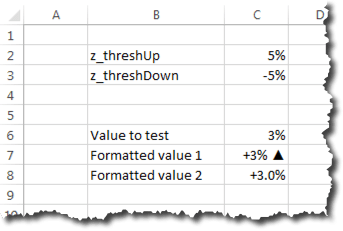
Typically, I put these threshold cells on their own tab — a Settings worksheet that I ultimately hide. But, for the sake of simplicity, I’m putting it proximate to the other data below for this example. I like to put the name I used for the cell in a “label” cell next to the value, but this isn’t strictly necessary. The key is to actually have the call named, which is what the arrow below illustrates:

format1

(One other aside: Sometimes, I have a separate set of thresholds for “basis point” comparisons — if I’ve showing the change in conversion rate, for instance, it often makes more sense to represent these as basis points rather than as “percent changes of a percent.”)

Step 2: Set Up Our Test Area

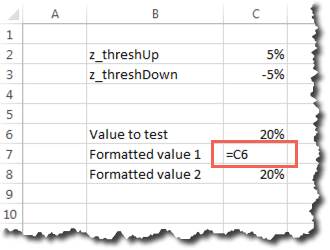
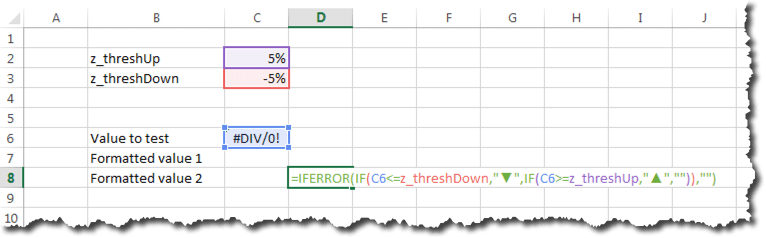
This is the massively artificial part of this exercise. Cell C6 below is the number we’ll play around with, while cells C7 and C8 are simply set to be equal to C6 and will show a couple of different ways that that value can be represented with better formatting. In the real world, there would just be one cell with whatever formula/reference makes sense and the most appropriate formatting for the situation used.

format2

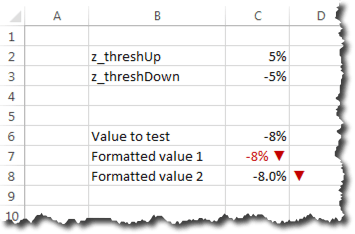
For Formatted value 1, we’re going to put a +/- indicator before the value, and an up or down graphical indicator after it. We’re also going to turn the cell text green if the number is positive and exceeds our specified threshold, and we’re going to turn it red if the number is negative and exceeds that threshold.

For Formatted value 2, we’re going to add the +/- indicator, one decimal place, and have the up/down arrow in the cell right next to the number. That arrow will only show up if the positive/negative value exceeds the threshold, and it will be colored green or red as appropriate.

Basically…this:

format13

You would never use both Formatted value 1 and Formatted value 2, but they both have their place (and you could even do various hybrids of the two).

Step 3: Add a Custom Number Format

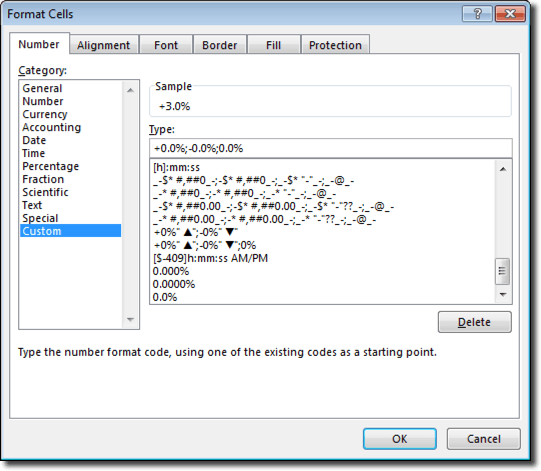
Let’s start with Formatted value 1. Right-click on cell C6 and select Format cells…. On the Number tab, select Custom and enter the criteria below (I usually wind up opening Character Map to grab the up/down arrows — these are available in Arial and other non-symbol fonts):

format3

Custom number formats are crazy powerful. If you’re not familiar/comfortable with using them, Jon Peltier wrote an excellent post years ago that digs into the nitty-gritty. But, the format shown above, in a nutshell:

  • Adds a “+” sign before positive numbers
  • Adds up/down indicators after positive/negative numbers
  • Adds no indicator if the value is zero

Note that I’m not using the “[color]” notation here because I only want the values to appear red/green if the specified thresholds are exceeded.

Step 4: Add Color with Conditional Formatting

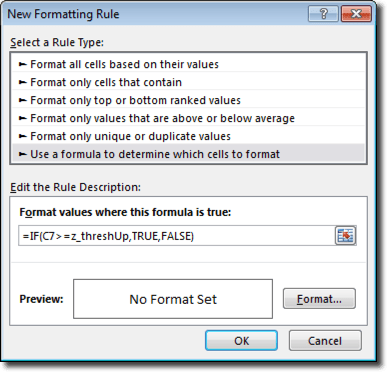
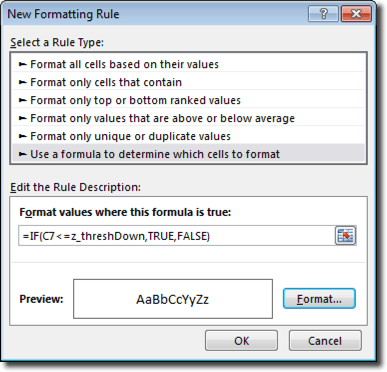
We now need to add conditional formatting to Formatted value 1 so that it will appear as red or green based on the specified thresholds. Below is the rule for adding green. (By default, Excel tries to make cell values in conditional formatting absolute cell references — e.g., $C$7. If you want this rule to apply to multiple cells, you need to change it to a relative reference or a hybrid. Conditional formatting is extraordinarily confusing every since Excel 2007…but then it totally makes sense once you “get it.” It’s worth putting in the effort to “get.”)


format4

(The “,FALSE” in the formula above is not strictly necessary, but my OCD requires that I include it).

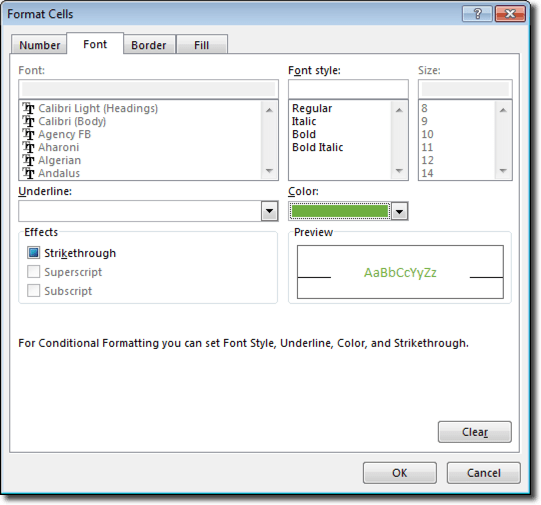
With that rule, we then click Format and set the font color to green:

format5

We then need to repeat the process for negative values, using z_threshDown instead of z_threshUp, and setting the font color to red when this condition is true:

format6

That’s really it for Formatted value 1.

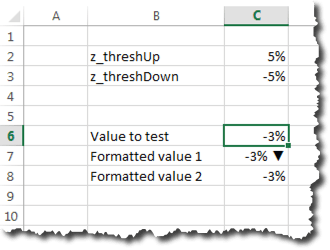
Below is how that value looks if the number is negative but does not exceed the z_threshDown threshold:

format7

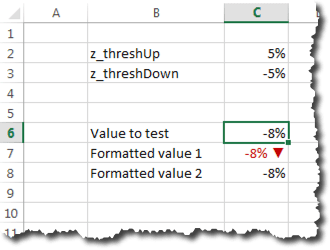
Below is how the value appears if we do exceed the threshold with a negative number:

format8

The same process works for positive values, but how many screen caps do we actually want in this post? Try it out yourself!

Step 5: Adding an Indicator in a Separate Cell

Another approach I sometimes use is an indicator in its own cell, and only showing the indicator if the specified thresholds are exceeded. That’s what we’re going to do with Formatted value 2.

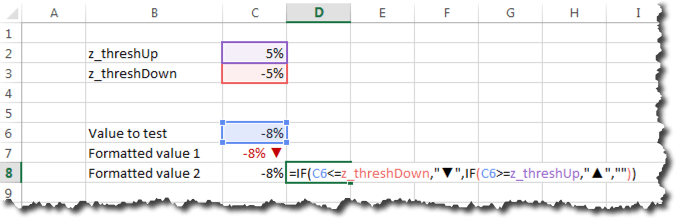
For this, we add an IF() formula in cell D8 that uses z_threshUp and z_threshDown to determine if and which indicator to display:

format9

We’ll want to add the same conditional formatting to cell D8 that we added to cell C7 to get the arrows to appear as red or green as appropriate.

Step 6: A Slightly Different Custom Number Format

This is very similar to Step 3, but, in this case, we’ve decided we want to include one value after the decimal, and, of course, we don’t need the up/down indicator within the cell itself:


format10

With these updates, we now have something that looks like this:

format12

Or, if the value exceeds the negative threshold, like this:

format13

Step 7: Checking for Errors

We’ve already covered all the basics, but it’s worth adding one more tip: how to prevent errors (#N/A or #REF or #DIV/0) from ever showing up in your dashboard. If the dashboard is dynamically pulling data from other systems, it’s hard to know if and when a 0 value or a missing value will crop up that breaks a formula.

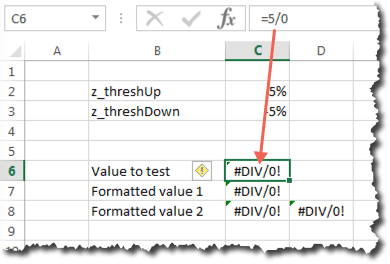
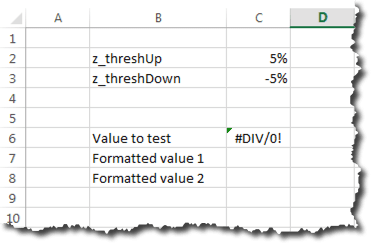
In our artificial example below, I’ve entered an error-generating formula in cell C6. The result in our Formatted value cells is NOT pretty:


format14

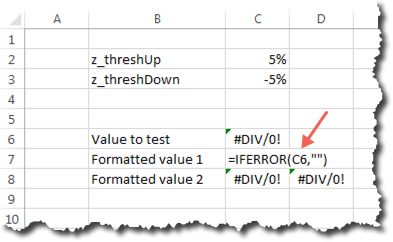
There is a super-simple fix for this: wrap every value in an IFERROR() function:

format15

I love IFERROR(). No matter how long the underlying formula is, I simply add IFERROR() as the outer-most function and specify what I want to appear if my formula resolves to an error. Sometimes, I make this be a hyphen (“-“), but, in this example, I’m just going to leave the cell blank (“”):

format16

Now, if my value resolves to an error, the Formatted value values don’t expose that error to the recipient of the report:

format17

In Summary…

Recurring dashboards and reports should be as automated as possible. When they are, it’s impossible to know which specific values should be the “focus” from report to report. Conditional formatting and custom number formatting can automatically make the most dramatically changed (from a previous period or from a target) values “pop.” The recipients of your reports will love you for adding the sort of capabilities described here, even if they don’t realize that’s why they love you!

And, remember, you can download the sample file and play around with the thresholds and values to see all the different ways that the Formatted values will display!

And a Final Note about TEXT()

The TEXT() function is a cousin of custom number formatting. It actually uses the exact same syntax as custom number formatting. I try not to use it if I’m simply putting a value in a cell, because it actually converts the cell value to be a text string, which means I can’t actually treat the value of the cell as a number (which is a problem for conditional formatting, and is a problem if I want to use that cell’s value in conjunction with other values on the spreadsheet).

But, occasionally, I’ll want to put a formatted value in a string of text. The best example of this is a footnote that explains when I have red/green values or arrows appearing. As described in this post, I base that logic on z_threshUp and z_threshDown, but my audience doesn’t know that. So, I’ll add a footnote that uses TEXT() to dynamically insert the current threshold values — well-formatted — into a statement, such as:

="The up arrow appears if the % change exceeds "&TEXT(z_threshUp,"+0%;-0%")&"."

Nifty, huh? What do you think?

Adobe Analytics, Excel Tips, Featured

Working with Variable-Row-Count Adobe Report Builder Queries

I use Adobe Report Builder a lot. It’s getting to the point where I have to periodically reassure my wife that my relationship with the tool is purely platonic.

One of the situations I often run into with the tool is that I have a query built that will have a variable number of rows, and I then want to have a pivot table that references the data returned from that query. For instance, if I want to put start/end dates for the query in a couple of cells in Excel, and then plot time-series data, the number of rows returned will vary based on the specific start and end dates returned. This can present some challenges when it comes to getting from a raw query to a clean visualization of the returned data. Fortunately, with some crafty use of COUNTA(), pivot tables, and named ranges, none of these challenges are insurmountable.

The example I’m walking through below gets fairly involved, in that it works from a single Report Builder query all the way through the visualization of multiple sparklines (trends) and totals. I chose this example for that reason, even though there are many situations that only use one or two of the techniques described below. As noted at the end of the post, this entire exercise takes less than 10 minutes once you are comfortable with the approach, and the various techniques described are useful in their own right — just steroid-boosted when used in conjunction with each other.

The Example: Channel Breakdown of Orders

Let’s say that we want to look at a channel breakdown of orders (it would be easy enough to have this be a channel breakdown of visits, orders, revenue, and other metrics and still work with a single Report Builder query, but this post gets crazy enough with just a single metric). Our requirements:

  • The user (with Report Builder installed) can specify start and end dates for the report; OR the start and end dates are dynamically calculated so that the report can be scheduled and sent from within Report Builder
  • For each of the top 4 channels (by orders), we want a sparkline that shows the daily order amount
  • We want to call out the maximum and minimum daily values for orders during the period
  • We want to show the total orders (per channel) for the period

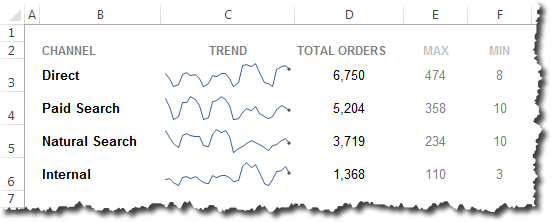
Basically, we want to show something that looks like this, but which will update correctly and cleanly regardless of the start and end data, and regardless of which channels wind up as the top 4 channels:

Final Visualization

So, how do we do that?

A Single Report Builder Query

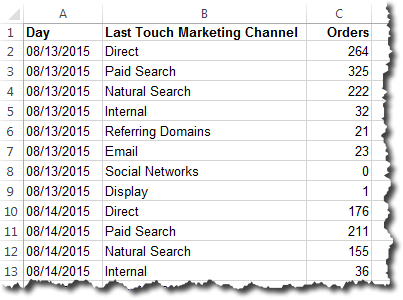
The Report Builder query for this is pretty easy. We just want to use Day and Last Touch Channel as dimensions and Orders as a metric. For the dates, we’ll use cells on the worksheet (not shown) designated as the start and end dates for the query. Pretty basic stuff, but it returns data that looks something like this:

Basic Report Builder Query

This query goes on a worksheet that gets hidden (or even xlVeryHidden if you want to get fancy).

A Dynamic Named Range that Covers the Results

We’re going to want to make a pivot table from the results of the query. The wrinkle is that the query will have a variable number of rows depending on the start/end dates specified. So, we can’t simply highlight the range and create a pivot table. That may work with the initial range of data, but it will not cover the full set of data if the query gets updated to return more rows (and, if the query returns fewer rows, we’ll wind up with a “(blank)” value in our pivot table, which is messy).

To work around this is a two-step process:

  1. Use the COUNTA() function to dynamically determine the number of rows in the query
  2. Define a named range that uses that dynamic value to vary the scope of the cells included

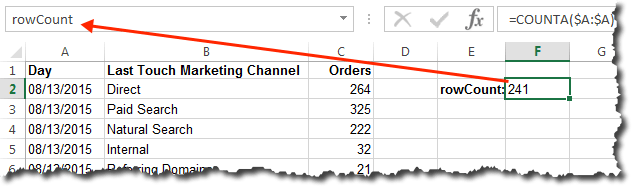
For the first step, simply enter the following formula in a cell (this can also be entered in a named range directly, but that requires including the sheet name in the column reference):

=COUNTA($A:$A)

The COUNTA() function counts the number of non-blank cells in a range. By referring to $A:$A (or, really, A:A, would work in this case), we will get a count of the number of rows in the Report Builder query. If the query gets refreshed and the number of rows changes, the value in this cell will automatically update.

Now, let’s name that cell rowCount, because we’re going to want to refer to that cell when we make our main data range.

rowData Named Cell

Now, here’s where the magic really starts to happen:

  1. Select Formula >> Name Manager
  2. Click New
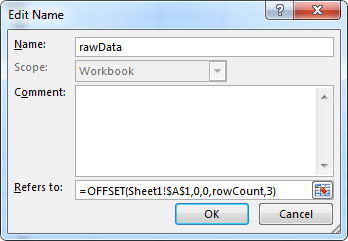
  3. Let’s name the new named range rawData
  4. Enter the following formula:
    =OFFSET(Sheet1!$A$1,0,0,rowCount,3)
  5. Click OK. If you click in the formula box of the newly created range, you should see a dashed line light up around your Report Builder query.

rawData Named Range

Do you see what we did here? The OFFSET() function specifies the top left corner of the query (which will always be fixed), tells Excel to  start with that cell (the “0,0” says to not move any rows or columns from that point), then specifies a height for the range equal to our count of the rows (rowCount), and a width of the range of 3, since that, too, will not vary unless we update the Report Builder query definition to add more dimensions or metrics.

IMPORTANT: Be sure to use $s to make the first parameter in the OFFSET() formula an absolute reference. There is a bug in most versions of Excel such that, if you use a non-absolute reference (i.e., Sheet1!A1), that “A1” value will pretty quickly change to some whackadoo number that is nowhere near the Report Builder data.

Make Two Pivot Tables from the Named Range

The next step is to make a couple of pivot tables using our rawData named range:

  1. Select Insert >> Pivot Table
  2. Enter rawData for the Table/Range
  3. Specify where you want the pivot table to be located (if you’re working with multiple queries, you may want to put the pivot tables on a separate worksheet, but, for this example, we’re just going to put it next to the query results)
  4. Click OK

You should now have a blank pivot table:

Blank pivot table

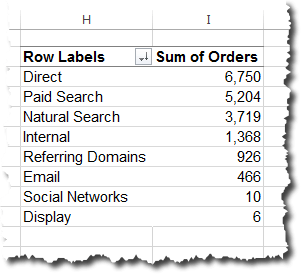
We’re just going to use this first pivot table to sort the channels in descending order (if you want to specify the order of the channels in a fixed manner, you can skip this step), so let’s just use Last Touch Marketing Channel for the rows and Orders for the values. We can then sort the pivot table descending by Sum of Orders. This sort criteria will persist with future refreshes of the the table. Go ahead and remove the Grand Total while you’re at it, and, if you agree that Excel’s default pivot table is hideous…go ahead and change the style. Mine now looks like this:

Base Pivot Table

Tip: If your report is going to be scheduled in Report Builder, then you want to make sure the pivot table gets refreshed after the Report Builder query runs. We can (sort of) do this by right-clicking on the pivot table and select Pivot Table Options. Then, click on the Data tab and check the box next to Refresh data when opening the file.

Now, there are lots of different ways to tackle things from here on out. We’ve covered the basics of what prompted this post, but then I figured I might as well carry it all the way through to the visualization.

For the way I like to do this, we want another pivot table:

  1. Select the initial pivot table and copy it
  2. Paste the pivot table a few cells to the right of the initial pivot table
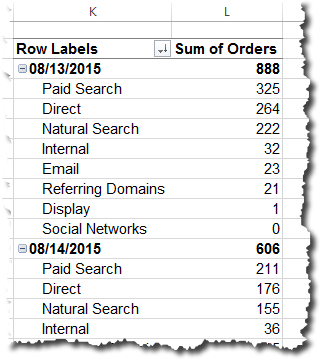
  3. Add Days as an additional row value, which should make the new pivot table now look something like this:

Pivot Table

This second pivot table is where we’ll be getting our data in the next step. In a lot of ways, it looks really similar to the initial raw data, but, by having it in a pivot table, we can now start using the power of GETPIVOTDATA() to dynamically access specific values.

Build a Clean Set of Data for Trending

So, we know the order we want our channels to appear in (descending by total orders). And, let’s say we just want to show the top 4 channels in our report. So, we know we want a “table” (not a true Excel table in this case) that is 5 columns wide (a Date column plus one column for each included channel). We don’t know exactly how many rows we’ll want in it, though, which introduces a little bit of messiness. Here’s one approach:

  1. To the right of our second pivot table, click in a cell and enter Date. This is the heading for the first column.
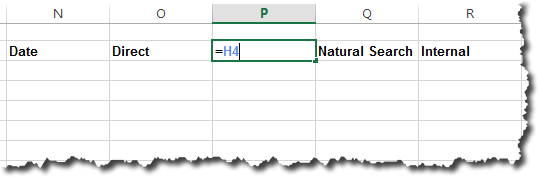
  2. In the cell immediately to the right of the Data column, enter a cell reference for the first row in the first pivot table we created. If you simply enter “=” and then click in that cell, depending on your version of Excel, a GETPIVOTDATA() formula will appear, which we don’t want. I sometimes just click in the cell immediately to the left of the cell I actually want, and then change the cell reference manually.
  3. Repeat this for three additional columns. Ultimately, you will have something that looks like this:

Column Headings

Are you clear on what we’re doing here? We could just enter column headings for each channel manually, but, with this approach, if the top channels changes in a future run of the report, these headings (and the data — more to come on that) will automatically update such that the four channels included are the top 4 — in descending order — by total orders from the channel.

Now, let’s enter our dates. IF the spreadsheet is such that there is a cell with the start date specified, then enter a reference to that cell in the cell immediately below the Date heading. If not, though, then we can use a similar trick to what we did with COUNTA() at the beginning of this post. That’s the approach described below:

  1. In the cell immediately below the Date heading, enter the following formula
    =MIN($A:$A)

    This formula finds the earliest date returned from the Report Builder query. If a 5-digit number gets displayed, simply select the entire column and change it to a date format.

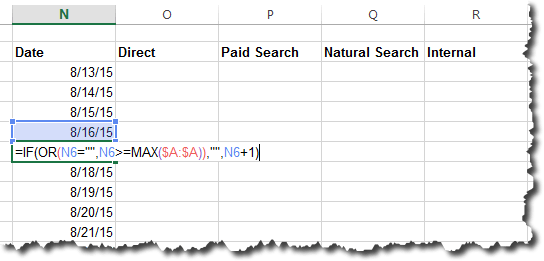
  2. Now, in the cell immediately below that cell, enter the following formula:
    =IF(OR(N3="",N3>=MAX($A:$A)),"",N3+1)

    The N3 in this formula refers to the cell immediately above the one where the formula is being entered. Essentially, this formula just says, “Add one to the date above and put that date here,” and the OR() statement makes sure that a value is returned only if the date that would be entered is within the range of the available data.

  3. Drag the formula entered in step 2 down for as many rows as you might allow in the query. The cells the formula get added to will be blank after the date range hits the maximum date in the raw data. This is, admittedly, a little messy, as you have to determine a “max dates allowed” when deciding how many rows to drag this formula down on.

At this point, you should have a table that looks something like the following:

Date cells

Now, we want to fill in the data for each of the channels. This simply requires getting one formula set up correctly, and then extending it across rows and columns:

  1. Click in the first cell under the first channel heading and enter an “=”
  2. Click on any (non-subtotal) value in the second pivot table created earlier. A GETPIVOTDATA() formula will appear (in Windows Excel — that won’t happen for Mac Excel, which just means you need to decipher GETPIVOTDATA() a bit, or use the formula example below and modify accordingly) that looks something like this:
    =GETPIVOTDATA("Orders",$K$2,"Day",DATE(2015,8,13),"Last Touch Marketing Channel","Direct")
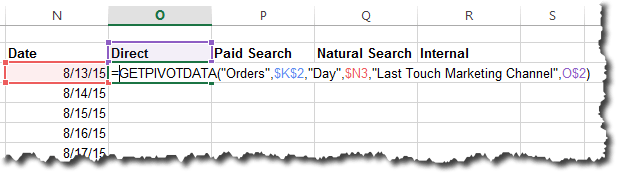
  3. That’s messy! But, if you look at it, you’ll realize that all we need to do is replace the DATE() section with a reference to the Date cell for that row, and the “Direct” value with a reference to the column heading. The trick is to lock the column with a “$” for the Date reference, and lock the row for the channel reference. That will get us something like this:
    =GETPIVOTDATA("Orders",$K$2,"Day",$N3,"Last Touch Marketing Channel",O$2)

    GETPIVOTDATA

  4. Now, we only want this formula to evaluate if there’s actually data for that day, so let’s wrap it in an IF() statement that checks the Date column for a value and only performs the GETPIVOTDATA() if a date exists:
    =IF($N3="","",GETPIVOTDATA("Orders",$K$2,"Day",DATE(2015,8,13),"Last Touch Marketing Channel","Direct"))
  5. And, finally, just to be safe (and, this will come in handy if there’s a date where there is no data for the channel), let’s wrap the entire formula in an IFERROR() such that the cell will be blank if there is an error anywhere in the formula:
    =IFERROR(IF($N3="","",GETPIVOTDATA("Orders",$K$2,"Day",DATE(2015,8,13),"Last Touch Marketing Channel","Direct")),"")
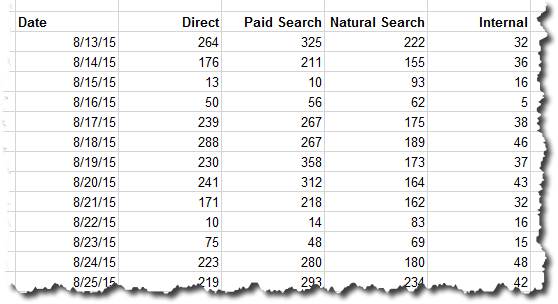
  6. Now, we’ve got a formula that we can simply extend to cover all four channel columns and all of the possible date rows:

Top Channels by Day

One More Set of Named Ranges

We’re getting close to having everything we need for a dynamically updating visualization of this data. But, the last thin we need to do is define dynamic named ranges for the channel data itself.

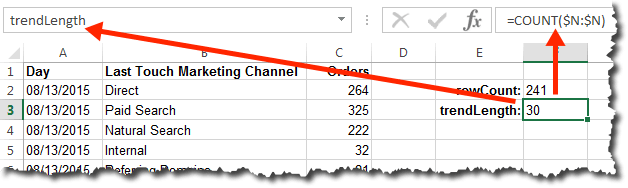
First, we’ll need to calculate how many rows of data are in the table we built in the last step. We can calculate this based on the start and end dates that were entered in our worksheet (if that’s how it was set up), or, we can use the same approach that we took to figure out the number of rows in our main query. For the latter, we can simply count the number of number cells in the Date column using the COUNT() function (COUNTA will not work here, because it will count the cells that look blank, but that actually have a formula in them):

Calculating Trend Length

Again, we could simply put this formula in as the definition for trendLength rather than putting the value in a cell, but it’s easier to trace it when it’s in a cell.

For the last set of named ranges, we want to define a named range for each of the four channels we’re including. Because the specific channel may vary as data refreshes, it makes sense to simply call these something like: channel1_trend, channel2_trend, channel3_trend, channel4_trend.

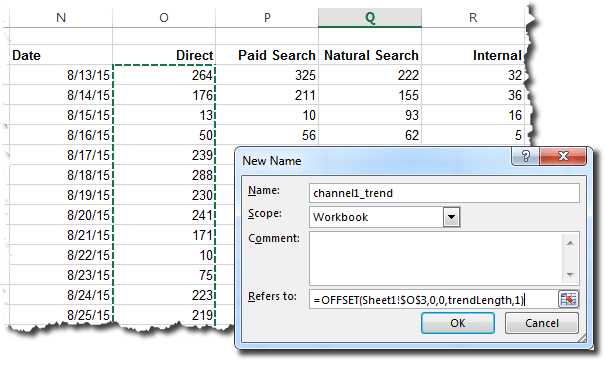
We again use the OFFSET() function — this time in conjunction with the trendLength value we just calculated. For each range, we know where the first cell will always be — we know the column and where the first row is — and then the OFFSET() function will let us define how tall the range is:

  1. Select Formulas >> Name Manager
  2. Click New
  3. Enter the name for the range (channel1_trend, channel2_trend, etc.)
  4. Enter a formula like the following:
    =OFFSET(Sheet1!$O$3,0,0,trendLength,1)

    Named Ranges for Trends
    The “1” at the end is the width of the range, which is only one column. This is a little different from the first range we created, which was 3 columns wide.

  5. Click OK
  6. Repeat steps 2 through 5 for each of the four channels, simply updating the cell reference in the OFFSET() function for each range ($P:$3, $Q:$3, etc.) (named ranges can be created with a macro; depending on how many and how involved I need to create, I sometimes write a macro rather than creating these one-by-one; but, even creating them one-by-one is worth it, in my experience).


Now, we’re ready to actually create our visualization of the data.

The Easy Part: Creating the Visualization

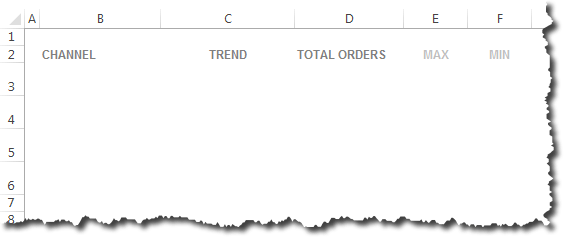
On a new worksheet, set up a basic structure (typically, I would actually have many width=1 columns, as described in this post, but, for the sake of keeping things simple here, I’m using variable-width columns).

Base Visualization

Then, it’s just a matter of filling in the rows:

  1. For the channel, enter a formula that references the first pivot table (similar to how we created the column headings for the last table we created on the background sheet)
  2. For the sparkline, select Insert >> Line and enter channel1_trend, channel2_trend, etc.
  3. For the total, use GETPIVOTDATA() to look up the total for the channel from the first pivot table — similar to what we did when looking up the daily detail for each channel:
    =GETPIVOTDATA("Orders",Sheet1!$H$2,"Last Touch Marketing Channel",B3)

    The B3 reference points to the cell with the channel name in it. Slick, right?

  4. For the maximum value, simply use the MAX() function with channel1_trend, channel2_trend, etc.:
    =MAX(channel1_trend)
  5. For the minimum value, simply use the MIN() function with channel1_trend, channel2_trend, etc.:
    =MIN(channel2_trend)

When you’re done, you should have a visual that looks something like this:

Final Visualization

Obviously, the MIN() and MAX() are just two possibilities, you could also use AVERAGE() or STDEV() or any of a range of other functions. And, there’s no requirement that the trend be a sparkline. It could just as easily be a single chart with all channels on it, or individual charts for each channel.

More importantly, whenever you refresh the Report Builder query, a simple Data >> Refresh All (or a re-opening of the workbook) will refresh the visualization.

Some Parting Thoughts

Hopefully, this doesn’t seem overwhelming. Once you’re well-versed in the underlying mechanics, creating something like this — or something similar — can be done in less than 10 minutes. It’s robust, and is a one-time setup that can then not only let the basic visualization (report, dashboard, etc.) be fully automated, but also provides an underlying structure that can be extended to quickly augment the initial report. For instance, adding an average for each channel, or even providing how the last point in the range compares to the average.

A consolidated list of the Excel functionality and concepts that were applied in this post:

  • Dynamic named ranges using COUNTA, COUNT, and OFFSET()
  • Using named ranges as the source for both pivot tables and sparklines
  • Using GETPIVOTDATA() with the “$” to quickly populate an entire table of data
  • Using IF() and IFERROR() to ensure values that should remain blank do remain blank

Each of these concepts is powerful in its own right. They become triply so when combined with each other!

Excel Tips

Using Excel to Count Text Occurrences

[UPDATE 1/19/2015: A couple of comments have pointed out that COUNTIF would address this scenario in a single formula. That’s a great point…and one that had not occurred to me. The overall scenario here is pretty straightforward, so there are likely other equally efficient (or more efficient) ways to address the task. I’m leaving the post as is, because I think it’s a useful exercise on how nested Excel formulas can be used to parse text. And I’m also curious what other solutions might get proposed in the comments.]

I had this come up a couple of weeks ago with a client, and I realized it was something I’d done dozens of times…but had never written down the “how” on doing. So, here we go. This is a post about one very specific application of Excel, but it is also implicitly a post about how, with an intermediate level of knowledge of Excel, with a little bit of creativity, and a strong aversion to manually parsing/copying/pasting anything, a spreadsheet can accomplish a lot! And very quickly!

The Use Case

The use case where I’ve used this approach most often is with social media exports — most often, with Twitter. In the most recent situation, my client had an export of all tweets that used a specific conference hashtag. Her organization was trying to introduce a secondary (relevant) topic to the conversation around the conference, and they had a separate hashtag. So, she was looking to identify, from the 16,000 tweets at the event, what percent of them also included the hashtag that her organization was interested in? That’s a simple and reasonable ask, and, if the tweet volume is reasonable (let’s say less than 500,000), easy enough to do in under 2 minutes in Excel.

The Example

Obviously, I’m not going to use my client’s data here. But, it turns out that my own tweets are a reasonable proxy. I tweet sporadically, but I know that a decent chunk of my tweets use the “#measure” hashtag. So, how many of my tweets use that hashtag? Thanks to http://analytics.twitter.com, it’s easy enough for me to get an export of my tweets. I just exported the default, which was 1,356 tweets going back to early October 2013. Opening the .csv in Excel, it looks like this:

Excel Text Extract - Raw Data

Simple enough. I just want to go through and add a flag to identify every row where column C contains the word “#measure.”

Step 1: Make It a Table and Add a Column for the Flag

This step isn’t strictly necessary, but Excel tables make soooooo many things more easy, that I’m including it here. If you’re, like, “What are you talking about? Isn’t data in rows and columns in a spreadsheet a ‘table’ already?” well… stop reading this post and go read this one. It’s two clicks to make the data into a table, so do that…and add a column where we’re going to put our flag:

Excel Text Extract - Table

Simple enough. I just want to go through and add a flag to identify every row where column C contains the word “#measure.”

Step 2: Use FIND() to Look for ‘#measure’

This is the core formula. All we need to do is add the FIND() formula to the rows in the first column to search column D (“[@[Tweet text]]”) for occurrences of “#measure:”

Excel Text Extract - Base Formula

Once we add that formula to cell A2, it will autofill for all rows in the table and the table will now look like this:

Excel Text Extract - Base Formula Table

That’s kind of ugly, isn’t it? But we now know that rows 7, 8, 12, and 19 all included the word “#measure,” because the FIND() formula tells us where in the cell the word started. All of the other rows didn’t include the word “#measure,” so they returned a #VALUE error.

The bulk of the work is done…but we’re not quite there yet, because we don’t yet have a pure “flag.”

Step 3: Use ISERROR() to Make a Flag

We can nest our original FIND() formula inside an ISERROR() formula. If we do that, then all of the #VALUE values will instead show as “TRUE,” and all of the situations where the FIND() formula returns an actual number will show as “FALSE.”

Excel Text Extract - ISERROR

The resulting table:

Excel Text Extract - ISERROR

<Whew> Isn’t that cleaner? Now, every value is either “TRUE” or “FALSE,” so we now have a true “flag.” But, this flag is a little confusing, because it’s “FALSE” whenever the tweet contains the hashtag “#measure.” That may be fine if we can just keep that straight and jump straight to step 5, but why not make it a bit more intuitive with one additional update to the formula?

Step 4: Use IF() to Flip the Flag

Since our ISERROR() is going to return a TRUE/FALSE response, we can nest the whole formula in an IF() statement to make those flags into a Yes/No flag that makes more intuitive sense:

Excel Text Extract - Add ISERROR

The IF returns “Yes” instead of “FALSE” and returns “No” instead of “TRUE.” Not necessary for this exercise, but I went ahead and added a little conditional formatting to highlight the rows that include ‘#measure’ (based on whether the Column A value is “Yes”):

Excel Text Extract - Added ISERROR

Step 5: A Case-Sensitivity Precaution

In this example, all of the tweets are my own, and I always use an all-lowercase “#measure.” But “FIND” is case-sensitive, so, what if I had used “#Measure” a few times? Or “#MEASURE?” Those would be mis-flagged using the above approach. So, it’s worth one more tweak to the formula to force the entire tweet to be all-lowercase before running the FIND() formula on it:

Excel Text Extract - Add LOWER

Note how the LOWER() addition is inside the FIND() function. Since Excel uses parentheses like plain old math does, the innermost parentheses (functions) will get evaluated first, and the first thing we want to do is make the tweet text all lowercase.

Step 6: Summarize with a Pivot Table

There are lots of ways this data could be summarized. You could just sort the table descending by the first column and see what row the last “Yes” occurs on. You could have used “1” and “0” rather than “Yes” and “No” in the formula and then just summed column A.

But, I’m never one to miss an opportunity to apply a pivot table. In a handful of clicks, we get our summary:

Excel Text Extract - Pivot Table

Voila! 14% of the tweets in the data set included the string “#measure” (regardless of case usage).

In Reality: Six Steps Were Three

When I most recently did this for a client, it wasn’t really six steps. It was three: 1) create the table, 2) plug in a formula, 3) generate a pivot table. But, I realize that just throwing out =IF(ISERROR(FIND(“#measure”,”LOWER([@[Tweet text]]))),”No”,”Yes”)  can be a little intimidating. I do regularly iterate “from the inside out” when building formulas. The result can look messy, but not as messy as manually inspecting tweets!

Now…chime in with the other 10 ways this exercise could have been approached entirely differently!


Excel Tips

Excel Dropdowns Done Right

Do you used in-cell dropdowns in your spreadsheets? I used them all the time. It’s both an ease-of-use and a data quality maneuver: clicking a dropdown is faster than typing a value, and it’s really hard to mis-type a value when you’re not actually typing!

I use in-cell dropdowns a lot when I’m making a list of things and I want to classify the values in the list. For instance:

  • Prioritizing the items: high / medium / low
  • Assigning a person (submitter or owner of a task, for instance, if that’s a finite list)
  • Assigning a status: open / in work / completed / on hold / cancelled
  • Assessing whether each item meets some sort of criteria: yes / no / unknown

If each of these criteria uses a dropdown list that is well-built, then I’m just a few clicks away from List Analysis Nirvana Via Pivot Tables (LANVPT!).

I also use in-cell dropdowns when I’m giving the recipients of the spreadsheet some simple controls over what is displayed and how. For instance:

  • Selecting a start date or end data (or both) for the displayed data
  • Selecting which metric to display or to sort values by
  • Selecting the granularity of trends being displayed (daily / weekly / monthly)

I’ve actually counted the number of ways in-cell dropdowns can be used and arrived at a number: oodles.

Now, while Excel form controls can be used to create dropdowns, I always-always-always use Excel’s “data validation” capability to create these (unfortunately, data validation in Google spreadsheets blows like a tuba player in the Boston Philharmonic…but I use it there, too, to the extent possible).

The technique I use is simple, fast (don’t be turned off by the length of this post – it takes less than 2 minutes to set up once you’ve done it a couple of times!), and flexible, and it allows easily updating a bunch of cells that need to have the same set of values in their dropdown. It relies on four main features of Excel:

  • Data validation (obviously)
  • Hidden sheets
  • Tables
  • The INDIRECT() function

“Enough with the lengthy preamble!” you exclaim. “I’m sold! Get on with it!”

Setting the Stage: The Example We’ll work from

Let’s say I have a spreadsheet that lists a bunch of different ideas for how I could try to take better pictures (this is a silly example, obviously – clearly, I just need to more liberally apply Instagram filters!).

Let’s say my initial list looks something like this:

dropdowns_image

Over time, I know I’m going to be adding to the list, and I’d really love to be able to select the value in the second column from a dropdown:

dropdowns_image

That’s really all we’re looking to do (but I’m going to add a small twist later in the example).

The Wrong Way: Entering the List of Values

The obvious way (if you know to search for “data validation”…which ain’t exactly “obvious,” IMHO), to create these dropdowns is to highlight all the cells where you want the dropdown to appear, click on Data >> Data Validation, and then enter the list of values you want to use:

dropdowns_image

That seems like a good way to go about things, but it is a fragile and risky approach indeed, as we’ll discuss later (spoiler: it has to do with updating that list over time).

There is a better way, and it doesn’t take much more time to set up than the painting-yourself-into-a-corner approach I just described.

Step 1: A Table on a Hidden Worksheet

In my last post – about Excel-based dashboards – one of my tips was to always create a Settings sheet. If you have one of those, use it. If not, make a new worksheet called Lookups (or Settings or Tim Is Awesome…the name of the worksheet doesn’t really matter).

On that worksheet, make a list (with a heading) of the values you want in your dropdown:

dropdowns_image

You may wind up with multiple lists on this sheet. You can arrange them any way that makes sense. Ultimately, we’ll hide this sheet, anyway.

Tip: In practice, when I’m creating high/medium/low-type lists, I often wind up adding a number to them: 1 – High / 2 – Medium / 3 – Low. That makes the list more easily sortable. Alas! In English, an alphabetical sort of these three words does not put them in a reasonable order!

After making the initial list, turn it into an Excel table:

  1. Select any cell in the list
  2. Select Insert >> Table

The result, if you’re using the default Excel sheet, looks something like this:

dropdowns_image

You can adjust the table style if you like (I usually do), but that’s not strictly necessary.

Then, for built-in documentation purposes, give the table a name by clicking on Design under Table Tools and entering a name:

dropdowns_image

I like to prepend these tables with some sort of consistent prefix – “tbl_,” “lookup_,” or even simply “t_.” That way , if I use a lot of named ranges, all of my lookup tables will show up in one group in the Name Manager.

Step 2: Figure Out How to Reference Those Cells

Ultimately, we want the dropdown list to be “the first column in this (simple, 1-column) table.” But, the specific syntax for referencing table components can get a little confusing, so we can cheat to figure out exactly how to reference the cells.

First, make an unused cell active and put an equal sign in it:

dropdowns_image

Then, move the cursor over the heading of the table until a black down arrow appears. Click in that spot, and just the data in the column (not the whole column, and not the heading for the column) gets highlighted. And, in our blank cell, we now have the proper syntax for referencing that column:

dropdowns_image

All we have to do is cut the value in that blank cell (omitting the equal sign, so just “lookup_cost[Cost]” in this example) so we have it on the clipboard.

In theory, we can now hide this worksheet. In practice, we’ll leave it unhidden until we’ve got everything built out and the spreadsheet is ready for distribution. At that point, we might even go beyond hiding it and set its property to xlVeryHidden (overachievers reading this post who do not know how to do that already: feel free to open a new tab and start Googling).

Step 3: Create the Data Validation

Now, we go back to the sheet where we want to use this list for our dropdown. The first thing we do is exactly what I described in the “Wrong Way” section earlier: we highlight the cells we want the dropdowns in and select Data >> Data Validation.

But, then, rather than manually entering a list of values for the dropdown, we actually enter a formula:

dropdowns_image

“Whoaaaaaa, Nellie! Where did this ‘INDIRECT’ nonsense come from?!!!” you ask! Well…that’s the teensiest of wrinkles: Excel, for some inexplicable reason, just doesn’t quite play nice with normal cell references when it comes to data validation. So, logically, this should work:

=lookup_cost[Cost]

In practice, we have to drop that reference inside the INDIRECT() function (inside quotation marks!) for it to actually work:

=INDIRECT(“lookup_cost[Cost]”)

‘tis a trifle to do!

That’s it! You’re done!

But…the Reason for Doing It This Way?!

In the example we’re using here, what happens if we realize that our list is incomplete? What happens if we suddenly realize we really need a “Very High” option in the dropdown and we need an “Unknown” value in the dropdown? (In a more realistic example, we may realize that our task status dropdowns of Open / In Work / Complete are missing two values: Cancelled and On Hold).

In our “Wrong Way” approach (entering the list values manually in the Data Validation dialog box), it’s still no big deal: we simply re-highlight the cells, select Data >> Data Validation again, and update our list.

That’s a little clunky, but maybe not too bad. BUT, imagine what happens if we actually have multiple lists: in addition to this worksheet, we have another worksheet where we’ve listed ways I can become a better guitar player, and yet another worksheet where we’ve listed ways I can become a better analyst? If we want to update the possible values on all three worksheets, we have to go worksheet by worksheet selecting all the cells with dropdowns in them and update the list values. Ick!

That’s where the beauty of the approach described in this post comes in. By using a table on a hidden worksheet, all we have to do is update a single table! And, tables have the nice feature of autoexpanding when you enter something in the cell that abuts the table. So, when we enter “Very High” like this:

dropdowns_image

Once we press Enter, the table expands to include the new value:

dropdowns_image

We can also insert a new row in the table and add a new value anywhere in the list (in this case, “Unknown” as the first entry):

dropdowns_image

This won’t change any of the values already selected in our existing dropdowns, but, now, all of the dropdowns that reference that table will have an updated list of values to choose from:

dropdowns_image

Easy, peasy, no?

Extending the Usage a Bit

While “updating a bunch of cells that have the same dropdown list values” is the most compelling use case (in my mind) for this technique, there are some other ways it can come in handy.

Example 1: Say we have a date selector dropdown that updates what gets displayed on a bunch of charts. As we add data to the spreadsheet, there are more possible dates that could be selected. But, we want the dropdown to be manageable, so we only want to give the user a list of the most recent 12 weeks to choose from.

The solution? A 12-row table where we dynamically figure out what the most recent available data is (with a formula), and we put that in the top row. Then, with a simple formula ([the cell above this one] – 7), we populate the next 11 values in the table. If we use data validation to reference that table, we always have a compact, timely list!

Example 2: Say we want to assign numeric values to Unknown / Low / Medium / High / Very High in our original example so we can estimate total costs. We can simply add another column to the lookup_cost table and populate a value for each option (if you’re using Adobe Analytics, think of this as Classifications; if you’re using Google Analytics, think of it as dimension-widening; if you’re not a web analyst, skip this entire parenthetical comment). Now, with a simple VLOOKUP, we can grab a numeric value for each entry, and we know the VLOOKUP will always return a value, because the list of options in the dropdown comes from the same table where each of those options has an assigned value:

dropdowns_image

Note that, even though we added a column to the table, the original reference to the first column — lookup_cost[Cost] — is still valid. We haven’t affected the dropdown functionality itself at all.

Slicker than greased baby poop, ain’t it?

What other tips do you have for creating dropdowns in Excel? I’d love to hear ‘em!


Excel Tips

10 Tips for Building a Dashboard in Excel

This post has an unintentionally link bait-y post title, I realize. But, I did a quick thought experiment a few weeks ago after walking a client through the structure of a dashboard I’d built for them to see if I could come up with ten discrete tips that I’d put to use when I built it. Turns out…I can! I struggled to figure out the best order to put them in, loosely tried to make it from an early-to-late in the process thing, and then threw my hands up and just started writing.

Pre-Tip: Skip the “Insights”

This is more of a soapbox than a tactical tip, so I’m sneaking it in before we get into the meat of the content:

Do NOT leave a place for text-based insights or recommendations.

I’ll leave it at that. If you care to hear (or argue with) my rationale…I’ve written a whole post on it.

Tip #1: Plan First

This should go without saying, but massive overhauls after a dashboard are built can be tough. So, start by getting s solid set of requirements that includes:

  • What metrics will be included
  • Which of these metrics are KPIs versus just supporting/contextual information
  • Which views of each metric will be included: a trend (and, if so, its granularity: daily, weekly, monthly, etc.), a total, a comparison to a target or a prior period, etc.

I often even do a little sketching of the dashboard — quick thoughts on how I can organize the information based on what I’m planning to include. It’s a lot faster to quickly scrawl boxes on a piece of paper than doing wholesale rearrangements of the information in Excel.

I’ve never had my plan be a 100% match with the final product. But, if I get it 80% figured out up front, I’ll have more time to figure out how to best cover what I discover along the way as I build it out.

Tip #2: Stick to One Page (One Screen)

This is a neuroscience-based tip. As Stephen Few puts it:

“…information that belongs together should never be fragmented into multiple dashboards, and scrolling should not be required to see it all. Once the information is no longer visible, unless it is one of the [3 or 4] chunks stored in working memory, it is no longer available.”

Since the point of a dashboard is to provide an at-a-glance view of performance, and since we want to see it all at once, the dashboard should be limited to one screen.

This doesn’t mean that there can’t be additional screens of drilldown information, but this should be wholly contained subsets of data. The main dashboard should be one screen and one screen only.

Tip #3: Figure Out Some “Widgets”

Based on the planning that you did, you’ll likely have 1-3 different types of metric displays. Figure out how you’re going to display them. Maybe, for some of the metrics, you need to show a total, a comparison to target (because they’re KPIs), a comparison to a prior period, and a trend. For others, you may just need to show the total and a comparison to a prior period. I like to design “widgets” for each type of metric display that I’m going to include. Some examples:

widgets

It’s worth putting some care into the design of your widgets. Figuring out the font size (I like to really bump my KPIs up by a lot), the palette (match your corporate one!), and how multiples of the widgets will fit next to or above/below each other (in the widgets above, you can see where there are labels outside of the widget and can imagine how those labels don’t need to be repeated when the widget is reused for additional metrics).

Tip #4: Make Narrow Columns

While Excel is way better than any of the major web analytics tools when it comes to layout flexibility, it’s still, inherently, a grid. For years, I would try to figure out what the ideal configuration of column sizes was to support the layout that I wanted. A year or two ago, I got tired of inadvertently painting myself into corners with that approach and started just making all of my columns (for the presentation layer sheet — not for all sheets! More on this in Tip #6) the same width and narrow:

narrowcolumns

It looks a little odd (but users never need to see it; see Tip #10), and it then requires merging cells as you build out the layout, but it’s worth it. And, this is one of the benefits of using widgets: once you do the requisite cell-merging to build the widget, that entire widget can be copied and pasted for each new metric.

Tip #5: Design for Printability

This goes for more than just dashboards. I’m amazed how often I see spreadsheets that someone might want to print out — to review offline, to take with them to a meeting, or even to mark up — that aren’t readily printable. Go ahead and define the Print Area (this lets you leave a little extra white space at the top and left of the spreadsheet — a blank row and a blank column — without impacting printing; exclude those from the Print Area). Adjust your layout, as well as the orientation, margins, and header/footer, to make sure that someone can easily print the dashboard.

Note: It’s tempting to just use the “Fit to Page” feature. I try to avoid that, because it’s then easy for the dashboard to start scaling drastically — 60% or 50% — to the point of unreadability when printing. Better to just add a little care and testing to the setup of the dashboard itself.

Tip #6: Be Organized

This is a “dashboard architecture” tip. But, over the years, I’ve found myself consistently using different worksheets for different distinct purposes:

  • Presentation Layer — this is the dashboard itself; there is no data directly housed in this worksheet. I usually name this tab “Dashboard.” If I have drilldown sheets, then those also are considered Presentation Layer sheets. The data shown on these worksheets come from either the Data sheets or the Transformation sheets (or some combination)
  • Transformation — this type of worksheet is not always needed. It depends on the structure of the raw data and the complexity of the dashboard. But, this is one or more sheets where I put pivot tables or lookup tables that grab data from the Data sheets and put it into an aggregated (pivot table) form, and/or grabs only a subset of the data (for instance, the data for only the selected report period).
  • Data — this is the worksheet(s) where the raw data for the dashboard actually goes. Be it Report Builder queries, Facebook Insights exports, or anything in between, the key is for these sheets to be structured as close to the structure of the raw data as possible. If the data is automated (see Tip #9), then the structure will have to match the raw data exactly!
  • Settings — this is always a single worksheet, and it includes the various constants and lookup tables that the dashboard needs. Examples of constants include: the % below target a metric has to fall before I display a red indicator next to it on the dashboard, how many periods I want to include in my sparkline trends, formulas to calculate the start and end dates for different metric displays based on the selected report date (see Tip #8), and so on. I always store these values in named cells, as they get referenced extensively by the Transformation and Presentation Layer sheets. Examples of lookups include mapping a “pretty name” to raw identifiers that are included in raw data exports. Or, the values that need to be shown in the date selection dropdown (see Tip #8).

Most of these worksheets ultimately get hidden, but they make for a clean overall architecture for maintaining and documenting (Tip #7) the ins and outs of the file.

Tip #7: Document, Document, Document!

Just as it’s important to document the specifics of where the data came from and how it was pulled when doing an analysis, I use comments and ancillary cells in the Data and Settings worksheets to provide in-context documentation. The closer this goes to the actual data, and the more complete it is, the better! There will come a time when the dashboard needs to be updated or an underlying data source changes (Facebook Insights, anyone?), and having in-context information of exactly what the data is and where it came from is an enormous time-saver.

There is also some documentation that needs to go on the Presentation Layer (Tip #6): the date / date range for the report, definitions for any included metrics that are not clear to the casual user, and any important caveats/clarifications about the data. Much of this “on the dashboard” documentation can be included in footnotes, but a dashboard is a failure if one of the recipients has questions about what the data actually is.

Random personal background anecdote: I spent several years as a technical writer early in my career, which included writing online help for the software my company developed. That experience has likely contributed to my stickler-ness on the clarity-and-completeness-of-documentation front.

Tip #8: Dropdowns…Even If Only You Use Them

At a minimum, every dashboard I develop that is not fully automated (read: “scheduled and published through Report Builder“) has at least one dropdown on the dashboard itself: a selector to choose the date to display. That single cell (as a named cell!) should be the key by which all of the displayed data gets updated. I rely heavily on dynamic named ranges to make that happen, but it means I never-ever-ever manually update the chart or cells that display the final data.

Depending on the dashboard, I use in-cell dropdowns to enable additional control of what gets displayed on the dashboard. For example:

  • Controlling whether the dashboard is a weekly, monthly, or quarterly display of the data
  • Controlling how many periods to include in historical trends (sparklines or charts) on the dashboard
  • Controlling which metric is used to sort any “Top X” lists of values on the dashboard, as well as whether the metric is sorted ascending or descending

The possibilities are endless. Obviously, the more control you put in a dropdown, the more logic you have to build into the Transformation sheets (Tip #6), and that requires something of a cost/benefit assessment. An Excel dashboard cannot be a standalone in-depth analysis tool, but it can provide a first-level dive into the data as a jumping off point for deeper analysis.

Note: I’ve found the best Excel feature to use for making in-cell dropdowns is the Data Validation feature. I generally wind up using the INDIRECT (see step #3 in this post)  function to reference named ranges for this — often named ranges that reference cells or tables on the Settings tab (Tip #6).

Tip #9: Automate! (Or Quasi-Automate!)

This tip should probably go without saying, but I regularly run into recurring dashboards or reports that are not as automated as reasonably possible. Several of the tips I’ve already listed help with automation or near-automation, but, the better you know Excel, and the better you develop a good overall dashboard structure (Tip #7), the more automated your dashboard can be.

The biggest challenge with automation is usually getting the raw data out of its home system and into Excel. Depending on the data source(s) needed, the platform itself may have an Excel automation tool already (Adobe Analytics has Report Builder, of course, and Google Analytics has a number of third-party tools to do the same thing; my three favorites: Shufflepoint, Analysis Engine, and Supermetrics).

In the absence of an Excel integration, most platforms offer exports in Excel or comma-delimited text (or both). Figure out which export gives you as much of the data as you need in a single flat table, and then use that as one of your Data worksheets (Tip #6). For Facebook data, I always use the .csv export option, but there are so many columns, and the specific order of the columns can change, so I actually have a macro I use to clean up that export. This is an example of quasi-automation: I still have to go to Facebook Insights and export a file, but I then have a macro that takes 5 seconds to turn that file into the raw data that I drop into a dashboard to update the data.

Tip #10: Hide the Unnecessary

I once sat in a meeting with the CMO of a $4 billion company where we reviewed an Excel dashboard I’d built. One of his top VPs asked, “Will I be able to view this dashboard on my phone or my iPad? Does the software support that?” The only real clue she would have had that the dashboard was actually just a spreadsheet was the little green icon in the top left of the window, and that was the subtlest of clues. At the same time, the dashboard had some basic interactivity (using the techniques described in earlier tips) and, while she probably wouldn’t have much luck with it on her phone, her organization’s incremental licensing fee for the dashboard was: $0.

So, what to hide? It doesn’t take much:

  • All the worksheets that aren’t the Presentation Layer (I sometimes use the xlVeryHidden property for this; that’s a good way to bury the sheet one level deeper than the basic Hide feature without using a password that you will then have to keep track of; if someone knows enough to change the property back to Visible, they probably know their way around Excel enough that it’s okay for them to poke around in that content)
  • The column headings — because I make a bunch of narrow columns, the headings can be very distracting; this is a simple checkbox in the View group in Excel:

dashboard_headings

  • The formula bar — this is also a checkbox on the toolbar
  • Sometimes…I hide the actual worksheet tabs at the bottom of the screen, too.

If the dashboard is something that I have to manually update, I often record a simple macro that does all of my hiding (as well as one that does the unhiding) for me. I don’t like to distribute workbooks with macros in them — they have a pesky habit of giving the recipients a scary warning when they open them — so I sometimes put these macros in a separate workbook that only I use when working on the dashboard.

<whew!> I Didn’t Promise “Quick Tips”

Hopefully, there’s a nugget or two here that you can apply in your day-to-day work. Some of the tips I considered are more “Excel tips” than “dashboard tips,” but (go figure!) I actually covered a number of those a while back in this post.

What’s missing? What are some of your tips and techniques for getting more power out of Excel as a dashboard delivery platform?

Excel Tips, Social Media

Exploring Optimal Post Timing…Redux

Back in 2012, I developed an Excel worksheet that would take post-level data exported from Facebook Insights and do a little pivot tabling on it to generate some simple heat maps that would provide a visual way to explore when, for a given page, the optimal times of day and days of the week are for posting.

Facebook being Facebook, both the metrics used for that and the structure of the exports evolved to the point that that spreadsheet no longer works. I’ve updated it, and, with the assistance of Annette Penney, even done a little testing to confirm that it works. The workbook is linked to at the end of this post.

The spreadsheet is intended as a high-level exploration of three things:

  • When (weekday and time of day) a page posts
  • Which of those time slots appear to generate the highest organic reach for posts
  • Which of those time slots appear to generate the highest engagement (engaged users / post reach) for posts

I initially added in some slicers to filter the heatmaps by post type, but then ran into the harsh reminder that Excel for Macs doesn’t support slicers (Booooo!). Maybe I’ll get around to posting that version at some point — leave a comment if you want it.

What It Looks Like

The spreadsheet takes a simple export of post-level data from Facebook Insights (the .xls format) and generates three basic charts.

The first chart simply shows the number of posts in each time slot and each day of week — this answers the question, “When have I not even really tried posting?”

fbposts_frequency

In this example, the page does most of their posting between 9:00 and noon, and then again from 3:00 to 6:00 PM (the spreadsheet lets you set the timezone you want to use, as well as what you want to use for time blocks). In my experience — for operational/process reasons as much as for data-driven reasons — brands tend to get into something of a rut as to when they post. The example above actually shows a healthy sprinkling of posts outside of the “dominant” windows, and shows that Thursday didn’t follow the normal pattern (they had a unique promotion during the analysis period that drove them to post earlier than normal on Thursdays).

The next two charts are crude heatmaps of a couple of metrics, but they both use the same grid as above, and they use a pretty simple white-to-green spectrum to show which slots performed best/worst relative to the other slots:

fbposts_legend

The first of these charts looks at the average organic reach (the number of unique users of Facebook who were exposed to the post not through Facebook advertising) of the updates that were posted in each time slot:

Organic Reach

In the example above, while the brand posts most often from 9:00 AM to noon, it appears that earlier posts are actually reaching more users organically. Digging in, the earlier morning posts on Thursdays, at least, were for a unique campaign, so it’s not possible to know if it was the nature of the campaign/content, the timing of the posting, or some combination. But, the results certainly indicate that some experimentation with posting earlier in the day — with “normal” posts — garner the same results.

The next chart shows the average engagement rate of the posts, defined as the number of engaged users divided by the total reach of the post. This is a pretty straightforward measure of the content quality: did the post drive the users who saw it to take some action to engage with the content? Arguably, the propensity for a user to engage is less impacted by the time of day and day of week, but, who knows?

fbposts_engagementrate

In this example, those earlier-in-the-day Thursday posts again stand out as being more engaging. And, the 9:00 to noon slot, as well as Fridays, appear to be some of the less engaging times for the page to post.

How to Use This for Your Own Page

If you want to try this out for your page(s), simply download the Excel file and follow the instructions embedded in the worksheet. You will need to export post-level Facebook Insights data for your page, which means you will have to have, at a minimum, Analyst-level admin access to the page. Use the settings shown in the screen cap below for that export:

fbposts_insightsexport

Then, just follow the instructions in the spreadsheet and drop me a note if you run into any issues!

Some Notes on the Shortcomings

This approach isn’t perfect, and, if you have ideas for improving it, please leave a comment and I’ll be happy to iterate on the tool. Specifically:

  • This approach measures all updates against the other posts for the same page — there is no external benchmarking. This doesn’t bother me, as I’m a proponent of focusing on driving continuous improvement in your performance by starting where you are. Certainly, this analysis should be complemented by performance measurement that tracks the actual values of these metrics over time.
  • The overall visualization could be better. It’s not ideal that you need to jump back and forth between three different visualizations to draw conclusions about what days/times are really “good” or “bad”…including factoring in the sample size. I’ve toyed with making more of a weighted score and then doing the same  grid, but, then, you’d be looking at a true abstraction of the performance, so I didn’t go that route. Suggestions?
  • Facebook Advertising introduces a wrinkle into this whole process. While the “reach” metric looks at organic reach only — attempting to remove the impact of paid media — the engagement rate grid uses total engaged users and total reach. In my experience, posts that have heavy Facebook promotion tend to get less engagement as a percent of total reach. So, it’s important to dig into the numbers a bit.

And One Final Note

This spreadsheet isn’t “the answer,” and is not intended to be. If anything, it’s Step 1 in an analysis of optimizing the timing of your posts. The goal is almost certainly not to post only once a week in one time slot, but, if you’re going to post 10 times a week, it makes sense to make those 10 times the best 10 times possible. To really figure out when those sweet spots are requires more than just an analysis of historical data. It requires experimentation — posting in slots you haven’t tried or that the historical analysis indicates might be good slots to try. It requires a close collaboration between the analyst and the community manager to apply the requisite structure to that testing. And, sadly, “the answer,” even when you get one, will likely change as Facebook continuously evolves their algorithms for which users see what and when.

Please do weigh in with how you would change this. I’m happy to rev it based on input!

Excel Tips, Social Media

Automating the Cleanup of Facebook Insights Exports

This post (the download, really — it’s not much of a post) is about dealing with exports from Facebook Insights. If that’s not something you do, skip it. Go back to Facebook and watch some cat videos.

If you are in a situation where you get data about your Facebook page by exporting .csv or .xls files from the Facebook Insights web interface, then you probably sometimes think you need a 52” monitor to manage the horizontal scrolling. Facebook includes a lot of data in those exports, and a lot of it is useful. Unfortunately, depending on the size of your audience, a page-level export can easily have 1,500 to 2,000 columns of data. It’s unlikely that you are using more than a fraction of them. But, the Facebook Insights interface doesn’t let you specify which ones to include in your export, so you’re stuck with the full data dump.

To add a level of messiness to this, the order and placement of the columns in the export can and will vary based on the timeframe that is exported, and based on what new data Facebook has added to the Facebook Insights export. Over the past few years, I’ve built — twice — simple macros so that “getting just the data I want” from one of these exports is relatively painless. All it takes is a one-time setup to specify the columns you want to keep, what order you want them in, and what you want to label them (because the .csv export — which is nice because it’s a simple flat file and has a single row with the metric names/descriptions — has sometimes long, and yet occasionally still unclear, headings). After that, you just run a quick macro each time you do an export, and you get a worksheet with just the data you want!

You can download the Excel file here — detailed instructions are on the first tab.

Excel Tips

10 Things You Should ALWAYS Do (or Not Do) in Excel

It was a fairly innocuous vent-via-Twitter tweet last week that inspired this post:

Excel Gridlines Tweet

I was surprised by the Twitter conversation it started, with several people noting that they had no idea you could simple turn off the gridlines. There was only one vigorous defender of the all-white fill: Michele Kiss pointed out that, for both Windows and Mac, if you launch a New Window for your spreadsheet (so that you have two or more windows to allow viewing multiple worksheets in the same workbook at the same time), that the gridlines return. She’s right. And, no amount of changing of Excel’s settings or saving default book.xlt and sheet.xlt files seems to get around that. It would be pretty easy to put a macro in your personal workbook to toggle gridlines from a hotkey…but I don’t use New Windows all that often, so I didn’t pursue it.

That’s all somewhat beside the point. During the ensuing exchanges from that initial tweet, Alyson Murphy nudged me to see if I could make a quick blog post of other little things like this in Excel. I jotted down a list and had ten things before I knew it, so here goes! They’re numbered…but they’re in no particular order.

No. 1 – Turn Off Gridlines

The tip/opinion that spawned the post. I won’t belabor it. Just know that there’s a checkbox under the View >> Show group in Windows and under Layout >> View on the Mac. Deselect it, and the gridlines go away.

No. 2 – Vertical Align: Top

Definitely on the top 10 list of asinine Excel default settings is the bottom-alignment for cells. It looks unnatural. It’s not how the human brain wants to read a multi-line row. Once text starts wrapping in a cell and rows go to multi-line heights, you’re going to want the single-line contents to be top-aligned. Sometimes, you may want it middle-aligned, but never-never-never bottom-aligned. That’s just silly.

No. 3 – Default Workbooks, Worksheets, and Charts

Excel has so many atrocious defaults that, if you start from the defaults with every new workbook, you could easily spend 2-10 minutes just undoing their ickiness. That should only be necessary when you’re passed some sort of default-heavy abomination from someone else. For your new workbooks, you can save a default workbook and a default worksheet into the xlstart folder. Turn off gridlines, vertical align all the cells, cut the number of worksheets from 3 to 1, even change the font from Calibri to something else. Do what you want and save it as a workbook and worksheet template.

You can also save charts as templates: turn off drop shadow, switch to non-default colors, remove tick marks, lighten up gridlines, adjust font sizes, etc. Then…save it for future use!

I’d love to say I also regularly customize themes so that I have different palettes to choose from that I’ve truly customized, rather than manually setting chart and table colors as I go. I occasionally do that, but I always have to go re-remind myself how. But, if you’re bothered by the default Office theme, and none of the other ones that are pre-created suit your fancy, you can totally make a palette that matches your company’s color scheme. If you do that, take the time to track down the actual RGB colors — don’t just eyeball them. There are a half-dozen different easy ways to do that…but that’s a topic for another post.

No. 4 – Building Error Checking into Your Formulas

There is no need for your workbooks to ever show #DIV/0, #N/A, #REF, #NAME?, #NUM!, or #NULL!. If you’re distributing a workbook to other users, these are jarring values to see, and they can cause a momentary hesitation as to the veracity of the entire workbook.

I have a standard formula structure that I use any time I’m building a workbook that will be distributed for any cell that, over time, may result in one of the above errors. These errors can be totally legitimate…but I want them handled more elegantly. For instance, say I have a workbook that shows revenue by search keyword and also compares that revenue to the revenue for the same keyword the previous month. Each month, I’ll import new data, and that list of keywords will be updated. So, what happens when I have a keyword that generates NO revenue one month? The next month, when I try to calculate the % change in revenue, I’m going to get a #DIV/0 error:

excel_error1

With a slightly more complicated formula (but, trust me, you get used to this structure really quickly and learn how to copy and paste even more elaborate base formulas into the structure), I can permanently eliminate that error display.

Essentially, here’s the logic I build into the formulas:

  1. Evaluate the formula
  2. If it returns an error, then put something clean in the cell rather than an Excel error
  3. If it does not return an error, then put the result of the formula in the cell

[The next paragraph and image were updated based on Alyson Murphy’s note in the comments. I was aware of IFERROR, but I’d always misinterpreted how it worked. I’ve now replaced what was originally in the following paragraphy — IF(ISERROR(<formula>,”-“,<formula>) — with the simplified IFERROR() function shown below.]

I (now) use the IFERROR() function for this, which is the broadest error-checking function in Excel (if you’re curious, you can read up on ISERR() and ISNA()). So, rather than the formula shown above, I put the formula inside an IFERROR() function:

IFERROR Example

The error result doesn’t have to be “-“. It can be null (“”) or 0 or even a cleaner error message (“N/A”, “Unknown”).

This isn’t just for aesthetics. It can also be used when you’re running formulas on a column of evaluated values. Depending on the formula, a single error value may cause the aggregating formula to error out as well!

I use this structure all the time!

No. 5 – Print Preview Is Your Friend

95% of the time, your workbooks are viewed online. And, sometimes, there are so many columns that printing isn’t even feasible. But, it drives me nuts when I get a workbook that should be printable…but the analyst clearly hasn’t spent two minutes making that easy to do cleanly.

Use print preview to check printability. I almost always reduce the page margins to 0.5″ to help out. But, I also, rather than simply clicking the “fit to page” checkbox, do a little massaging of column widths in the base document so that the aspect ratio of the viewable content is printer-friendly.

And, of course, don’t forget to:

  1. Select rows to repeat on every page if the document has column headings that should appear on every page
  2. Add a footer with a page number and other useful information

There’s something of a minor art to support printability, but, if someone is trying to print out the workbook, it’s worth giving them a file that supports that!

No. 6 – Absolute and Relative Cell References

This may be a no-brainer, but I’m regularly surprised when I see formulas that don’t appropriately use “$” in the cell references to support dragging formulas down rows and over columns.

No. 7 – Named Cells and Named Ranges

I might have an unhealthy adoration of named cells and ranges. But, related to the previous tip, if I’ve got a cell or a range of cells that I know I’m going to be keying off throughout the workbook (i.e., the report date), I make it a named cell. All it takes is selecting the cell and then clicking in the box at the top left of the workbook and giving it an intuitive name. Then, I can use that name rather than a cell reference anywhere in the workbook.

Named ranges can be a huge timesaver when it comes to charting — let them do the heavy lifting of adjusting the timeframe to display. Hands-down my most popular blog post ever was this one on using dynamic named ranges for charting.

No. 8 – Excel Tables — A Special Kind of Named Range

I also have something of an obsession with Excel tables. But, that’s only because they’re so freakin’ awesome! I’ve written an entire blog post on that front.

No. 9 – Dropdown Selectors…Using Tables

I always use tables in conjunction with data validation to make in-cell dropdown selectors. It requires using the INDIRECT() function, which is an inexplicable, but minor, Excel quirk. Details are in the same blog post I referenced in the prior tip. Just scroll down to the “Referencing Tables and Parts of Tables” section.

No. 10 – Tricks within a Cell

I’m doubling up on this one, because they’re both related to entering stuff inside of cells:

  • To force Excel to display the contents of a cell exactly as you entered it — not converting something that looks like a date to a date, not removing leading zeros (although this can be done with a custom text format as well), or something else — precede the contents of the cell with an apostrophe. Annie Cushing wrote a recent post where she lays out how to use the apostrophe to “save” a complex formula mid-stream (since Excel won’t let you enter a “broken” formula).
  • Line breaks are doable within a cell. Sometimes, you want to make a mini-list inside a single cell, for instance. Other times, you want to put two paragraphs. In Windows, simply press <Alt>-<Enter> for a line break. On the Mac, press <Alt>-<Cmd>-<Enter>

And, of course, custom cell formats are super-super handy (Do you want a “+” displayed in front of positive numbers AND a “-” displayed in front of negative numbers? There are cases where you do, and custom formats are your friend!). Jon Peltier wrote a great post explaining the ins and outs of custom formats, and I regularly find myself returning to that post for a refresher.

And That’s It! Except…it’s not…

This post hasn’t included, I realized as I wrote it, some of my other favorites:  pivot tables and the GETPIVOTDATA() function, the TEXT() function (when concatenating strings to have a cell say something like, “Visits increased by 20,135 (8% growth) over the prior week” or “Report Dates: January 1, 2014 to January 8, 2014”); conditional formatting for in-cell bar charts for quick and condensed visualization of a list of numbers; the xlVeryHidden worksheet property; worksheet and cell protection; the triple thread of INDEX(), MATCH(), and OFFSET(); and on and on…

But, I have to stop somewhere!

What are your favorite tips / underused Excel capabilities?


Excel Tips, General, Presentation

Excel: Charting Averages without Adding Columns

I was recently building out a pretty involved dashboard where, ultimately, I had about 50 different metrics that were available through various drilldowns in Excel. Beyond just the number of metrics (from multiple data sources), I wanted users of the dashboard to be able to select the report timeframe, whether to display the data trended weekly or monthly, and how many periods they wanted in the historical trend of the data. So, there was already some pretty serious dynamic named range action going on. But, I realized it would also be useful to include an average line on the metric charts to illustrate the mean (a target line is a related use case for this — that’s equally applicable and addressed at the end of the post). Basically, getting to a chart like this:

Chart Average

Now, the classic way to do this is to add a new column to the underlying data, put a formula in that column to calculate the average and repeat it in every cell. Then, simply add that data to the chart (a clustered column chart), select the average column and change the chart series type to be a line and “Voila!” there is the chart.

Plotting an Average - The Usual Way

But…50 metrics…built on multiple tabs of underlying data from different sources…that were relying on pivot tables and clever formula-age to change the timeframe, data granularity, and trend length… and my head started spinning. That was going to get messy! So, I figured out a way to accomplish the same thing without taking up any additional cells in the spreadsheet.

In a nutshell, there are just three steps to pull this off:

  1. Make the core data that is being plotted a named range (I was doing this already)
  2. Make a new named range that calculates the average of that named range and repeats it a many times as the original named range has it
  3. Add that new named range to the chart as a line

It’s the second step that is either a brilliant piece of baling wire or a shiny piece of duct tape, but no amount of Googling turned up a better approach, so I ran with it. If you know a better way, please comment!

Let’s break it down to a bit more detail.

Make the Data a Named Range

Okay, this is the easy part, and, in this example, it’s just a dumb, static range. But, more often than not, this would be a slicker — at least a column of a table or a dynamic named range of one flavor or another. But, that’s not really the point of this post, so let’s go with a simple named range called WidgetsSold:

Static Named Range

Make a New Named Range that Is the Average Line

Now, here’s where the fun happens. I made a second named range called “WidgetsSold_AverageLine” that looks like this:

Chart Average Named Range


See what that does? Let’s break it down:

  • WidgetsSold*0 — since WidgetsSold is a multicell range, it’s, essentially, an array. Multiplying that range by 0 makes an array of the same length with zeros for all of the values (whether it’s really an array in Excel-land, I don’t know — I tried to actually insert array formulas in the definition of the named range with no luck). Think of it as being an array that looks like this: {0,0,0,0,0,0,0,0,0,0,0,0}
  • +AVERAGE(WidgetsSold) — this actually takes the average of the WidgetsSold range and adds that to each of the zero values, so now we have a list/array/range where each value is the average of the original named range: {15493,15493,15493,15493,15493,15493,15493,15493,15493,15493,15493,15493}

Make sense? Cool, right?

Add that Line to the Chart

Now, it’s just a matter of adding a new data series to the chart referencing that named range. Remember that you have to include the name of your workbook in the Series values box:

Adding the Average Line to the Chart

And, there you have it!

A Few More Notes about This Approach

This post didn’t cover the step-by-step details on how to actually get the chart to play nice, but there are scads of posts that go into that. Heck, there are scads of posts on Jon Peltier’s site alone (like this one). But, here are a couple of other thoughts on this approach:

  • Because the average line named range is based solely off of the named range for the chart itself, it’s pretty robust — no matter how complex and dynamic you make the base named range, the formula for the average line named range stays exactly the same.
  • Having said that, in my dashboard, I actually made the formula a bit more complex, because I didn’t want to include the last period in the charted range in average (e.g., if I was viewing data for October and had data trended from June to October, I only wanted the average to be for June through September). That’s a pretty straightforward adjustment, but this post is already long enough!
  • This example was for the average, but, what if, instead, you wanted to plot a target line, where the target for the data was a fixed number? The same approach applies, and you’re not stuck duplicating your target data across multiple cells.

What do you think? Do you have a simpler way?

[Update] And…a (Brief) Case Cautioning Against this Approach

Jon Peltier pointed out that, while named ranges, when used to refer to ranges of data, make a lot of sense, named formulas like the one described in this post have some downsides. Compiling the multi-part tweet where he described these:

You can used named formulas (“Names”) in Excel worksheets and charts. Named formulas are clever, dynamic, and flexible. Names are also hidden, “magical.” and hard to create, modify, understand, and maintain. In 6 months, try to recall how your Name works. Or someone else’s. Try to explain Names to the Sarbox auditors. Using worksheet space (“helper” columns) is cheap, fast, visible, traceable, easy to work with. Whenever possible, limit use of Names to those that reference regions of the worksheet.

Excellent points!


Excel Tips

Excel Dynamic Named Ranges (w/ Tables) = Chart Automation

The single post on this blog that has, for several years now, consistently driven the most traffic to this site, is this one that I wrote almost three years ago. Apparently, through sheer volume of content on the page and some dumb luck with the post title, I consistently do well for searches for “Excel dynamic named ranges” (long live the long tail of SEO!).

The kicker is that I wrote that post before I’d discovered the awesomeness of Excel tables, and before Excel 2010 had really gone mainstream. I’ve been meaning to redo the original post with an example that uses tables, because it simplifies things a bit.

This is that post — 100% plagiarized from the original when it makes sense to do so. The content was created in Excel 2010 for Windows. However, it should work fine on Excel 2007 for Windows, too. Macs are a bit of a crap shoot, unfortunately (but you can always run Parallels, so I hear, and use Excel for Windows!).


This post describes (and includes a downloadable file of the example) a technique that I’ve used extensively to make short work of updating recurring reports. Here are the criteria I was working against when I initially implemented this approach:

  • User-selectable report date
  • User-selectable range of data to include in the chart
  • Single date/range selection to update multiple charts at once
  • No need to touch the chart itself
  • Reporting of the most recent value (think sparklines, where you want to show the last x data values in a small chart, and then report the last value explicitly as a number)
  • No use of third-party plug-ins
  • No macros — I don’t have anything against macros, but they introduce privacy concerns, version compatibility, odd little warnings, and, in this case, aren’t needed

The example shown here is pretty basic, but the approach scales really well.

Sound like fun?

Setting Up the Basics

One key here is to separate the presentation layer from the data layer. I like to just have the first worksheet as the presentation layer — let’s name it Dashboard — and the second worksheets as the data layer — let’s call that Data. (Note: I abhor many, many things about Excel’s default settings, but, to keep the example as familiar as possible, I’m going to leave those alone. This basic approach is one of the core components in the dashboards I work on every day, and it can be applied to a much more robust visualization of data than is represented here.

Data Tab Setup — Part 1

This is a slightly iterative process that starts with the setup of the Data tab. On that worksheet, we’ll use the first column to list our dates — these could be days, weeks, months, whatever (they can be changed at any time and the whole approach still works). For the purposes of this example, we’ll go with months. Let’s leave the first row alone — this is where we will populate the “current value,” which we’ll get to later. I like to use a simple shading schema to clearly denote which cells will get updated with data and which ones never really need to be touched. And, in this example, let’s say we’ve got three different metrics that we’re updating: Revenue, Orders, and Web Visits. This approach can be scaled to include dozens of metrics, but three should illustrate the point. That leaves us with a Data tab that looks like this:

Base Data Table

Now, turn that range of data into a table by selecting the area from A2 to D19 and choosing Insert » Table. Then, click over to the Table Tools / Design group and change the table name from “Table1” to “Main_Data” (this isn’t required, but I always like to give my tables somewhat descriptive names). The sheet should now look like this:

Creating and Renaming the Table

Because this is now a table, as you add data in additional rows, as long as they are on the rows immediately below the table, the table will automatically expand (and that new data will be included in references to Main_Data, which is critical to this whole exercise).

While we’re on this tab, we should go ahead and defined some named cells and some named ranges. We’ll name the cells in the first row of each metric column (the row labeled “Current–>” as the “current” value for that metric (the cells don’t have to be named cells, but it makes for easier, safer updating of the dashboard as the complexity grows). Name each cell by clicking on the cell, then clicking in the cell address at the top left and typing in the cell name. It’s important to have consistent naming conventions, so we’ll go with <metric>_Current for this (it works out to have the metric identified first, with the qualifier/type after — just trust me!). The screen capture below shows this being done for the cell where the current value for Orders will go, but this needs to be done for Revenue and Web Traffic as well (I just remove the space for Web Traffic — WebTraffic_Current).

Naming a Cell

And, of course, we’ll actually need data — this would come later, but I’ve gone ahead and dropped some fictitious stuff in there:

Populated Data

That’s it for the Data tab for now…but we’ll be back!

Dashboard Tab Setup — Part 1

Now we jump over to the Dashboard worksheet and set up a couple of dropdowns — one is the report period selector, and the other is the report range (how many months to include in the chart) selector. Start by setting up some labels with dropdowns (I normally put these off to the side and outside the print range…but that doesn’t sit nice with the screen resolution I like to work with on this blog):

Then, set up the dropdowns using Excel data validation:

First, the report period. Click in cell C1, select Data » Data Validation, choose List, and then reference the first column in the Main_Data table (see the “Referencing Tables and Parts of Tables” section in this post for an explanation of the specific syntax used here, including the use of the  INDIRECT function):

Date Selector

When you click OK, you will have a dropdown in cell C1 that contains all of the available months. This is a critical cell — it’s what we’ll use to select the date we want to key off of for reporting, and it’s what we’ll use to look up the data. So, we need to make it a named cell — ReportPeriod:

Now, let’s do a similar operation for the report range — this tells the spreadsheet how many months to include in each chart. Click in cell C3, select Data » Data Validation, choose List, and then enter the different values you want as options (I’ve used 3, 6, 9, and 12 here, but any list of integers will work):

And, let’s name that cell ReportRange:

Does this seem like a lot of work? It can be a bit of a hassle on the initial setup, but it will pay huge dividends as the report gets updated each day, week, or month. Trust me!

Before we leave this tab, go ahead and select a value in each dropdown — this will make it easier to check the formulas in the next step.

Values Selected

Data Tab Setup — Part 2

Now is where the fun begins. We’re going to go back over to the Data worksheet and start setting up some additional named ranges. We’ve got Main_Data, which is the table that includes the full range of data. We want to look at the currently selected Report Period (a named range called ReportPeriod) and find the value for each metric that is in the same row as that report period. That will give us the “Current” value for each metric. All you need to do is put the exact same formula in each of the three “Current” cells:

=VLOOKUP(ReportPeriod,Main_Data,COLUMN())

In this example, these are the values for each of the three arguments:

  • ReportPeriod — Jul-12, the value we selected on the Dashboard tab
  • Main_Data — this is the full table of data
  • COLUMN() — this is 2, the column that the current metric is listed in (this function resolves to “3” for Orders and to “4” for Web Traffic (Note: If you have additional columns in your data sheet, you may have to make this “COLUMN()-<some fixed value>.” If, for instance, you have a blank column A before the table starts to provide some space, you would use “COLUMN()-1.” This applies to other uses of COLUMN() throughout this post.)

So, the formula simply takes the currently selected month, finds the row with that value in the data array, and then moves over to the column that matches the current column of the formula:

VLOOKUP Explained

Slick, huh? And, because the ReportPeriod data validation dropdown on the Dashboard worksheet is referencing the first column of the data table on the Data tab, the VLOOKUP will always be able to find a matching value. (Read that last sentence again if it didn’t sink in — it’s a nifty little way of ensuring the robustness of the report)

This little bit of cleverness is really just a setup for the next step, which is setting up the data ranges that we’re going to chart. Conceptually, it’s very similar to what we did to find the current metric value, but we want to select the range of data that ends with that value and goes backwards by the number of months specified by ReportRange. So, in the values we selected above, Jul-09 and “6,” we basically want to be able to chart the following range of data:

Target Range

We’ll do this by defining a named range called Revenue_Range (note how this has a similar naming convention to Revenue_Current, the name we gave the cell with the single value — this comes in handy for keeping track of things when setting up the dashboard). We can’t use VLOOKUP, because that function doesn’t really work with arrays and ranges of data. Instead, we’ll use a combination of the MATCH function (which is sort of like VLOOKUP on steroids) and the INDEX function (which is a handy way to grab a range of cells). Pull your hat down and fasten your seatbelt, as this one gets a little scary. Ultimately, the formula looks like this:

=INDEX(Main_Data,MATCH(ReportPeriod,Main_Data[Report Period])-ReportRange+1, COLUMN(Revenue_Current)):INDEX(Main_Data, MATCH(ReportPeriod,Main_Data[Report Period]), COLUMN(Revenue_Current))

It’s really not that bad when you break it down. I promise!

Working from the outside in, you’ve got a couple of INDEX() functions. Think of those as being INDEX(First Cell) and INDEX(Last Cell).

First and Last Indexes

The range is defined, in pseudocode, as simply:

=INDEX(First Cell):INDEX(Last Cell)

The Last Cell calculation is slightly simpler to understand. As a matter of fact, this is really just trying to identify the cell location (not the value in the cell) of the current value for revenue — very similar to what we did with the VLOOKUP function earlier. The INDEX function has three arguments: INDEX(array,row_num,column_num). Here’s how those are getting populated:

  • array — this is simply set to Main_Data, the full data table
  • row_num — this is the row number within the array that we want to use; we’ll come back to that in just a minute
  • column_num — we use a similar trick that we used on the Revenue_Current function, in that we use the COLUMN() formula; but, since we set up this range simply as a named range (as opposed to being a value in a cell), we can’t leave the value of the function blank; so, we populate the function with the argument of Revenue_Current — we want to grab the column that is the same column as where the current revenue value is populated in the top row.

Now, back to how we determine the row_num value. We do this using the MATCH function, which we need to use on a 1-dimensional array rather than a 2-dimensional array (Main_Data is a multi-column table, which makes it a  2-dimensional array). All we want this function to return is the number of the row in the Main_Data table for the currently selected report period, which, as it turns out, is the same row as the currently selected report period in the first column (“Report Period”). The formula is pretty simple:

MATCH(ReportPeriod,Main_Data[Report Period])

Explanation of MATCH

The formula looks in the first column of the Main_Data table for the ReportPeriod value and finds it…in the seventh row of the table. So, row_num is set to 7.

INDEX(First Cell) is almost identical to INDEX(Last Cell), except the row_num value needs to be set to 2 instead of 7 — that will make the full range match the ReportRange value of 6. So, row_num is calculated as:

MATCH(ReportPeriod,Main_Data[Report Period])-ReportRange+1

(The “+1” is needed because we want the total number of cells included in the range to be ReportRange inclusive.)

Now, that’s not all that scary, is it? We just need to drop the full formula into a named range called Revenue_Range by selecting Formulas » Name Manager » New, naming the range Revenue_Range, and inserting the formula:

=INDEX(Main_Data,MATCH(ReportPeriod,Main_Data[Report Period])-ReportRange+1, COLUMN(Revenue_Current)):INDEX(Main_Data, MATCH(ReportPeriod,Main_Data[Report Period]), COLUMN(Revenue_Current))

Creating a Named Range

The whole formula is there, even if you can’t see it!

Repeat this last step to create two more named ranges with slightly different formulas (the differences are in bold):

  • Orders_Range: =INDEX(Main_Data,MATCH(ReportPeriod,Main_Data[Report Period])-ReportRange+1, COLUMN(Orders_Current)):INDEX(Main_Data, MATCH(ReportPeriod,Main_Data[Report Period]), COLUMN(Orders_Current))
  • WebTraffic_Range: =INDEX(Main_Data,MATCH(ReportPeriod,Main_Data[Report Period])-ReportRange+1, COLUMN(WebTraffic_Current)):INDEX(Main_Data, MATCH(ReportPeriod,Main_Data[Report Period]), COLUMN(WebTraffic_Current))

Tip: After creating one of these named ranges, while still in the Name Manager, you can select the range and click into the formula box, and the current range of cells defined by the formula will show up with a blinking dotted line around them.

You’re getting sooooooo close, so hang in there! In order for the chart labels to show up correctly, we need to make one more named range. We’ll call it Date_Range and define it with the following formula (this is just like the earlier _Range formulas, but we know we want to pull the dates from the first column, so, rather than using the COLUMN() formula, we simply use a constant, “1”:

=INDEX(Main_Data,MATCH(ReportPeriod,Main_Data[Report Period])-ReportRange+1,1):INDEX(Main_Data, MATCH(ReportPeriod,Main_Data[Report Period]),1)

If you want, you can fiddle around with the different settings on the Dashboard tab and watch how both the “Current” values and (if you get into Name Manager) the _Range areas change.

OR…you can move on to the final step, where it all comes together!

Dashboard Tab Setup — Part 2 (the final step)

It’s back over to the Dashboard worksheet to wrap things up.

Insert a 2-D Line chart and resize it to be less than totally obnoxious. It will just be a blank box initially:

Right-click on the chart and select Select Data. Click to Add a new series and enter “Revenue” (without the quotes — Excel will add those for you) as the series name and the following formula for the series values:

=DynamicChartsWithTables_Example.xlsx!Revenue_Range

(Change the name of the workbook if that’s not what your workbook is named)

Initial Chart Setup

Click to edit the axis labels and enter a similar formula:

=DynamicChartsWithTables_Example.xlsx!Date_Range

You will now have an absolutely horrid looking chart (thank you, Excel!):

Tighten it up with some level of formatting (if you just can’t stand to wait, you can go ahead and start flipping the dropdowns to different settings), drop “=ReportPeriod” into cell E6 and “=Revenue_Current” into cell E7, and you will wind up with something that looks like this:

Okay, so that still looks pretty horrid…but this isn’t a post about data visualization, and I’m trying to make the example as illustrative as possible. In practice, we use this technique to populate a slew of sparklines (no x-axis labels) and a couple of bar charts, as well as some additional calculated values for each metric.

To add charts for orders and web traffic is a little easier than creating the initial chart. Just copy the Revenue chart a couple of times (if you hold down <Ctrl>-<Shift> and then click and drag the chart it will make a copy and keep that copy aligned with the original chart).

Then, simply click on the data line in the chart and look up at the formula box. You will see a formula that looks something like this:

=SERIES(“Revenue“,DynamicChartsWithTables_Example.xlsx!Date_Range, DynamicCharts_ExampleWithTables.xlsx!Revenue_Range,1)

Change the bolded text, “Revenue,” to be “Orders” and the chart will update.

Repeat for a Web Traffic chart, and you’ll wind up with something like this:

And…for the magic…

<drum rollllllllllll>

Change the dropdowns and watch the charts update!

So, is it worth it? Not if you’re going to produce one report a couple of times and move on. But, if you’re in a situation where you have a lot of recurring, standardized reports (not as mindless report monkeys — these should be well-structured, well-validated, actionable performance measurement tools), then the payoff will hit pretty quickly. Updating the report is simply a matter of updating the data on the Data tab (some of which can even be done automatically, depending on the data source and the API availability), then the Report Period dropdown on the Dashboard tab can be changed to the new report period, and the charts get automatically updated! You can then spend your time analyzing and interpreting the results. Often, this means going back and digging for more data to supplement the report…but I’m teetering on the verge of much larger topic, so I’ll stop…

As an added bonus, you can hide the Data tab and distribute the spreadsheet itself, enabling your end users to flip back and forth between different date ranges — a poor man’s BI tool, if ever there was one (in practice, there will seldom be any real insight gleaned from this limited number of adjustable dropdowns, and that’s not the reason to set them up in the first place).

I was curious as to what it would take to create this example from scratch and document it as I went. As it’s turned out, this is a lonnnnnnngggg post. But, if you’ve skimmed it, get the gist, and want to start fiddling around with the example used here, feel free to download it!

Happy dynamic charting!

[Update] Troubleshooting Tip

A few people who have left comments have run into a snag where, for one reason or other, one of the named ranges has not been properly created. When that named range gets used in a chart, it either throws an error or doesn’t work. One way to check the named ranges is to open the named range manager, highlight the named range used in the chart, and then click in the formula box at the bottom of the window. A flickering/moving dashed line should then appear around the cells that the named range refers to:

highlightedCells

If this highlighting doesn’t occur, then there is something not right with the formula.
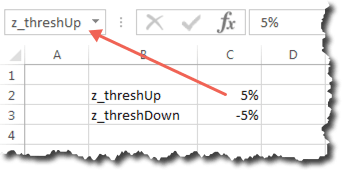
Excel Tips

Converting a Date in Excel to Week, Bi-Week, Month, and More

I often find myself getting data out of one system or another (or multiple systems, and then combining them) as “daily” data — a series of metrics by day for a sequence of days. Sometimes, I work with that data at a daily level, but, often, I want to roll the data up by week, by month, or by some other time period.

For instance, if I want to look at the data weekly, I’ll use either the last day of the week or the first day of the week and then use a formula in a new column to convert each actual day to the “week” in which it falls:

Excel Date Conversion

In the example above, 1/15/2013 is a Tuesday that falls in a week that ends on Saturday, 1/19/2013. The same holds true for Wednesday (1/16), Thursday (1/17), Friday (1/18), and Saturday (1/19). As soon as get to 1/20/2013 (Sunday), I’m in a new week — a week that ends on 1/26/2013. Make sense?

By adding this column, I can create a pivot table that can easily generate weekly data for whatever metrics are in the spreadsheet.

This approach works for a number of different ways you might need to roll up daily data, so I thought a post that walks through some of the more common ones and the formula to carry out each conversion was in order. I’ve put all of the examples in this post in a downloadable spreadsheet that you can check out and play around with.

Day of Week

The WEEKDAY() function returns a number — 1, 2, 3, 4, 5, 6, or 7. But, what if you actually want the day of the week in plain English?

Excel Dates: Weekdays

You can use the CHOOSE() function and hard code values. Or, you can make a separate table that maps a number to each weekday and use VLOOKUP to populate the values. I’m not going to discuss either of those approaches…because my preferred approach is to use the TEXT() function.

For the fully written out weekday (“$A3” is the cell with 1/15/2013 in it — you would just drag this formula down, or, if you’re using an Excel Table, it would autofill):

=TEXT($A3,”dddd”)

For the 3-letter weekday:

=TEXT($A3,”ddd”)

Easy-peasy, no?

Note: If you simply want the date to be displayed as the weekday, you don’t need a formula at all — you can simply change the cell formatting to a custom format of “dddd” (for the full weekday) or “ddd” (for the 3-letter weekday). If you do that, the display of the data will be as a weekday, but the underlying value will still be the actual date. This formula actually makes the value the weekday. Depending on what your needs are, one approach or the other will make more sense.

Convert to “Week Of”

The example I started this post with is converting each day to be the day that ends the week or the day that starts the week. To do this, you can use the WEEKDAY() function. The easiest way to understand how this works out is to write out (or put in Excel) a series of dates and then write the numbers 1 through 7 as you go down the dates. The farther you go into a week, the bigger the WEEKDAY() value is. So, if you subtract the WEEKDAY() value from the actual date, you will get the same value 7 days in a row, at which point the value will “jump” seven days. Make sense (it’s confusing…until it’s not)?

So, to convert a date to be the Saturday of the week the date falls in, use this formula (the “+7” just keeps the converted value from being the Saturday of the previous week):

=$A3-WEEKDAY($A3)+7

It’s the same idea if you wanted to use the first day of the week, with the week defined as starting on Sunday:

=$A3-WEEKDAY($A3)+1

Obviously, you can use this basic formula for whatever “week” criteria you want. You just have to either think about it really hard…or experiment until it’s doing what you want.

Convert to Bi-Weekly Date

Sometimes, a company operates on a bi-weekly cycle in some ways. For instance, a lot of companies pay their employees every two weeks. WEEKDAY() doesn’t work for this, because it doesn’t tell you which of the two weeks a day falls into.

In this case, I use MOD(). This function is, basically, a “remainder” function, and its main use is to calculate the remainder when one number is divided by another (for instance, “=MOD(14,4)” returns “2” because, when you divide 14 by 4, you get a remainder of 2).

Well, Excel dates are, under the hood, just numbers. You don’t really need to know exactly what number a date is (although you can change the cell formatting to “Number” when a date is displayed and you will see the number). But, if you think about it, if you divide a date by 14, it’s going to have a remainder between 1 and 13. Let’s say the remainder is “2.” So, what will the remainder be if you divide the next day by 14? It will be “3.” And so on until you get to 13, at which point the next day, if divided by 14, will have a remainder of 0. Hmmm. This seems like we’ve recreated the WEEKDAY() function used above…but with a 14-day long period instead of 7-day one, right? Exactly!

So, if we wanted to convert a date to be the Saturday at the end of the bi-week period, it would be one of these two formulas (depending on which Saturday is the cutoff and which is the mid-period point):

=$A3-MOD($A3-1,14)+13

or

=$A3-MOD($A3-8,14)+13

If you wanted to use the start of the period, with the week starting on Sunday, then it would be one of these two formulas:

=$A3-MOD($A3-1,14)

or

=$A3-MOD($A3-8,14)

Again, it takes some experimentation if you want to adjust to other dates, but the “14” will not change as long as you’re working on bi-weekly periods.

Convert to Bi-Monthly Date

Sometimes (again, company pay periods are a good example), rather than using a bi-weekly calendar, you want to use a bi-monthly calendar — every date from the 1st through the 14th should be converted to the first day of the month, and every day from the 15th through the end of the month should be coded as the 15th. To do this, we use the DATE() function with an IF() statement for the day value:

=DATE(YEAR($A3),MONTH($A3),IF(DAY($A3)<15,1,15))

We know the year is the YEAR() of the date being converted, and we know the month is the MONTH() of the date being converted. But, we need to look at the day of the month and check if it is less than 15. If it is, then we return a day value of “1,” and, otherwise, we return a day value of “15.”

Convert to Monthly Date

Monthly is almost as common, if not moreso, than weekly. To convert to the first day of the month is a straightforward use of the DATE() function. We pull the year using the YEAR() function on the date we’re converting, the month using the MONTH() function on the date we’re converting, and then simply hard code the “day” as “1:”

=DATE(YEAR($A3),MONTH($A3),1)

But, what if we want to use the last day of the month? We can’t hard code the “day” value because that day could be 28, 29 (leap year), 30, or 31. Curse you, Gregorian calendar!!!

Well, actually, this isn’t all that complicated, either. Why? Because the last day of the month is always the day before the first day of the next monthHuh? That’s right. That’s how we get the last day of the month: we use the DATE() function to figure out the first day of the next month (by adding 1 to the MONTH() value)… and then subtract 1:

=DATE(YEAR($A3),MONTH($A3)+1,1)-1

How do you like them apples?! [idiom ref.]

As an interesting aside, it would be understandable if this formula broke for the month of December. In that case, you’re actually telling Excel to calculate a date where the month is “13.” Luckily, Excel figures out what you mean and winds up returning January 1 of the following year (from which the formula then subtracts one to return December 31st).

But, What About…

I’ve just scratched the surface with possible date conversions in this post. Hopefully, the different approaches I described will trigger an idea or two for your specific situation. But, if you’ve got one that is stumping you, leave a comment here and I’ll take a crack at it!

And, all of the examples here are included in this downloadable spreadsheet. You can change the “start date” in cell A3 and all of the subsequent dates will automatically update. Happy date converting!

Excel Tips, Presentation

Small Charts in Excel: Beyond Sparklines, Still Economical

I’m a fan of Stephen Few; pretty much, always have been, and, pretty much, always will be. When developing dashboards, reports, and analysis results, it’s not uncommon at all for me to consciously consider some Few-oriented data visualization principles.

One of those principles is “maximize the data-pixel ratio,” which is a derivation of Edward R. Tufte’s “data-ink ratio.” The concept is pretty simple: devote as much of the non-white space to actually representing data and as little as possible to decoration and structure. It’s a brilliant concept, and I’m closing in on five years since I dedicated an entire blog post to it.

Another Tufte-inspired technique that Few is a big fan of is the “sparkline.” Simply put, a sparkline is a chart that is nothing but the line of data:

Small Charts: Sparkline

In Few’s words (from his book, Information Dashboard Design: The Effective Visual Communication of Data):

Sparklines are not meant to provide the quantitative precision of a normal line graph. Their whole purpose is to provide a quick sense of historical context to enrich the meaning of the measure.

When Few designs (or critiques) a dashboard, he is a fan of sparklines. He believes (rightly), that dashboards need to fit on a single screen (for cognitive processing realities that are beyond the scope of this post), and sparklines are a great way to provide additional context about a metric in a very economical space.

Wow! Sparklines ROCK!

But, still…sparklines are easy to criticize. In different situations, the lack of the following aspects of “context” can be pretty limiting:

  • What is the timeframe covered by the sparkline? Generally, a dashboard will cover a set time period that is displayed elsewhere on the dashboard. But, it can be unclear as to whether the sparkline is the variation of the metric within the report period (the last two weeks, for instance) or, rather, if it shows a much longer period so that the user has greater historical context.
  • What is the granularity of the data? In other words, is each point on the sparkline a day? A week? A month?
  • How much is the metric really varying over time? The full vertical range of a sparkline tends to be from the smallest number to the largest number in the included data. That means a metric that is varying +/-50% from the average value can have a sparkline that looks almost identical to one that is varying +/-2%.
  • How has the metric compared to the target over time? The latest value for the metric may be separately shown as a fixed number with a comparison to a prior period.  But, the sparkline doesn’t show how the metric has been trending relative to the target (Have we been consistently below target? Consistently above target? Inconsistent relative to target?).

So, sparklines aren’t a magic bullet.

So, What’s an Alternative?

While I do use sparklines, I’ve found myself also using “small charts” more often, especially when it comes to KPIs. A small chart, developed with a healthy layer of data-pixel ratio awareness, can be both data-rich and space-economical.

Let’s take the following data set, which is a fictitious set of data showing a site’s conversion rate by day over a two-week period , as well as the conversion rate for the two weeks prior:

Small Charts: Sample Data

If we just plot the data with Excel’s (utterly horrid) default line chart, it looks like this:

Small Charts: Default Excel

Right off the bat, we can make the chart smaller without losing any data clarity by moving the legend to the top, dropping the “.00” that is on every number in the y-axis, and removing the outer border:

Small Charts: Smaller Step 1

The chart above still has an awful lot of “decoration” and not enough weight for the core data, so let’s drop the font size and color for the axis labels, remove the tick marks from both axes and the line itself from the y-axis, and lighten up the gridlines. And, to make it more clear which is the “main” data, and to make the chart more color-blind friendly in the process, let’s change the “2 Weeks Prior” line to be thinner and gray:

Small Charts: Smaller Step 2

Now, if the fact that the dates are diagonal isn’t bugging you, you’re just not paying attention. Did you realize that you’re head is cocked ever so slightly to the left as you’re reading this post?

We could simply remove the dates entirely:

Small Charts: Smaller Step 3 (Too Far)

That certainly removes the diagonal text, and it lets us shrink the chart farther, but it’s a bit extreme — we’ve lost our ability to determine time range covered by the data, and, in the process, we’ve lost an easy way to tell the granularity of the data.

What if, instead, we simply provide the first and last date in the range? We get this:

Small Charts: Smaller Final

Voila!

In this example, I’ve reduced the area of the chart by 60% and (I claim) improved the readability of the data! The “actual value” — either for the last data point or for the entire range — should also be included in the display (next to or above the chart). And, if a convention of the heavy line as the metric and the lighter gray line as the compare is used across the dashboard or the report, then the legend can be removed and the chart size can be farther reduced.

That’s Cool, but How Did You Do Just the First and Last Dates?

Excel doesn’t natively provide a “first and last date only” capability, but it’s still pretty easy to make the chart show up that way.

In this example, I simply added a “Chart Date” column and used the new column for the x-axis labels:

Small Charts: Sample Data with First and Last Date Column

The real-world case that actually inspired this post actually allows the user to change the start and end date for the report, so the number of rows in the underlying data varied. So, rather than simply copying the dates over to that column, I put the following formula in cell D3 and then dragged it down to autofill a number of additional rows. That way, Excel automatically figured out where the “last date” value should be displayed:

=IF(AND(A3<>””,A4=””),A3,””)

What that formula does is look in the main date column, and, if the current row has a date and the next row has no date, then the current row must be the last row, so the date is displayed. Otherwise, the cell is left blank.

Neither a Sparkline Nor a Full Chart Replacement

To be clear, I’m not proposing that a small chart is a replacement for either sparklines or full-on charts. Even these small charts take up much more screen real estate than a sparkline, and small charts aren’t great for showing more than a couple of metrics at once or for including data labels with the actual data values.

But, they’re a nice in-between option that are reasonably high on information content while remaining reasonably tight on screen real estate.

Excel Tips, General

Sorting with Formulas for Bounce Rate – Excel Tip

During my career I have developed a ton of Excel tricks that enabled me to mold data just the way I like it. It all began when I took an investment banking class and if you didn’t know enough hotkeys to get by without a mouse then you were shunned. During the years I was at Omniture/Adobe I was able to develop a reputation as being “Mr. Excel” which is a pretty high bar among a group of hundreds of consultants that use worksheets regularly. Users in general aren’t very good at Excel and many people don’t know all the creative things that are possible. With that in mind, this will be the beginning of many tips that help you use Excel better with web analytics so that you can spend less time gathering data and more time using data.

Automatic Sorting with Formulas

To start, let’s talk about sorting. Excel has built in ways to sort data using filter and sorting tools but they all require human interaction to make it happen. Through formulas, you can create sorting that is automatic, macro-free, and more user friendly. A great use case for this is bounce rate. In SiteCatalyst, if you were to look at the pages with the highest bounce rate you will most-likely be given some pages that have a 100% bounce rate. What a find! You now know of a bunch of pages that need to be fixed. Not so! If you look at the visits to those pages, chances are that just one person actually saw the page and bounced. Those pages probably are not worth your time fixing.

You can do quite a bit to calculate a weighted metric that takes into account volume and the rate. Another simple solution is to use a tool like ReportBuilder to automatically pull in the X most popular pages by visits and apply the formulas below to resort the data. When the report is delivered to the user, the formulas will automatically run and the user wont have to do a thing. This way you know which pages that have the worst bounce rate AND are still getting significant traffic.

Click here for an example workbook on sort with formulas and below are step-by-step instructions:

Simple Sort

After you have downloaded the workbook above follow these steps which walk through the example:

  1. (Column A:C) Insert your data into the workbook sorting on your popularity metric (Visits in this case)
  2. (Column G) Use the LARGE function to determine which bounce rate is the highest based on the Nth value. To calculate N I use the ROW function to get the current row number and minus the first row number. This is a good tip for creating an automatic counter so that N increases by 1 with each row.
  3. (Column E) Use a combination of INDEX and MATCH to get the page name for the sorted bounce rate numbers. This works like VLOOKUP but allows you more flexibility if your lookup values aren’t on the left of your lookup table.
  4. (Column F) Now that we have the page name we can just use VLOOKUP to get the rest of the metrics from the original report.

Advanced Sort

Keep in mind that the previous example works if all of your sort values are unique. In the example worksheet I have also included an advanced example where pages have duplicate bounce rate values. Not to worry! we can solve this with a few more steps:

  1. Do the same thing you did for steps 1 & 2 of the simple sort
  2. (Column M) Create an instance count for each value of your sort metric. Note how the beginning of the range is anchored but the end is relative. This formula lets us know how many duplicates of any given number there are as we move down the list. This count, along with the bounce rate value, creates a unique key that we can line everything up by.
  3. (Column O) This is the tricky part! It is very much like what we did for step 3 of the simple sort but it uses an array function which allows us to use the bounce values AND the instance count for the lookup. To enter this function don’t just press Enter! You need to press Control + Shift + Enter. This lets Excel know that you want to use the formula as an array function.
  4. (Column P) Use a VLOOKUP based on the page name to pull in the rest of your metrics.

Now you should have a beautifully resorted report. Hide the original report on some other worksheet where it is out of the way and just present the new report to the user.

Final Thoughts

This example was centered around bounce rate but it has many applications. For example, you may want to see which of your most-popular pages has the highest revenue participation per visit. Sorting is such a foundational aspect of using data that you will be able to apply this tip in many scenarios.

Let Me Know What You Think

I have been thinking about developing a class for Adobe ReportBuilder that would not only teach you the neat things you can do with that tool but would go beyond ReportBuilder to show you how to super-charge your workbook with Excel techniques that make the data much more useful. Let me know if you would be interested in such a class (kevin @ analyticsdemystified.com)

Excel Tips

Excel Tables — Overlooked, Yet Awesome

Tables in Microsoft Excel are one of those features that you can be totally unaware of and get along without just fine. But, once you stumble across them, you wonder where they’ve been all of your R1C1 life! In a nutshell, they take some of the niftier aspects of named ranges and pivot tables and make the Excel user’s life a lot easier in a number of situations.

Chandoo wrote a great post several years ago that explained the basics of Excel tables and provided a number of tips and tricks related to them. I’m going to try to not be overly redundant with his post, but there are a few other points and references worth making, so here we go!

What Is an Excel Table?

Unlike a pivot table, a straight-up table doesn’t “pivot” any of the data. It’s just a flat set of rows and columns. Imagine we have a simple table of data:

If we click anywhere in this table of data and then select Insert » Table, the data is converted to an Excel table:

Whup-dee-do, right? It now has banded columns. Well, yes, and, as you might expect, you can change the style of the table, whether or not you want banded columns, etc.. That’s all covered in Chandoo’s post.

More importantly, though, that range of cells has become a named entity that has some very nifty capabilities. Onto the niftiness…

In the Name of a Table…

In the non-table set of data — the first image above — we certainly could have defined the range of cells A1:D7 as a named range and then used that named range in various formulas. By making the set of cells a table, though, this range of cells automatically became addressable by name.

In the Table Tools » Design » Properties ribbon, you can see the table was automatically named Table1.

Unlike with named ranges, where you have to open the Name Manager to change the name of a range, you can simply update the table name right there in the box (you can also rename it in the Name Manager). Let’s do that and call it “Fruit_Table:”

If you’re a heavy user of named cells and named ranges, you will know how convenient and useful this is. If not…well, trust me!

Calculated Cells that Auto-Extend to be Calculated Columns

In the non-table set of data — the first image in this post — we calculated the Total Fruit value as a two-step process. First, we entered the following formula in cell D2:

=B2+C2

Then, as a second step, we double-clicked on the little box at the lower right of cell D2 to auto-copy that formula down to the other rows in the data set. Two steps.

With a table, the same formula looks a lot messier, but the messiness gets put in by Excel if you click on the different cells as you build the formula:

=Fruit_Table[[#This Row],[Apples]]+Fruit_Table[[#This Row],[Oranges]]

Here’s the key, though: you can build this formula in any of the rows in Column D, and it will automatically fill in to all of the other rows. That may not seem all that handy in this simplistic example, but it saves scrolling and checking when you’ve got a table that has several thousand rows. And, it comes in very handy if you have multiple calculated columns and then get to the auto-expanding of the table, which, conveniently, is the next thing we’ll cover in this post.

Auto-Expansion

It’s really common to need to update an Excel spreadsheet with new data. In my world, that’s generally because time has passed, and I need to add data for the dates since the last time I used the spreadsheet.

In our example, suppose I had a separate file with some more recent data:

I copied the highlighted portion and pasted it directly below the table I had created — in cell A8. When I pasted it, the table automatically expanded to include the new rows in the table and went ahead and extended the Total Fruit cell calculation. The image belows shows the table immediately following the Paste action:

Very convenient with large tables and large data additions!

Referencing Tables and Parts of Tables

I’m not going to go into great depth with all of the ways tables can be “looked into” from outside the table, but the possibilities are fairly endless.

I wrote a post over a year ago on how to “do Excel dropdowns right” using data validation. That post needs to be completely overhauled (and shortened) thanks to a comment that Alex Lush made pointing out that Excel tables would work well to address the issues I was trying to address. In the example used in this post, I could make a dropdown that always had the list of all of the date values in the data table using this data validation formula (the need to use “INDIRECT” is a little quirk of Excel and data validation — typically, you can refer to sub-ranges of data in a table without the need for that):

I could make a separate dropdown of all of the header values just as easily:

Let’s actually create those dropdowns, name the cells where they exist, and then show how some clever (but really quite straightforward) use of INDEX, MATCH, and tables nomenclature yields an interactive lookup tool:

The shaded cells are dropdowns based on the data validation configurations described earlier. The formula in the “result” cell is this:

=INDEX(Fruit_Table,MATCH(DateSelect,Fruit_Table[Date],0),MATCH(ValueSelect,Fruit_Table[#Headers],0))

I know it looks a little intimidating, but it is really pretty straightforward. In pseudo-formula terms:

  1. We’re going to get the value in an array of data (that’s what the INDEX formula does)
  2. Start by looking at the main table of data: Fruit_Table
  3. Find which row in the table has the date that has been selected: MATCH(DateSelect,Fruit_Table[Date],0)
  4. Then, go over to the column that contains the specific value that has been selected from the Value dropdown: MATCH(ValueSelect,Fruit_Table[#Headers],0)
  5. Return that value

Pretty neat, huh? I could endlessly add new data for apples and oranges to the table over time. I could even add another column — for, say, peaches. Both the Date and Value dropdowns would automatically update with the full set of available values. And the Result cell would continue to return the appropriate value from the table. You can download a copy of the spreadsheet with this example here and play around with it.

This is a simple example, but you can imagine how it can be expanded to be ranges of values that get charted — similar to what is described in the most popular post on this blog: Excel Dynamic Named Ranges = Never Manually Updating Your Charts. But, that’s another blog post overhaul for another day!

The Trick for the Table-Referencing Syntax

There is no great trick for remembering the specifics of how to reference different aspects of a table. 🙂

One approach is to reference the Microsoft documentation on the subject. As their documentation is wont to be, it manages to be a bit unclear, somewhat useful, and organized only semi-logically. But, it’s there.

You can also sniff out how Excel references table components by starting to enter a formula in a cell with an “=” and then pointing to the entire column, row, header, etc. that you are trying to reference. I got the following value populated by hovering just above the word “Apple” until a down arrow appeared. When I clicked on it, the entire column lit up, and the value in the cell showed me how to reference that column:

This works for selecting other aspects of the table as well. You don’t actually need to return/enter the formula — just use the value populated in the larger formula you are building out.

Endless Possibilities

While perhaps not quite as life-changing as the discovery of pivot tables (I never claimed to have much of a life), Excel tables are intriguing, fun, and useful! Try them out!

Excel Tips, Social Media

Facebook Status Updates: Exploring Optimal Timing

NOTE: This post is no longer current. An updated version of the post, including an updated spreadsheet, is posted here.

Although Facebook has unofficially admitted that there seems to be little rhyme or reason these days when it comes to the time of day or day of week when a brand posts content on their page, it’s still worth doing a quick analysis to see if this is, indeed, the case for your page.

The challenge, it turns out, is that there are multiple aspects of what sounds like a pretty straightforward assessment:

  • What metric(s) actually make for a “successful” post?
  • How do you effectively consider time of day and day of week?
  • Have you actually posted on a sufficient variety of dates and times to have the data to do a meaningful analysis?

After scraping together some hasty cuts at this, I thought it would be worthwhile to try to knock out something that was easily shareable and reusable. The result is the downloadable spreadsheet at the end of this post.

What It Looks Like

The spreadsheet takes a simple export of post-level data from Facebook Insights (the .csv format) and generates three basic charts.

The first chart simply shows the number of posts in each time slot and each day of week — this answers the question of, “What spots have I not even really tried posting in?”

In this example, there have not been any posts from 9:00 PM to 6:00 AM, only one post between 6:00 AM and 9:00 AM, and only four posts on a Friday. Don’t worry if you don’t like the time windows — we’ll get to that in a bit.

The next two charts are crude heatmaps of a couple of metrics, but they both use the same grid as above, and they use a pretty simple green-to-red spectrum to show which spots performed best/worst relative to the other slots:

(I know, I know: red/green is not a colorblind-friendly palette selection. I’ll keep working on the visualization technique!)

The first of these charts looks at the average total reach of the updates that were posted in each time slot — the number of unique users of Facebook who were exposed to the post:

In the example above, Wednesdays looked to perform pretty well reach-wise, as did Saturday afternoon. If you have Facebook paid media running, these results may get skewed. It’s easy enough to update this chart to use Organic Reach rather than Total Reach, or, you can simply factor an awareness of what was running and when into your assessment of the results. Also, keep in mind that Facebook continues to fiddle with the EdgeRank/GraphRank algorithm, so there are aspects of a post’s reach that are beyond your control.

The next chart shows the average engagement rate of the posts, defined as the number of users who engaged with the post in some way (clicked on a link, posted a comment, liked the post, viewed a photo, etc.) divided by the total reach of the post. This is a pretty solid measure of the content quality — did the post drive the users who saw it to take some action to engage with the content? Now, arguably, the propensity for a user to engage is less impacted by the time of day and day of week, but, who knows?

In this example, Sundays and Thursdays were the days when posts appeared to get more engagement (although be leery of that Sunday, 6:00 PM to 9:00 PM, block — there was only a single post in the data set).

Timeframe Flexibility

Picking a set of timeframes is the most subjective aspect of this whole analysis, and it may be worth iterating through a few times to get to timeframes that are likely to be meaningful for the page given the target consumer. So, I’ve set up the worksheet to make it easy to customize these timeframes. For, instance, below is the same data set used above, but with only four windows of time:

The change look less than 60 seconds to implement (it’s all about VLOOKUPS, pivot tables, and conditional formatting!).

How to Use This for Your Own Page

If you want to try this out for your page(s), simply download the Excel file (this was created using Excel 2007, so it should work fine in both 2007 and 2010) and follow the instructions embedded in the worksheet. You will need to export post-level Facebook Insights data for your page, which may require several iterations (we’ve found that Facebook Insights is prone to hanging up if you try to export more than a couple of months of data at once):

Then, just follow the instructions in the spreadsheet and drop me a note if you run into any issues!

Some Notes on the Shortcomings

This approach isn’t perfect, and, if you have ideas for improving it, please leave a comment and I’ll be happy to iterate on the tool. Specifically:

  • This approach measures all updates against the other posts for the same page — there is no external benchmarking. This doesn’t bother me, as I’m a proponent of focusing on driving continuous improvement in your performance by starting where you are. Certainly, this analysis should be complemented by performance measurement that tracks the actual values of these metrics over time.
  • The overall visualization could be better. It’s not ideal that you need to jump back and forth between three different visualizations to draw conclusions about what days/times are really “good” or “bad”…including factoring in the sample size. I’ve toyed with making more of a weighted score and then doing the same color grid, but, then, you’d be looking at a true abstraction of the performance, so I didn’t go that route. Suggestions?
  • A red–>yellow–>green scale just isn’t good when it comes to supporting: 1) black-and-white printouts, and 2) certain forms of color blindness. A more iconographic approach might make more sense.

Please do weigh in with how you would change this. I’m happy to rev it based on input!

Excel Tips

Excel Dropdowns Done Right: Data Validation and Named Ranges

NOTE: There is an updated version of this post posted here. I recommend reading that one rather than this one.

Every once in a very rare while, I find myself not motivated to expound upon deep and meaningful subjects. So, this post is not about the latest turn in world of privacy legislation, it’s not about my deepening fascination with two-tiered segmentation, it’s not about the perplexing and depressing indefinite postponement of Demystified Days, and it’s not even about pondering when Team Evil Forces will have a web site.

Nope. Not today. This is just a good ol’, “Hey, let’s look at a handy capability of Excel…and how to use it to the best of its ability.”

This came up last week when a co-worker asked me: “How do I get dropdowns working in cells in Excel?” She knew she had done it before, but she couldn’t remember how. In the course of showing her, I realized that, therein, was one of those handy little tips worth sharing. I’m going to walk through three different ways to accomplish this:

  • The totally common, mundane way — straightforward, but it has limitations
  • The way I always do it — almost no more effort to implement than the first way…but with fewer limitations
  • The way I may start doing it (sometimes), which would make the approach just that much slicker

Bounce around as you see fit!

The Scenario

You’re using Excel to enter a table of data, where one or more of the columns have a standard set of possible values. For instance, let’s say you’ve made a list of household chores, and you use that list to both assign a priority to each task as well as to note the status of the work:

For both the Priority and the Status column, you’d like to enter the values using a dropdown menu, rather than needing to retype a value in each cell:

The wrinkle is that you expect this list to live for a while, and there’s a good chance that you may want to have other values available for either the Priority or the Status columns (or both). We’ll get to that.

The Standard Excel Way — Data Validation

The quickest way to set this up is with basic data validation:

  1. Highlight all of the cells that will use the same dropdown values
  2. Select Data » Data Tools » Data Validation
  3. Change the Allow dropdown to List
  4. Enter the values in the Source box (separating different values using commas)
  5. Click OK
  6. Repeat for each set of cells that has a unique set of dropdown value options.

That’s all there is to it, and it works.

The Limitation: Suppose that you decided you wanted to add a new value to the list of options, and that, rather than four cells right next to each other, this same data validation rule was used across numerous non-contiguous cells, even cells across multiple worksheets. Going in and updating the available list of values is a real pain. That brings us to…

My Standard Way — Data Validation with a Named Range

I regularly use dropdowns to make Excel-based reports more dynamic — enabling the user to choose whether he wants to see a weekly or a monthly version of the report, as well as to select the specific date range (this isn’t so much for the user’s benefit as it is for mine — it means I don’t make a “new report” each week or month, but, rather, update the data in the same workbook and then update the dropdown to get the current report; read more about my approach for that in this post).

I have a standard way of generating dropdowns that gets around the limitation described earlier: rather than entering the list of values directly in the data validation dialog box, I reference a named range. Using the same household chores scenario, I would accomplish the same end result, sans limitation, as follows:

  1. Add a new worksheet (I usually name it something like “Lookups” and then hide the worksheet once everything is set up so it’s never something that the user sees)
  2. Enter the lists of values at the top of that sheet — one list per column
  3. Select all of the values for one set of dropdown options and enter a name for that range (in this case, “List_Priority”)
  4. Repeat this  for the other list of values (I named it “List_Status” — I like to prepend the names of similar types of named ranges so that they group easily in the Named Ranges dialog box)
  5. Now, it’s the same basic process as described earlier, except, rather than entering the specific values in the data validation Source field, you enter a named range (note the “=” before the named range!):
  6. Click OK, and you’re good to go again!

Now, if you ever want to update values in the list, you can edit the values on the Lookups sheet. This won’t update the cell values that have already been populated — just the available values in the dropdown anywhere that named range is used.

The Limitation: even this approach has a limitation, but it has a couple of workarounds. Let’s say you decide to add a value to one of your lists — say you want to add “Unknown” as an option for Priority. If you simply type it at the bottom of the list, it falls outside of the named range and won’t be reflected in your dropdowns. Two different ways to work around this:

  • After adding the value, edit the named range (Formulas » Defined Names » Name Manager) to include the additional cell
  • Before adding the value, select the bottom value in the current list, right-click, and select Insert » Shift cells down » OK.This will have effectively expanded the named range by a cell. You can then either add the new value in the blank cell or copy and paste the “bottom” value (“Low” in this case) into the blank cell and then enter the new value into the bottom cell

Both of these approaches are a little bit clunky, so let’s add a twist to make the named ranges a bit more elegant…

Data Validation with Named Ranges with a Clever Twist

[Update: See the first comment below — from Julien. As he notes, the formula described here is a little messy, and he proposes a cleaner solution. I’m leaving my original approach here to provide a “multiple ways to skin a cat” demonstration…but I expect I’ll be using the approach described in the comment.]

This is simply a couple of additional steps beyond the steps described in the previous section to make the named ranges a little smarter:

  1. Select Formulas » Defined Names » Name Manager
  2. Select List_Priority and click Edit to see the current definition
  3. Replace the Refers to: formula with the following formula:

=OFFSET(Lookups!$A$2,0,0,COUNTA(Lookups!$A:$A)-1)

And, voila! You can now go nuts with adding and removing values from the Priority list and the dropdowns will have updated values with no additional effort!

To do the same for the List_Status named range, the formula you would use for the named range would be:

=OFFSET(Lookups!$B$2,0,0,COUNTA(Lookups!$B:$B)-1)

To break down the OFFSET formula usage (using List_Priority as the example):

  • Lookups!$A$2: start at cell $A$2, which is the first value in the list
  • 0: stay in that same row (so still at $A$2)
  • 0: stay in that same column (so, again, still at $A$2)
  • COUNTA(Lookups$A:$A)-1: count the number of cells in column A that have values and then subtract 1 (the heading cell: “Priority”); grab an area that is that tall, starting with the cell currently “selected” ($A$2)

By checking Excel’s documentation on the OFFSET function and fiddling around a little bit with the formula, you can see how it’s working pretty easily.

Is It Worth the Effort?

I always use the second option described in this post. You just never know when a hastily hacked together spreadsheet will get “legs” and start growing and expanding its footprint. Better to spend an extra 10 seconds to add flexibility and maintainability.

Will I use the third option? I might. We’ll see. It didn’t occur to me that I should even try until I showed my co-worker the second option…and then watched her immediately get tripped up trying to add a new value to the list. If I’m handing off a document where flexibility in the dropdown values is needed, I might just Google my way back to this post to see how it’s done!


Excel Tips

Excel Dynamic Named Ranges Redux — Multiple Series in One Chart

In one of the more consistently popular posts I’ve written, I went into detail about how to set up charts that would update based on a value selected from a couple of dropdown menus – specifically geared towards a dropdown menu that allows the selection of a date such that the chart(s) would update to reflect the data up to that date.

One of the commenters asked how to include multiple data series in a single chart using that same technique. I did a very quick example via email, but I mentally committed to documenting the specifics on the blog, so here we go (file download at the end of this post).

Add Some Data

I could, of course, just use the data I was already working with, but none of that fictitious data made sense as a stacked bar chart. So, the first step is to add a couple of data series that might reasonably belong in a stacked column chart – an easy one is to break out the web traffic into “New Visitors” versus “Returning Visitors.”

Following the same technique as described in the original post, I name the top cells NewVisitors_Current (Column E) and ReturningVisitors_Current (Column F) and copy the formula from the Web Traffic column into those two columns (it’s the same formula in all cells in row 1, and they can be copied without modification due to the use of “COLUMN()” in the formula).

Then, create NewVisitors_Range and ReturningVisitors_Range named ranges by going to Formulas » Name Manager, copying the formula for WebTraffic_Range, and then creating the two new named ranges using the same formula, except swapping out “WebTraffic” in the formula with “NewVisitors” and “ReturningVisitors.”

Note: This may seem like a complicated setup. It’s actually pretty quick and simple, and can even be achieved using a macro if there are a slew of metrics that need to be set up. One tip, though, is to establish a consistent naming convention for the different aspects of each metric.

So, enough with the seup. How do we put multiple series into a stacked bar chart?

Copy One of the Line Charts

The easiest way to get our base chart is to simply hold down <Ctrl>-<Shift> and click and drag one of the existing charts straight down on the worksheet. I’m a fan of copying charts rather than making new charts from scratch for two reasons: 1) It’s easier to keep them aligned and exactly the same size, and 2) It’s easier to keep the formatting the same (the formatting in this example is horrid, but that was for the sake of simplicity in the initial tutorial).

So, now we have two charts (I copied the date and “current total” cells as well, but we’re pretty much done there now – in this case, the current total uses the “Web Traffic” value, and it’s the sum of the New Visitors and Returning Visitors):

Change the Chart Type

Select the chart and then go to Chart Tools » Design » Change Chart Type and select the Stacked Column chart type:

You will now have a chart that looks like this:

But, this is still only one data series, and it’s the overall web traffic – not the breakout of new visitors and returning visitors. So…

Update the Data Series

Click on the columns in the chart, and a formula will appear in the formula bar (it’s not you…it’s a small image; image width constraints I apply to this blog, but you get the idea):

There are other ways to update the data, but this is the fastest when it’s a viable option. Simply change the first “Web Traffic,” which is the name of the data series, to “New Visitors.” Then, change “WebTraffic” later in the formula to “NewVisitors”. What you’re really doing with this second change is changing the data source from “WebTraffic_Range” to “NewVisitors_Range”.

The chart will update and will look like this:

Now, since we’re going to have two series on this chart, let’s go ahead and click on the column title and change it to “Web Traffic” manually (when you changed “Web Traffic” to “New Visitors” in the formula bar, you were changing the series name — Excel just noticed that you had only one series and no legend, so it decided to make that the chart title, too; you’ll still want the series name to be “New Visitors,” though; the reason should become apparent shortly…like…after the next sentence!). And, while we’re at it, let’s add a legend and make the chart a bit taller to make room for it!

Add the Second Series

Now, here’s where the fun happens. Right-click in the chart and select Select Data. Then, select New Visitors and click the Edit button. You’re not actually going to edit that data series, but it’s the fastest way to get the second series set up. In the Edit dialog box, select the entire contents of the Series values field and select <Ctrl>-<C> to copy the formula:

Click Cancel.

Click Add.

For the Series name enter “Returning Visitors” and then paste the formula (<Ctrl>-<V>) you just copied into the Series values field. Then, scroll to the end of that formula and replace “New” with “Returning”:

Click OK and then click OK again on the next screen.

Voila!

Still, as before, you can change the Report Period and the Report Range dropdowns to alter what data gets displayed on the chart.

You can download the spreadsheet with the full example if you want to fiddle around with it without starting from scratch.

Happy charting!


Analytics Strategy, Excel Tips, Presentation

Data Visualization Tips and Concepts (Monish Datta calls it "stellar")*

Columbus Web Analytics Wednesday was sponsored by Resource Interactive last week, and it was, as usual, a fun and engaging event:

Web Analytics Wednesday -- Attendees settling in

We tried a new venue — the Winking Lizard on Bethel Road — and were pretty pleased with the accommodations (private room, private bar, very reasonable prices), so I expect we’ll be back.

Relatively new dad Bryan Cristina had a child care conflict with his wife…so he brought along Isabella (who was phenomenally calm and well-behaved, and is cute as a button!):

Bryan and Isabella

I presented on a topic I’m fairly passionate about — data visualization. The presentation was well-received (Monish Datta really did tweet that it was “stellar”)  and generated a lot of good discussion. I had several requests for copies of the presentation, so I’ve modified it slightly to make it more Slideshare-friendly and posted it. If you click through on the embedded version below, you can see the notes for each slide by clicking on the “Notes on Slide X” tab underneath the slideshow, or you can download the file itself (PowerPoint 2007), which includes notes with each slide (I think you might have to create/login to a Slideshare account, which it looks like you can do quickly using Facebook Connect).


I had fun putting the presentation together, as this is definitely a topic that I’m passionate about!

* The “Monish Datta” reference in the title of this post, while accurate, is driven by my never-ending quest to dominate search rankings for searches for Monish. I’m doing okay, but not exactly dominating.

http://b.scorecardresearch.com/beacon.js?c1=7&c2=7400849&c3=1&c4=&c5=&c6=

Excel Tips

Excel Dynamic Named Ranges = Never Manually Updating Your Charts

[This post was written in 2010. I’ve made a new version of the post that takes advantage of Excel tables, which simplified the process a bit (it’s still kinda’ complicated). That post is available here.]

[This post is about dynamic named ranges in Excel 2007. I’m seeing a lot of referral traffic to this post searching for Excel 2010. If you’re simply looking for where you define or modify named ranges in Excel 2010 (as one commenter indicated in response to an earlier version of this update), it’s on the Formulas tab in the Defined Names area — Name Manager. If you are looking for other Excel 2010-specific information that this post doesn’t cover, please leave a quick comment as to what the change/issue is that led you to the search. Thanks.]

I’ve had a pretty good run of theoretical posts about the nature of marketing measurement of late, so it seemed like I was due for a more down-in-the-weeds-Excel-efficiency-tactics write-up.  This blog isn’t really focussed on all of the myriad ways that Excel can be contorted to represent data effectively, but I’m a big believer in using tools as effectively as possible to remove as much rote report generation as possible. There are lots of blogs devoted entirely to Excel tips and tricks. My favorite on that front is Jon Peltier’s (if you get intrigued by this post, hop over and peruse a slew of other ways to have charts dynamically update).

This post describes (and includes a downloadable file of the example) a technique that we use extensively to make short work of updating recurring reports. Here are the criteria I was working against:

  • User-selectable report date
  • User-selectable range of data to include in the chart
  • Single date/range selection to update multiple charts at once
  • No need to touch the chart itself
  • Reporting of the most recent value (think sparklines, where you want to show the last x data values in a small chart, and then report the last value explicitly as a number)
  • No use of third-party plug-ins — one of these days, I’ll get around to playing with the various Excel add-ons like those offered by Tableau Software and XLCubed (or even the Peltier Tech add-ins, which are targeted but made by one of the top 3 most authoritative Excel resources on the ‘net), but that adds just the slightest of barriers and, again, isn’t needed for this exercise
  • No macros used — I don’t have anything against macros, but they introduce privacy concerns, version compatibility, odd little warnings, and, in this case, aren’t needed

The example shown here is pretty basic, but the approach scales really well.

Sound like fun?

Setting Up the Basics

One key here is to separate the presentation layer from the data layer. I like to just have the first worksheet as the presentation layer — let’s name it Dashboard — and the second worksheets as the data layer — let’s call that Data. (Note: I abhor many, many things about Excel’s default settings, but, to keep the example as familiar as possible, I’m going to leave those alone. This basic approach is one of the core components in the dashboards I work on every day, and it can be applied to a much more robust visualization of data than is represented here. See An Excel Dashboard Widget for a look at my thoughts on dashboard visualization.)

Data Tab Setup — Part 1

This is a slightly iterative process that starts with the setup of the Data tab. On that worksheet, we’ll use the first column to list our dates — these could be days, weeks, months, whatever (they can be changed at any time and the whole approach still works). For the purposes of this example, we’ll go with months. Let’s leave the first row alone — this is where we will populate the “current value,” which we’ll get to later. I like to use a simple shading schema to clearly denote which cells will get updated with data and which ones never really need to be touched. And, in this example, let’s say we’ve got three different metrics that we’re updating: Revenue, Orders, and Web Visits. This approach can be scaled to include dozens of metrics, but three should illustrate the point. That leaves us with a Data tab that looks like this:

While we’re on this tab, we should go ahead and defined some named cells and some named ranges. We’ll name the cell in the first row of each metric column as the current value for that metric (the cells don’t have to be named cells, but it makes for easier, safer updating of the dashboard as the complexity grows). Name each cell by clicking on the cell, then clicking in the cell address at the top left and typing in the cell name. It’s important to have consistent naming conventions, so we’ll go with <metric>_Current for this (it works out to have the metric identified first, with the qualifier/type after — just trust me!). The screen capture below shows this being done for the cell where the current value for Orders will go, but this needs to be done for Revenue and Web Traffic as well (I just remove the space for Web Traffic — WebTraffic_Current).

And, we’re definitely going to want to have the whole range of data on the tab available to us. Let’s call this MainData and define it by going to Formulas » Name Manager and clicking on New (this is Excel 2007 — it’s somewhere else easier to find in Excel 2003). Define a new range with a Workbook scope that encompasses all the columns and all of the rows of data (starting at row 3):

There are lots of ways to dynamically define MainData. You can just drag a big area if you want, but this is a slightly more elegant approach. I’m not going to go into the nuts and bolts of why this formula works, but you can look up the OFFSET and COUNTA functions and figure it out if you’re so inclined:

=OFFSET(Data!$A$3,0,0,COUNTA(Data!$A:$A)-2,COUNTA(Data!$2:$2))

We’ll also want a named range that just includes the list of months — create that the same way as MainData, but call it DateSelector and use a slightly different formula:

=OFFSET(Data!$A$3,0,0,COUNTA(Data!$A:$A)-2,1)

And, of course, we’ll actually need data — this would come later, but I’ve gone ahead and dropped some fictitious stuff in there:

That’s it for the Data tab for now…but we’ll be back!

Dashboard Tab Setup — Part 1

Now we jump over to the Dashboard worksheet and set up a couple of dropdowns — one is the report period selector, and the other is the report range (how many months to include in the chart) selector. Start by setting up some labels with dropdowns (I normally put these off to the side and outside the print range…but that doesn’t sit nice with the screen resolution I like to work with on this blog):

Then, set up the dropdowns using Excel data validation:

First, the report period. Click in cell C1, select Data » Data Validation, choose List, and then reference the named range of months we set up earlier, DateSelector:

When you click OK, you will have a dropdown in cell C1 that contains all of the available months. This is a critical cell — it’s what we’ll use to select the date we want to key off of for reporting, and it’s what we’ll use to look up the data. So, we need to make it a named cell — ReportPeriod:

Now, let’s do a similar operation for the report range — this tells the spreadsheet how many months to include in each chart. Click in cell C3, select Data » Data Validation, choose List, and then enter the different values you want as options (I’ve used 3, 6, 9, and 12 here, but any list of integers will work):

And, let’s name that cell ReportRange:

Does this seem like a lot of work? It can be a bit of a hassle on the initial setup, but it will pay huge dividends as the report gets updated each day, week, or month. Trust me!

Before we leave this tab, go ahead and select a value in each dropdown — this will make it easier to check the formulas in the next step.

Data Tab Setup — Part 2

Now is where the fun begins. We’re going to go back over to the Data worksheet and start setting up some additional named ranges. We’ve got MainData, which is the full range of data. We want to look at the currently selected Report Period (a named range called ReportPeriod) and find the value for each metric that is in the same row as that report period. That will give us the “Current” value for each metric. All you need to do is put the exact same formula in each of the three “Current” cells:

=VLOOKUP(ReportPeriod,MainData,COLUMN())

In this example, these are the values for each of the three arguments:

  • ReportPeriod — Jul-09, the value we selected on the Dashboard tab
  • MainData — this is the full set of data, including the list of months in column A
  • COLUMN() — this is 2, the column that the current metric is listed in (this function resolves to “3” for Orders and to “4” for Web Traffic)

So, the formula simply takes the currently selected month, finds the row with that value in the data array, and then moves over to the column that matches the current column of the formula:

Slick, huh? And, because the ReportPeriod data validation dropdown on the Dashboard worksheet is referencing the first column of the data on the Data tab, the VLOOKUP will always be able to find a matching value. (Read that last sentence again if it didn’t sink in — it’s a nifty little way of ensuring the robustness of the report)

This little bit of cleverness is really just a setup for the next step, which is setting up the data ranges that we’re going to chart. Conceptually, it’s very similar to what we did to find the current metric value, but we want to select the range of data that ends with that value and goes backwards by the number of months specified by ReportRange. So, in the values we selected above, Jul-09 and “6,” we basically want to be able to chart the following range of data:

We’ll do this by defining a named range called Revenue_Range (note how this has a similar naming convention to Revenue_Current, the name we gave the cell with the single value — this comes in handy for keeping track of things when setting up the dashboard). We can’t use VLOOKUP, because that function doesn’t really work with arrays and ranges of data. Instead, we’ll use a combination of the MATCH function (which is sort of like VLOOKUP on steroids) and the INDEX function (which is a handy way to grab a range of cells). Pull your hat down and fasten your seatbelt, as this one gets a little scary. Ultimately, the formula looks like this:

=INDEX(MainData,MATCH(ReportPeriod,DateSelector)-ReportRange+1, COLUMN(Revenue_Current)):INDEX(MainData, MATCH(ReportPeriod,DateSelector), COLUMN(Revenue_Current))

It’s really not that bad when you break it down. I promise!

Working from the outside in, you’ve got a couple of INDEX() functions. Think of those as being INDEX(First Cell) and INDEX(Last Cell).

The range is defined, in pseudocode, as simply:

=INDEX(First Cell):INDEX(Last Cell)

The Last Cell calculation is slightly simpler to understand. As a matter of fact, this is really just trying to identify the cell location (not the value in the cell) of the current value for revenue — very similar to what we did with the VLOOKUP function earlier. The INDEX function has three arguments: INDEX(array,row_num,column_num). Here’s how those are getting populated:

  • array — this is simply set to MainData, the full range of data
  • row_num — this is the row number within the array that we want to use; we’ll come back to that in just a minute
  • column_num — we use a similar trick that we used on the Revenue_Current function, in that we use the COLUMN() formula; but, since we set up this range simply as a named range (as opposed to being a value in a cell), we can’t leave the value of the function blank; so, we populate the function with the argument of Revenue_Current — we want to grab the column that is the same column as where the current revenue value is populated in the top row.

Now, back to how we determine the row_num value. We do this using the MATCH function, which we need to use on a 1-dimensional array rather than a 2-dimensional array (MainData is a 2-dimensional array). All we want this function to return is the number of the row in the MainData array for the currently selected report period, which, as it turns out, is the same row as the currently selected report period in the DataSelector range. The formula is pretty simple:

MATCH(ReportPeriod,DateSelector)

The formula looks in the DateSelector range for the ReportPeriod value and finds it…in the seventh row of the array. So, row_num is set to 7.

INDEX(First Cell) is almost identical to INDEX(Last Cell), except the row_num value needs to be set to 2 instead of 7 — that will make the full range match the ReportRange value of 6. So, row_num is calculated as:

MATCH(ReportPeriod,DateSelector)-ReportRange+1

(The “+1” is needed because we want the total number of cells included in the range to be ReportRange inclusive.)

Now, that’s not all that scary, is it? We just need to drop the full formula into a named range called Revenue_Range by selecting Formulas » Name Manager » New, naming the range Revenue_Range, and inserting the formula:

=INDEX(MainData,MATCH(ReportPeriod,DateSelector)-ReportRange+1, COLUMN(Revenue_Current)):INDEX(MainData, MATCH(ReportPeriod,DateSelector), COLUMN(Revenue_Current))

The whole formula is there, even if you can’t see it!

Repeat this last step to create two more named ranges with slightly different formulas (the differences are in bold):

  • Orders_Range: =INDEX(MainData,MATCH(ReportPeriod,DateSelector)-ReportRange+1,COLUMN(Orders_Current)):INDEX(MainData,MATCH(ReportPeriod,DateSelector),COLUMN(Orders_Current))
  • WebTraffic_Range: =INDEX(MainData,MATCH(ReportPeriod,DateSelector)-ReportRange+1,COLUMN(WebTraffic_Current)):INDEX(MainData,MATCH(ReportPeriod,DateSelector),COLUMN(WebTraffic_Current))

Tip: After creating one of these named ranges, while still in the Name Manager, you can select the range and click into the formula box, and the current range of cells defined by the formula will show up with a blinking dotted line around them.

You’re getting sooooooo close, so hang in there! In order for the chart labels to show up correctly, we need to make one more named range. We’ll call it Date_Range and define it with the following formula (this is just like the earlier _Range formulas, but we know we want to pull the dates from the first column, so, rather than using the COLUMN() formula, we simply use a constant, “1”:

=INDEX(MainData,MATCH(ReportPeriod,DateSelector)-ReportRange+1,1):INDEX(MainData, MATCH(ReportPeriod,DateSelector),1)

If you want, you can fiddle around with the different settings on the Dashboard tab and watch how both the “Current” values and (if you get into Name Manager) the _Range areas change.

OR…you can move on to the final step, where it all comes together!

Dashboard Tab Setup — Part 2 (the final step)

It’s back over to the Dashboard worksheet to wrap things up.

Insert a 2-D Line chart and resize it to be less than totally obnoxious. It will just be a blank box initially:

Right-click on the chart and select Select Data. Click to Add a new series and enter “Revenue” (without the quotes — Excel will add those for you) as the series name and the following formula for the series values:

=DynamicCharts_Example.xlsx!Revenue_Range

(Change the name of the workbook if that’s not what your workbook is named)

Click to edit the axis labels and enter a similar formula:

=DynamicCharts_Example.xlsx!Date_Range

You will now have an absolutely horrid looking chart (thank you, Excel!):

Tighten it up with some level of formatting (if you just can’t stand to wait, you can go ahead and start flipping the dropdowns to different settings), drop “=ReportPeriod” into cell E6 and “=Revenue_Current” into cell E7, and you will wind up with something that looks like this:

Okay, so that still looks pretty horrid…but this isn’t a post about data visualization, and I’m trying to make the example as illustrative as possible. In practice, we use this technique to populate a slew of sparklines (no x-axis labels) and a couple of bar charts, as well as some additional calculated values for each metric.

To add charts for orders and web traffic is a little easier than creating the initial chart. Just copy the Revenue chart a couple of times (if you hold down <Ctrl>-<Shift> and then click and drag the chart it will make a copy and keep that copy aligned with the original chart).

Then, simply click on the data line in the chart and look up at the formula box. You will see a formula that looks something like this:

=SERIES(“Revenue“,DynamicCharts_Example.xlsx!Date_Range, DynamicCharts_Example.xlsx!Revenue_Range,1)

Change the bolded text, “Revenue,” to be “Orders” and the chart will update.

Repeat for a Web Traffic chart, and you’ll wind up with something like this:

And…for the magic…

<drum rollllllllllll>

Change the dropdowns and watch the charts update!

So, is it worth it? Not if you’re going to produce one report a couple of times and move on. But, if you’re in a situation where you have a lot of recurring, standardized reports (not as mindless report monkeys — these should be well-structured, well-validated, actionable performance measurement tools), then the payoff will hit pretty quickly. Updating the report is simply a matter of updating the data on the Data tab (some of which could even be done automatically, depending on the data source and the API availability), then the Report Period dropdown on the Dashboard tab can be changed to the new report period, and the charts get automatically updated! You can then spend your time analyzing and interpreting the results. Often, this means going back and digging for more data to supplement the report…but I’m teetering on the verge of much larger topic, so I’ll stop…

As an added bonus, you can hide the Data tab and distribute the spreadsheet itself, enabling your end users to flip back and forth between different date ranges — a poor man’s BI tool, if ever there was one (in practice, there will seldom be any real insight gleaned from this limited number of adjustable dropdowns, and that’s not the reason to set them up in the first place).

I was curious as to what it would take to create this example from scratch and document it as I went. As it’s turned out, this is a lonnnnnnngggg post. But, if you’ve skimmed it, get the gist, and want to start fiddling around with the example used here, feel free to download it!

Happy dynamic charting!

Excel Tips, Presentation

An Excel Dashboard Widget

As I wrote in my last post, I’ve been spending a lot of time building out Excel-based dashboard structures and processes of late. I also wrote a few weeks ago about calculating trend indicators. A natural follow-on to both of those posts is a look at the “metric widget” that I use as a basis for much of the information that goes on a dashboard. Below is an example of part of a web site dashboard (not with real data):

Sparkline Widgets

I’ll walk through some of the components here in detail, but, first, a handful of key points:

  • There is no redundant information — it’s not uncommon to see dashboards (or reports in general) where there is a table of data, and that table of data gets charted, and the values for each point on the chart then get included as data labels. This is wasteful and unnecessary.
  • Hopefully, your eyes are drawn to the bold red elements (and these highlights should still pop out for users with the most common forms of colorblindness — I haven’t formally tested that yet, though) — this is really the practical application of the vision I laid out in my Perfect Dashboard post.
  • I have yet to produce a dashboard solely comprised of these widgets — there are always a few KPIs that needs to be given more prominent treatment, and there are other metrics that don’t make sense in this sparkline/trend/current format
  • I do mix up the specific measures on a dashboard-by-dashboard basis. In the example above, showing the past two years of trends by month, and then providing quarterly totals and comparisons, makes the most sense based on the planning cycle for the client. But, that certainly is not a structure that makes sense in all situations.

And now onto the explanation of the what and why of each element, working our way from left to right.

Metric Name

This one hardly warrants an explanation, but I’ll point out that I didn’t label that column. That was a conscious decision — the fact that these are the names of the metric is totally obvious, and Edward Tufte’s data-ink ratio dictates that, if it doesn’t add value, don’t include it!

Past 12 Months Sparkline

The sparkline is another Tufte invention, and it’s one that has really taken off in the data visualization space. That’s good, because sparklines are darn handy, and the more people get used to seeing them, the less there will need to be any “training” of dashboard users to interpret them. Google Analytics has been using sparklines for a while, even, so we’re well on our way to mass adoption!

Google Analytics Sparkline

One tweak on the sparkline front that I came up with (although I’m sure others have done something similar): I add a second, gray sparkline for either the target or the prior reporting period. I like that this gives a quick, easily interpretable view of the metric’s history over a longer period — has it been tracking to target consistently, consistently above or below the target, or bouncing back and forth? Is there inherent seasonality in the metric (signified by both the black and gray sparklines having similar spike/dip periods)?

One limitation of sparklines is that they don’t represent magnitude very well. If, for instance, a particular metric is barely fluctuating over time, then, depending on how the y-axis is set up, the sparkline can still show what looks like a wildly varying value. It’s a minor limitation, though, so I’ll live with it.

4-Month Trend Arrow

The 4-month trend is the single icon that results from a conceptually simple (but a little hairy to calculate) assessment of the most recent four data points. That was the punchline of an earlier post on calculating trend indicators. Whether the basis of the trend is months, weeks, or days can vary (not within one dashboard, generally, but as a standard for the dashboard overall), as well as whether it’s 4, 5, 6, or more data points. It’s a judgment call for both driven by the underlying business need that the dashboard supports.

I promise, promise, promise to make a simplified example of this arrow calculation and post it in a future post — check the Comments section for this post to see if a linkback exists (I’ll come back and update this entry as well once it’s done)

Current

Typically, when sparklines are used, the exact value of the last point in the sparkline is included. In the example above, I’ve done something a little different, in that I actually provide the sum of the last three data points. This is a quarterly dashboard, but the sparkline has a monthly basis to it to show intra-quarter trends. If the current value is sufficiently below the target threshold, then the value is automatically displayed as bold and red.

There are certainly situations where “Current” would actually be the last point on the sparkline. Like the trend arrow calculations, it’s a judgment call based on the business need that the dashboard supports.

YOY

In the example above, there is a comparison to the prior year. But, this could be a comparison to the target instead. Target-based comparison is even better — straight period-over-period comparisons tend to feel like something of a cop out, as prior periods really are more “benchmarks” than true “targets.” Now, setting a target as something like “15% growth over the prior year” has some validity! That would then impact both the gray sparkline, the “when does Current go bold red,” and this %-based calculation.

28 Data Points

In the version of the widget above, there are 28 unique pieces of data presented for each metric: the metric name (1), the black sparkline (12), the gray sparkline (12), the trend indicator (1), the current value (1), and the year-over-year growth percentage (1). And that’s not counting the conditional formatting that highlights values as bold and red when certain criteria are met. That’s a key aspect of the widget design. 28 sounds like a lot of data to represent for a single metric. Yet, they seem pretty digestible in this format, don’t they?

Let me know what you think. Does this work? What doesn’t work?

Excel Tips, Presentation

Data Visualization that Is Colorblind-Friendly — Excel 2007?

Wow. This post started out not as a post, but as what I thought was going to be a 5-minute exercise with Google to download a colorblind-friendly palette for Excel charts. That was two weeks ago, and this post is just scratching the surface.

Several weeks ago, one of the presenters in a meeting showed some data as a map overlay. As soon as she projected the first map, someone in the meeting quipped, “Good luck understanding this one, Jim!” Jim, you see, is colorblind. And, apparently, most of the people in the meeting knew it. Approximately 8% of men have some form of color blindness (it’s much more rare in women — only 1 in 200). And the overlays on the map were color-coded very subtly. Jim commented that it was hopeless!

As it happened, I was exploring a fresh set of data that same week, as we’d recently rolled out some new customer data capture capabilities. As I worked through how best to present the results, I decided to grab a colorblind-friendly palette from the web and use it in the visualization of the information. I’d hoped to find a site with one or more Excel files that I could download with such a palette, but, worst case, I was prepared to snag a palette and manually update my Excel file (for future sharing on this blog, of course!).

No. Such. Luck!

What I did find was a slew of information on the different types of color blindness (which I’ll touch on briefly in a bit), as well as a bevy of almost-useful tools and palettes:

  • How to make figures and presentations that are friendly to Colorblind people — ultimately, I used the palette that is ~2/3 of the way down this page for my spreadsheet (the figure labeled “Set of colors that is unambiguous both to colorblinds and non-colorblinds”).  Mr. Excel actually references this palette and provides a macro that will update a workbook’s palette with this palette. The downside of this palette is that, while it may be plenty functional, I can’t say I’m wild about it from an aesthetic viewpoint. But, I’d spent the 30 minutes I’d given myself to dig, so I ran with it.
  • Colorjack — a nifty tool for finding a color palette. Unfortunately…there’s no way to test how colorblind-friendly any of the palettes are
  • Colorblind Web Page Filter — there were a number of tools for sale that would simulate how content would appear to people with different forms of colorblindness, but this is the (free) online tool I wound up using for the exercise below. It couldn’t be easier to use — you just provide a URL and what form of color blindness you’re interested in, and it renders it

So, aside from the one palette that was solely focussed on functionality and not at all on aesthetics, I struck out. As I pondered this over the next few days, it occurred to me that, perhaps Excel’s default colors always seemed so gosh-awful because they were actually developed explicitly with colorblindness in mind. I could not find any documentation to support the theory…so I turned left and headed down that rathole to see if I could figure it out myself.

The exercise was pretty simple. I created a 10-color bar chart using the Excel 2007 default palette. Note: This was created purely for palette-testing — this actual chart is a great example of needlessly using more color than is needed! Here’s the chart:

Excel 2007 Default Chart Colors

Like the one colorblind-friendly palette I found online, I really don’t like the aesthetics of this palette. It’s been toned down a bit from the Excel 2003 (and earlier) versions, which is good, but it still seems rather harsh. Could that be for colorblind compatibility? I think so! I took the chart above and ran it through the Colorblind Web Page Filter mentioned above for the four most common types of color blindness (as described in a Pearson report by Betsy J. Case):

Excel 2007 Default Chart Colors -- Deuteranomaly (Affects 4.9% of Males)
Deuteranomaly (Affects 4.9% of Men)
Excel 2007 Default Chart Colors -- Deuteranopia (Affects 1.1% of Men)
Deuteranopia (Affects 1.1% of Men)
Excel 2007 Default Chart Colors -- Protanopia (Affects 1% of Men)
Protanopia (Affects 1% of Men)
Excel 2007 Default Chart Colors -- Protanomaly (Affects 1% of Men)
Protanomaly (Affects 1% of Men)

Overall, the palette seems workable in all four situations. The first three colors absolutely work. Color 4, as well as color 5, start to lose a little contrast from color 1, but they still seem manageable. Color 5 and color 7, as well as color 10, start to get a little problematic in some cases, but, if you’re going beyond four colors in a single chart, you might need to reconsider your chart type anyway. Right?

Now, one final test: for achromatopsia. On the one hand, this is extremely rare. On the other hand…it’s common when your office has a lot of black-and-white printers:

Excel 2007 Default Chart Colors -- Achromatopsia
Achromatopsia (Extremely Rare)

Apparently, any palette that works in grayscale is a quick way to check for compatibility with all forms of colorblindness. It’s also…a best practice. Interestingly, the Excel 2007 palette really lays an egg here, in that colors 1, 2, and 4 are all barely distinguishable!

Clearly, there is an opportunity here to test a variety of functional, attractive palettes for grayscale printability and the top four forms of colorblindness and develop something better than the Excel defaults. But, that’s an exercise for another time. I think I’ll aim for the first four colors of the palette being “highly distinguishable” in all scenarios and the next four being “functionally distinguishable.” What do you think? Would this be useful? What else should I take into consideration?

Excel Tips, Presentation

Data Visualization — March Madness Style

I got an e-mail last week just a few hours into Round 1 of this year’s NCAA men’s basketball tournament. The subject of the email was simply “dumb graph,” and the key line in the note was:

The “game flow” graph…how in the WORLD is that telling me anything? That the score goes up as the game goes on? Really? Ya think?

My friend was referring to the diagrams that ESPN.com is providing for every game in the tournament. The concept of these graphs is pretty simple: plot the score for each team over the course of the game. For instance, the “Game Flow” graph for the Oklahoma vs. Morgan State game looks like this (you can see the actual graph on the game recap page — just scroll down a bit and it’s on the right):

Oklahoma vs. Morgan State

This isn’t an exact replication, but it’s pretty close — best I could manage in Excel 2007 (the raw data is courtesy of the ESPN.com play-by-play page  for the game). ESPN’s graph is a Flash-based chart, so it’s got some interactivity that the image above does not (we’ll get to that in a bit).

The graph shows that the game was tight for the first 4-5 minutes, then Oklahoma pulled away, Morgan State made it really close mid-way through the first half, and then Oklahoma pulled away and never looked back. My friend had a point, though —  the dominant feature of the graph is that both lines trend up and to the right…and any chart of a basketball game is going to exhibit that pattern (actually, the play-by-play for that game has a couple of hiccups such that, when I originally pulled the data, I had a couple places where the score went down due to out-of-sequence free throw placement…but I noticed the issue and fixed it). In business, we’re pretty well conditioned to see “up and to the right” as a good thing…but it’s meaningless in the case of a basketball game.

Compare that graph to a game that was much closer — the Clemson vs. Michigan game (the graph on ESPN’s site is on the recap page, and the raw data is on the play-by-play page):

Clemson vs. Michigan

This was a tighter game all through the first half. Clemson led for the first 7-8 minutes, Michigan pulled substantially ahead early in the second half, and then things got tight in the last few minutes of the game. But, again, both lines moved up and to the right.

These charts are not difficult to interpret:

  • The line on top is the team that is leading
  • The distance between the lines is the size of the lead
  • The lines crossing signifies a lead change

But, could we do better? Well, my wife and kids are out-of-town for the week (spring break), I have the social life you’d expect from someone who blogs about data and data visualization, and the fridge is well-stocked with beer. Party. ON!

At best, my level of basketball fan-ness hovers right around “casual.” Still, I follow it enough to know the key factors of a game update or game upset (Think: “Hey, Joe. What’s the score?”). Basically:

  • Who’s winning?
  • By how much?

(If there’s time for a third data point, the actual score is an indication of whether it’s a high scoring shootout or a low scoring defense-oriented game.)

Given these two factors as the key measures of a game, take another look at the graphs above. When the game is tight, you have to look closely to assess who is winning. And, determining how much they’re winning by requires some mental exertion (try it yourself: look back at the last graph and ask yourself how much Michigan was winning by halfway through the second half).

This is just begging for a Stephen Few-style exercise to see if I can do better.

First, the Oklahoma/Morgan State game:

Oklahoma vs. Morgan State

Rather than plotting both team’s scores, with the total score on the Y-axis, this chart plots a single line with the size of the lead — whichever side of the “0” line the plot is on is the team that is winning. The team on the top is the higher seed, and the team on the bottom is the lower seed. I added the actual score at halftime and the end of the game, as well as each team’s seed. Compare that chart to the much closer Clemson/Michigan game:

Clemson vs. Michigan

The chart looks very different — focussing on what information fans really want and presenting it directly, rather than presenting the data in a way that requires mental exertion to derive what the fan is really interested in: who’s winning and by how much? While the graphs on ESPN’s site allow you to mouse over any point in the game and see the exact score and the exact amount of time remaining, it’s hard to imagine who would actually care to do that — better to come up with an information-rich and easy-to-interpret static chart than to get fancy with unnecessary interactivity.

A few other subtle changes to the alternative representation:

  • I tried to dramatically increase the “data-pixel ratio” (Few’s principle that the ratio of actual data to decoration should be maximized) — this is a little unfair to ESPN, as their site is working with an overall style and palette for the site, but it’s still worth keeping in mind
  • I used color on the Y-axis to show which team’s lead is above/below the mid-line. The numbers below the middle horizontal line are actually negative numbers, but with a little Excel trickery, I was able to remove the “-” and change the color of the labels (all done through Custom number formatting)
  • By putting the top seed on the top, looking at a full page of these charts would quickly highlight the games that were upsets

I’m my own worst critic, so here are two things I don’t like about the alternate charts above:

  • The overall palette still feels a little clunky — the main data plot doesn’t seem to “pop” as much as it should, even though it’s black, and the shaded heading doesn’t feel right
  • While the interpretation of the data requires less mental effort once you understand what the chart is showing, it does seem like this approach requires another half-second of interpretation upr front that the original charts don’t require

What do you think? What else could I try to improve the representation?

Analysis, Analytics Strategy, Excel Tips, General, Presentation, Reporting

The Best Little Book on Data

How’s that for a book title? Would it pique your interest? Would you download it and read it? Do you have friends or co-workers who would be interested in it?

Why am I asking?

Because it doesn’t exist. Yet. Call it a working title for a project I’ve been kicking around in my head for a couple of years. In a lot of ways, this blog has been and continues to be a way for me to jot down and try out ideas to include in the book. This is my first stab at trying to capture a real structure, though.

The Best Little Book on Data

In my mind, the book will be a quick, easy read — as entertaining as a greased pig loose at a black-tie political fundraiser — but will really hammer home some key concepts around how to use data effectively. If I’m lucky, I’ll talk a cartoonist into some pen-and-ink, one-panel chucklers to sprinkle throughout it. I’ll come up with some sort of theme that will tie the chapter titles together — “myths” would be good…except that means every title is basically a negative of the subject; “Commandments” could work…but I’m too inherently politically correct to really be comfortable with biblical overtones; an “…In which our hero…” style (the “hero” being the reader, I guess?). Obviously, I need to work that out.

First cut at the structure:

  • Introduction — who this book is for; in a nutshell, it’s targeted at anyone in business who knows they have a lot of data, who knows they need to be using that data…but who wants some practical tips and concepts as to how to actually go about doing just that.
  • Chapter 1: Start with the Data…If You Want to Guarantee Failure — it’s tempting to think that, to use data effectively, the first thing you should do is go out and query/pull the data that you’re interested in. That’s a great way to get lost in spreadsheets and emerge hours (or days!) later with some charts that are, at best, interesting but not actionable, and, at worst, not even interesting.
  • Chapter 2: Metrics vs. Analysis — providing some real clarity regarding the fundamentally different ways to “use data.” Metrics are for performance measurement and monitoring — they are all about the “what” and are tied to objectives and targets. Analysis is all about the “why” — it’s exploratory and needs to be hypothesis driven. Operational data is a third way, but not really covered in the book, so probably described here just to complete the framework.
  • Chapter 3: Objective Clarity — a deeper dive into setting up metrics/performance measurement, and how to start with being clear as to the objectives for what’s being measured, going from there to identifying metrics (direct measures combined with proxy measures), establishing targets for the metrics (and why, “I can’t set one until I’ve tracked it for a while” is a total copout), and validating the framework
  • Chapter 4: When “The Metric Went Up” Doesn’t Mean a Gosh Darn Thing — another chapter on metrics/performance measuremen. A discussion of the temptation to over-interpret time-based performance metrics. If a key metric is higher this month than last month…it doesn’t necessarily mean things are improving. This includes a high-level discussion of “signal vs. noise,” an illustration of how easy it is to get lulled into believing something is “good” or “bad” when it’s really “inconclusive,” and some techniques for avoiding this pitfall (such as using simple, rudimentary control limits to frame trend data).
  • Chapter 5: Remember the Scientific Method? — a deeper dive on analysis and how it needs to be hypothesis-driven…but with the twist that you should validate that the results will be actionable just by assessing the hypothesis before actually pulling data and conducting the analysis
  • Chapter 6: Data Visualization Matters — largely, a summary/highlights of the stellar work that Stephen Few has done (and, since he built on Tufte’s work, I’m sure there would be some level of homage to him as well). This will include a discussion of how graphic designers tend to not be wired to think about data and analysis, while highly data-oriented people tend to fall short when it comes to visual talent. Yet…to really deliver useful information, these have to come together. And, of course, illustrative before/after examples.
  • Chapter 7: Microsoft Excel…and Why BI Vendors Hate It — the BI industry has tried to equate MS Excel with “spreadmarts” and, by extension, deride any company that is relying heavily on Excel for reporting and/or analysis as being wildly early on the maturity curve when it comes to using data. This chapter will blow some holes in that…while also providing guidance on when/where/how BI tools are needed (I don’t know where data warehousing will fit in — this chapter, a new chapter, or not at all). This chapter would also reference some freely downloadable spreadsheets with examples, macros, and instructions for customizing an Excel implementation to do some of the data visualization work that Excel can do…but doesn’t default to. Hmmm… JT? Miriam? I’m seeing myself snooping for some help from the experts on these!
  • Chapter 8: Your Data is Dirty. Get Over It. — CRM data, ERP data, web analytics data, it doesn’t matter what kind of data. It’s always dirtier than the people who haven’t really drilled down into it assume. It’s really easy to get hung up on this when you start digging into it…and that’s a good way to waste a lot of effort. Which isn’t to say that some understanding of data gaps and shortcomings isn’t important.
  • Chapter 9: Web Analytics — I’m not sure exactly where this fits, but it feels like it would be a mistake to not provide at least a basic overview of web analytics, pitfalls (which really go to not applying the core concepts already covered, but web analytics tools make it easy to forget them), and maybe even providing some thoughts on social media measurement.
  • Chapter 10: A Collection of Data Cliches and Myths — This may actually be more of an appendix, but it’s worth sharing the cliches that are wrong and myths that are worth filing away, I think: “the myth of the step function” (unrealistic expectations), “the myth that people are cows” (might put this in the web analytics section), “if you can’t measure it, don’t do it” (and why that’s just plain silliness)
  • Chapter 11: Bringing It All Together — I assume there will be such a chapter, but I’m going to have to rely on nailing the theme and the overall structure before I know how it will shake out.

What do you think? What’s missing? Which of these remind you of anecdotes in your own experience (haven’t you always dreamed of being included in the Acknowledgments section of a book? Even if it’s a free eBook?)? What topic(s) are you most interested in? Back to the questions I opened this post with — would you be interested in reading this book, and do you have friends or co-workers who would be interested? Or, am I just imagining that this would fill a gap that many businesses are struggling with?

Excel Tips

Shortest Excel Tip Ever: <F4> and <Ctrl>-Y

I’ll put my standard big, fat, hairy disclaimer here that this blog is not about Excel tips. There are lots of resources for that. As a matter of fact, the Contextures blog is one that I stumbled across after Debra commented on my last Excel tip.

Nevertheless, here’s a handy one that requires no customization of Excel, but that I guarantee you’ll be hooked on if you start using it: <F4>

<F4> and <Ctrl>-Y do the same thing, actually, and they work in MS Word, too. What do they do? Pretty simple:

Repeat the Last Action Taken

That’s it. If you’ve just formatted a cell or set of cells with a new border and background color, then you can click on a cell and press <F4> and it’ll apply the same formatting to the new cell. And then do it again! In this case, it does the same thing as the Format Painter…but does it faster (with limitations, as described below).

If you’ve just inserted a row and you want to insert another row lower down on the spreadsheet, highlight the next row and press <F4>.

As you can imagine (if you stop and try to imagine it…and I recognize it’s got to be a pretty bleak day of creativity for this to bubble up as worthy of your imagination), this is particularly handy when doing some oddball work on non-contiguous cells.

This is handier than you might think. And, it does have it’s limitations. The main one is that it only repeats the immediately preceding action. In the Format Painter example above, <F4> is no use if you have a cell already formatted as you want and you want to copy that format to other cells. That’s what the Format Painter is for.

And, another limitation is that it doesn’t work with every possible action. For instance, if you type a value into a cell and then want that same value in another cell…<F4> doesn’t work. You’ll have to copy and paste. It becomes pretty intuitive in a hurry as to where it works and where it doesn’t.

Happy repetition!

Excel Tips

Random Excel Tip: Always Available Paste Special…Values

For a variety of reasons, I find myself using Excel (2003) through remote desktop fairly regularly these days, and I just haven’t gotten around to setting up some of the basics that I’ve got set up on my main system. The big one is my setup of <Ctrl>-<Shift>-<V> as Paste Special»Values.There are scads of “Excel Tips”-type sites and blogs, and I’m not putting myself out there as an expert. Really, just looking to share one of my handy favorites with my readers, who are mostly somewhere within a standard deviation or two of my Excel skill level and might find this useful.

Backing up just a little bit. Paste Special is really, really nice to have when you need it. Specifically, pasting values, formats, formulas…and occasionally Transpose. But…mostly (for me) pasting values. When I’ve got a well-formatted table of data and need to move some data around, it’s just annoying to need to then go and fix the formatting. So, pasting formulas only or values only avoids all that. The problem is that the fastest way to do this is:

  1. Copy the cell(s) you want to relocate (<Ctrl>-<C>)
  2. Right-click anon the cell in the new location
  3. Select Paste Special
  4. Select Values
  5. Click OK

All in all, not too painful…unless you find yourself needing to do it two or three times in a row (between separate workbooks, for instance).

This got annoying enough to me a several years ago that I recorded a macro and dropped it in Personal.xls so that I’d have a faster way to do this. It’s now the first thing I set up on any new computer I get.

The Result: After copying cells (this doesn’t work with cutting data), simply click on the cell where you want the values pasted and press <Ctrl>-<Shift>-<V>. That’s it.

How to Set It Up

This may look like a real hassle. It really isn’t (those four years as a technical writer tend to make my procedure writing a bit…er…detailed). But, it’s a one-time setup, and it really isn’t that bad.

If you’ve read this far and aren’t thinking, “MAN! That would be HANDY!” then just bail now. Otherwise, read on:

  1. Launch Excel 2003
  2. Select Window»Unhide
  3. Select Personal.xls
  4. Select Tools»Macros»Visual Basic Editor. This should bring up the VBA editor
  5. Select Insert»Module
  6. Copy and paste the following into the window:Sub PasteSpecial_Values()
    Selection.PasteSpecial Paste:=xlPasteValues, Operation:=xlNone, SkipBlanks _
    :=False, Transpose:=False
    End Sub
  7. Click on the X to close the Visual Basic Editor (you don’t need to save anything yet). You should be back on the Personal.xls workbook
  8. Select Tools»Macro»Macros
  9. Select PasteSpecial_Values
  10. Click Options
  11. Click in the Shortcut key box
  12. Press <Shift>-<V>
  13. Click OK
  14. Click the X to close the Macros window
  15. Press <Ctrl>-<S> to save Personal.xls
  16. Select Window»Hide to hide Personal.xls
  17. Close Excel. If you are prompted to save Personal.xls, do so.

You should be set. Let me know if you give it a shot and find it useful (and if you hit any bumps in implementing it).

Excel Tips, Presentation

Stephen Few's Derivation of Tufte: The Data-Pixel Ratio

I’ve glanced through various folks’ copies of Stephen Few’s Information Dashboard Design: The Effective Visual Communication of Data on several occasions over the past few years. And, it was a heavy influence on the work that an ad hoc team in the BI department at National Instruments undertook a couple of years ago to standardize/professionalize the work they were putting out.

I finally got around to reading a good chunk of the book as I was flying a three-legged trip out to British Columbia last week…and it is good! One section that particularly struck me started on page 100:

Edward R. Tufte introduced a concept in his 1983 classic The Visual Display of Quantitative Information that he calls the “data-ink ratio.” When quantitative data is displayed in printed form, some of the ink that appears on the page presents data, and some presents visual content that is not data.
:

He then applies it as a principle of design: “Maximize the data-ink ratio, within reason. Every bit of ink on a graphic requires a reason. And nearly always that reason should be that the ink presents new information.”
:
This principle applies perfectly to the design of dashboards, with one simple revision: because dashboards are always displayed on computer screens, i’ve changed the work “ink” to “pixels.”

I’ll actually go farther and say that “dashboards” can be replaced with “spreadsheets” and this maxim holds true. Taking some sample data straight from Few’s book, and working with a simple table, below is how at least 50% of Excel users would format a simple table with bookings by geographic region:

Look familiar? The light gray gridlines in the background turned on in Excel by default. And, a failure to resist the urge to put a “thin” grid around the entire data set.

Contrast that with how Few represents the same data:

Do you agree? This is clearly an improvement, and all Few really did was remove the unnecessary non-data pixels.

So, how would I have actually formatted the table? It’s tough to resist the urge to add color, and I am a fan of alternating shaded rows, which I can add with a single button click based on a macro that adds conditional formatting (“=MOD(ROW()+1,2)=0” for shaded and “=MOD(ROW(),2)=0” for not shaded):

In this case…I’d actually vote for Few’s approach. But, even Few gives the okay to lightly shaded alternative rows later in the same chapter, when some sort of visual aid is needed to follow a row across a large set of data. That’s really not necessary in this case. And, does bolding the totals really add anything? I don’t know that it does.

The book is a great read. It’s easy to dismiss the topic as inconsequential — the data is the data, and as long as it’s presented accurately, does it really matter if it’s presented effectively? In my book, it absolutely does matter. The more effectively the data is presented, the less work the consumer of the data needs to do to understand it. The human brain, while a wondrously effective computer, has its limits, and presenting data effectively allows the brain to spend the bulk of its effort on assessing the information rather than trying to understand the data.

Excel Tips

Quick Excel Tip: The FASTEST Way to Sum Numbers

Categorize this as the most tactical of Excel posts ever. But, doggonit, it sometimes amazes me how many really, really, really handy features of Excel most people don’t even know exist. Even in Excel 2003. This is one that I showed to a co-worker several weeks back as I was looking over her shoulder at a spreadsheet. It’s worth sharing.

Question: What is the fastest way to get the sum of a small range of cells in Excel?

If you immediately think of something along the lines of: “Click on an empty cell, hit the sigma icon, and then highlight the range of cells you want to sum and press <Enter>,” then this tip is for you.

The approach I just described is great if you actually want to keep the sum in the spreadsheet as a permanent calculation. But, what if you are on the phone and discussing the data with somebody who asks, “What was the total from July through October?” You don’t already have that calculated, and you don’t really want to keep that calculation on the spreadsheet. The approach above would work. But there is a better way.

The tip put really, really simply: Highlight the cells you want totaled and look at the bottom right of your screen. They’re totaled for you there (assuming you haven’t gone in and turned off the Status bar under the View menu, and, let’s face it, if you were that desperate for screen real estate, you really should be out shopping for a larger monitor rather than tooling around the internet reading blogs).

Now, With Pictures…

You’ve got a table with numbers in it:

(The formatting of this table offends my data presentation sensibilities in many, many ways, but it’s the default way that many people format tables, and I don’t want to detract from the core of this tip.)

Let’s say you want to get the sum for January through April. Highlight the data you want to total:

Look down in the bottom righthand corner of Excel (if you don’t see this, select View»Status Bar):

Lookie there! Sum=54,200. Chances are, you never noticed that, and yet it’s been industriously summing away every time you’ve highlighted a range of cells in Excel for years!

“That’s all well and good, Gilligan, but what if I want to see the average for these four months?”

Well, that’s easy, too. Just right-click on the Sum= area on the status bar, and you will get a menu that lets you pick what you want math function that box should perform.

Change it to Average, and, henceforth and forthwith (until you change it to something else), that area will show the average of any set of cells you select.

Pretty handy. And, of course, you don’t have to drag a contiguous set of cells. You can hold down <Ctrl> and select multiple non-contiguous cells (e.g., “What was the total for Jan-07 and Jan-08?”).

Be honest. Did you already know that?

Excel Tips

Two Ways to Gauge if Someone Really Uses Excel

I was on-site at a client for a couple of days last week and, during a break, got into a discussion with their resident CRM system expert. This fellow had managed some crazy stuff in Siebel for a major credit card company and was now working with Salesforce.com and a mishmash of other systems for a nonprofit. We got to talking about data, reporting, and analysis. Inevitably, Microsoft Excel came up — a tool of which both of us are huge fans.

This led to my “Two Ways to Gauge if Someone Really Uses Excel” theory (this fellow clearly did!):

  1. Do they use pivot tables? It’s not just if they’ve ever seen a pivot table or struggled to create one in a pinch. It’s, when asked the question, “Do you use pivot tables?” their reaction involves some sort of significant change in facial expression along with a forceful response. Something along the lines of, “Oh my god, YES!!! I don’t know what I would do without them!”
  2. Do they use VLOOKUP? Again, the key here is not whether they have heard of VLOOKUP. It’s whether they see it as a function that they simply could. Not. Live. Without!

What is interesting is that both of these features of Excel are database-like functionality. Pivot tables are, basically, a way to do semi-dynamic SQL GROUP BYs (or basic aggregation in MS Access). VLOOKUP is a poor man’s SQL join. But, both are fast (for pivot tables, I’ve learned that I can start the pivot table wizard and then, 99 times out of 100, simply click Finish without going through the intermediate wizard steps to get what I want) and, if data arrives for analysis in Excel, then both are native to the environment the data is already in.

One other note on these features is that, if someone is to the point where they automatically and naturally use pivot tables and VLOOKUP, then it is practically guaranteed that they use string manipulation functions (&, LEFT, RIGHT, MID, LEN, FIND) and conditional and comparison functions (IF, AND, OR, SUMIF). These are every bit as important as VLOOKUP, but, in my experience, they come before or with a VLOOKUP addiction; seldom do they come after.

There is a separate dimension of Excel usage that does not get covered by this test, and that is Excel’s data visualization capabilities. As a matter of fact, up through Excel 2003, pivot tables were particularly difficult to use for charting — charting pivoted data creates a pivot chart, which, while dynamic and manipulable, is pretty ugly. Excel can be used to generate very professional, impactful, clean visual representations of the data. Unfortunately, the tool’s defaults do not do this! But, that is a topic for a whole separate series of posts!

Excel Tips, Presentation

Vitriolic Rant Redux — 3D Pie Charts

Pie charts are generally bad enough. Mainly, because they take a lot of real estate to provide pretty limited information. But, they do have their place. That place is showing the relative relationship of the parts of a whole when there is no time dimension.

3D pie charts, though, are simply horrid! They actually misrepresent the data and remove whatever instantaneous clarity that a flat pie chart provides.

In the pie chart above, Which product has the greatest portion of the whole?

Product B. That’s not too hard.

Which is greater, Product A or Product D?

Trick question. They’re the same. And, you probably figured that out. But, in order to do so, your brain had to undo the 3D effect, since when it comes to raw area shown, Product A is larger.

When asked a direct question like, “Which is greater, Product A or Product D,” this isn’t too hard to do. But, that’s not usually the approach of interpreting visual displays of data. Rather, the viewer looks at it and says, “What does this chart tell me?” In a 3D pie chart, your brain has to spend extra cycles doing the A vs. D comparison for every wedge in the pie. And it gets pretty hairy when you’ve got, say, 10 or more wedges. What’s happening is your brain has to go through a (subconscious, but real) effort to remove the 3D effect. That’s an effect that somebody else wasted brain cycles and effort on adding in the first place.

This is the sort of inefficiency that process improvement folk salivate over finding in a manufacturing environment: “Person A unwraps a widgetlet and then screws it on to a doohickey and sends it to the next station. Person B then unscrews the widgetlet, inserts a washer, and then screws it back on in the exact same spot.” Obviously, if Person A didn’t screw the widgetlet on in the first place, then the process would have two steps removed: Person A’s screwing on of the widgetlet and Person B’s unscrewing of it.

It’s the same deal with 3D pie charts.

Excel Tips, Presentation

Vitriolic Rant about "3D" Charts

This is my second week in a row in training — just today and tomorrow this week, thankfully. This week, the product is HardMetrics which, frankly, is a pretty damn cool tool. The trainer is the VP of Product Development, who has been architecting and developing in the reporting and analysis space for seven years or so.

HardMetrics actually OEMs a product from Visual Mining for their visual displays. And, there’s a lot of flexibility and power between the two products. However, I asked right off the bat if there was a way to disable the 3D effect from bar charts (there is). I’m not talking about three dimensions of data — just those damn annoying drop-shadows on two dimensions of data.

Below is an example of the 3D effect in a bar chart — quickly and effortlessly generated using Excel 2007.

These sorts of graphs make a southbound feller’s neck hair point due north. Hard! Unfortunately, Microsoft Excel makes it ridiculously easy to spit these charts out. And, as every BI vendor and data visualization tool maker has scrambled to be able to back up their Marketing departments’ claims that their tool will do “everything that you can do in Excel…and then some!” they’ve all gone right along and rolled out the same dastardly functionality.

The problem is: drop shadow adds NO value…AND can make the data harder to read! The reality is, dropping a shadow on a 2D picture is a fairly straightforward transformation. As a matter of fact, something very similar to that is one of the few homework exercises I remember from my C programming class in college (early 1990s).

The Hard Metrics VP who is doing the training admitted that dropping shadows are “eye candy” and help sell the product. That’s. Just. Ridiculous! Unfortunately, it’s also got the faint tingling jingle of truth.

Clearly illustrating data…and making it easy to clearly illustrate data…is what should sell products. If the supposed glitz of a drop shadow is the tipping point with a decision maker at a company, that’s a customer who is focussed on the wrong, wrong, WRONG thing, and, chances are, he/she is going to make other non-value-adding demands of the product. Of course, the real world requires generating revenue, and if there are potential customers who have cash in the bank that matches their misperceptions about best practices, then, well….

Check out the chart above. Quickly…estimate the revenue for Product A in July. Do it. Dont’ keep reading here. Scroll back up and make an estimate!

It looks to be a little more than $10 million, right? Wrong! It’s $10.8 million! Not only is this a 3D chart…but the bars are plopped down right in the middle of no-man’s land — check out the base of the graph. So, you actually have to project the shadow line back (diagonally and up) and then follow the plot over to the values on the left. That’s just silly. But, oh so easy to do in Excel. Thank you, Microsoft!

What absolutely kills me is that, in Excel, you at least have to consciously decide to add this obfuscating crap to a chart. Which too, too many dunderheads decide to do (all too often, I suspect, because they have a bunch of data and don’t know how to interpret it, so they spend extra time and energy making the chart fancier). The killer is that, in all too many analytics programs, this is the default! And, in some cases, it can’t be changed! This was the case with WebTrends OnDemand (sorry, WebTrends — I hate to pick on a solid tool that has a lot of positive features, but, in this regard, it talks, walks, and craps like a duck, so I’ve got to give it a quack out). These are people who should know better. It was a case of perception becoming reality — Marketing decided this was a “cool” feature that everyone else had and didn’t just stand up to not make it their de facto standard. Ugh!!!

Now, fortunately, as I was poking around on the ‘net for some good examples of this abomination…I hit some of the really big players in the BI space…and they had limited use of 3D in the screen caps they showed. I don’t know if that’s because the likes of Stephen Few, Edward Tufte, and the many good folk over at TDWI finally got it through their heads…or if I just hit the wrong pages. (DISCLAIMER: I have never seen Few’s or Tufte’s feelings on this specific subject — they’re two of the most brilliant minds in the visual presentation of data world, so I feel like I’m pretty safe by guessing that they’re not big fans.) It was an encouraging sign.

Some time…when I don’t have four baskets of laundry to fold, I’ll tell you what I really think about pie charts and — the horror! — 3D pie charts! Stay tuned.