Analysis, Reporting

Adding Funnels in Google’s Looker Studio – NATIVELY!

Back in 2017, I lamented the lack of any option to create funnel visualizations in Data Studio (now known as Looker Studio.) 

So many clients needed a way to visualize their customer’s behavior through key conversion paths on their site, that I found some clever workarounds to bring funnel-like visualizations to life. 

In addition to the methods outlined in my old blog post (and the great posts of others), there were several Community Visualizations available. 

I’m so excited to see that now, funnel visualizations are available natively in Looker Studio! So let’s check them out. 

Under Add a chart, you’ll now see an option for funnel visualizations: 

They are essentially the same three charts (same setup, etc) but just three different ways of viewing it: 

  1. Sloped bar 
  2. Stepped bar
  3. Inverted triangle (note that while this funnel style may be visually appealing, its size doesn’t really tell you about the actual conversion rate, meaning that your users will still need to read and digest the numbers to understand how users convert. Aka… it’s a data visualization, that doesn’t actually visualize the data…) 

My personal favorite is probably the Stepped Bar, so I’ll use that for the following examples. 

The setup is surprisingly simple (certainly, much simpler than the hoops I used to jump through to create these visualizations in 2017!) 

You just need to specify one dimension and one metric

For a dimension, you could use: 

  • Page Path and Query String
  • Event Name 
  • A calculated field that takes some mix of different dimensions (based on a case statement.) 

Obviously if you included every page, or every event, that “funnel” chart would not be terribly useful, as it would include every page/event, and not narrow it down to those that you actually consider to be a part of the funnel: 

You’ll therefore want to use filters to narrow down to just the events or pages that actually form your funnel. For example, you could filter to just the specific events of view_item, add_to_cart, begin_checkout and purchase. 

Another option would be to create a specific dimension for use in your funnels, that uses a combination of events and pages (and/or, collapses various values of a dimension into just those you want included.) 

For example, let’s say you want to analyze a funnel including: 

  • Session on the site (tracked via an event)
  • Viewed a page of your blog (tracked via a page_view event, but might have many different possible values, so we want to collapse them all into one)
  • Submitted a lead form (tracked via an event) 

You could create a CASE statement to combine all of those into one dimension, for easy use in a funnel: 

CASE WHEN Event name="session_start" THEN "session_start"
WHEN REGEXP_CONTAINS(Page path + query string, r"/blog") THEN "blog_view"
WHEN Event name = "generate_lead" THEN "generate_lead"
ELSE NULL END 

(You would then exclude “dimension IS NULL” from your funnel.) 

For your metrics, you could use something like Total Users, Sessions, etc. 

Formatting options: 

  • You can choose to show the dimension value (or not) 
  • You can choose to show the funnel numbers as the raw number, the conversion percentage (from the very first step) or the conversion rate from the previous step. Warning: If you show the conversion rate from the previous step, the funnel visualization still shows the conversion rate from the start of the funnel, so this might be confusing for some users (unless you show both, via two charts.) 

You can choose to “Color by” a single color (my recommendation, because this is garish and awful – I said what I said.) 

Your funnel can include up to 10 steps (which is on par with funnel in Explore, and definitely better than the “create a blended data source” hack we used to use, that only allowed for 5 steps.) 

Have you had a chance to play with the new funnel visualizations in Looker Studio yet? Share what you think in Measure Chat’s Looker Studio channel! 
Featured, google analytics, Reporting

A Scalable Way To Add Annotations of Notable Events To Your Reports in Data Studio

Documenting and sharing important events that affected your business are key to an accurate interpretation of your data.

For example, perhaps your analytics tracking broke for a week last July, or you ran a huge promo in December. Or maybe you doubled paid search spend, or ran a huge A/B test. These events are always top of mind at the time, but memories fade quickly, and turnover happens, so documenting these events is key!

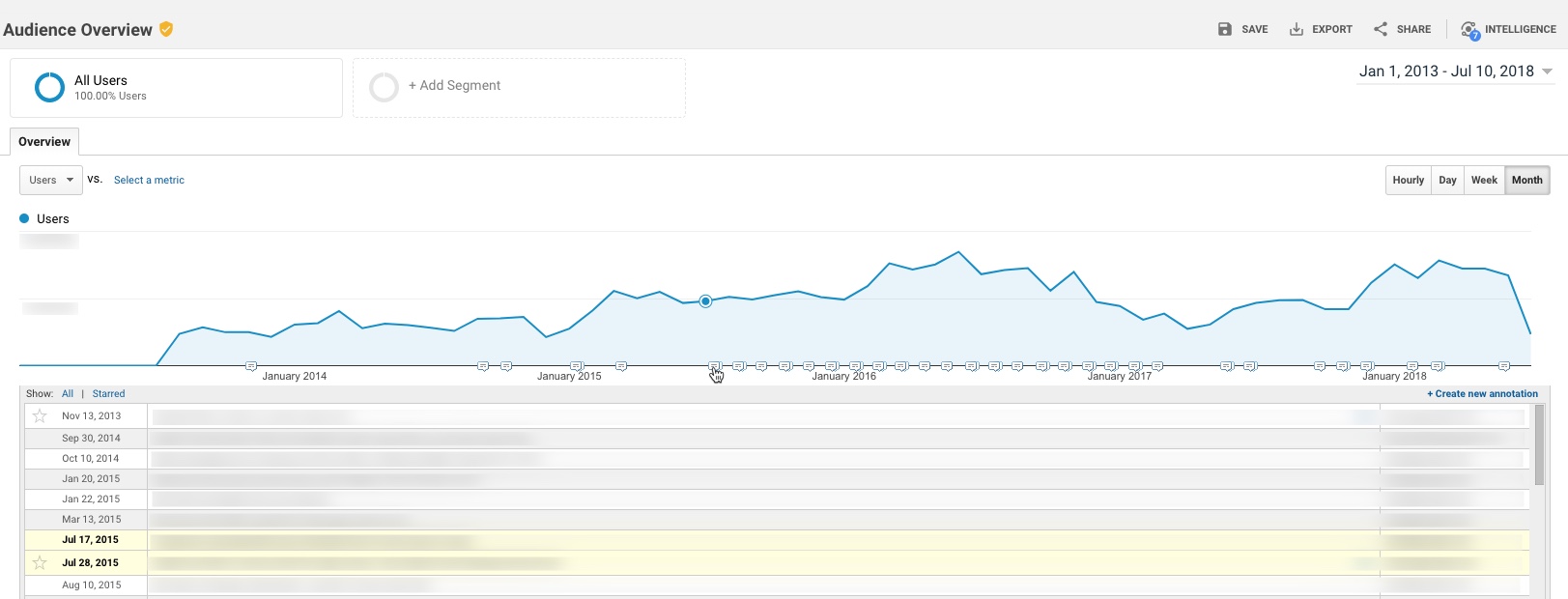
Within Google Analytics itself, there’s an available feature to add “Annotations” to your reports. These annotations show up as little markers on trend charts in all standard reports, and you can expand to read the details of a specific event.

However, there is a major challenge with annotations as they exist today: They essentially live in a silo – they’re not accessible outside the standard GA reports. This means you can’t access these annotations in:

  • Google Analytics flat-table custom reports
  • Google Analytics API data requests
  • Big Query data requests
  • Data Studio reports

While I can’t solve All.The.Things, I do have a handy option to incorporate annotations in to Google Data Studio. Here’s a quick example:

Not too long ago, Data Studio added a new feature that essentially “unified” the idea of a date across multiple data sources. (Previously, a date selector would only affect the data source you had created it for.)

One nifty application of this feature is the ability to pull a list of important events from a Google Spreadsheet in to your Data Studio report, so that you have a very similar feature to Annotations.

To do this:

Prerequisite: Your report should really include a Date filter for this to work well. You don’t want all annotations (for all time) to show, as it may be overwhelming, depending on the timeframe.

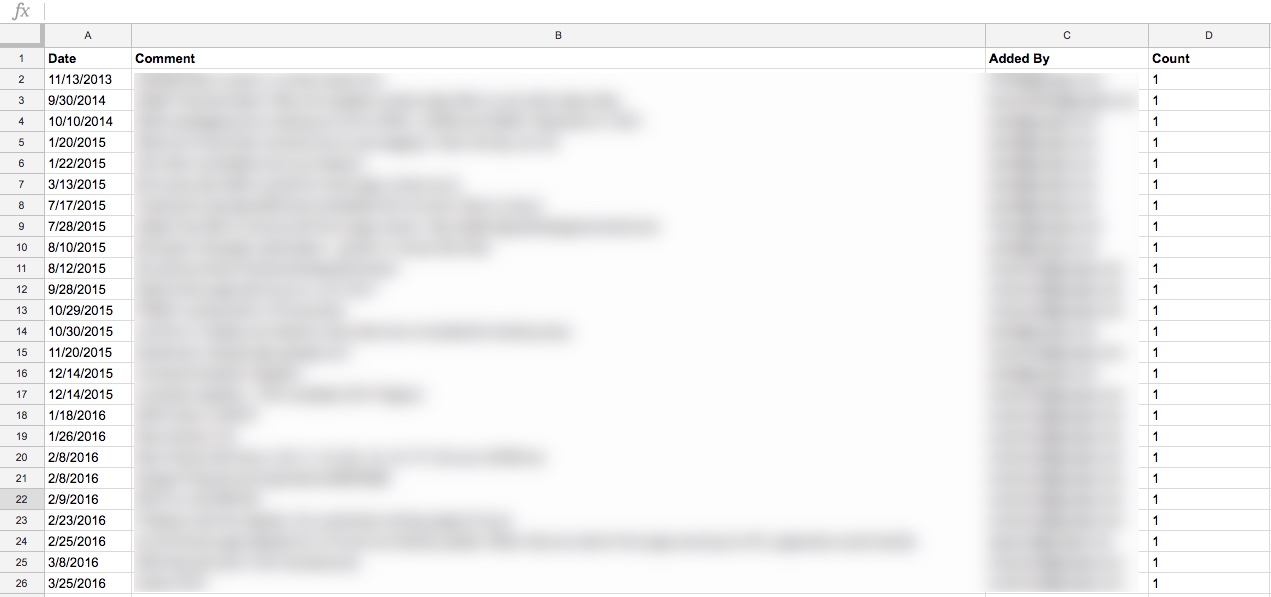
Step 1: Create a spreadsheet that contains all of your GA annotations. (Feel free to add any others, while you’re at it. Perhaps yours haven’t been kept very up to date…! You’re not alone.)

I did this simply, by just selecting the entire timeframe of my data set, and copy-pasting from the Annotations table in GA in to a spreadsheet

You’ll want to include these dimensions in your spreadsheet:

  • Date
  • The contents of the annotation itself
  • Who added it (why not, might as well)

You’ll also want to add a “dummy metric”, which I just created as Count, which is 1 for each row. (Technically, I threw a formula in to put a one in that row as long as there’s a comment.)

Step 2: Add this as a Data Source in Data Studio

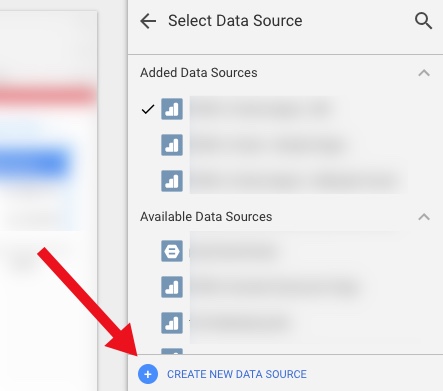
First, “Create New Data Source”

Then select your spreadsheet:

It should happen automatically, but just confirm that the date dimension is correct:

3. Create a data table

Now you create a data table that includes those annotations.

Here are the settings I used:

Data Settings:

  • Dimensions:
    • Date
    • Comment
    • (You could add the user who added it, or a contact person, if you so choose)
  • Metric:
    • Count (just because you need something there)
  • Rows per Page:
    • 5 (to conserve space)
  • Sort:
    • By Date (descending)
  • Default Date Range:
    • Auto (This is important – this is how the table of annotations will update whenever you use the date selector on the report!)

Style settings:

  • Table Body:
    • Wrap text (so they can read the entire annotation, even if it’s long)
  • Table Footer:
    • Show Pagination, and use Compact (so if there are more than 5 annotations during the timeframe the user is looking at, they can scroll through the rest of them)

Apart from that, a lot of the other choices are stylistic…

  • I chose a lot of things based on the data/pixel ratio:
    • I don’t show row numbers (unnecessary information)
    • I don’t show any lines or borders on the table, or fill/background for the heading row
    • I choose a small font, just since the data itself is the primary information I want the user to focus on

I also did a couple of hack-y things, like just covering over the Count column with a grey filled box. So fancy…!

Finally, I put my new “Notable Events” table at the very bottom of the page, and set it to show on all pages (Arrange > Make Report Level.)

You might choose to place it somewhere else, or display it differently, or only show it on some pages.

And that’s it…!

But, there’s more you could do 

This is a really simple example. You can expand it out to make it even more useful. For example, your spreadsheet could include:

  • Brand: Display (or allow filtering) of notable events by Brand, or for a specific Brand plus Global
  • Site area: To filter based on events affecting the home page vs. product pages vs. checkout (etc)
  • Type of Notable Event: For example, A/B test vs. Marketing Campaign vs. Site Issue vs. Analytics Issue vs. Data System Affected (e.g. GA vs. AdWords)
  • Country… 
  • There are a wide range of possible use cases, depending on your business

Your spreadsheet can be collaborative, so that others in the organization can add their own events.

One other cool thing is that it’s very easy to just copy-paste rows in a spreadsheet. So let’s say you had an issue that started June 1 and ended June 7. You could easily add one row for each of those days in June, so that even if a user pulled say, June 6-10, they’d see the annotation noted for June 6 and June 7. That’s more cumbersome in Google Analytics, where you’d have to add an annotation for every day.

Limitations

It is, of course, a bit more leg work to maintain both this set of annotations, AND the default annotations in Google Analytics. (Assuming, of course, that you choose to maintain both, rather than just using this method.) But unless GA exposes the contents of the annotations in a way that we can pull in to Data Studio, the hack-y solution will need to be it!

Solving The.Other.Things

I won’t go in to it here, but I mentioned the challenge of the default GA annotations and both API data requests and Big Query. This solution doesn’t have to be limited to Data Studio: you could also use this table in Big Query by connecting the spreadsheet, and you could similarly pull this data into a report based on the GA API (for example, by using the spreadsheet as a data source in Tableau.)

Thoughts? 

It’s a pretty small thing, but at least it’s a way to incorporate comments on the data within Data Studio, in a way that the comments are based on the timeframe the user is actually looking at.

Thoughts? Other cool ideas? Please leave them in the comments!

Analysis, Presentation

10 Tips for Presenting Data

Big data. Analytics. Data science. Businesses are clamoring to use data to get a competitive edge, but all the data in the world won’t help if your stakeholders can’t understand, or if their eyes glaze over as you present your incredibly insightful analysis. This post outlines my top ten tips for presenting data.

It’s worth noting that these tips are tool agnostic—whether you use Data Studio, Domo, Tableau or another data viz tool, the principles are the same. However, don’t assume your vendors are in lock-step with data visualization best practices! Vendor defaults frequently violate key principles of data visualization, so it’s up to the analyst to put these principles in practice.

Tip #1: Recognize That Presentation Matters

The first step to presenting data is to understand that how you present data matters. It’s common for analysts to feel they’re not being heard by stakeholders, or that their analysis or recommendations never generate action. The problem is, if you’re not communicating data clearly for business users, it’s really easy for them to tune out.

Analysts may ask, “But I’m so busy with the actual work of putting together these reports. Why should I take the time to ‘make it pretty’?”

Because it’s not about “making things pretty.” It’s about making your data understandable.

My very first boss in Analytics told me, “As an analyst, you are an information architect.” It’s so true. Our job is to take a mass of information and architect it in such a way that people can easily comprehend it.

… Keep reading on ObservePoint‘s blog …